 Emily CarterData Recovery
If a PSD file disappeared after a crash, was deleted, or saved with unwanted edits, act according to what happened. Restart Photoshop first after a crash. Check the Recycle Bin for a recently deleted file. Use a prior backup when you need an earlier version. If none of those paths has the file, Fionn Data Recovery provides a separate scan-and-recovery route. This guide covers four methods, starting with the quickest option for each situation. Avoid saving new files to the affected drive until you have checked the recovery options.
Quick Method Comparison
| Method | Best For | Efficiency | User Effort |
|---|---|---|---|
| Restart Photoshop | An unsaved PSD after an unexpected crash | Fast when recovery information exists | Low |
| Fionn Data Recovery | A deleted or missing PSD not found through normal locations | Scan-based recovery | Moderate |
| Recycle Bin | A PSD deleted in Windows and not permanently removed | Fast | Low |
| File History | An earlier saved copy or a deleted file from a backed-up folder | Fast when File History was enabled | Moderate |
Choose the method that matches the symptom. A crash points to Photoshop recovery information; a normal deletion points to Recycle Bin; an unwanted saved edit points to File History. A file absent from those locations may need scan-based recovery.
Method 1: Reopen Photoshop After a Crash
When to use: Photoshop or Windows stopped unexpectedly before you saved the current work.
Photoshop can save recovery information at intervals when the File Handling preference is enabled. Adobe states that, after a crash, restarting Photoshop can recover the work automatically. This method can restore changes saved in recovery information, not necessarily every change made since the last interval.
- Close any remaining Photoshop process after the crash.
- Open Photoshop again.
- Look for the recovered document that Photoshop opens automatically.
- Use
File > Save As
to save the recovered work under a new PSD name.
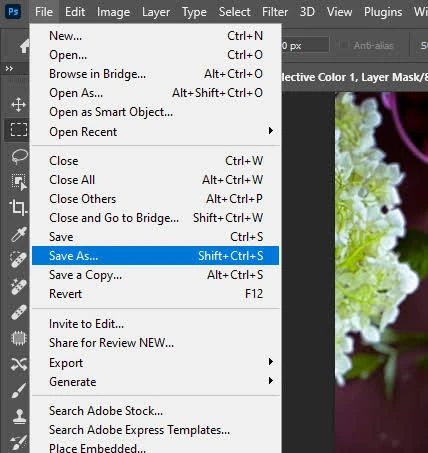
Verification: Confirm that the document opens, its layers are present, and the new PSD saves to a known folder.
See Adobe’s Photoshop file-loss prevention guidance for the current recovery settings.
Method 2: Recover a PSD File with Fionn Data Recovery
When to use: The PSD is deleted, the Recycle Bin is empty, or the expected folder no longer contains it. This is the recommended scan-based option in this guide because it supports file filtering and preview before recovery.
- Launch Fionn Data Recovery and select the recovery option for the type of data or storage location you want to recover.
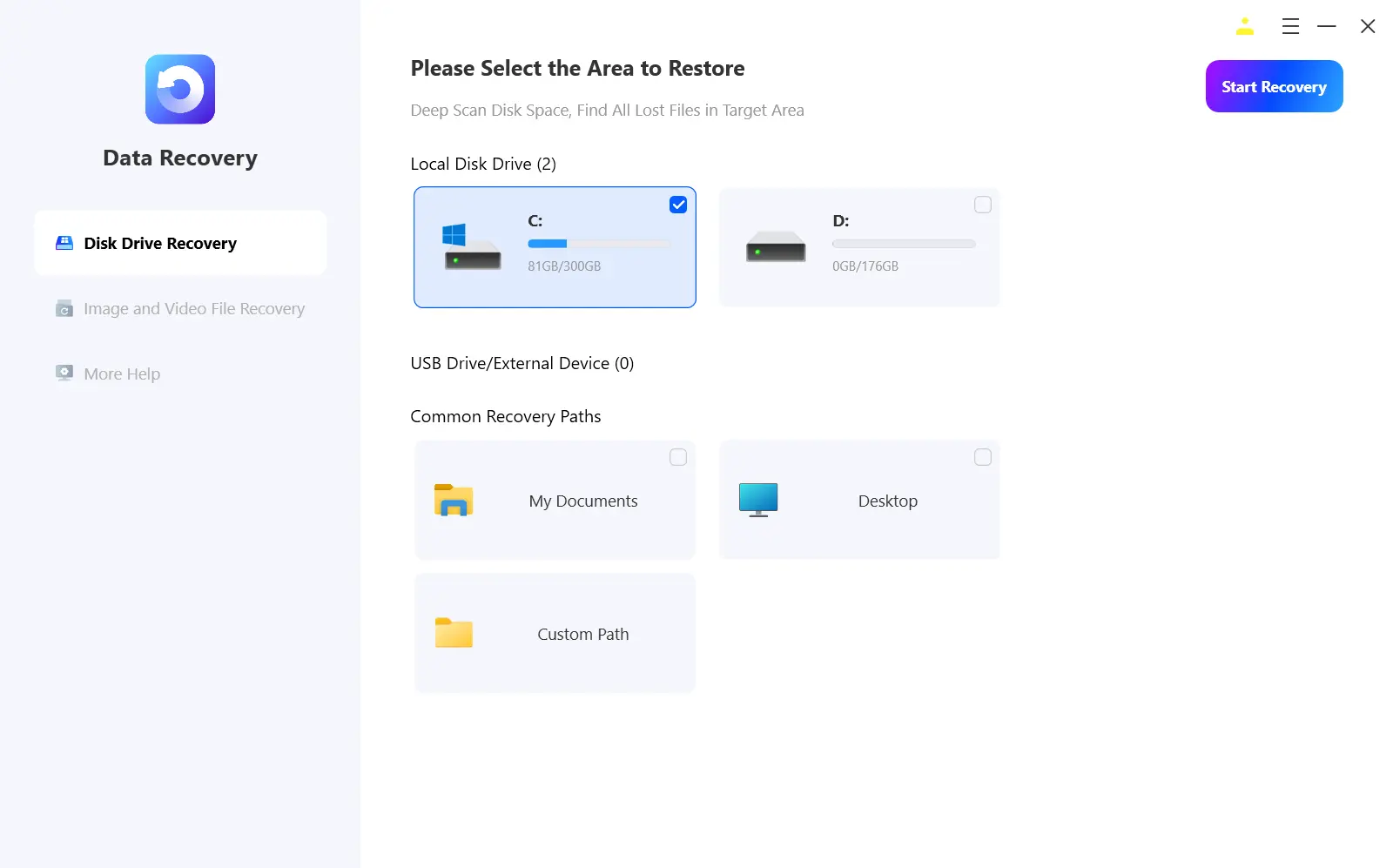
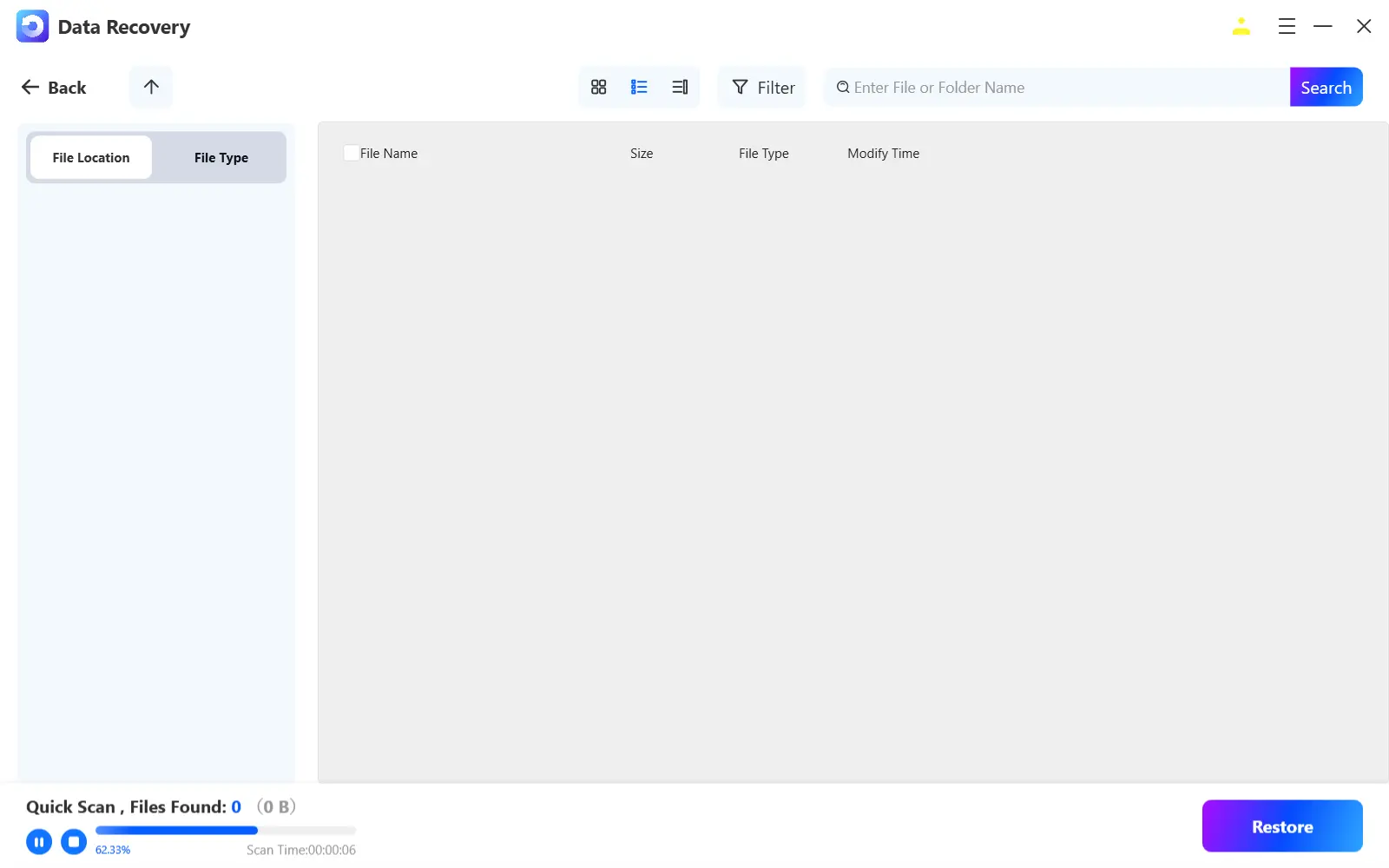
- Start the automatic scan and wait while Fionn Data Recovery searches the selected location for deleted or lost files.
- After the scan finishes, browse the results and preview the files to select the data you want to restore.
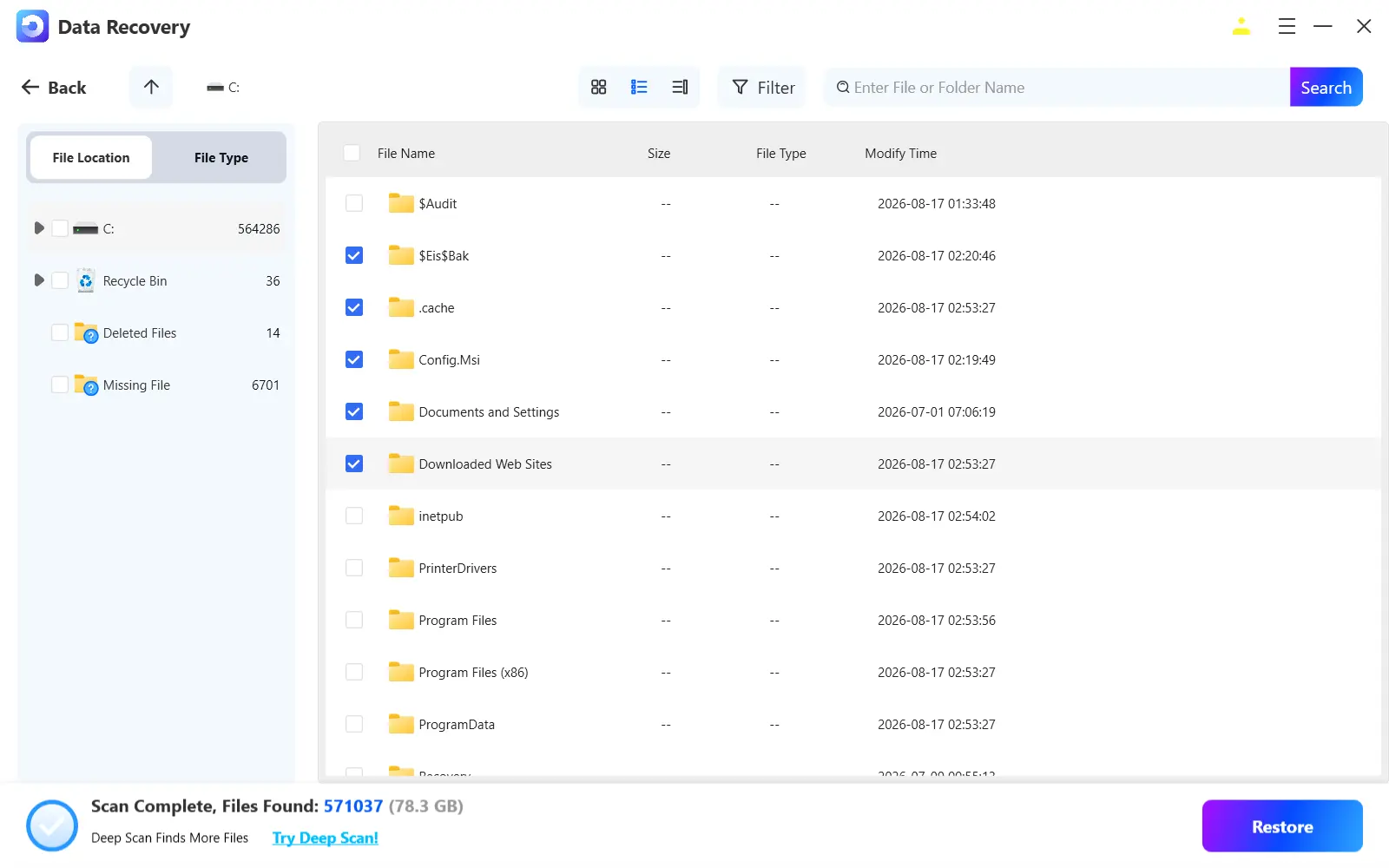
- Select a destination folder to save the recovered files, then start the recovery process.
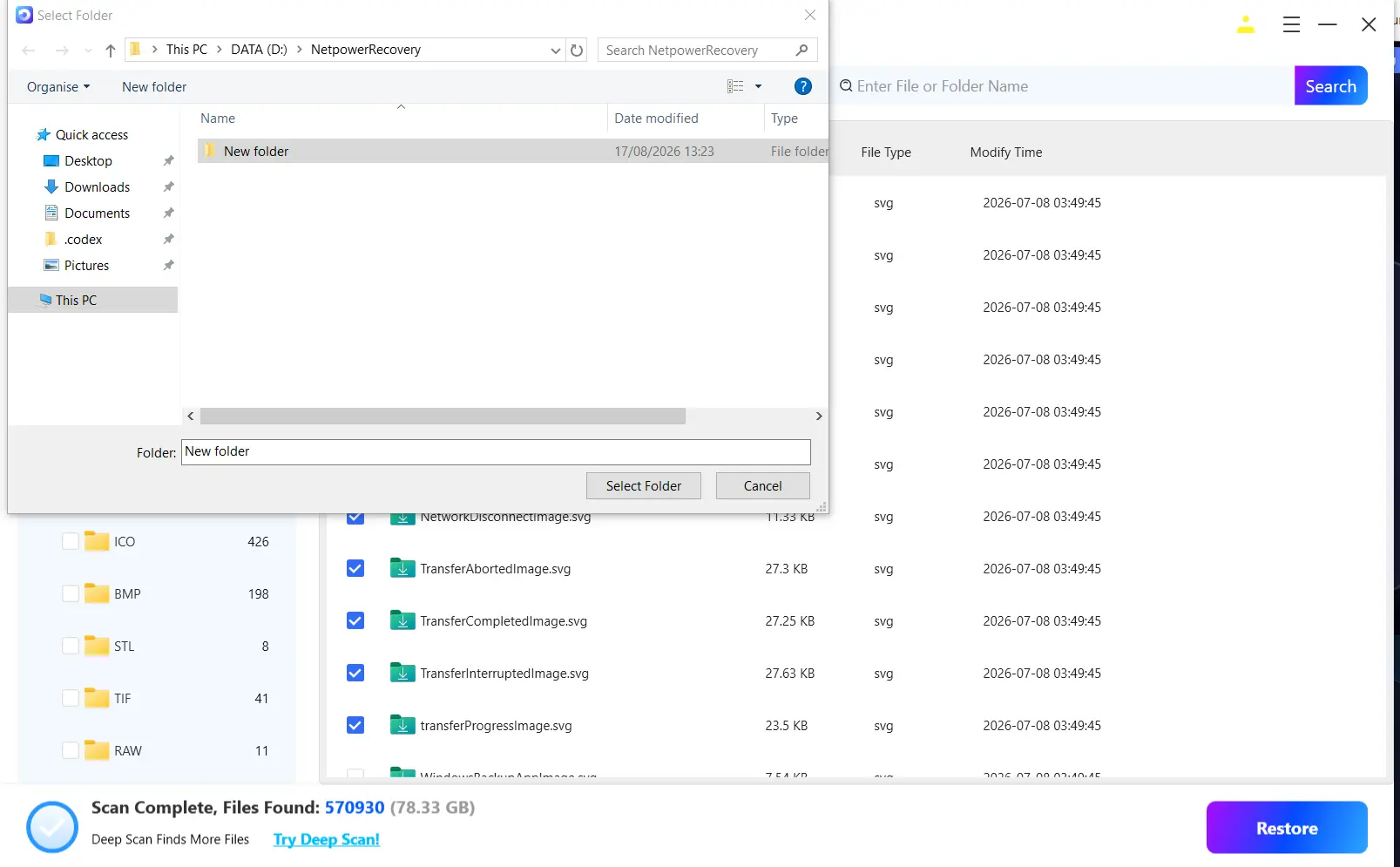
Verification: Open the recovered PSD from the destination disk in Photoshop. Check the canvas, layers, and file name before deleting any other copies.
Method 3: Restore a Deleted PSD from Recycle Bin
When to use: You deleted the PSD from File Explorer and have not emptied the Recycle Bin.
- Open Recycle Bin from the Windows desktop.
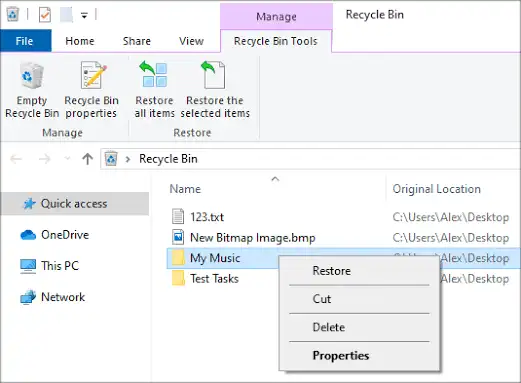
- Sort or search for the missing file name, then identify the PSD by its
.psdextension. - Right-click the PSD and select Restore .
Verification: Windows returns the file to its original folder. Open it in Photoshop and immediately use Save As if you want a separate working copy.
This route does not help when the item was permanently deleted or the bin was emptied.
Method 4: Restore an Earlier PSD with File History
When to use: You need an older saved state, or a deleted PSD was in a folder that File History had already backed up.
- Open File Explorer and go to the folder that contained the PSD.
- Right-click the folder and select
Restore previous versions
.
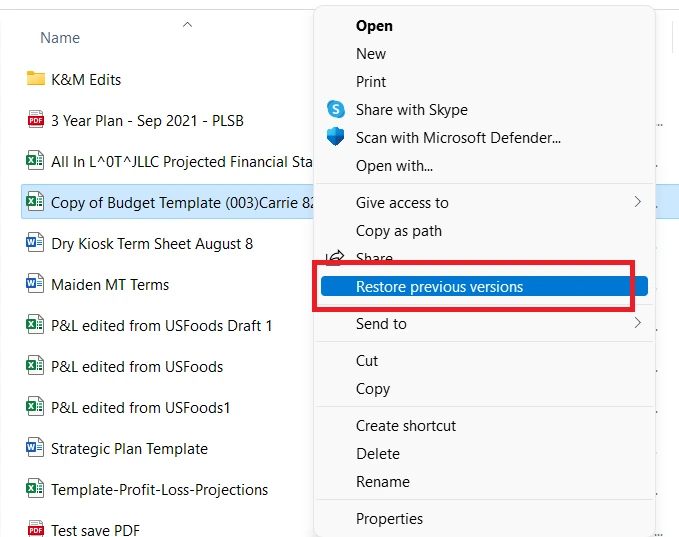
- Select an available version that predates the loss or unwanted edit.
- Open the selected version to check for the PSD, then choose Restore to and select a different location.
Verification: Open the copy restored to the new location in Photoshop and compare its modified date and layers with the current file.
Follow Microsoft’s File History restore instructions if the Previous Versions list is available.
Tips to Prevent Another PSD Loss
- Use Save As before major edits so the original PSD remains available.
- Enable Photoshop recovery information and choose an interval that suits your work.
- Keep versioned copies in a folder covered by File History or another backup process.
- After recovery, inspect layers and image content before overwriting or removing other copies.
Conclusion
Start by reopening Photoshop after a crash, because its recovery information may reopen the unsaved document. For a normal deletion, check Recycle Bin before scanning. Use File History when you need a saved version from an earlier date. When those routes do not produce the PSD, Fionn Data Recovery can scan the selected location, let you preview results, and save a chosen file elsewhere. Verify recovery by opening the copy in Photoshop and checking the layers and image content before you resume editing.
FAQ
Can Photoshop recover an unsaved PSD file?
It can reopen work after a crash when recovery information was saved and Photoshop starts again. The recovered state can be older than the last edit because recovery occurs at intervals.
Where should I save a recovered PSD?
Save it to a new folder or a different disk first. This keeps the recovered copy separate from any existing file while you verify it.
Can I recover a PSD after emptying Recycle Bin?
Recycle Bin cannot restore an emptied item. Check a previous backup first; if no backup exists, use a scan-based recovery method and avoid writing new data to the affected disk.
Will File History restore every Photoshop version?
No. It can restore only versions that were backed up while File History was configured to protect the relevant folder.
How do I know whether a recovered PSD is usable?
Open it in Photoshop, inspect the image and layers, and save a separate copy only after confirming the content you need is present.


