 Emily CarterAuto Clicker
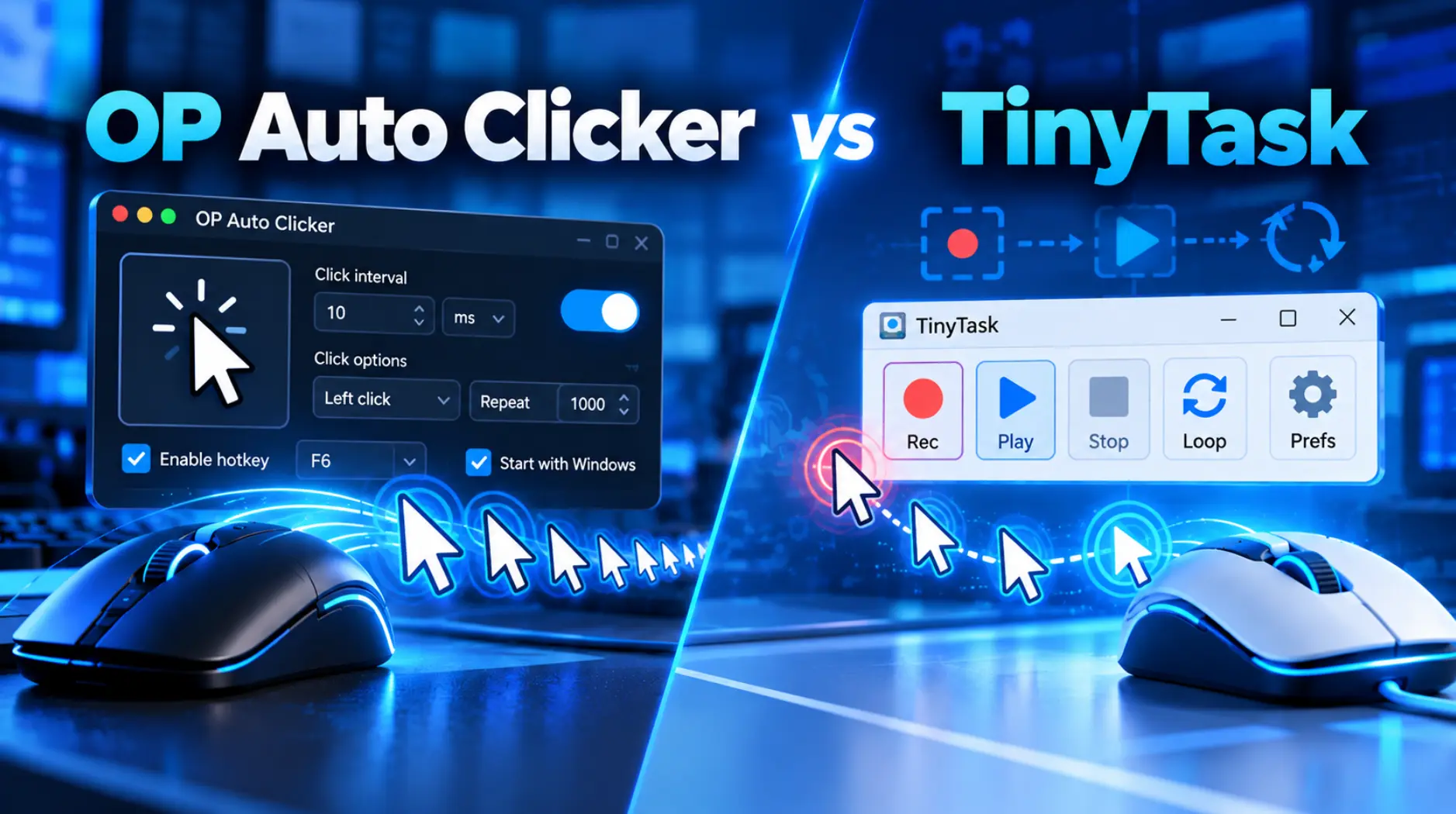
OP Auto Clicker and TinyTask suit different Windows automation tasks. Choose OP Auto Clicker when one mouse action must repeat at the cursor or a fixed location. Choose TinyTask when you need to capture and replay a sequence of mouse movement, clicks, and keystrokes. If you need simple clicking now but expect to need recording, scheduling, or conditional scripts later, Fionn Auto Clicker is a relevant Windows alternative.
Quick Comparison
The practical distinction is action scope: OP Auto Clicker repeats click settings you choose, while TinyTask replays the sequence you record.
OP Auto Clicker for Repeated Clicking
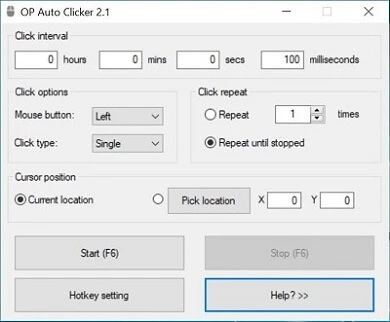
OP Auto Clicker is the direct fit for one repeated click pattern. Its documented controls include interval, mouse button, single, double, or triple click type, repeat count, and a cursor-following or fixed click location. Its settings can be saved, including the last fixed location.
Use this workflow when repeated clicking is the whole task:
- Set the interval between clicks.
- Select the mouse button and click type.
- Set the repeat mode and click count.
- Select the click location.
- Start with the Start button or the default F6 hotkey.
Start with a small finite count and confirm that the intended target responds before choosing a longer or unlimited run. The documented procedure is available in the official OP Auto Clicker getting-started guide .
TinyTask for Recorded Macro Replay
TinyTask is a macro recorder rather than only a click repeater. It records mouse movement, clicks, and keystrokes, then replays them at the recorded coordinates and timing. It is better suited to a stable sequence than to an interface whose layout or state changes.
To create a reusable recording:
- Maximize the target window before recording because TinyTask uses absolute screen coordinates.
- Launch TinyTask and begin recording with Record or Ctrl+Shift+Alt+R.
- Perform the actions at a normal pace, then stop recording.
- Save the recording as a .rec file.
- Reload the .rec file to inspect the captured sequence before relying on or sharing it.
For replay, set the loop count to one for a single run, a positive number for fixed repetitions, or zero for continuous looping. Stop a continuous loop with Ctrl+Shift+Alt+P or Stop. Break, ScrollLock, and Pause are also documented emergency stop keys. See the TinyTask FAQ , feature page , and support guidance .
Feature Comparison
TinyTask has no built-in scheduler. Its compiled EXEs run once at recorded speed without loop or speed controls. For a downloaded TinyTask file, compare its SHA-256 hash with the value published on the official download page .
Recommended alternative: Use Fionn Auto Clicker for configurable clicking
Choose this option when you want a Windows clicker with configurable click type, interval, repetition count, and hotkeys, while retaining a path to recording, scripts, or scheduled tasks. Use only a controlled target where automation is allowed.
First, physically click the intended target once and confirm that it responds.
Identify the exact click position or target key before automating anything.
For normal auto-clicking only, open Fionn Auto Clicker and select Mouse Clicking > Normal Click. Choose the mouse button, click method, and click position. Set the click interval and repetition options, then select Start Auto-Click (F6).
Run a small, finite automated test at the chosen target.
Compare the visible result with the response from your physical click.

- After confirming the click routine, select Stop Clicking or press F6. Check that automatic clicking has stopped before moving the pointer or changing settings.

Pros and Cons
OP Auto Clicker
TinyTask
Fionn Auto Clicker
Which Tool Should You Choose?
Choose OP Auto Clicker for one repeated click at a cursor-following or fixed spot. Choose TinyTask when you must reproduce a stable sequence of typing and mouse actions and can preserve the target window position. Choose Fionn Auto Clicker when you want simple clicking now and may later need recording, editing, scheduling, or recognition-based conditions.
Conclusion
For OP Auto Clicker vs TinyTask, neither is universally better. OP Auto Clicker is the narrower choice for configured repeated clicks; TinyTask is the better match for replaying a captured mouse-and-keyboard sequence. Choose based on the final action you need to complete, then begin with a small, observable run before expanding it.
FAQ
Is OP Auto Clicker a macro recorder?
Its documented features focus on repeated mouse clicks at the dynamic cursor or a specified location. TinyTask is the more directly matched option for recording mouse movement, clicks, and keystrokes as a sequence.
Why does a TinyTask macro click in the wrong place?
TinyTask records absolute screen coordinates. Maximize the target window before recording and keep it in the same position for playback. Re-record the macro if the layout has changed.
Can TinyTask repeat a macro more than once?
Yes. It supports a custom repeat count and a continuous loop. Use Ctrl+Shift+Alt+P or Stop to end continuous playback.
Can I verify a TinyTask download?
Yes. The TinyTask download page publishes SHA-256 hashes for EXE and ZIP downloads. Compare the hash of your downloaded file with the publisher’s value before use.
Which tool is better for a changing interface?
TinyTask replay is coordinate-dependent and does not provide pixel detection or conditional logic. A tool with conditional recognition support, such as Fionn Auto Clicker, is more appropriate when interface state must determine the next action.


