 Emily CarterAuto Clicker
To record and repeat mouse clicks , capture a short routine, save it, choose its playback count, and test it in a permitted low-risk area. Fionn Auto Clicker documents this workflow for its Windows product, which supports Windows 10 and Windows 11.
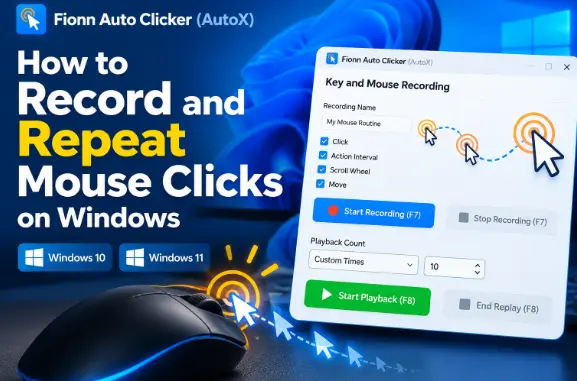
This guide covers mouse actions through Key and Mouse Recording .
Before you start
Use automation only where the target app, game, or service permits it. Begin in a harmless area rather than on actions that submit forms, spend credits, or change data.
Decide which actions the routine needs before you start. The documented selections configure the recording to capture clicks, action intervals, scroll-wheel activity, and pointer movement. This article does not provide keyboard-capture instructions because the current selector behavior for keyboard actions is not established.
Record and repeat mouse clicks with Fionn Auto Clicker
Use this route when you need to repeat a saved sequence instead of repeating one click at a fixed point.
- Open
Key and Mouse Recording
. Enter a Recording Name, select the action types to capture—Click, Action Interval, Scroll Wheel, and Move—and select
Start Recording (F7)
.
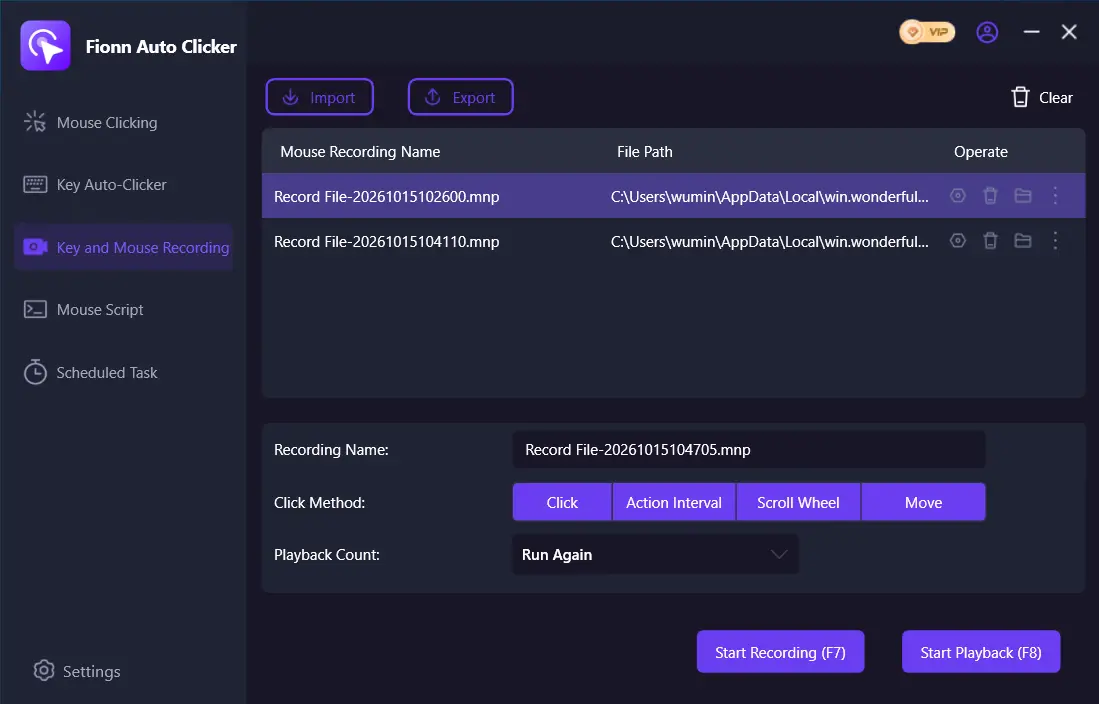
- Perform the mouse actions you want to record. While recording is active, the control changes to
Stop Recording (F7)
.
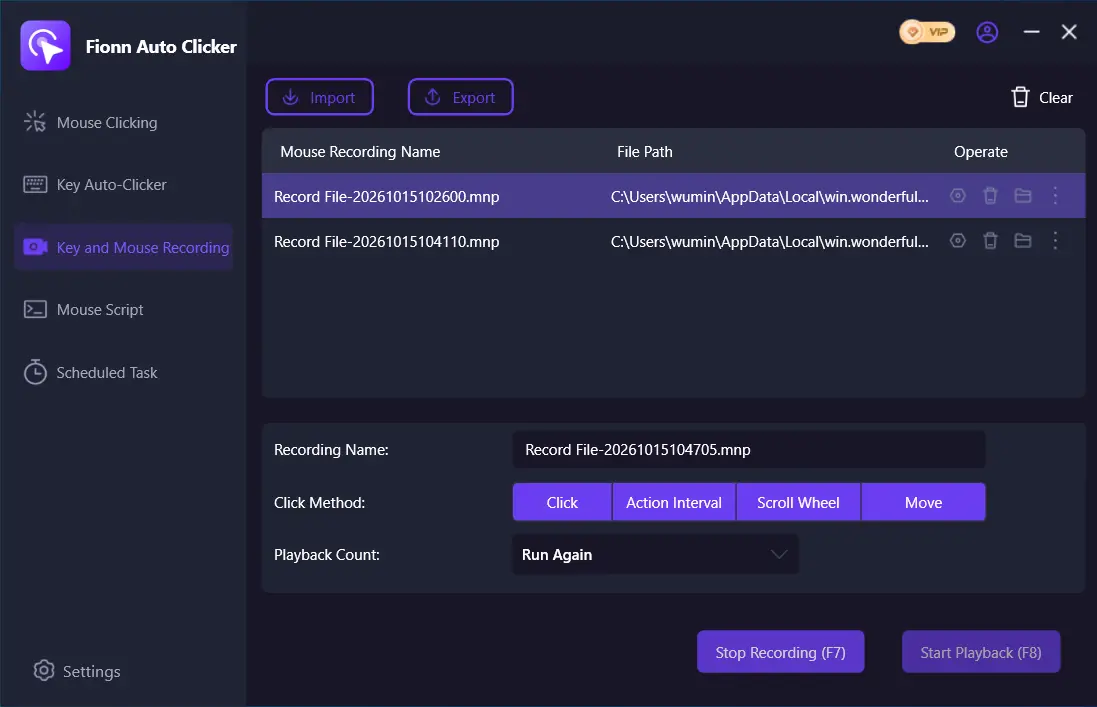
- Select
Stop Recording
or press
F7
. Confirm that the new recording appears in the list, then select the recording you want to replay.
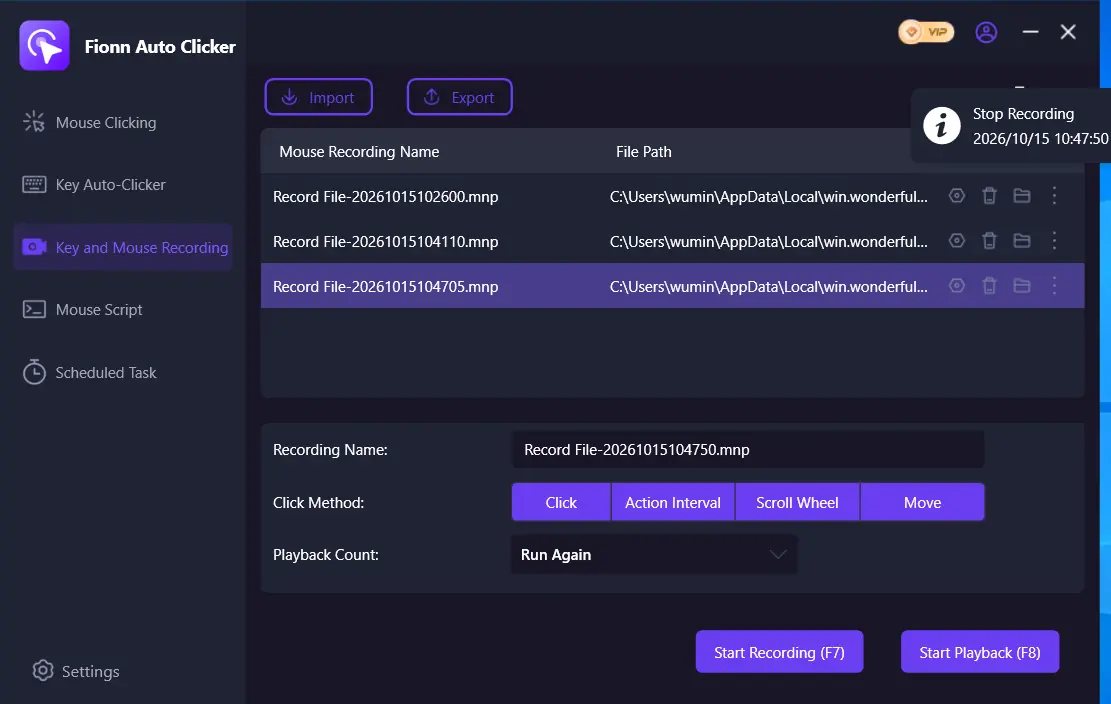
- Set
Playback Count
as needed. For a specific repeat count, choose
Custom Times
and enter a number. Select
Start Playback (F8)
to replay the chosen recording. During playback, select
End Replay (F8)
to stop.
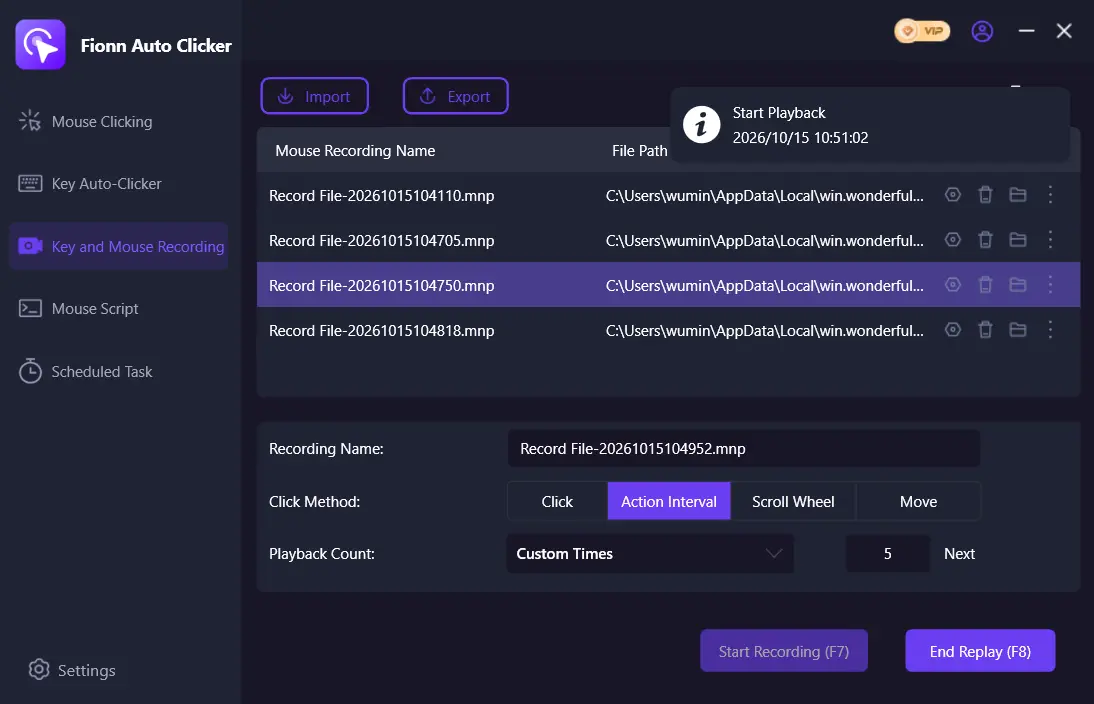
For a specific number of repeats, use Custom Times and enter that number. Start with a small count so you can watch the routine before using a longer replay.
Test the saved routine safely
Perform the reader check in a permitted, low-risk target: confirm that the new recording is listed, select it, start playback with F8, and observe whether the intended routine repeats the chosen number of times. Use End Replay or F8 to stop it.
If the saved recording does not appear, stop recording with F7 and confirm it is listed before trying to select or replay it. Do not rely on a recording until you have performed this check in your target.
Conclusion
In Fionn Auto Clicker (AutoX), name a routine in Key and Mouse Recording, choose the documented mouse-action capture types, record with F7, and confirm the saved item appears in the list. Then select it, set Playback Count—using Custom Times for an exact count—and start or stop playback with F8. Test first only where automation is permitted and the result is safe to observe.
Frequently Asked Questions
Do I need to use Normal Click before recording mouse actions?
No. Normal Click is a separate feature and is not a prerequisite for recording. Use Key and Mouse Recording to save and replay a sequence.
How do I stop recording and playback?
Stop recording with F7. During playback, use End Replay or F8 to stop the selected routine.
What should I check if the saved recording does not appear?
First stop the active recording with F7. Then confirm the recording is listed before selecting it for playback.
How do I repeat a recording a specific number of times?
Set Playback Count, choose Custom Times, and enter the number you want. Start the selected recording with F8, then observe the result in a permitted test area.
Does this guide cover keyboard recording?
No. The supplied recording setup documents mouse-related selections—Click, Action Interval, Scroll Wheel, and Move—but does not establish how keyboard capture is selected in the current screen.


