 Emily CarterAuto Clicker
Introduction
No listed tool has confirmed compatibility with Blade Ball. If automation is permitted where you play, Fionn Auto Clicker is the first Windows option to consider for configurable clicks, repeat counts, and hotkeys; its Blade Ball-specific compatibility is not established. For recorded desktop routines, image targeting, or explicit input caveats, the alternatives below offer different tradeoffs.
Top Picks
- Start with Fionn Auto Clicker for Windows clicking with custom intervals, loops, hotkeys, and an available path to recorded keyboard-and-mouse playback. Membership is required for unlimited clicking, recording, custom scripts, and scheduling.
- Choose AutoClicker (Fluffer) for advanced desktop sequences using image matching or OCR text targeting, provided its DirectInput limitation fits the target application.
- Choose Windows Autoclicker (TMHSDigital) when documented safety stops, time/click caps, foreground pause, and image targets matter most.
- Choose AutoClick for a simple ordered coordinate cycle with repeat controls and hundredth-second timing.
- Choose Macro Recorder for broader recorded desktop macros and image-based SmartClick when a paid upgrade is acceptable.
Quick Comparison Table
Fionn Auto Clicker
Consider Fionn Auto Clicker first for permitted Windows click routines that may later need recorded keyboard-and-mouse playback, image/color/text recognition, or scheduling. It supports configurable intervals, repeats, hotkeys, and up to 100 CPS Turbo Mode.
It fits users who want ordinary click control now and more structured desktop automation later, but Blade Ball compatibility is not verified and membership gates unlimited clicking, recording, custom scripts, and scheduling. Visit Fionn Auto Clicker for the product details.
How to use
- Normal auto-clicking only (no recording): Open Fionn Auto Clicker and select Mouse Clicking > Normal Click. Choose the mouse button, click method, and click position. Set the click interval and repetition options, then click Start Auto-Click (F6).

- After you have confirmed the click routine is working, stop Normal Click by clicking Stop Clicking or pressing F6. Check that automatic clicking has stopped before moving the pointer or changing the settings.

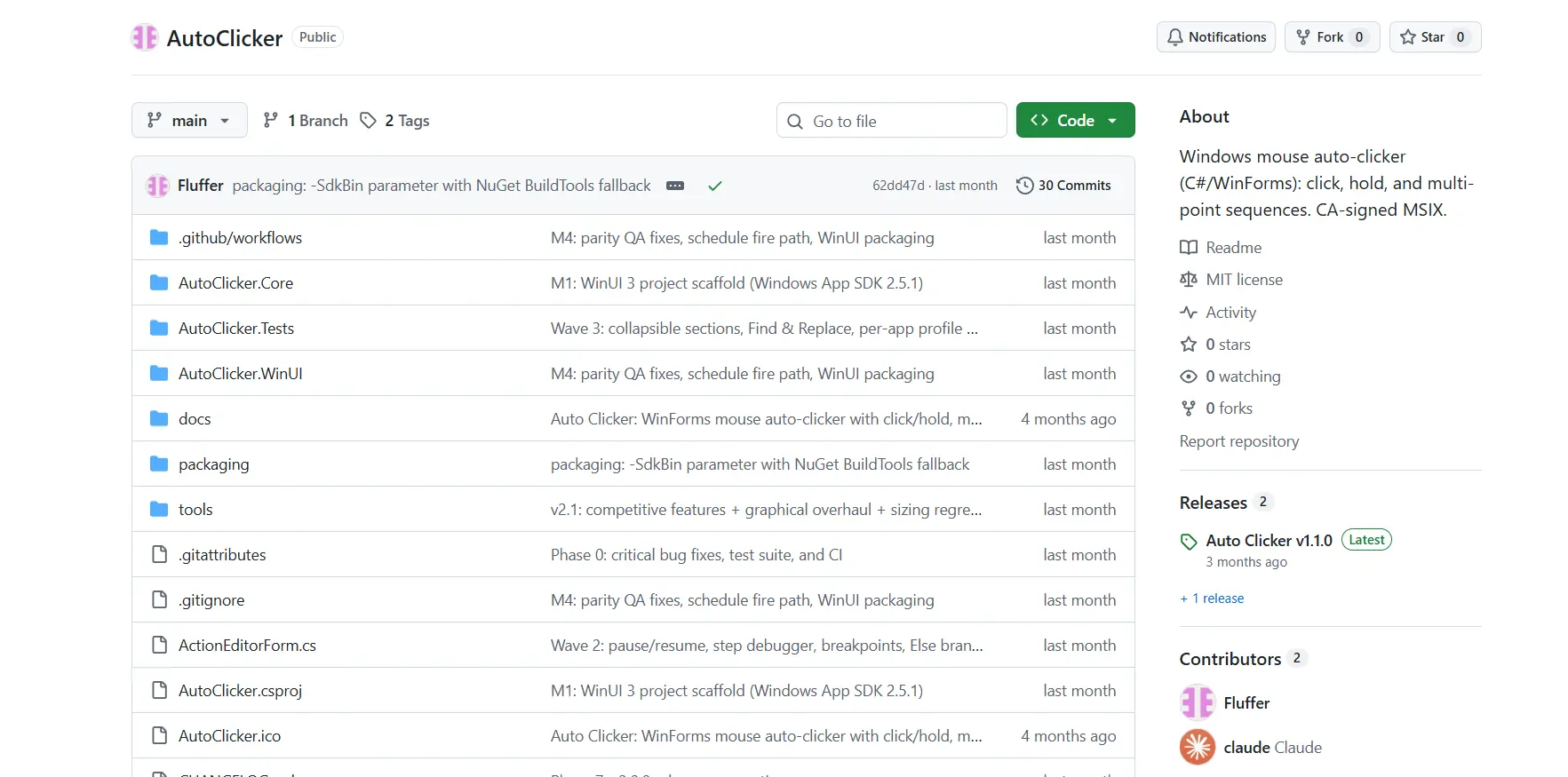
AutoClicker (Fluffer)
Choose this Windows tool for advanced desktop sequences involving recorded clicks, keys, waits, image matching, or OCR text targeting. Its documented sequences can be saved and loaded for reuse.
It is a better fit for complex desktop automation than a simple click loop, but not a confirmed Blade Ball solution. See the official AutoClicker repository .
Windows Autoclicker (TMHSDigital)
Consider this option when a Windows routine needs recorded replay, image targets, schedules, and clearly documented stop controls. Its design emphasizes bounded runs rather than only speed settings.
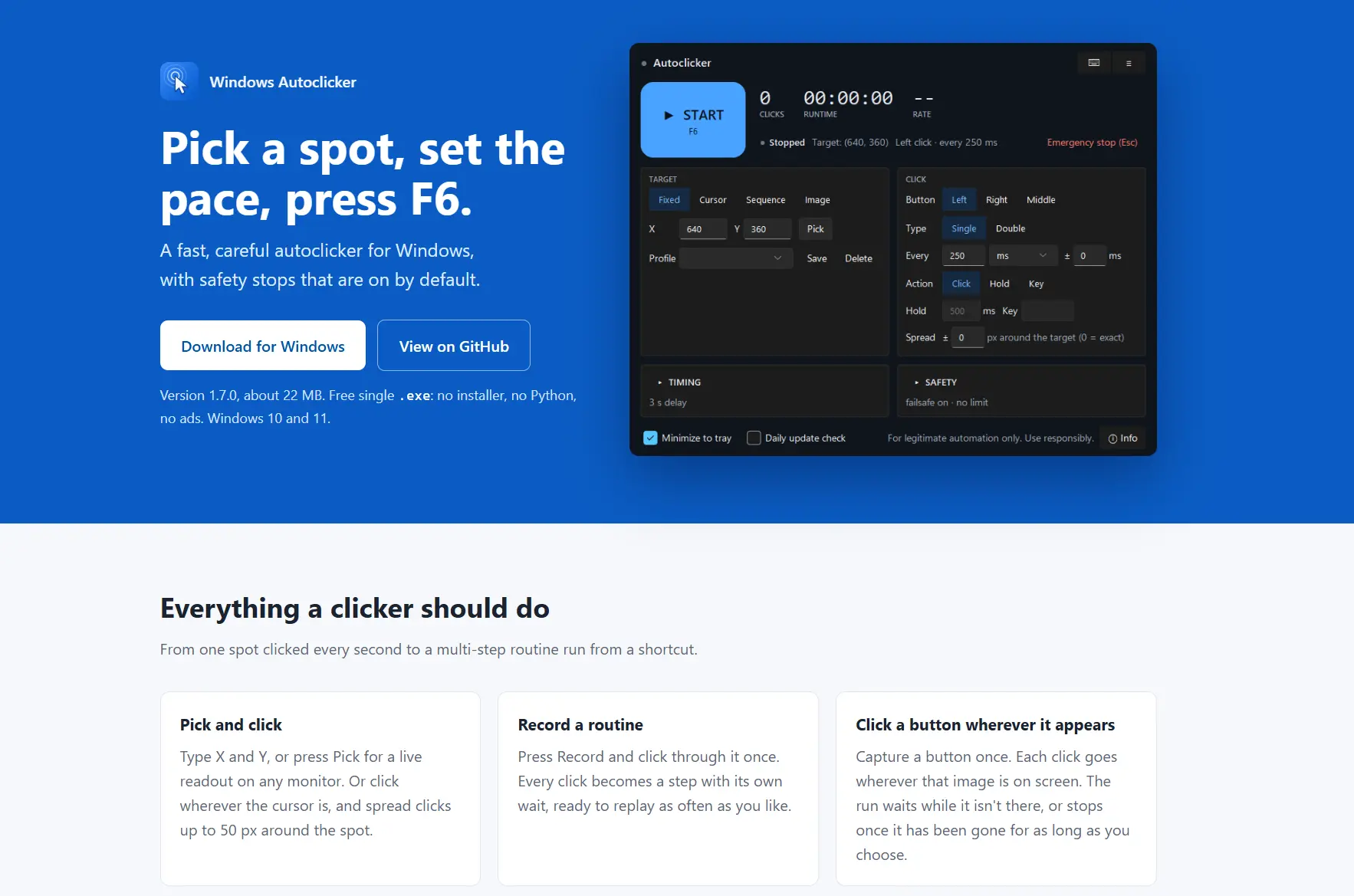
It suits users who prioritize explicit operational safeguards, while accepting that some games may ignore synthetic input. Visit the official Windows Autoclicker repository .
AutoClick
Choose AutoClick for a straightforward Windows coordinate pattern: its Record list cycles entries in order, with per-line button, click type, and delay settings.
It fits simple multi-position patterns where portable and installer builds, repeat counts, and global hotkeys are enough. The official AutoClick repository does not establish image targeting or scheduling.
Macro Recorder
Macro Recorder is the better match for full mouse-and-keyboard macro capture with infinite playback and image-based SmartClick. It can also use window-relative clicking.
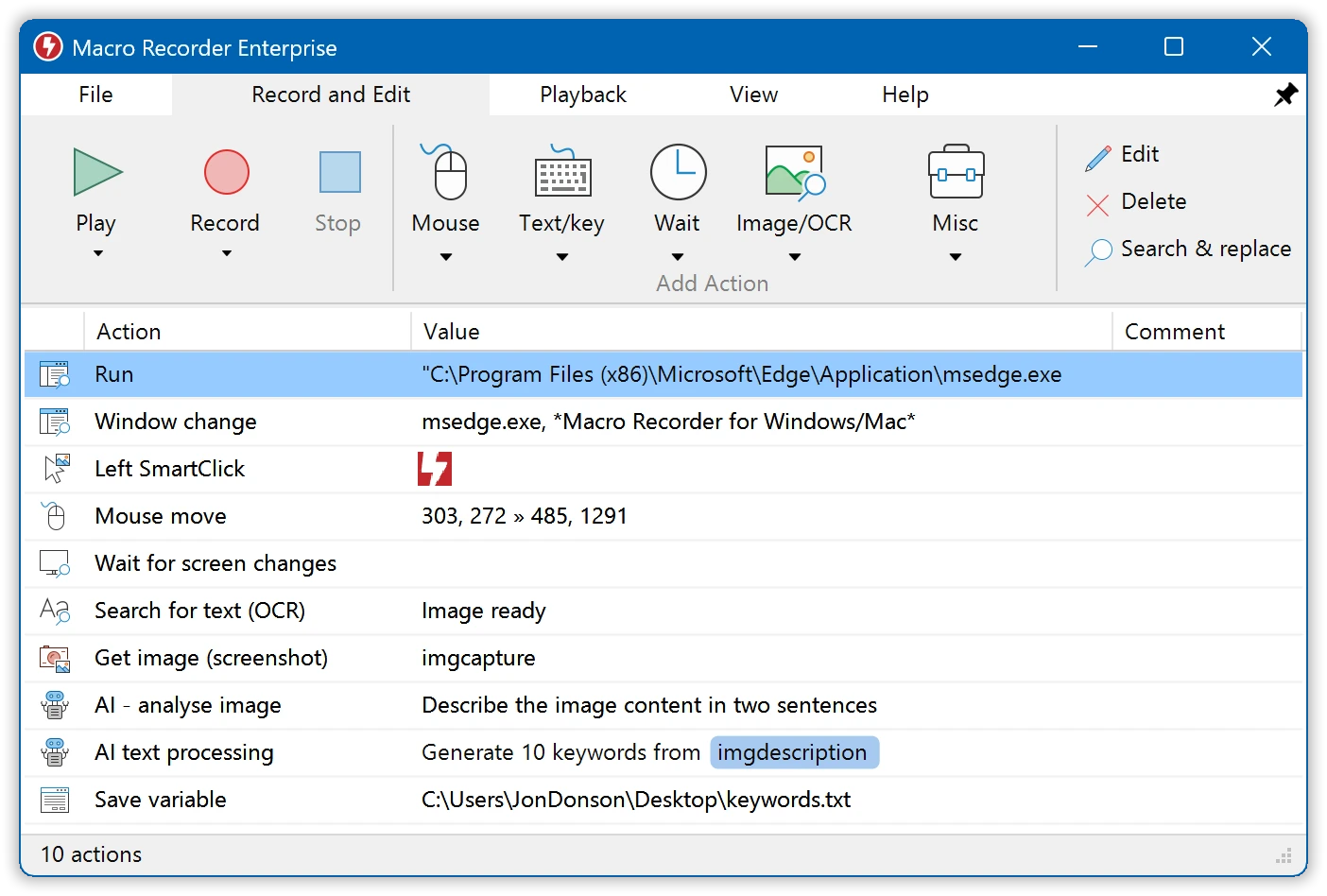
Consider it for broader desktop macro work when an available paid upgrade is acceptable; it is not a confirmed game-input answer. The official Macro Recorder download page lists its Windows build.
AutoClicker (kai9987kai)
This Windows automation utility is worth considering for CPS-based pacing, recorded point-list sequences, photo/colour clicking, scheduled starts, and pause/resume control.
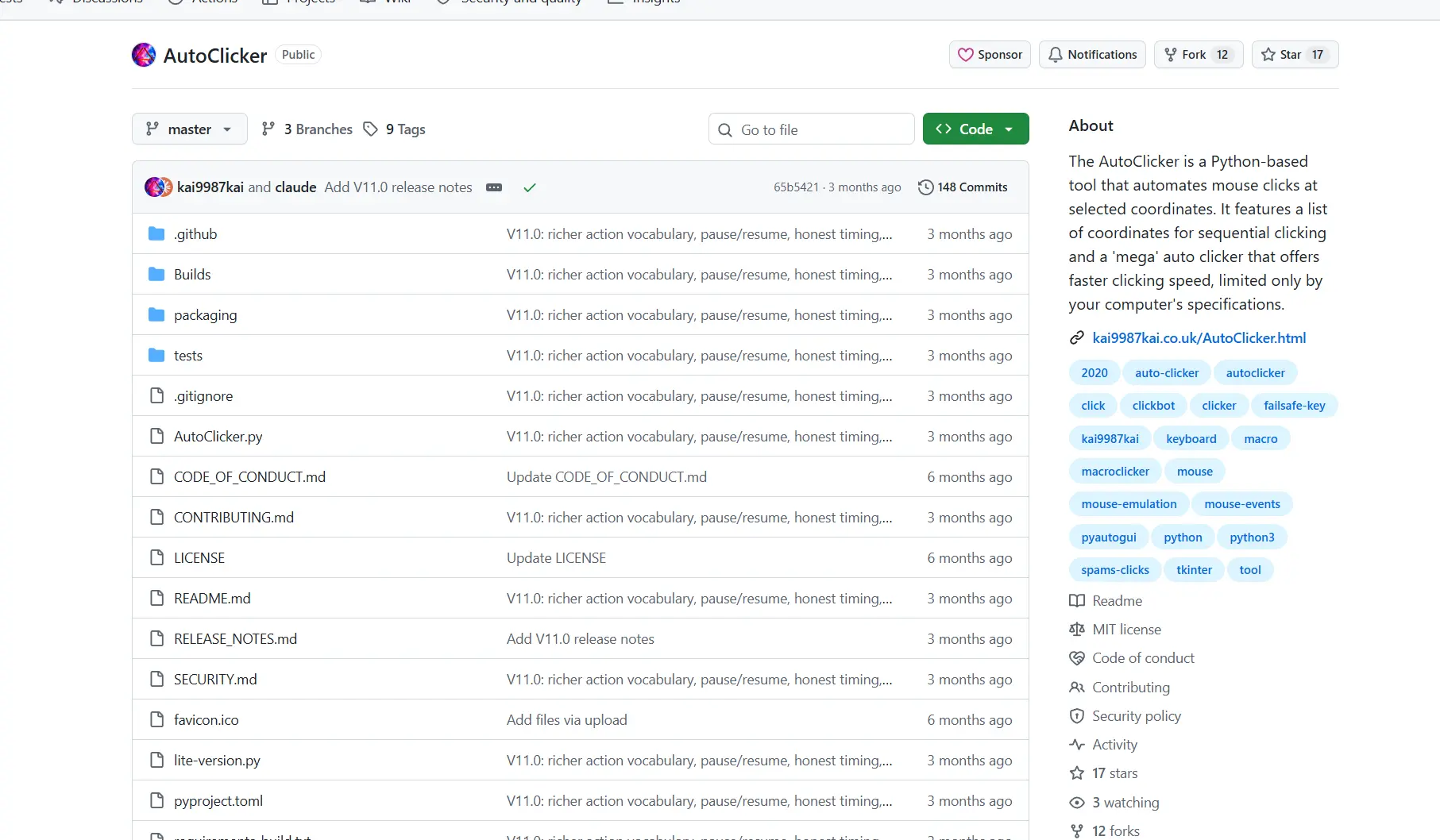
It is aimed at power users comfortable with a Python-based tool and its dependencies. Its price, OCR support, and game/raw-input compatibility are not verified. Review the official AutoClicker repository .
How We Compared
Each candidate was compared on the same six documented dimensions: Windows availability and release format; clicking and multi-target capability; license or pricing model; meaningful input and safety constraints; timing and controls; and dated release evidence. Game compatibility was kept separate from desktop capability because neither follows automatically from the other.
How to Choose
First, confirm that automation is allowed and avoid treating any desktop claim as proof of game support. For a basic Windows click loop, start with Fionn Auto Clicker and assess its membership limits. For OCR or image-driven desktop logic, compare Fionn with Fluffer or Macro Recorder. For bounded runs and stop paths, look at TMHSDigital. For an ordered coordinate cycle without image targeting, AutoClick is the narrower choice.
Final Verdict
Consider Fionn Auto Clicker first for permitted Windows click routines when you want configurable clicking now and the option of recording, recognition, and scheduling later. It supports Windows 10 and 11, but offers three free trials and a membership plan, and Blade Ball compatibility is not established. Choose Fluffer for OCR-driven desktop sequences, TMHSDigital for documented safety controls, AutoClick for a simple coordinate cycle, or Macro Recorder for broader recorded macros with a paid upgrade path.
FAQ
Can an auto clicker be confirmed to work with Blade Ball?
No candidate in this comparison has confirmed Blade Ball compatibility. Windows support and documented click features do not prove that a game accepts synthetic input.
Which option has the clearest game-input limitation?
AutoClicker (Fluffer) states that only real input reaches DirectInput games. Windows Autoclicker (TMHSDigital) also notes that some games may ignore synthetic input.
Is Fionn Auto Clicker free?
Fionn Auto Clicker provides three free trials and a membership plan. Unlimited clicking, recording, custom scripts, and scheduling require membership.
Which tools support recorded multi-position routines?
Fionn Auto Clicker, AutoClicker (Fluffer), Windows Autoclicker (TMHSDigital), AutoClick, Macro Recorder, and AutoClicker (kai9987kai) each document recorded or ordered multi-position capabilities, with different controls and constraints.


