 Emily CarterData Recovery
An unexpected end of archive error usually means the archive reader cannot find the data it expects before the file ends. First distinguish two situations: if 7-Zip cannot show a file list at all, check the archive or file structure; if the list is visible but extraction fails, investigate a password, an extraction error, or damaged contents separately. Start with a new source copy, then inspect format and multipart files, and use original-file recovery only when the originals were lost from local storage.
Symptoms
7-Zip may say that it cannot open the file as an archive, show no contents, or stop during extraction. If other 7z archives open normally, the issue is likely limited to this file. If all archives fail in one application, check that application's installation or setup.
- The archive shows no file list.
- The problem started after a download or copy.
- The filename ends in
.7z.001,.7z.002, or similar. - The contents are visible, but extraction stops or reports another error.
Quick Diagnosis Checklist for Unexpected End of Archive
| What you observe | What it indicates | Next step |
|---|---|---|
| 7-Zip cannot display any files. | Check an incomplete transfer, archive structure, actual format, or missing parts. | Use Method 1, then Method 2. |
| Other 7z archives open normally. | The problem is probably specific to this file. | Use Method 1. |
The name ends in
.7z.001
,
.7z.002
, and so on.
| This is likely a multipart archive. | Use Method 2. |
| Several compatible archive programs cannot read the same file. | The archive or file is more likely invalid or damaged. | Use Method 2. |
| Contents are visible, but extraction fails. | This is a different extraction scenario. | Check the password, extraction message, and damaged contents separately. |
| No usable archive copy is available, but the original files were deleted from local storage. | Original-file recovery may be a fallback. | Use Method 3. |
Method 1: Get the Source Archive Again
When to Use
Use this method after an interrupted download or copy, or whenever the sender or original source can provide a replacement.
Step-by-Step Guide
- Keep the failed archive until the replacement is confirmed valid.
- Check whether the source provides an expected size or checksum.
- Download or copy the archive again from the trusted source.
- Confirm the transfer completed.
- Compare the replacement with available source size or checksum information.
- Test the replacement in an empty extraction folder.
How to Verify
If the replacement opens and extracts completely, the original copy was likely incomplete or damaged during transfer. Identical failures from independently obtained copies point back to the source archive.
Method 2: Check the Archive Format and Structure
When to Use
Use this method when 7-Zip cannot show the file list, the extension may not reflect the real format, or the file may be one part of a split archive.
Step-by-Step Guide
- Confirm that the file was intended to be a 7z archive.
- Do not treat a
.7zextension as proof that the internal format is valid. - Check whether related parts use names such as
archive.7z.001,archive.7z.002, andarchive.7z.003.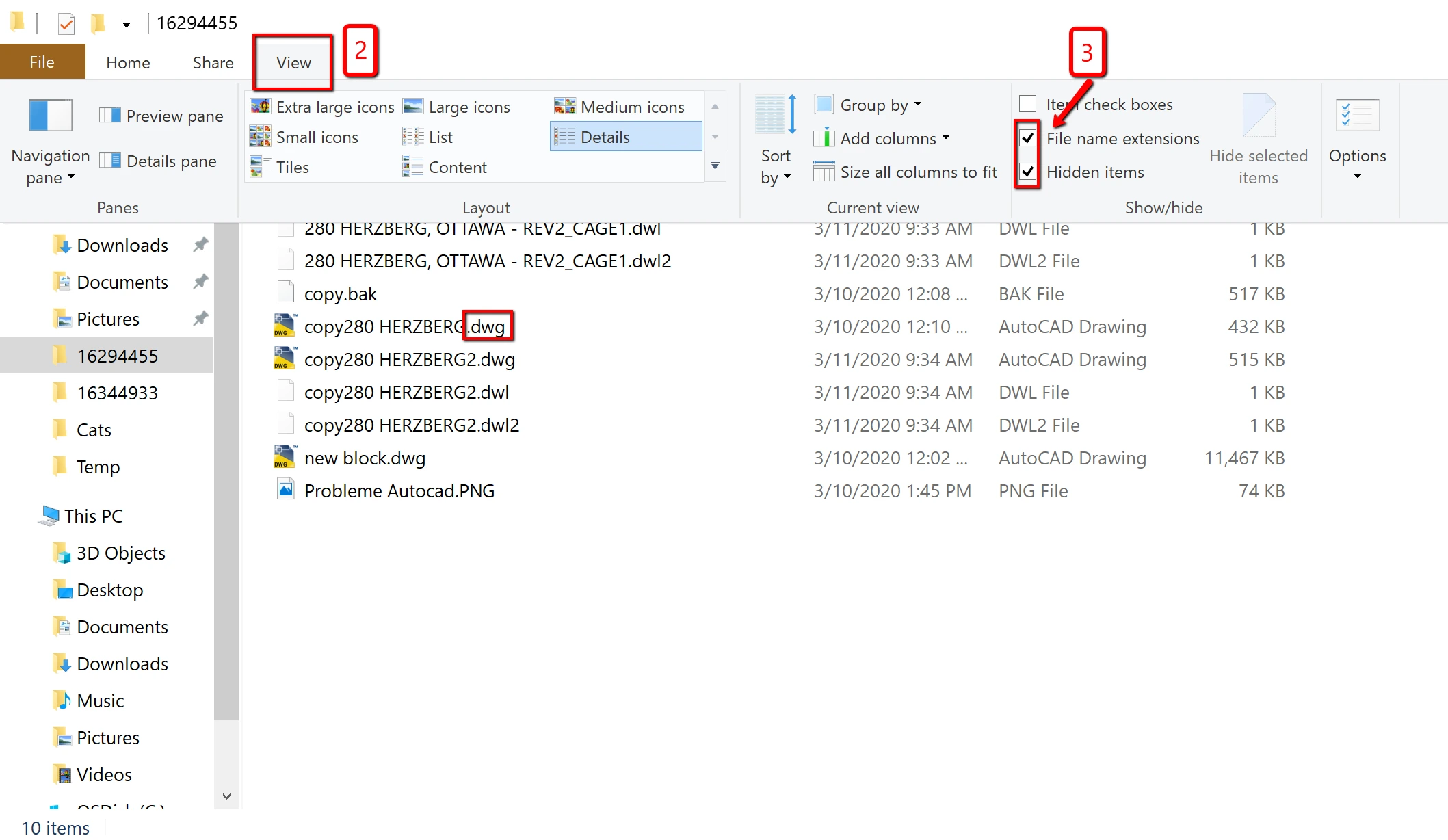
- Place every required part in the same folder.
- Start opening or extracting from the first part,
.7z.001. - Test a copy with another trusted local application that supports 7z.
How to Verify
All parts must be present and the first part must open the archive. If several compatible programs cannot read the same file, treat the archive itself as likely damaged or invalid; changing its extension does not repair it.
What to Do If the Archive Is Damaged
A damaged 7z archive cannot always be fully repaired. Make a duplicate before testing, and avoid modifying the only damaged copy. When possible, getting a clean copy from the sender or source is preferable.
Whether any files can be recovered depends on which archive area is damaged and what data remains readable. Do not rely on a repair attempt to restore every file.
Method 3: Fix Lost Original-File Access with Fionn Data Recovery
When to Use
Use this method only when no usable archive copy can be obtained, the archive cannot provide the needed files, and the original files previously existed on a local HDD or SSD, external disk, USB drive, SD card, or similar supported storage and were later deleted or lost. Fionn Data Recovery does not repair the internal structure of a damaged 7z archive; it searches for original files that existed outside the archive.
Step-by-Step Guide
- Launch Fionn Data Recovery and select the recovery option for the affected storage location.

- Start the scan for deleted or lost files on the selected location.

- Browse and preview the results to identify original files to restore.

- Choose a different destination disk and start recovery.

How to Verify
Previewed files that recover successfully to another disk can be opened and checked. This method cannot restore data that only ever existed in an incomplete downloaded archive and was never stored on the device.
Verification Checklist
- 7-Zip displays the expected archive file list.
- Extraction completes in an empty folder without an early-end error.
- Important extracted files open and contain expected content.
- Every multipart archive file is present in the same folder.
- Recovered original files are saved outside the affected device.
Conclusion
Start by checking whether 7-Zip can display the archive contents. No file list points to a transfer, format, structure, or multipart-file issue; a visible list with failed extraction is a separate password or damaged-content path. Obtain a clean source copy first, then verify the actual format and every split part. If multiple compatible programs fail on the same copy, ask the sender or source to recreate the archive. When the archive cannot be replaced and deleted originals existed locally, Fionn Data Recovery may help find those originals, not repair the 7z structure.
FAQ
Why does 7-Zip say it cannot open the file as an archive?
The file may be incomplete, structurally damaged, the wrong format, or missing required multipart files.
What should I do if a .7z.001 file will not open?
Put all numbered parts in one folder and start from
.7z.001
. Obtain any missing or incomplete part again.
Can a damaged 7z archive be recovered?
Sometimes readable data remains, but full repair is not guaranteed. A clean source copy is the preferred option.
Why does a file have a .7z extension but not open?
An extension is only a filename label; it does not prove the file contains a valid 7z structure.
Can an incorrect password cause this error?
Usually not when 7-Zip cannot display the archive contents. Check passwords when the contents are visible but protected files fail during extraction.
Can I recover original files if the archive is damaged?
Only as a fallback when those originals previously existed on local or supported removable storage and were later deleted or lost.


