 Emily CarterPrinter Drivers
If your HP LaserJet Pro M15w is not listed in Windows, cannot print, or reports a driver problem, first confirm the exact printer model, your Windows version, and whether the connection is USB or wireless. Then use HP’s model-support page or Windows Settings to install the printer. If you want help identifying a driver issue and checking related print conditions, Fionn Printer Driver is another Windows option.
For a USB connection, plug in the printer and turn it on before adding it. For wireless use, the printer and PC need to be connected to the same wireless network. Finish with a Windows test page; seeing an installation result alone does not prove that the printer can print.
Before you install the HP LaserJet Pro M15w Driver
- Check the label on the printer and confirm that it says HP LaserJet Pro M15w .
- Identify whether you are using a direct USB connection or a network connection.
- For wireless setup, connect both the printer and Windows PC to the same wireless network.
- Keep the printer powered on while Windows searches for it.
Quick Method Comparison
| Method | Best For | Efficiency | User Effort |
|---|---|---|---|
| HP support | You want the manufacturer’s model-support route | Direct | Moderate |
| Windows Settings | A USB or network printer that Windows can discover | Direct | Low to moderate |
| Fionn Printer Driver | You want help scanning for driver and related printer issues | Guided | Low |
Method 1: Use HP support for the HP LaserJet Pro M15w Driver
Use this route when you want to start with HP’s official information for the exact model. It is especially useful when you need to confirm the model before choosing an operating-system-specific installation option.
- Open the HP LaserJet M15w model-support page .
- Confirm that the page matches your printer model.
- Select your Windows version if the support page asks you to do so.
- Choose only an installation option that HP explicitly lists for that model and Windows combination.
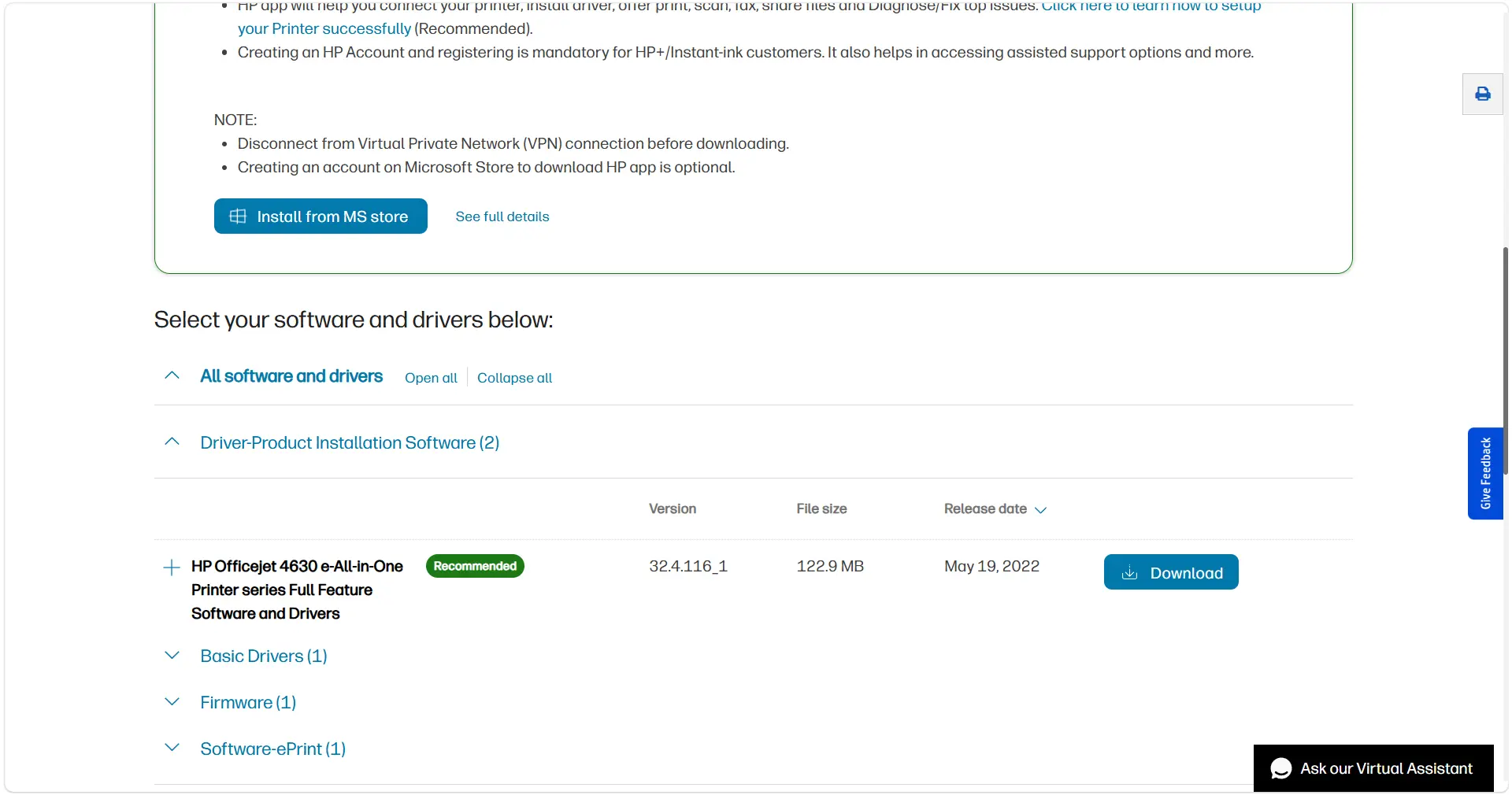
- After installation, open Windows printer settings and print a test page.
A successful test page shows that Windows can communicate with the printer. If Windows does not find the printer afterward, use the Windows Settings method below and check the connection type.
Method 2: Add the printer through Windows Settings
Choose this method when the printer is connected by USB or already available on your network. Microsoft says Windows normally installs a directly connected printer automatically; if it does not, add it from printer settings.
- Connect the powered-on printer to the PC by USB, or make sure the printer and PC are on the same network.
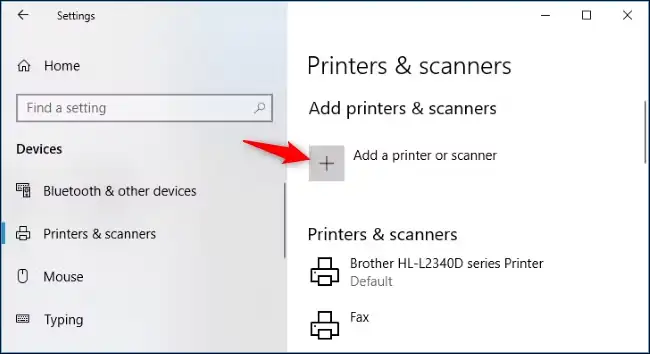
- Open Settings , then go to Bluetooth & devices and Printers & scanners .
- Select Add device beside the printer you want to add.
- If the printer is not found, select Add a new device manually next to The printer that I want isn’t listed and follow the Add Printer window.
- After the printer installs, check Windows Update for available printer-driver updates.
To verify the result, open the printer’s properties in Windows, select the General tab, and choose Print Test Page . Microsoft documents these installation and test-page steps in its printer installation guidance and printing troubleshooting guidance .
Method 3: Install the HP LaserJet Pro M15w Driver with Fionn Printer Driver
Recommended when the cause is unclear: this Windows tool can recognize many mainstream printer brands and models, offer automatic or manual driver installation, and check driver, port, printer-service, and queue conditions. It can be useful when the printer is detected but remains offline, unavailable, or unable to print.
- Launch Fionn Printer Driver and select
Scan Now
to scan the computer for printer drivers and related issues.

- Wait while Fionn Printer Driver scans the system for installed printers, drivers, and common printer issues.

- When the scan finishes, review the detected driver issue and select
One-Click Fix
to begin the suggested installation or repair.

- Wait for the operation to finish and review the result. Then print a Windows test page to check whether the printer actually works.
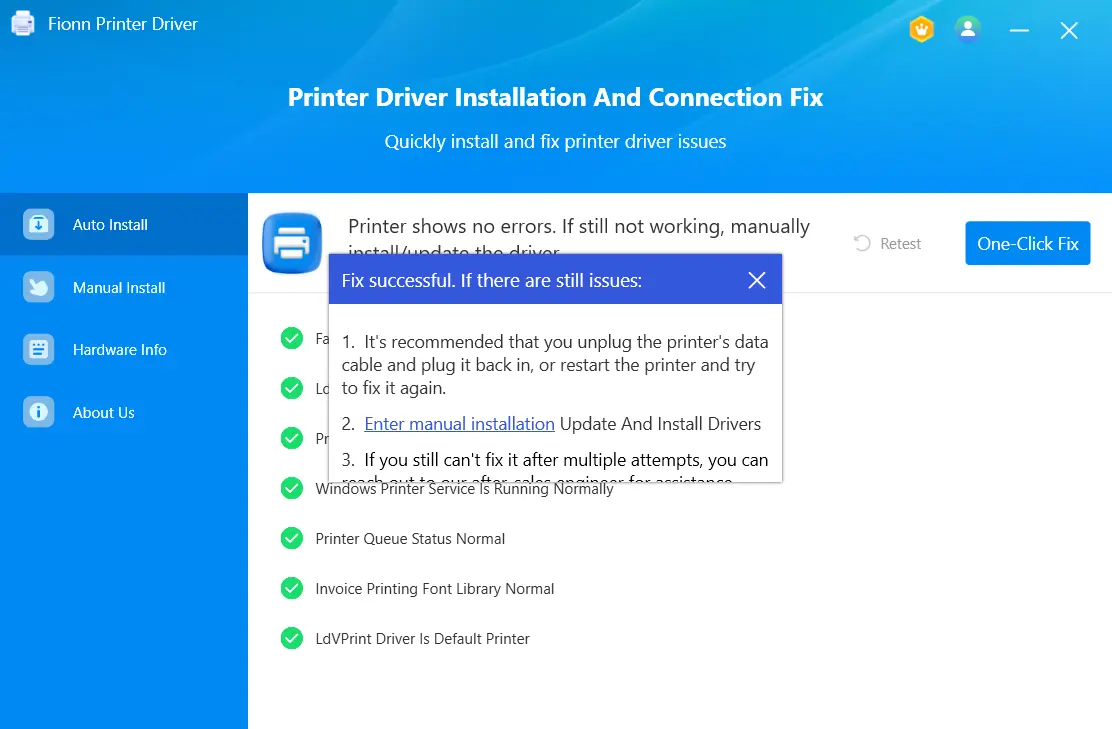
If the test page still fails, check the physical or network connection, any paused jobs in the print queue, and whether the printer is shown as offline before trying another driver action.
Conclusion
Start with HP support when you need the manufacturer’s model-specific route. Use Windows Settings when the printer is connected and discoverable. Choose Fionn Printer Driver when you also want guided checks for driver and printer-chain issues. In every case, print a Windows test page after setup. If that fails, verify the USB or network connection, printer status, and queue before changing drivers again.
FAQ
How do I know whether the HP LaserJet Pro M15w is connected by USB or wireless?
A USB connection runs directly from the printer to the Windows PC. For a wireless connection, the printer and PC must be on the same wireless network before Windows can discover the printer.
What should I do if Windows cannot find my HP LaserJet Pro M15w?
In Printers & scanners, select Add a new device manually beside The printer that I want isn’t listed , then follow the Add Printer window. Also confirm that the printer is powered on and that the connection matches the setup you selected.
Does an installed driver prove that the printer is working?
No. An installation result indicates that setup completed, but a Windows test page is the practical check that Windows can communicate with the printer and send a print job.
What if a test page prints but a document in one program does not?
Try printing a different file or print from another application. If other apps can print, review the affected program’s page size, orientation, layout, destination, and page-range settings.
Should I use Device Manager first?
Not usually. For adding this printer, start with HP support or Windows Printers & scanners. Device Manager can be a conditional update or reinstall path when you can identify the correct printer device, but Windows may still require a manual installation afterward.


