 Emily CarterPrinter Drivers
Introduction
When Windows cannot find printer hardware, the system usually cannot discover, identify, or communicate with the device. Common causes include a printer that was never added, an incorrect or missing driver, a stopped Print Spooler service, a mismatched port, or a blocked print queue. Start with Windows settings, then check the manufacturer driver, and finally inspect service, port, and queue conditions. If several causes overlap or the model is unknown, the Fionn method can streamline diagnosis.
Quick Method Comparison
| Method | Best For | Efficiency | User Effort | Technical Complexity |
|---|---|---|---|---|
| Windows settings | Printer missing after reconnecting | Fast | Low | Low |
| Manual driver update | Known brand and exact model | Medium | Medium | Medium |
| Service, port, and queue checks | Offline status or stalled jobs | Medium | Medium | High |
| Fionn Printer Driver (Recommended) | Unknown model or multiple linked causes | Streamlined | Low | Low to medium |
Method 1: Check Windows Printer Settings
When to use: Choose this method after connecting a USB or Wi-Fi printer, or when Windows removed the device.
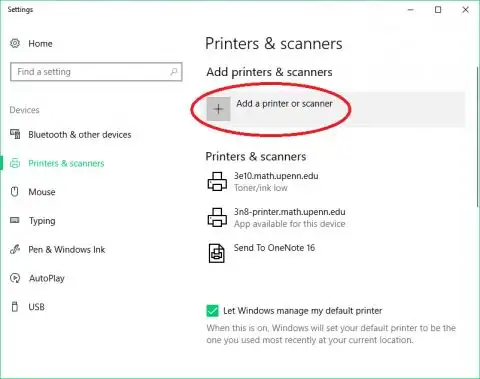
- On Windows 11, open
Settings > Bluetooth & devices > Printers & scanners. On Windows 10, openSettings > Devices > Printers & scanners. - Select Add device (Windows 11) or Add a printer or scanner (Windows 10), then wait for discovery.
- If your printer appears, select it and follow the on-screen prompts. If it does not, choose The printer that I want isn’t listed or the equivalent manual-add option.
- For a network printer, select it from the discovered list or enter its host name or IP address when Windows requests it. For USB, reconnect the cable directly to the computer and scan again.
Verification: Open the printer entry, confirm it is available, and print a Windows test page or a small document.
Method 2: Reinstall or Update the Driver Manually
When to use: Use this method when Windows detects the device but reports a missing, incompatible, or outdated driver, especially after an update.
- Read the printer label or existing Windows entry to confirm the manufacturer and exact model, including any series suffix.
- Open the manufacturer’s official Support or Drivers page. Download only the package listed for your exact model.
- Choose the edition of Windows 10 or Windows 11 you use and the correct system architecture (typically 64-bit; verify in
Settings > System > About). - Run the downloaded installer as an administrator if Windows requests permission, and follow its connection instructions.
- Restart Windows if the installer asks you to, then return to
Settings > Printers & scannersand select the device.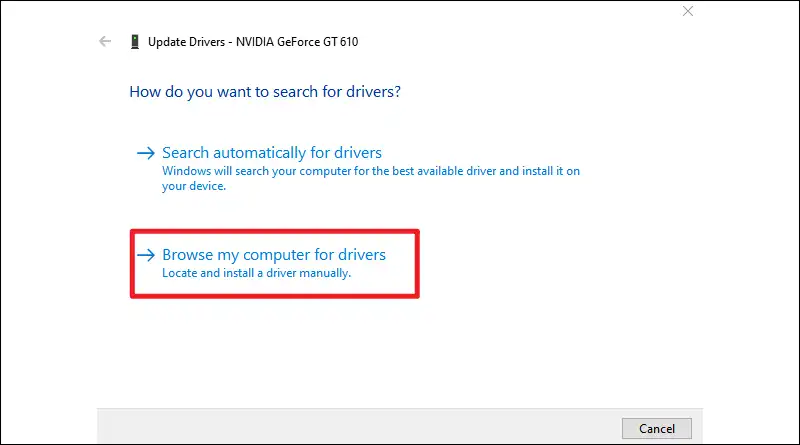
- Print a test page and confirm that the model name and basic features are correct.
Verification: The printer should remain listed after restart and complete a test print without a driver error.
Method 3: Check Service, Port, and Queue Conditions
When to use: Choose this method when the printer appears but stays offline, jobs remain pending, or multiple applications cannot print.
- Press
Win + R, enterservices.msc, and open Print Spooler . If it is stopped, choose Start ; if it is running, choose Restart . - Open
Settings > Bluetooth & devices > Printers & scanners(Windows 11) orSettings > Devices > Printers & scanners(Windows 10), select the printer, and open Printer properties . - On the Ports tab, note the selected port and compare it with the connection type. For network printers, select the configured TCP/IP port; for USB printers, select the USB port shown by Windows.
- Open See what’s printing or Open print queue . Cancel paused or failed jobs, clear Pause Printing or Use Printer Offline , and submit a new test job.
Verification: Print queue status should change from pending or error to completed, and the printer should stay online in Windows.
Method 4: Fix Windows cannot find printer with Fionn Printer Driver (Recommended)
When to use: This method fits an unknown model or overlapping driver, service, port, queue, and device-state symptoms. Printer Driver can identify many mainstream brands and models, offer automatic or manual matching, and check the Windows printing chain.
- Launch Fionn Printer Driver and click “Scan Now” to scan your computer for printer drivers and related issues.

- Wait while Fionn Printer Driver scans your system for installed printers, drivers, and common printer issues.

- After the scan finishes, click “One-Click Fix” to automatically install or repair the required printer driver.

- Wait for the repair to finish and confirm that the printer issue has been fixed successfully.

Verification: Print a Windows test page, restart Windows, and confirm the printer remains detected.
Tips & Best Practices
- Confirm USB cables are seated or that the computer and printer use the same Wi-Fi network.
- Check that the printer is not marked Offline or Paused before changing drivers.
- Use the exact model package; similar model numbers can use different drivers.
- Record the current port before editing it so you can restore the original setting.
Conclusion
Work through the methods in order: add or rediscover the device in Windows, install the exact manufacturer driver, then inspect Print Spooler, ports, and queue jobs. If the model is unclear or several symptoms overlap, Printer Driver provides a streamlined scan and repair path based on its supported checks. Finish with a Windows test page or real print job, restart Windows, and test again. If detection still fails, recheck the physical connection and the model-specific manufacturer instructions before changing additional settings.
FAQ
Why does Windows show “cannot find printer” after an update?
An update can leave an older driver incompatible or change a port association. Re-add the printer, install the exact current driver, and then check Print Spooler and the selected port.
What if the printer appears but is offline?
Confirm the printer is powered and connected, clear Use Printer Offline or paused jobs, restart Print Spooler, and verify the selected port.
Can I fix detection without knowing the model?
Start with Windows discovery. If that fails, read the label or use Printer Driver to identify many mainstream models; otherwise contact the manufacturer with the device details.
Should I reinstall the driver when only one app fails?
Usually no. Test from another application first; if other apps print normally, repair or reset the affected app and check its selected printer. Reinstall the driver only when Windows-wide printing also fails.


