 Emily CarterDLL Errors
Introduction
The
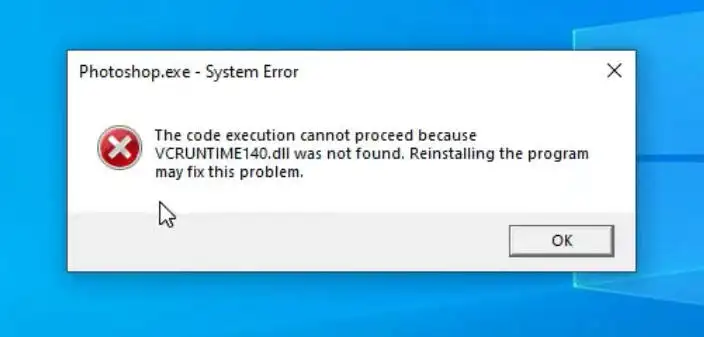
vcruntime140_1.dll missing
message usually appears when a Windows application cannot load a required DLL at startup. Start with the application that shows the error: repair or reinstall it from its trusted source, then check Windows for system-file problems. This guide presents three methods, ordered from the simplest manual checks to a dedicated repair workflow. Use Method 1 when only one application fails, Method 2 when several programs show startup errors, and the
Fionn DLL Fixer
workflow when you want a guided scan, repair, and recheck process.
Quick Method Comparison
| Method | Best For | Efficiency | User Effort |
|---|---|---|---|
| Method 1: Repair or reinstall the affected app | One program fails after an install or update | Fast when the app package is the cause | Low to medium |
| Method 2: Check Windows system files | Several applications fail or Windows behaves unusually | Moderate | Medium |
| Method 3: Fionn DLL Fixer | Missing, damaged, mismatched, or dependency-related DLL errors | Guided scan and repair | Low |
Method 1: Repair or Reinstall the Affected Application
When to use it
Choose this method when the error appears in one application or game, especially after an update, incomplete installation, or move to a different folder.
- Close the affected application and any launcher associated with it.
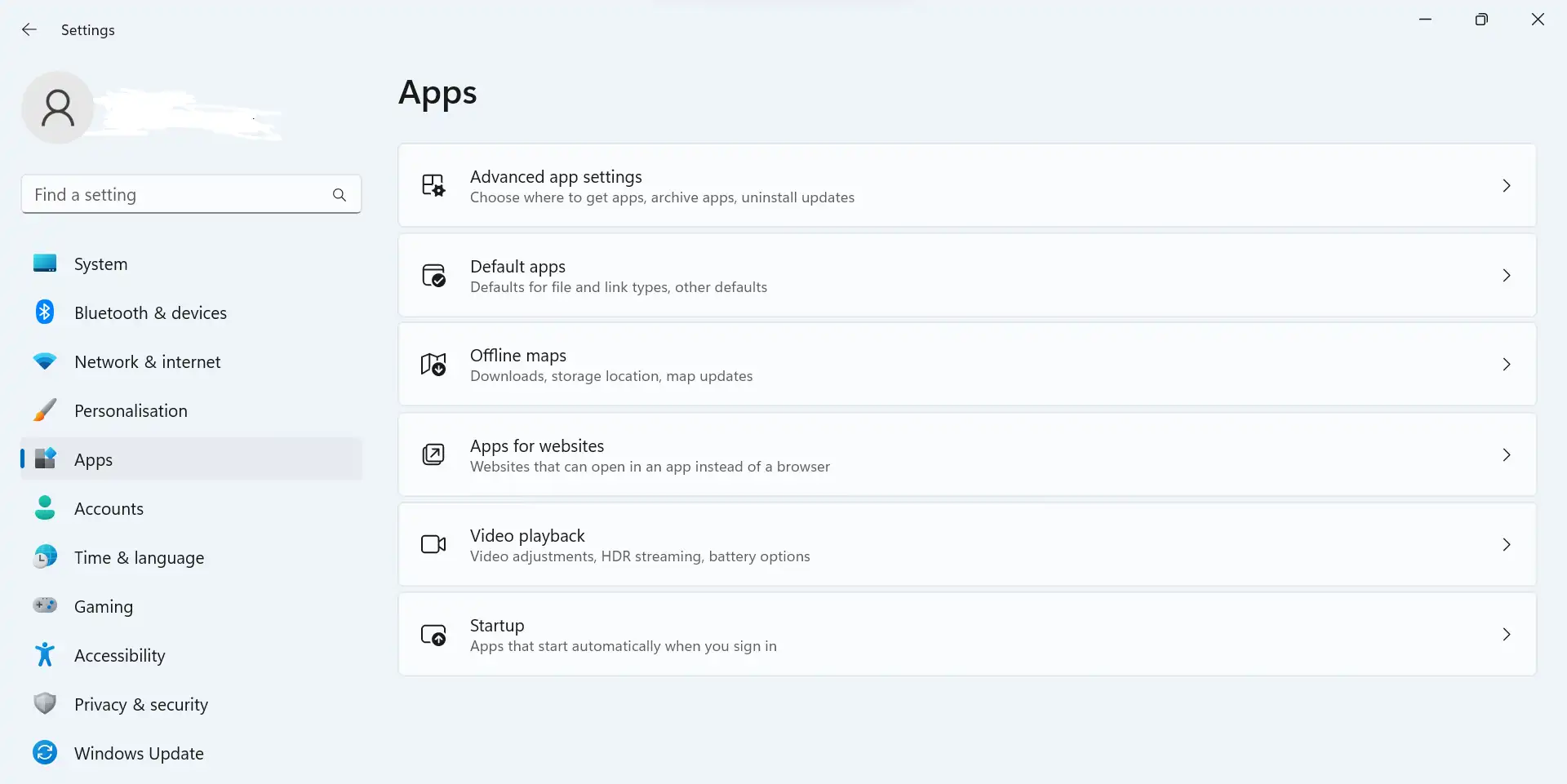
- Open Windows Settings and select the installed application list.
- Use the application's available repair or reset option if Windows provides one.
- If repair is unavailable or the message returns, uninstall the application.
- Download the application again from its official publisher or trusted distribution source.
- Install it, launch it, and check whether the startup message has disappeared.
Expected result:
The application starts without requesting
vcruntime140_1.dll
. If several unrelated programs still fail, continue with Method 2.
Method 2: Check Windows System Files and Restart
When to use it
Use this method when more than one application reports missing or damaged DLL files, or when the problem began after a Windows change and normal application reinstallations did not help.
- Save your work and close open applications.
- Open Windows Terminal or Command Prompt with administrator permission.
- Run the Windows system-file checker command:
sfc /scannow
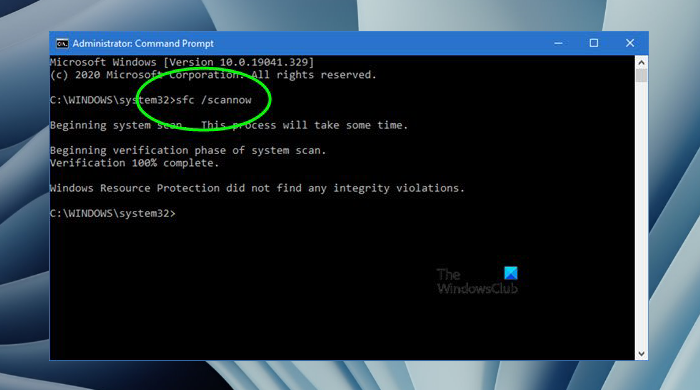
Expected result: Windows repairs a protected system file when it can, and the application launches normally after the restart. If the same DLL message remains, record the exact application name and whether the issue affects other software before trying Method 3.
Method 3: Diagnose and Fix vcruntime140_1.dll missing with Fionn DLL Fixer
When to use it
This is the Recommended option when you want a guided scan for missing, damaged, version-mismatched, or System32-path-related DLL issues. Fionn DLL Fixer supports Windows desktop use and can scan application crashes, access conflicts, startup failures, and dependency-loading problems.
- Launch Fionn DLL Fixer. The software automatically scans your PC for DLL and system issues and displays the detected results when the scan is complete.

- After the scan finishes, click
Repair
to start fixing all detected DLL and system issues automatically.

- Wait while the repair is in progress. During this process, the button changes to
Fixing
until all issues have been repaired.

- When the repair is complete, click
Ok
in the confirmation dialog. If prompted, restart your computer before checking whether the problem has been resolved.

- If the issue still persists after restarting, click
Recheck
to perform another scan. If new issues are found, click
Repair
again to fix them.

Expected result: The scan identifies relevant DLL or system findings, repair completes, and a second check confirms whether the startup problem remains. The free version displays three free attempts; VIP access unlocks DLL, DX, runtime-library, and system-repair benefits.
Tips and Common Mistakes
- Write down the exact filename and the application that shows it before changing files.
- Test the application after each method so you know which change solved the problem.
- Keep the Windows restart in the verification loop when a repair reports completion.
- Do not rename a different DLL to look like
vcruntime140_1.dll. - If Fionn DLL Fixer still reports issues after rechecking, use its support contact or online customer service rather than repeating random file downloads.
Conclusion
For a single affected application, repair or reinstall that application first. If multiple programs show DLL startup errors, run the Windows system-file check and restart. When the cause is unclear or you prefer a guided scan across DLL and system components, use the Fionn DLL Fixer workflow, then recheck the result. Verify success by launching the original application and, when practical, one other program that previously worked. If the message persists, keep the exact error text, application name, and scan result available for support.
FAQ
What does “vcruntime140_1.dll missing” mean?
It means a Windows application could not load a DLL with that filename during startup. The immediate cause may be an incomplete application installation, a damaged file, a version mismatch, or a broader dependency problem. Identify whether one application or several applications are affected before choosing a repair path.
Should I download vcruntime140_1.dll from a random DLL website?
No. A standalone download can be mismatched or modified and may not resolve the application’s complete dependency chain. Repair or reinstall the affected application, check Windows system files, or use a guided diagnostic workflow instead.
Why should I restart Windows after a DLL repair?
A restart lets Windows and applications reload repaired components instead of continuing to use an already loaded copy. It also provides a clear verification point: launch the original application after restarting and check whether the same message returns.
When should I use Fionn DLL Fixer?
Use Fionn DLL Fixer when the issue may involve missing, damaged, mismatched, or path-related DLL components, or when several dependencies make manual diagnosis difficult. Its workflow scans, repairs, and rechecks Windows DLL and system issues.
What if the error remains after all three methods?
Record the exact message, affected application, Windows behavior, and Fionn DLL Fixer recheck result. Then contact the application publisher or Fionn support. Avoid repeatedly replacing individual DLL files without confirming the source of the failure.


