 Emily CarterDLL Errors
A dll load failed message does not always have the same cause. One Windows app may have damaged files or a missing dependency, while failures across several apps can point to protected Windows components. Python import errors and game-specific errors usually need attention in their own runtime or installation first. Start by identifying where the error appears, then use the matching repair path below. After each method, reopen the same app and repeat the action that caused the error.
Identify Where the DLL Load Failed Error Appears
| Error situation | What it usually points to | Go to |
|---|---|---|
| One Windows app fails | Application files or dependencies | Method 1 or 2 |
| Several Windows apps fail | Windows or system components | Method 3 |
| An exact DLL is reported missing or damaged | A DLL or system-component issue | Method 3 or 4 |
| Python import or module error | Runtime, package, architecture, or environment configuration | Check the affected development environment |
| A game-specific DLL error | Game files or game runtime dependencies | Repair the game or its runtime first |
Warning
Method 1: Repair the Affected App
When to use: Use this when only one installed application shows the error and Windows provides a repair option for it. Not every app exposes Repair, Change, or Modify.
- Close the application that shows the error.
- Open Settings > Apps > Installed apps in Windows 11.
- Select the three-dot menu beside the affected app.
- Select
Advanced options
, if available, then select
Repair
.
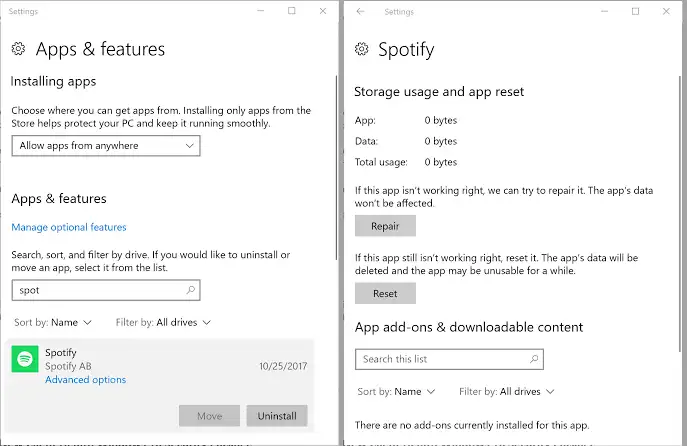
- Open the application and repeat the failed task.
Verification: The application starts or completes the affected action without the DLL error. If the menus differ, see Microsoft’s instructions for repairing apps and programs in Windows .
Method 2: Reinstall the Affected App
When to use: Choose this when app repair is unavailable, did not resolve an app-specific failure, or the error started after the app was changed or updated. Reinstallation targets the application’s own files instead of modifying Windows system files.
- Save your work and close the affected application.
- Uninstall the application through its normal Windows uninstall entry.
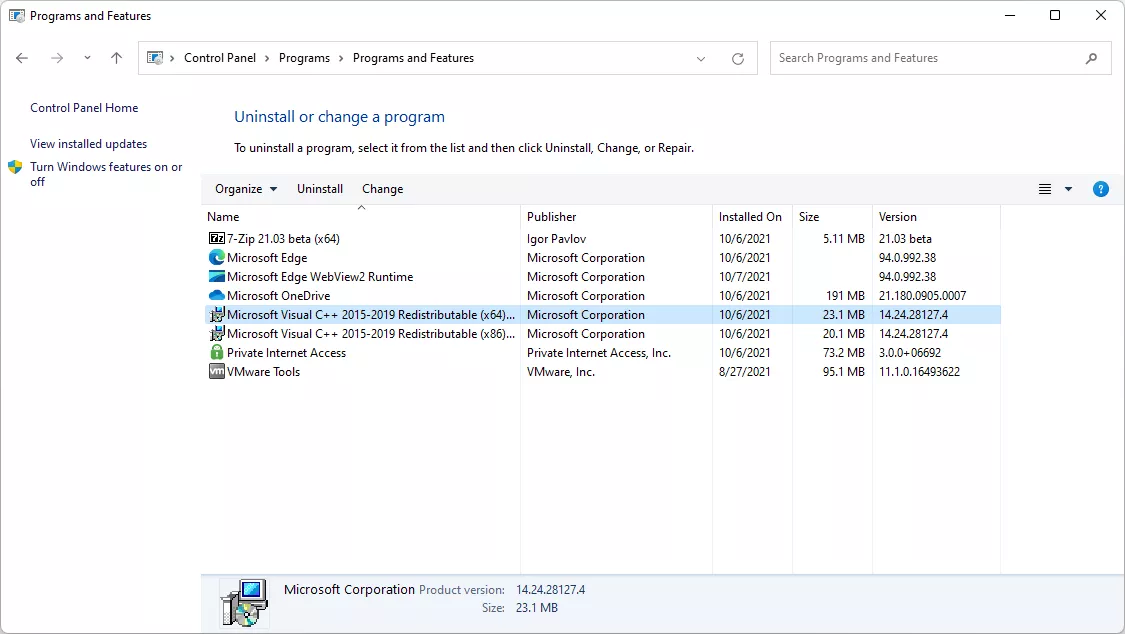
- Restart Windows.
- Install the application again from its publisher’s official installer or official store listing.
- Launch the application and test the same feature that failed.
Verification: The program opens and its original task runs. If unrelated applications now show the same message, continue with the Windows system-file check.
Method 3: Check Protected Windows System Files
When to use: Use this when more than one application has loading errors or the message points to a Windows component. System File Checker verifies protected Windows resources; it is not a repair process for every third-party application DLL.
- Open Command Prompt as an administrator.
- Run the following command.
sfc /scannow
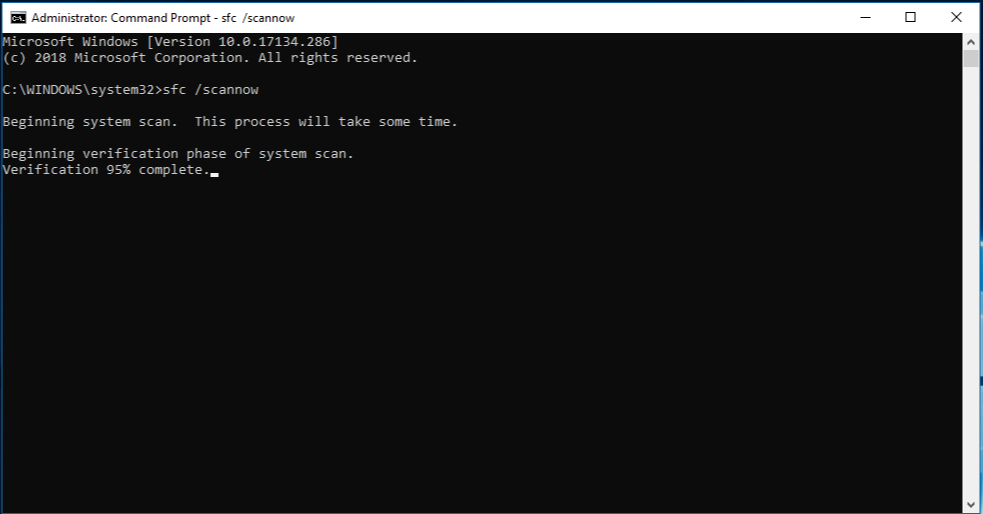
- Wait for the scan to complete without closing the window.
- Restart Windows if the scan reports repaired files.
- Open the affected application and test it again.
Verification: Review the final SFC message, then test the original symptom. Microsoft’s System File Checker reference explains that SFC verifies protected resources and can replace certain mismatched files critical to restarting Windows.
Method 4: Diagnose and Fix DLL Load Failed with Fionn DLL Fixer
When to use: Use this method when the error appears related to missing, damaged, version-mismatched, or misconfigured Windows DLL or system components. Fionn DLL Fixer supports scans, repair, and post-repair rechecking for detected DLL and system issues. It is not intended to repair application-specific code, Python package environments, or every third-party DLL dependency.
- Launch Fionn DLL Fixer and wait for its automatic scan to display detected DLL and system issues.

- After the scan finishes, click “Repair” to begin repairing detected DLL and system issues.

- Wait while repair is in progress and the button shows “Fixing.”

- Click “Ok” when the confirmation dialog appears, then restart the computer if prompted.

- If the issue persists after restarting, click “Recheck”; if new issues are found, click “Repair” again.

Verification: Review the scan or recheck results, then repeat the original app action. If it still fails, retain the exact message and contact the app publisher or Fionn support.
Conclusion
First identify the error context instead of treating every dll load failed message as a Windows-wide problem. For one application, use its Repair option, then reinstall it if needed. For failures affecting several apps, use SFC to check protected Windows resources. When missing, damaged, version-mismatched, or System32-path-related DLL issues are suspected, Fionn DLL Fixer provides a scan, repair, and recheck route. Verify every method by repeating the exact action that failed. If the error remains, give the complete message to the affected app or game publisher.
Frequently Asked Questions
What does “DLL load failed” mean?
It means software could not load a DLL needed for an operation. The wording alone does not identify the correct replacement file or prove that Windows is the source.
What should I do with a Python “ImportError: DLL load failed” message?
Check the Python environment, package installation, and 32-bit or 64-bit compatibility for that development setup. App repair, SFC, and DLL scans do not diagnose every package or interpreter configuration.
Should I repair or reinstall an app first?
Repair first when Windows offers that option. Reinstall when Repair is unavailable or does not resolve an app-specific failure.
Will SFC fix every DLL error?
No. SFC works with protected Windows resources. It can help when Windows system files are involved, but it does not replace every DLL installed by an application.
What if a game reports a DLL load error?
Repair the game installation and its official runtime dependencies first. If the issue appears related to Windows DLL or system components, use the applicable Windows or Fionn method afterward.


