 Emily CarterData Recovery
If you deleted videos from an SD card, stop recording, copying, formatting, or saving anything to that card. Deleted data may remain recoverable until new data overwrites its storage space. Start by checking for an existing backup, then use a recovery tool if no copy exists. This guide covers three methods: restoring a backup, scanning the card with recovery software, and using Microsoft’s command-line recovery utility.
Quick Method Comparison
| Method | Best For | Efficiency | User Effort |
|---|---|---|---|
| Restore a backup | You already copied the videos to another location | High when a complete copy exists | Low |
| Fionn Data Recovery — Recommended | Deleted or lost videos still on an accessible SD card | Scans, filters, and previews results | Low |
| Windows File Recovery | Windows users comfortable with Command Prompt | Can target video file types on supported card file systems | High |
Method 1: Restore Deleted Camera Videos From a Backup
When to use: Use this first if you previously copied the camera folder to a computer, external drive, or a backup location. A backup is the most direct way to restore the original file without scanning the SD card.
- Open the backup location that may contain the camera videos.
- Search for the missing video by name, date, or camera folder.
- Copy the video to a folder on your computer or another storage drive.
- Open the copied video in a media player to confirm it plays.
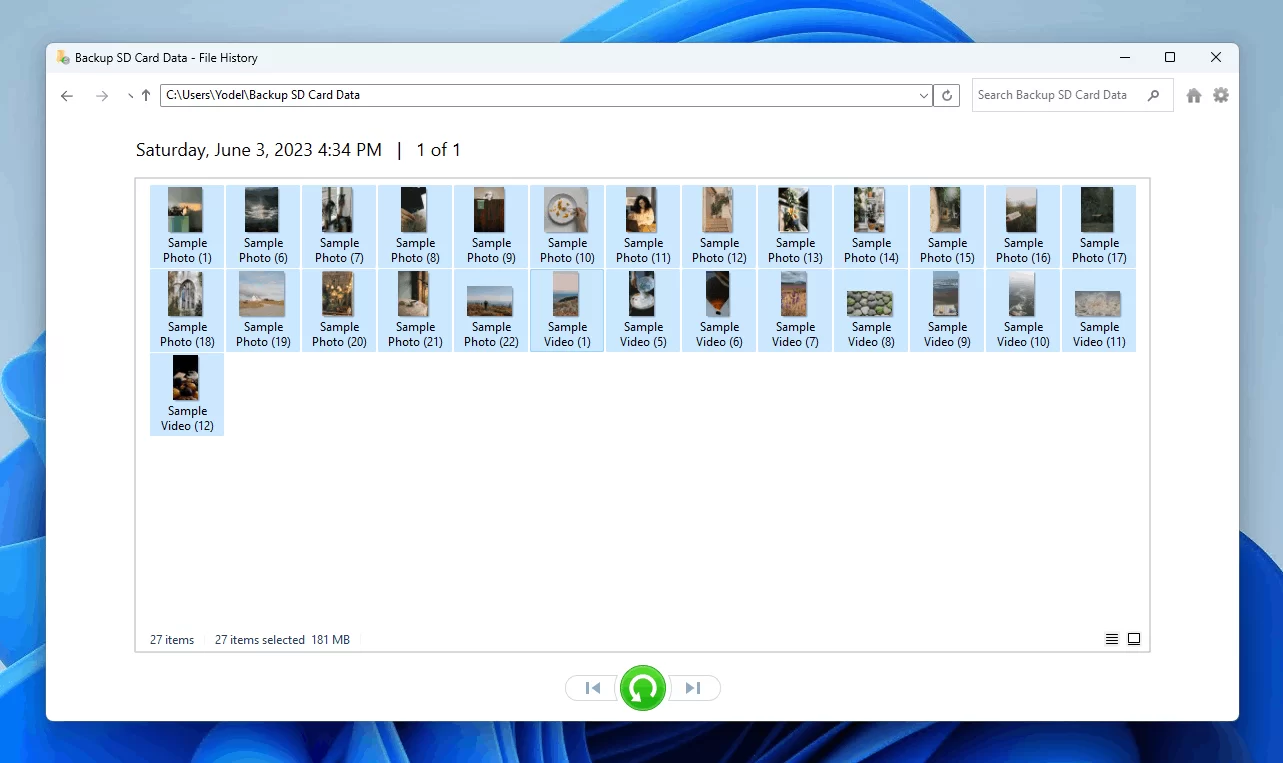
Expected result: You recover the backed-up copy without modifying the affected SD card.
Method 2: Fix Deleted SD Card Videos with Fionn Data Recovery
When to use: Choose this method when no backup is available and the SD card appears in the computer. Fionn Data Recovery supports SD cards and camera storage cards, supports video recovery, and lets you preview scan results before choosing what to restore. It is a practical option when you want to identify candidate videos without constructing a command.
- Launch Fionn Data Recovery and select the recovery option for the type of data or storage location you want to recover.

- Start the automatic scan and wait while Fionn Data Recovery searches the selected location for deleted or lost files.

- After the scan finishes, browse the results and preview the files to select the data you want to restore.

- Select a destination folder to save the recovered files, then start the recovery process.

Verification: Open each recovered video from the destination folder and check that its duration, audio, and picture are usable. If the target is not found in an initial scan, Fionn Data Recovery provides deep and RAW scanning options.
Method 3: Use Windows File Recovery for SD Card Video Recovery
When to use: Use this method on Windows 11 or Windows 10 when you are comfortable entering a command and have a separate destination drive. Microsoft lists FAT and exFAT as common file systems for SD cards and recommends Extensive mode for non-NTFS file systems.
- Connect the SD card and a separate destination drive to the Windows computer.
- Check the SD card’s drive letter and file system in File Explorer by opening its Properties.
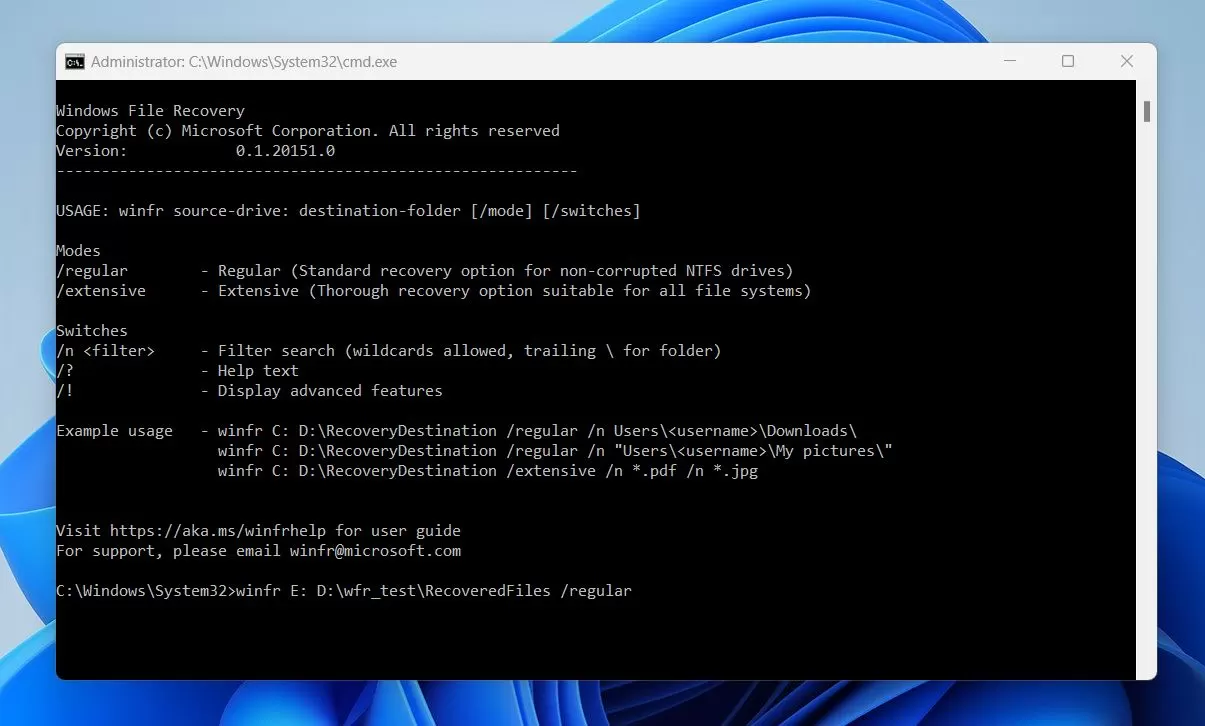
- Install and open Windows File Recovery from Microsoft .
- Run an Extensive recovery command, replacing
F:with the SD card letter andE:with the destination drive letter.
winfr F: E: /extensive /n *.mp4 /n *.mov /n *.avi
Verification: Microsoft creates a recovery folder on the destination drive. Open it, locate the recovered files, and test playback. If your camera used another extension, replace or add the relevant filename filter.
Tips to Improve the Chance of Video Recovery
- Remove the SD card from the camera as soon as you notice the deletion.
- Avoid taking more photos or videos, formatting the card, or copying new files onto it.
- Recover to another drive with enough available storage.
- Preview recovered files when possible, because a filename alone does not confirm that a video is intact.
Conclusion
For how to recover deleted videos from SD card, first restore a known backup if one exists. If there is no backup, use a recovery scan while the card remains unused; Fionn Data Recovery offers SD-card scanning, filtering, and previews, while Windows File Recovery is an official command-line alternative for Windows users. Whichever path you choose, save output to another drive and verify each video by opening it. If the card is no longer detected or files remain missing, avoid further writes and consider professional data-recovery assistance.
FAQ
Can deleted videos from an SD card be recovered?
They may be recoverable if their storage space has not been overwritten. Stop using the card promptly and recover files to a different drive.
Why should I not record new videos on the SD card?
New recordings can use storage space previously occupied by deleted videos, reducing the chance that recovery software can find usable data.
Can Windows File Recovery recover videos from an SD card?
It can attempt recovery from local storage devices. For FAT or exFAT SD cards, Microsoft recommends Extensive mode, with the recovery destination on a different drive.
Where should I save recovered videos?
Save them to your computer’s internal drive, an external drive, or another storage device—not the affected SD card.
What if a recovered video will not play?
Try another recovered copy and use preview results when available. A recovered filename does not necessarily mean the full video data is intact.


