 Emily CarterData Recovery
To recover photos from a formatted SD card, stop using the card immediately and recover to a different drive. Formatting can remove the file-system reference to photos while some image data may still remain, but new camera shots, copied files, or another format can overwrite that space. Start by checking copies that were already saved elsewhere. If none exist, use a recovery method that writes results to your computer or another external drive—not back to the SD card. This guide covers four practical routes, including Windows File Recovery and Fionn Data Recovery .
Before You Start: Protect the Formatted SD Card
- Remove the card from the camera and keep it out until you choose a recovery route.
- Use a card reader to connect it to a Windows computer.
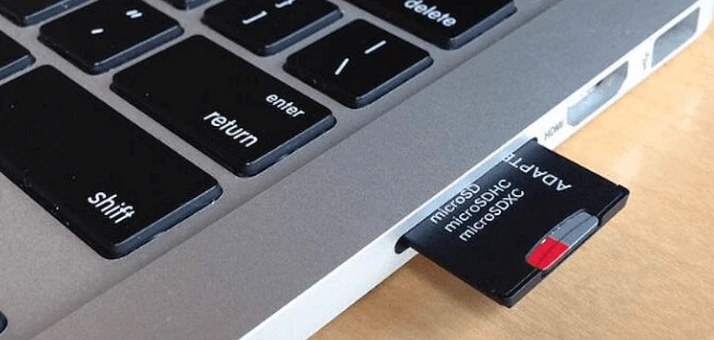
- Choose a separate destination drive with enough free space for recovered photos.
- If the card disconnects, is not detected, or shows physical damage, stop repeated attempts and consider professional help.
Quick Method Comparison
| Method | Best For | Efficiency | User Effort |
|---|---|---|---|
| Check existing copies | Photos previously imported or backed up | Fast when a copy exists | Low |
| Windows File Recovery | Windows users comfortable with a command line | Depends on scan results | High |
| Fionn Data Recovery | Scanning a formatted SD card with file preview | Guided scan and selection | Low |
| Professional service | Unreadable or physically unstable cards | Specialist assessment | Moderate |
Method 1: Check Copies Already Outside the SD Card
When to use: Use this first if you may have imported the photos before formatting. It is the quickest route because it does not depend on scanning the card.
- Open the folder where you normally import camera photos on your computer.
- Search by the approximate capture date, event name, or camera folder name.
- Check any backup drive, cloud photo library, or gallery app you knowingly use.
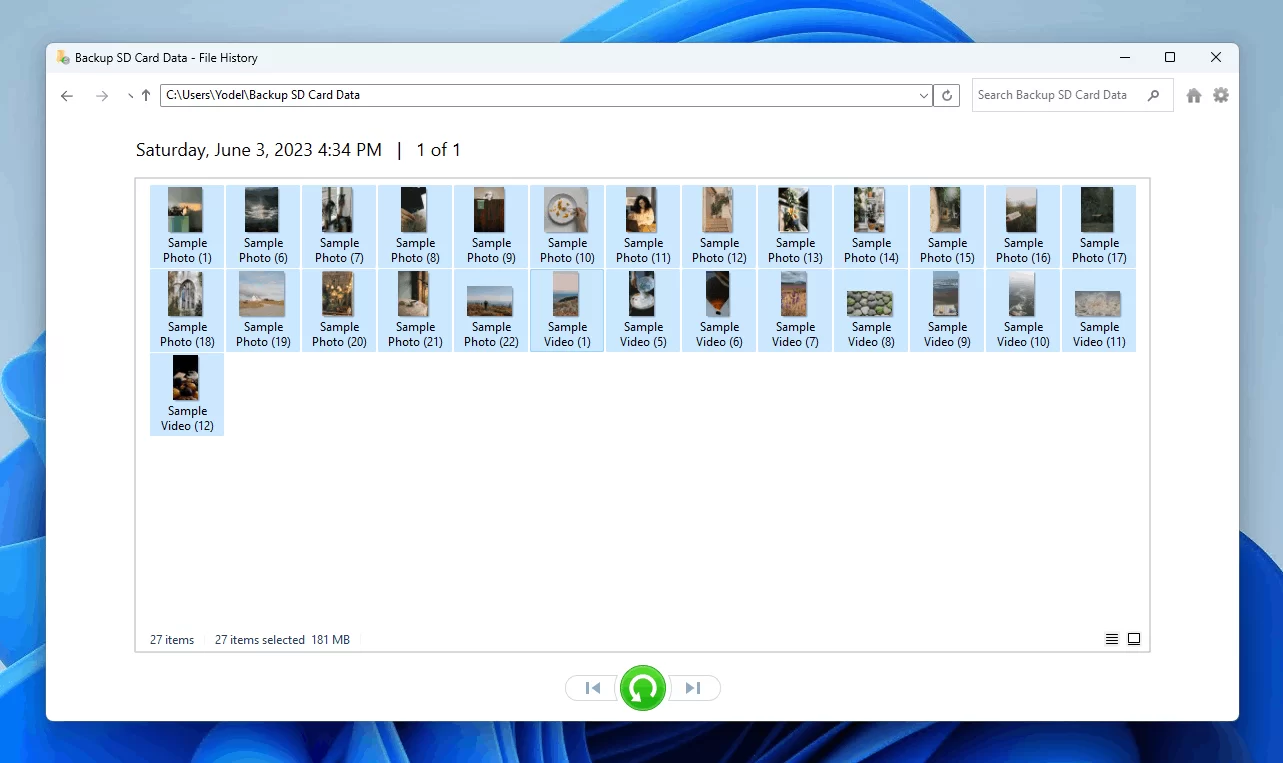
- Copy located photos to a new folder and open several files to confirm they are the intended images.
Verification: Confirm that sample images open at full size and that the count or date range matches what you expected.
Method 2: Recover Photos With Windows File Recovery
When to use: Choose this route on Windows when you can identify the SD card’s drive letter and are comfortable entering a command. Microsoft documents Windows File Recovery as a command-line utility for recovering deleted files from local storage devices, including removable drives. For a formatted drive, use its Extensive mode.
- Install Windows File Recovery from Microsoft .
- Open Command Prompt as an administrator.
- Run a recovery command that uses the SD card as the source and a different drive as the destination, for example:
winfr E: D: /extensive /n \Pictures\*.jpg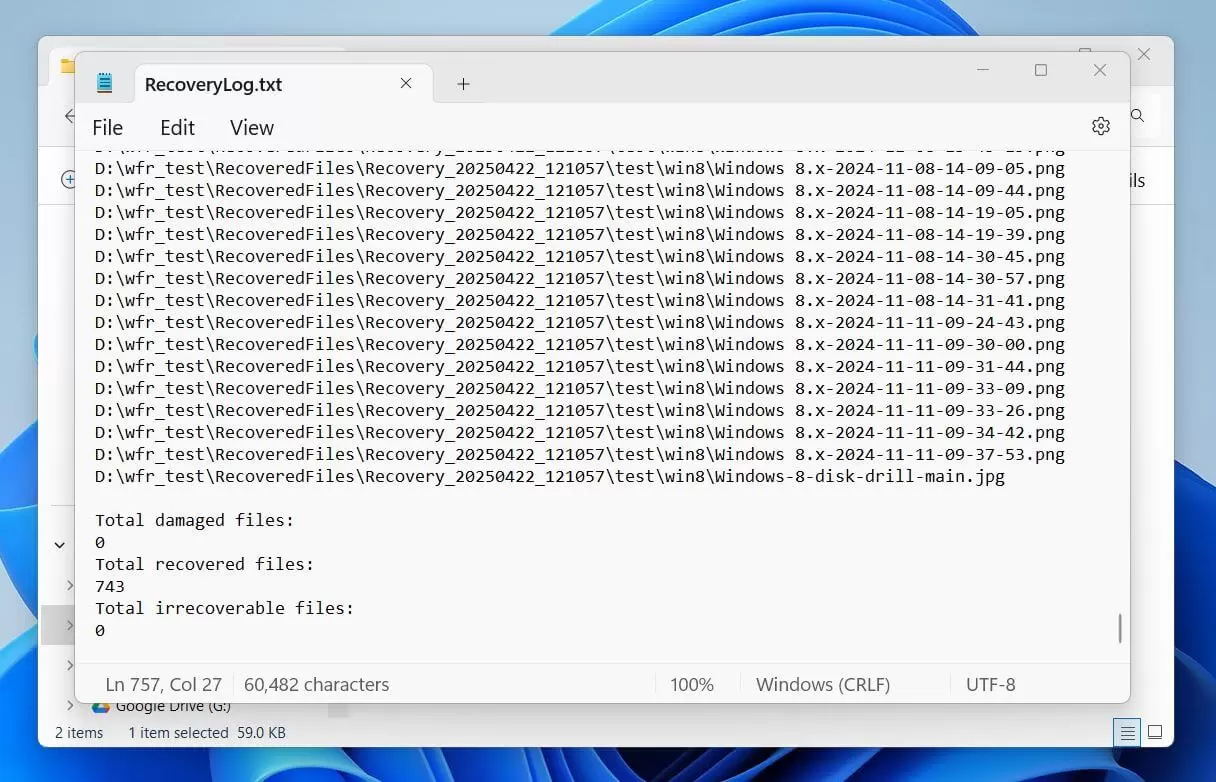
- Open the recovery folder on the destination drive and inspect the returned image files.
Verification: Open recovered JPEG files in an image viewer. If the results are sparse, adjust the file filter or use the utility’s documented recovery options before trying another route.
Method 3: Fix Formatted SD Card Photo Recovery With Fionn Data Recovery
When to use: This is a practical option when you want to scan the formatted card, narrow results, and preview candidates before restoring them. Fionn Data Recovery supports SD cards and camera memory cards, image recovery, file filtering, preview, and quick, deep, and RAW signature scans. It scans locally in read-only mode and does not upload files.
- Launch Fionn Data Recovery and select the recovery option for the type of data or storage location you want to recover.

- Start the automatic scan and wait while Fionn Data Recovery searches the selected location for deleted or lost files.

- After the scan finishes, browse the results and preview the files to select the data you want to restore.

- Select a destination folder to save the recovered files, then start the recovery process.

Verification: Open several recovered photos from the destination folder. Check that they display correctly and that their dimensions or capture dates are plausible for the missing set.
Method 4: Contact a Professional Data-Recovery Service
When to use: Choose professional assessment if the SD card is not recognized, disconnects repeatedly, has visible damage, or contains irreplaceable photos. These symptoms can make repeated home scanning counterproductive.
- Stop inserting the card into cameras and readers.
- Label the card and record what happened, including whether it was formatted and whether it was used afterward.
- Contact a reputable recovery provider and ask whether it evaluates SD-card hardware faults and formatted-media recovery.
- Ask for the evaluation process, estimated cost, and handling terms before authorizing work.
Verification: Review the provider’s file list or sample output before accepting recovered data, where that service offers it.
Tips for Checking Recovered Photos
- Recover to a separate disk first; keep the original SD card unchanged until you finish checking results.
- Open images from different dates and folders, not just the first few files.
- Compare dimensions and file sizes with photos from the same camera when available.
- Make two copies of successful recovery results on separate storage locations.
Conclusion
For a formatted SD card, protect the card first, then look for copies that already exist outside it. If no copy is available, Windows File Recovery is an option for users who prefer a command-line workflow. For a scan-and-preview workflow, Fionn Data Recovery can search SD and camera cards and restore selected files to another location. Verify several recovered images before treating the job as complete. If the card is unreadable or unstable, stop further attempts and request a professional assessment.
Frequently Asked Questions
Can photos be recovered after formatting an SD card?
Sometimes. Recovery is more plausible when the card has not been used after formatting, because new data can overwrite photo data that recovery tools would otherwise scan for.
Why should I not save recovered photos back to the SD card?
Saving to the same card can overwrite remaining data. Use a different internal drive, external drive, or other storage location as the recovery destination.
What if Windows does not assign a drive letter to the SD card?
Do not format it again. Check the reader and another USB port first. If the card remains undetected or disconnects, professional assessment is more appropriate than repeated recovery attempts.
What scan should I use if my photos are not listed?
In Fionn Data Recovery, move beyond a quick scan to a deep or RAW signature scan when needed, then use filtering and preview to identify photo candidates.
Will every recovered photo open correctly?
No. A recovered file can be incomplete if its original data was overwritten or fragmented. Open samples from across the results before relying on the recovered set.


