

SD Card Shows RAW: How to Recover Files Safely in 2026
2026-02-06 15:53:56

How to Prevent Data Loss: 10 Essential Habits for Safe Digital Life
2026-01-07 17:01:59
When Data Recovery Software Works — and When It Doesn’t | FionnShare
2025-12-17 17:01:26
Deleted Files After Emptying Recycle Bin? Here’s How to Restore Them
2025-12-03 15:43:39
How to Prevent Data Loss: 10 Essential Habits for Safe Digital Life
2026-01-07 17:01:59
How to Prevent Data Loss: 10 Essential Habits Everyone Should Follow
In today’s digital world, data is more than just files — it’s your work, your memories, your business, and your future.
Research papers, work documents, client records, family photos, video projects… Once lost, the damage is often far greater than money can fix.
Yet in reality, most data loss doesn’t come from hackers. It comes from everyday habits: accidental deletion, formatting mistakes, system crashes, corrupted USB drives, malware, and sudden power failures.
The good news? Up to 90% of data loss can be prevented.
Here are 10 essential habits that will dramatically reduce your risk of facing a data disaster.
1. Back Up Your Important Data — Regularly
This is the most important rule of all.
Never keep your data in only one place. At the very least, maintain one local backup and one external or cloud backup.
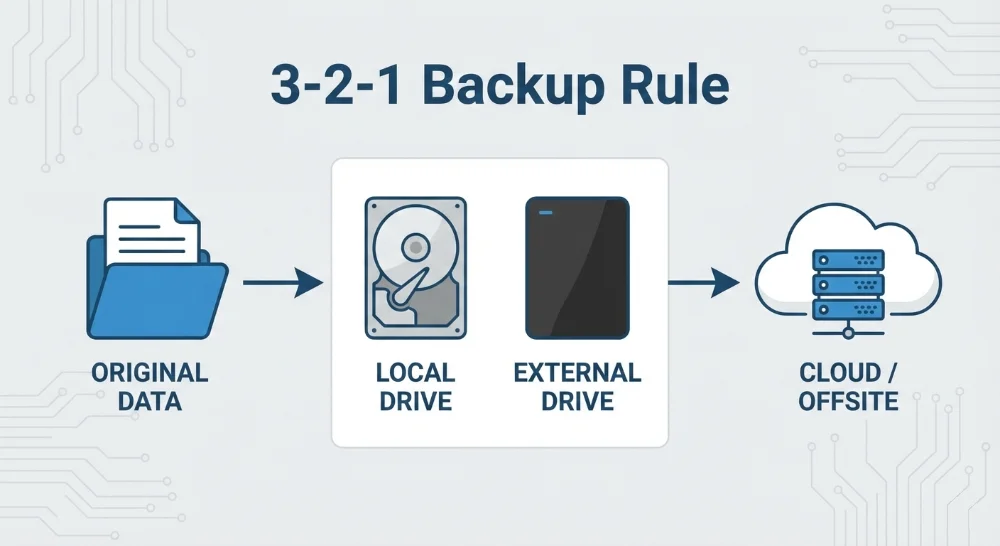
For critical files, follow the IT industry’s gold standard: the 3-2-1 backup rule —
keep 3 copies of your data, on 2 different types of storage, with 1 copy stored off-site.
2. Use Shift + Delete With Extreme Caution
“Shift + Delete” permanently removes files without sending them to the Recycle Bin.
One mistake, and normal recovery options disappear.
Whenever possible, use standard delete and make it a habit to double-check your Recycle Bin.
3. Always Safely Eject External Devices
Unplugging USB drives or external hard drives without proper ejection is one of the most common causes of device damage and file corruption.
Always click “Safely Remove Hardware” before unplugging any storage device.
4. Never Format a Drive Without Thinking Twice
When Windows says a drive “needs to be formatted,” don’t rush to click Yes.
In many cases, the file system is damaged but the data is still there. Formatting immediately makes recovery far more difficult.
5. Avoid Untrusted and Cracked Software
Cracked programs and shady “portable” apps are prime sources of malware. They can steal personal information, damage file structures, or even wipe data completely.
Stick to official sources and keep your antivirus protection active. Saving a few dollars is never worth risking your data.
6. Enable Built-In System Backup Features
Windows includes File History and System Restore, yet many users never turn them on.
Enable them. Set automatic backups.
This simple step provides one of the easiest layers of protection you can have.
7. Monitor Your Hard Drive’s Health
Hard drives are mechanical devices — they wear out.
If your system becomes slow, makes strange noises, or freezes frequently, your drive may be failing.
Use disk health tools to monitor SMART status and detect problems early.
8. Avoid Forced Shutdowns and Power Loss
Frequent forced shutdowns damage file systems, especially during active read/write operations.
Sudden power loss can corrupt or destroy data in seconds.
If you use a desktop computer, invest in a UPS (Uninterruptible Power Supply). Laptop users should ensure their battery is in good condition for emergency protection.
9. Store Important Files in At Least Two Locations
Projects, contracts, academic papers, photos, and videos should always exist in at least two places — for example, your PC and a USB drive.
Remember the rule: One copy is no copy. Two copies is real security.
10. Keep a Professional Data Recovery Tool Ready
Even if you follow the first nine rules perfectly, accidents still happen.
Systems crash. Devices fail. Mistakes occur. Life is unpredictable.
Having a reliable data recovery tool is your final safety net.
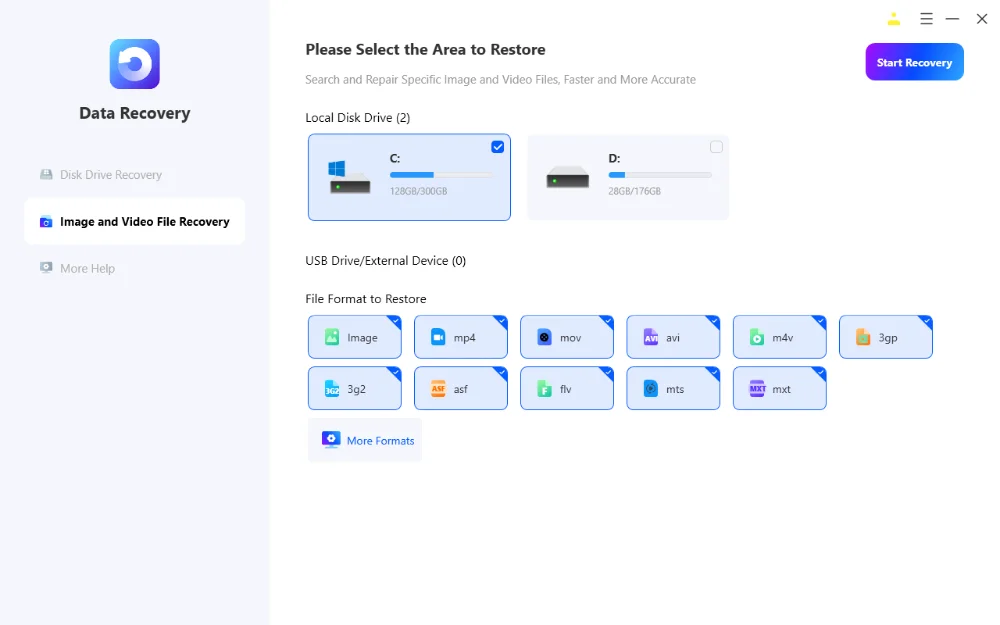
FionnShare Data Recovery is built for exactly these situations. It offers:
- Recovery from accidental deletion, formatting, and system crashes
- Support for hard drives, USB drives, external disks, SD cards, and more
- Support for hundreds of file formats
- Fast Scan and Deep Scan recovery modes
- 100% local operation — your data never leaves your computer
- File preview before recovery for full control and privacy
Most importantly, everything runs locally and securely, ensuring your personal data stays private.
Final Thoughts
The cost of losing data is far greater than the effort required to protect it.
Start building these 10 habits today, and make sure you always have a trusted recovery solution as your last line of defense.
Your data deserves professional protection.


 Fionn
FionnCopyright © 2026 Wonderful Apps Limited.
 English