 Emily CarterAuto Clicker
Introduction
An auto clicker for multiple locations should do more than repeat a click at one fixed point. Start by choosing between an ordered coordinate list, a recorded routine and a workflow that finds interface elements. This comparison brings together a focused clicker, an established scripting project, Microsoft's desktop automation platform and two commercial macro utilities. Choose by workflow rather than by a tool's name or interface age.
Top Picks
- Fionn Auto Clicker: Windows clicking with recording and playback when the task grows.
- AutoHotkey v2: flexible Windows routines for users comfortable with scripts.
- Microsoft Power Automate for desktop: visual automation for office and business tasks.
- Macro Recorder: record-and-edit workflows on Windows or Mac.
- MurGee Auto Mouse Click: an explicit list of fixed click positions and delays.
Quick Comparison Table
Fionn Auto Clicker
Consider Fionn Auto Clicker first on Windows if you need area-based random or sequential clicking now and recorded or scripted desktop automation later. It supports random and sequential clicks in a specified area, plus keyboard-and-mouse recording that can be replayed, edited, or exported. It fits Windows users combining straightforward multi-location clicks with reusable multi-step automation.
Visit the official Fionn Auto Clicker page for the product.
How to use
- For normal clicking only, open Fionn Auto Clicker and choose Mouse Clicking > Normal Click. Select the mouse button, click method, and click position; set the interval and repetition options; then select Start Auto-Click (F6).

- After confirming the routine works, select Stop Clicking or press F6. Confirm that clicking has stopped before moving the pointer or changing settings.

AutoHotkey v2
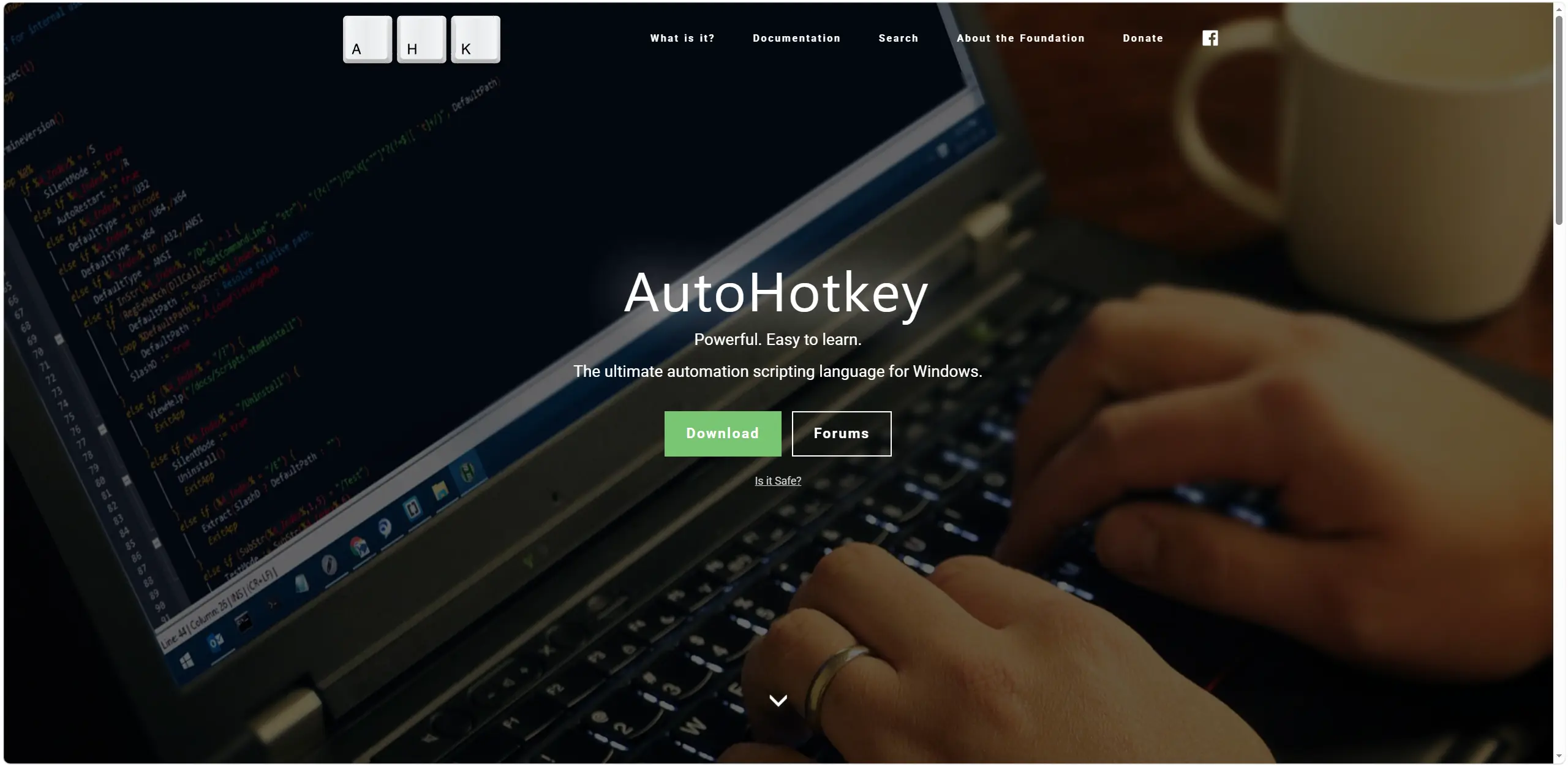
AutoHotkey is an established Windows automation choice for reusable routines. Its scripting approach suits users who want to define the order of several clicks and combine them with keyboard actions. It is a better fit for someone willing to maintain a script than for someone looking for a one-button setup. Use the current v2 documentation when building a new routine.
Best for: Users comfortable editing scripts.
Official source: AutoHotkey v2 .
Microsoft Power Automate for desktop
Power Automate for desktop is a practical choice when clicks are part of a business workflow. Its mouse actions support coordinates, delays and click types; its recorder creates separate actions associated with UI elements. That makes it useful when a routine must do more than click repeatedly.
Best for: Office and business workflows.

Official source: Microsoft Power Automate for desktop .
Macro Recorder by Bartels Media
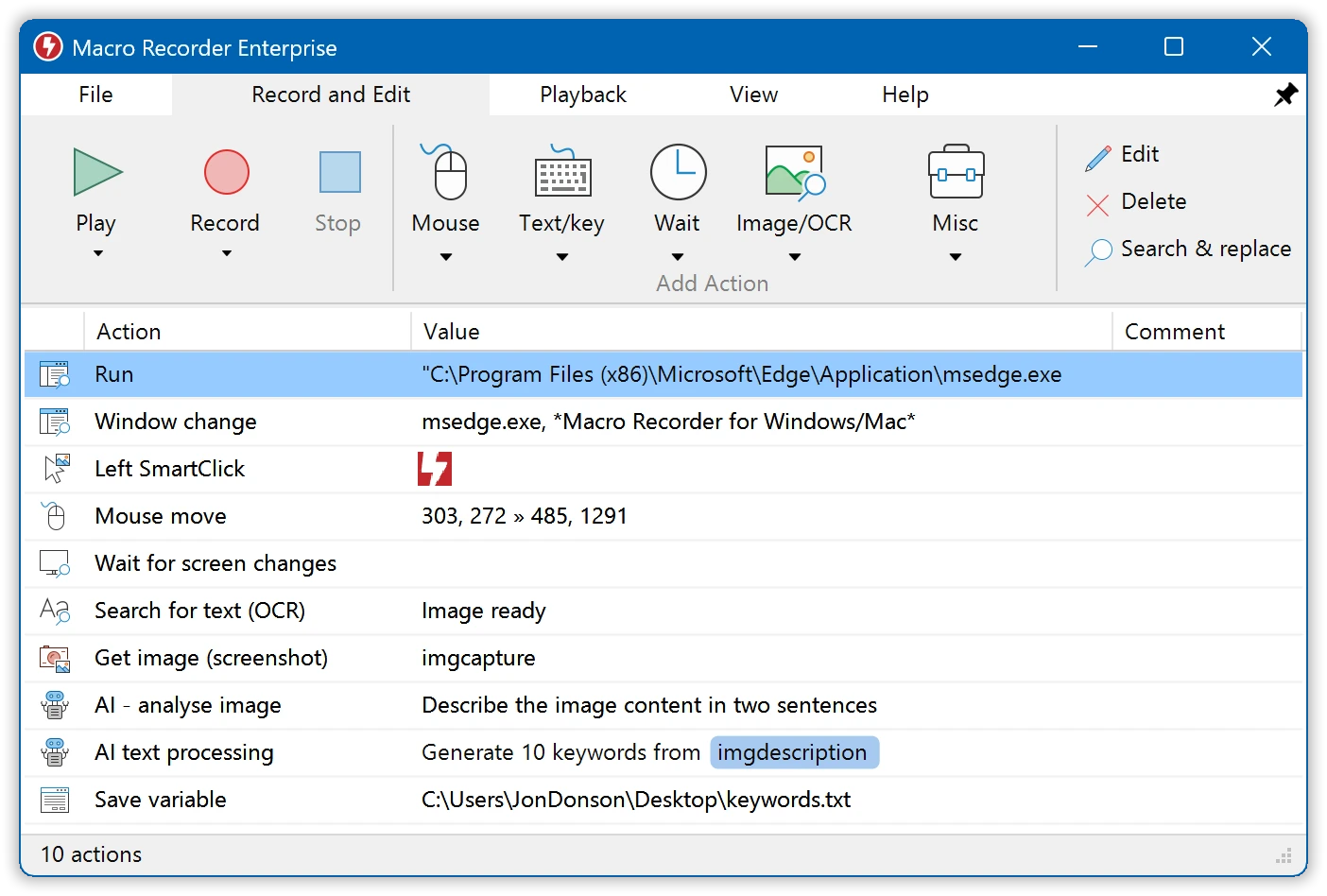
Macro Recorder is the clearest fit here for recording a multi-step routine and editing it visually. It captures mouse and keyboard actions, provides an editor and replays the sequence. The vendor also documents visual-context targeting, which can help when a target shifts on screen.
Best for: Users who prefer recording to scripting.
Official source: Macro Recorder by Bartels Media .
MurGee Auto Mouse Click
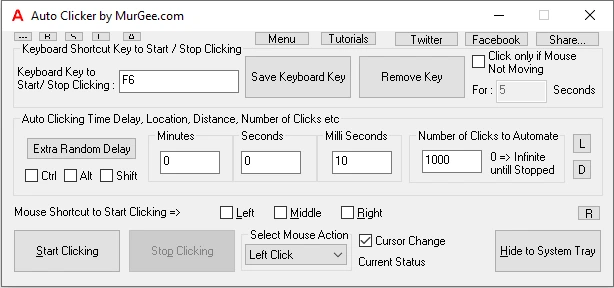
MurGee Auto Mouse Click is a focused option for building a list of click positions. Add each location, choose its click type and delay, then set how often the complete list repeats. Scripts can be saved for reuse. Its utilitarian interface is less important than whether this explicit click list fits the task.
Best for: Straightforward fixed-position sequences.
Official source: MurGee Auto Mouse Click .
How We Compared
This is a documentation-based comparison, not a hands-on speed benchmark or a market-share ranking. We checked official project and vendor sources on November 16, 2026, for multi-step clicking, platform support, setup effort and material restrictions. These tools represent different approaches; being established does not guarantee compatibility with every application. Old-looking interfaces are not by themselves evidence that a tool is obsolete.
How to Choose
For a fixed sequence, sketch the required points and pauses before choosing a tool. For a changing screen, consider UI targets or visual matching rather than relying entirely on fixed coordinates. For a mixed mouse-and-keyboard routine, recording or scripting is usually a better fit than a single-point clicker. Test one cycle first, add delays that let the application respond, and keep a stop control available.
Final Verdict
Start with Fionn Auto Clicker if you want Windows clicking and a path to recorded automation. Choose AutoHotkey v2 for script control, Power Automate for office workflows, Macro Recorder for recording and visual editing, or MurGee Auto Mouse Click for a coordinate list. The most useful choice is the one that repeats your exact sequence reliably, not the one advertising the highest click speed.
FAQ
Does every auto clicker support multiple locations?
No. A fixed-location mode is not the same as a sequence editor. OP Auto Clicker documents cursor-following and fixed-position modes, and links a separate multiple-click utility. Check the exact program and build instead of assuming these features are interchangeable.
Which option is free?
AutoHotkey is free and open source. For the other tools, check the relevant trial, edition or execution-mode terms before building a routine around a feature.
Which option also works on a Mac?
Macro Recorder offers Windows and Mac versions. The other entries in this comparison are Windows-oriented.
Can I automate a game?
Check the game's rules and restrictions before using automated input. General desktop automation support is not a guarantee that a game permits or accepts it.


