 Emily CarterDLL Errors
Introduction
A hostfxr.dll missing, not found, or load error usually means the affected app cannot reach a usable .NET host or one of the host's native prerequisites. Start with the affected app, repair the Microsoft Visual C++ runtime, and then install the exact .NET runtime requested by the error. The four methods below follow that order and finish with an optional broader DLL scan. Do not download a loose hostfxr.dll file from a DLL website. A mismatched file can prevent correct runtime selection.
Quick Overview: Match the Symptom to the Method
Choose the narrowest method that matches what you can observe. This avoids unnecessary system changes.
| Observed scenario | Start with | Why |
|---|---|---|
| Only one app fails, especially after its installation or update | Method 1 | The app may carry or manage its own .NET files. |
| The error specifically names hostfxr.dll without a missing .NET version | Method 2 | Microsoft lists the Visual C++ Redistributable as a remedy for this error. |
| The message names a .NET version or architecture | Method 3 | The required runtime may be absent or incompatible. |
| Several apps report different DLL or dependency-loading failures | Method 4 | A broader diagnostic scan may be useful after official fixes. |
Method 1: Repair or Reinstall the Affected App
When to use: Start here when one app fails but other .NET applications work. Microsoft confirms that some apps include their own .NET copy, so a damaged app package may be the actual source.
- Close the affected app.
- Open Settings > Apps > Installed apps in Windows 11, or Apps & features in Windows 10.
- Open the app's Advanced options and select Repair , if available.
- Launch the app after the repair completes.
- If Repair is unavailable or ineffective, uninstall the app and reinstall it from its official publisher or Microsoft Store listing.
Microsoft notes that not every program provides a Repair option. Its official Windows app repair instructions also cover Control Panel repair for traditional desktop programs.
How to Verify
Open the app twice and repeat the action that previously triggered the error. If the message still names hostfxr.dll, continue to Method 2.
Method 2: Install the Microsoft Visual C++ v14 Redistributable
When to use: Use this method when app repair fails or a .NET command produces the same missing-library message. Microsoft's current .NET troubleshooting page specifically directs users with a missing hostfxr.dll error to install the Visual C++ Redistributable.
- Open Microsoft's
latest supported Visual C++ Redistributable page
.
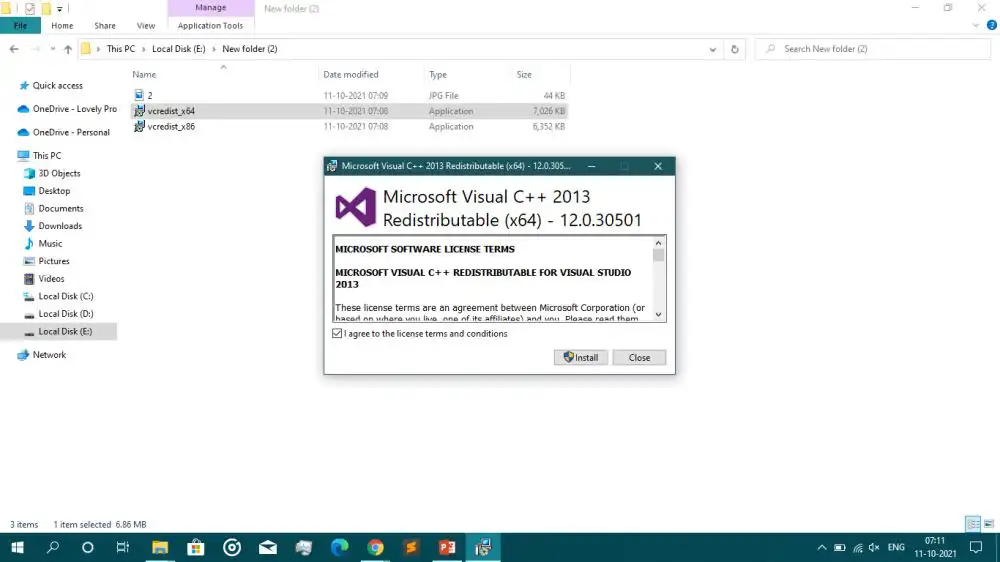
- Select the package matching the app's architecture: X64 , X86 , or ARM64 .
- Run the Microsoft-signed installer.
- Select Install , or select Repair when an installed package offers that option.
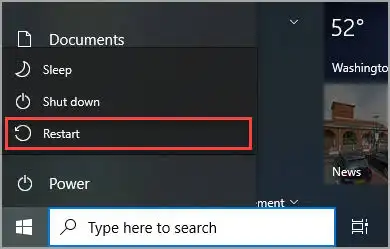
- Restart Windows after setup finishes.
How to Verify
Relaunch the affected app. If the error now requests a specific .NET version or still appears across several .NET apps, proceed to Method 3.
Method 3: Install the Required .NET Runtime
When to use: Choose this method when the error names a .NET major version or architecture, or when several framework-dependent apps fail. Microsoft explains that hostfxr selects the appropriate installed runtime and keeps its files in versioned host directories.
- Record the version and architecture shown in the complete error message.
- Open Command Prompt.
- List the installed runtimes:
dotnet --list-runtimes - Compare the installed list with the version requested by the app.
- Download the matching supported release from the official .NET download page .
- Install the matching Windows architecture and restart the app.
For a Windows desktop app, select the Desktop Runtime unless the publisher specifies another package. The SDK is intended for building applications; ordinary users normally need a runtime. Microsoft's installed-version reference explains the runtime list and standard folders.
How to Verify
Run
dotnet --list-runtimes
again and confirm the required runtime appears. Then launch the original app. Successful app startup is the final test.
If official repairs succeed but several unrelated DLL and dependency errors remain, an optional scan with Fionn DLL Fixer can check for broader Windows DLL problems.
Keep a broad scan optional. It should follow, rather than replace, Microsoft and app-publisher remedies.
Method 4: Use Fionn DLL Fixer for Broader DLL Issues
When to use: Consider this method when several apps show missing, damaged, version-mismatched, or dependency-loading errors after the targeted methods above. The scan is not evidence that hostfxr.dll itself is defective, so verify the original app separately.
- Launch Fionn DLL Fixer. The software automatically scans your PC for DLL and system issues and displays the detected results when the scan is complete.

- After the scan finishes, click "Repair" to start fixing all detected DLL and system issues automatically.

- Wait while the repair is in progress. During this process, the button changes to "Fixing" until all issues have been repaired.

- When the repair is complete, click "Ok" in the confirmation dialog. If prompted, restart your computer before checking whether the problem has been resolved.

- If the issue still persists after restarting, click "Recheck" to perform another scan. If new issues are found, click "Repair" again to fix them.

How to Verify
Complete the recheck, then reproduce the original launch attempt. A completed scan is useful diagnostic evidence, but only successful app startup confirms the reported error is resolved.
Common Mistakes to Avoid
- Copying a standalone DLL: hostfxr is stored in versioned .NET directories and participates in runtime selection. A random copy may have the wrong version or architecture.
- Changing PATH without evidence:
Run
where.exe dotnetfirst. Edit PATH only when its order demonstrably resolves the wrong dotnet installation. - Treating one failure as system-wide: If only one app fails, repair its package before changing shared runtimes.
- Skipping the final app test: File presence alone does not prove that Windows can load the library and start the requested runtime.
Conclusion
Use the smallest applicable repair first: repair the affected app, install the current Microsoft Visual C++ v14 Redistributable, and then add the exact .NET runtime requested by the error. Verify each change by reopening the app and use
dotnet --list-runtimes
when a system-wide runtime is involved. If several DLL failures remain,
Fionn DLL Fixer
is an optional broader check. If none of these methods works, send the complete error text, app version, and architecture to the app publisher rather than replacing DLL files manually.
FAQ
What is hostfxr.dll?
hostfxr.dll is a native .NET hosting component responsible for selecting an appropriate runtime when an application starts. Microsoft documents it under the versioned
host/fxr/<version>
directory. It is not a generic file that should be copied into every application folder or into System32.
Can I safely download hostfxr.dll by itself?
No standalone DLL download is recommended. A loose file lacks the surrounding versioned runtime structure and may not match the application's architecture. Use the affected app's official installer, Microsoft Visual C++ Redistributable, or the matching .NET runtime installer instead.
Which .NET package should I install?
Install the major version and architecture named by the error or required by the app publisher. Windows desktop applications commonly need the Desktop Runtime, while other applications may require the base .NET Runtime. You do not need the full SDK unless you develop or build .NET applications.
Why does the error remain when hostfxr.dll exists?
File presence does not guarantee successful loading. The app may be resolving a different architecture, missing a native prerequisite, using a damaged bundled runtime, or requesting another .NET version. Use the complete error path and wording to choose between app repair, Visual C++ repair, and runtime installation.


