 Emily CarterPrinter Drivers
How to Download HP Printer Driver Software: 4 Windows Methods
Introduction
The safest way to download HP printer driver software is to connect the printer and let Windows install a compatible driver first. If Windows cannot detect the device or provides only basic printing, use the official HP support page. Four methods are covered below: Windows installation, a manual HP download, Device Manager, and an optional automated check. Follow them in that order and stop when the printer works. This approach limits the risk of installing an unsigned package or a driver intended for a different model.
What to Check Before Downloading
- Find the complete model name on the printer housing or manufacturer label.
- Check the Windows version under
Settings → System → About. - Read “System type” to identify x64, x86, or ARM architecture.
- For a network printer, connect the computer and printer to the same network.
- Keep the printer powered on and its USB cable connected during installation.
HP Printer Driver Download Methods Compared
| Method | Best for | Difficulty |
|---|---|---|
| Windows tools | A new printer or one Windows detects automatically | Low |
| HP support | A model-specific software package | Low |
| Device Manager | A detected printer with a driver warning or unstable behavior | Medium |
| Fionn Printer Driver | An unknown model or a broader check of the Windows printing chain | Low |
Method 1: Download HP Printer Driver Software with Windows
When to Use
Start here when connecting the printer for the first time. Windows can install drivers for many connected printers and may obtain an updated driver through Windows Update.
Step-by-Step Guide
- Turn on the printer and connect it by USB or to the computer’s network.
- In Windows 11, open
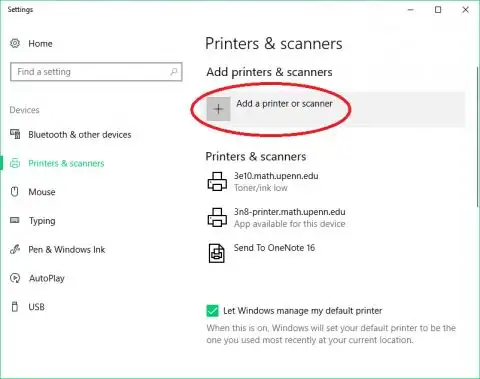
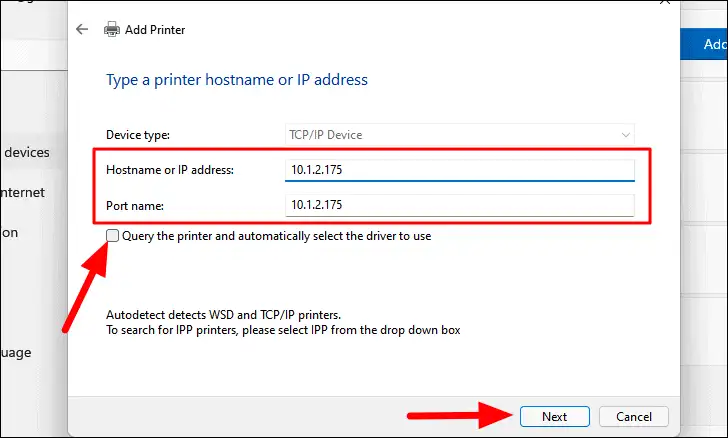
Settings → Bluetooth & devices → Printers & scanners. In Windows 10, openSettings → Devices → Printers & scanners. - Select “Add device” beside the option for adding a printer or scanner.
- Choose the detected HP printer and wait for installation to finish.
- Open Windows Update and install an available driver update if Windows offers one.
How to Verify
Open the printer in “Printers & scanners” and print a test page. If basic printing works but model-specific features are missing, install the HP package. Microsoft also provides an official Windows printer installation procedure.
If Windows cannot find the printer or installs only a basic driver, continue with the model-specific download.
Method 2: Download the Driver Manually from HP
When to Use
Use this method when Windows does not recognize the printer, only basic printing is available, or the model requires HP software.
Step-by-Step Guide
- Copy the complete model name, serial number, or product number from the device label.
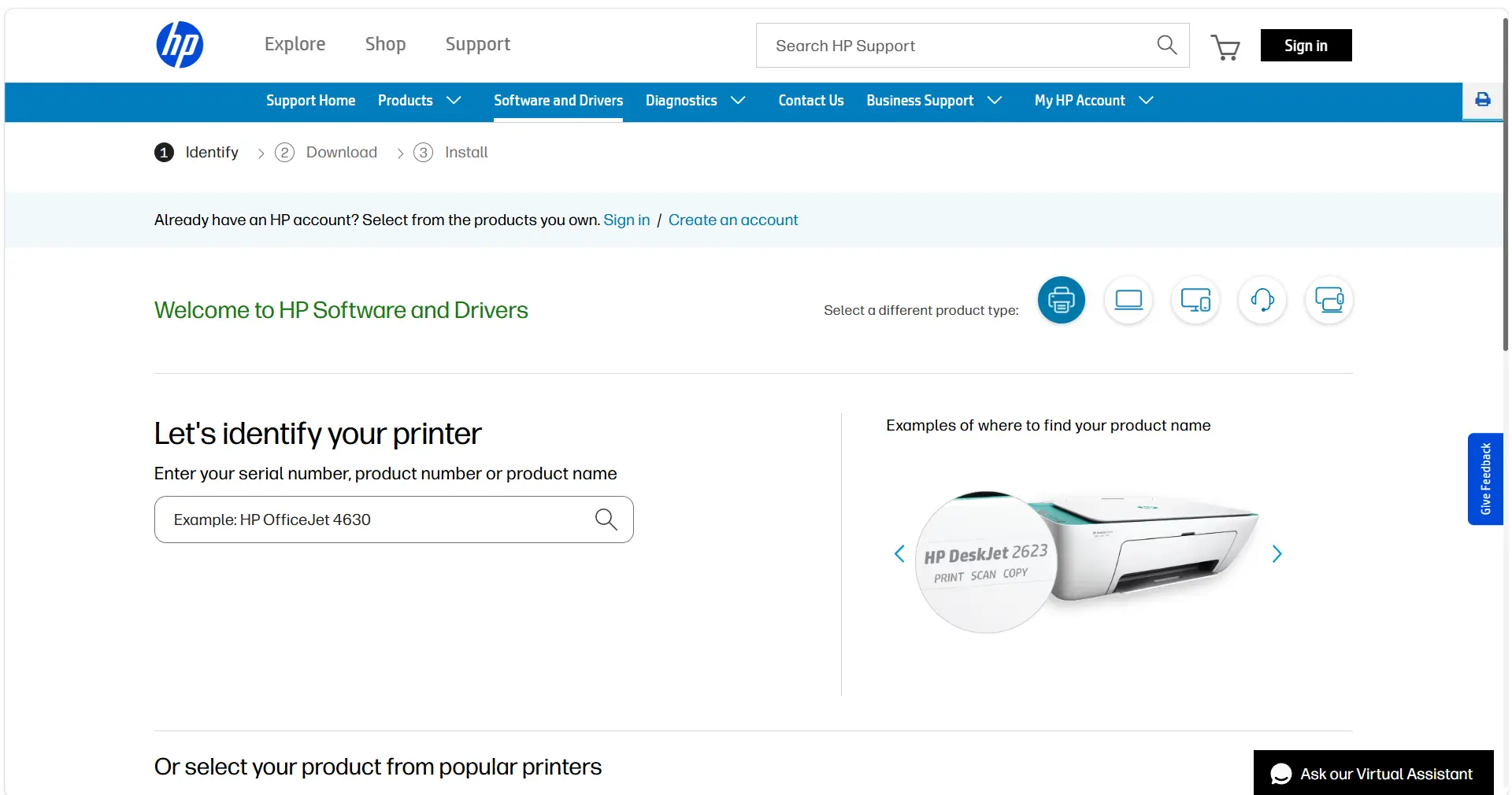
- Open the official HP printer driver download page.
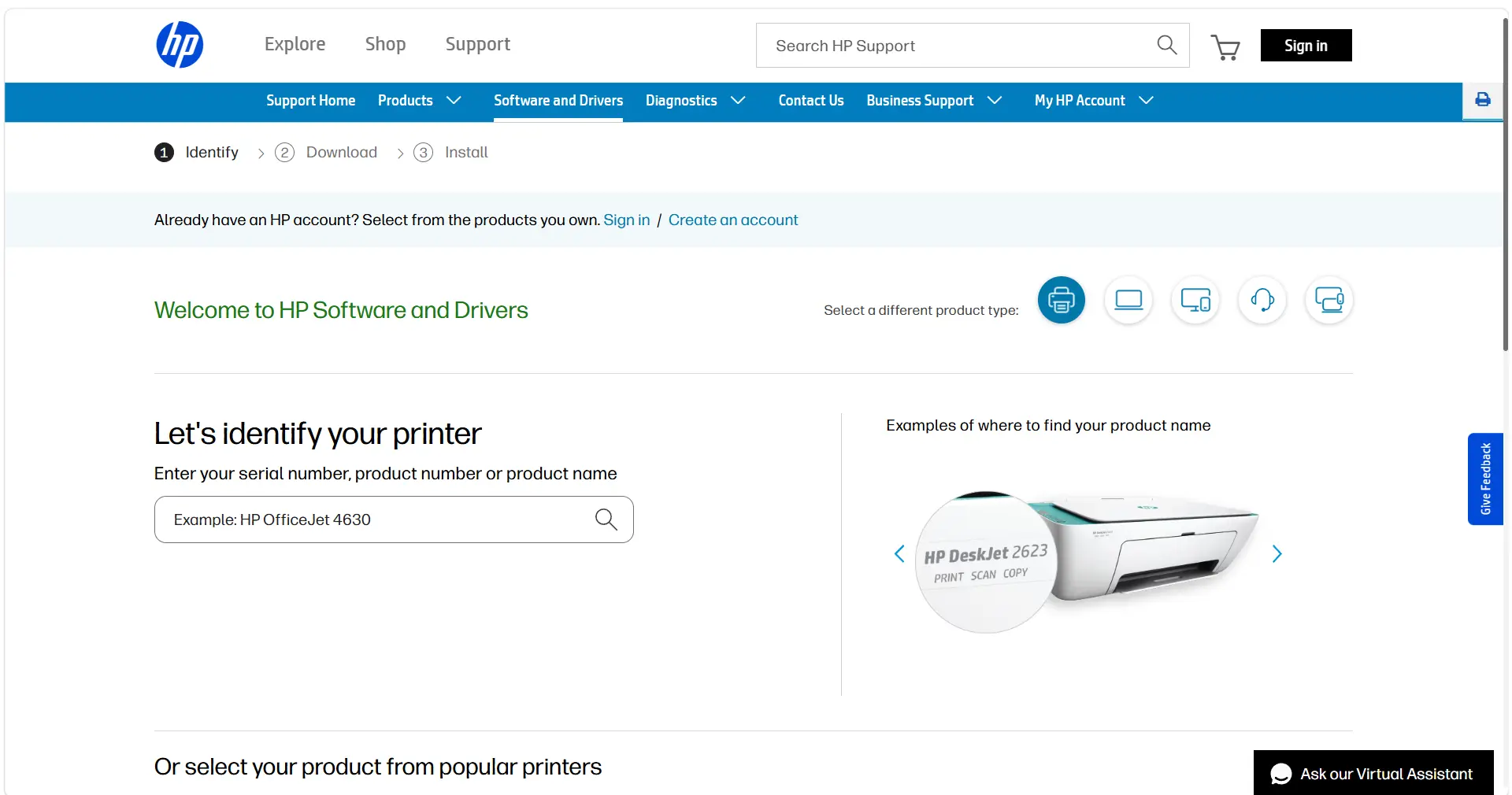
- Enter the model name, serial number, or product number in the search field.
- Confirm the detected Windows version and download the package offered for it.
- Open the downloaded file from
Downloadsand follow the installer prompts.
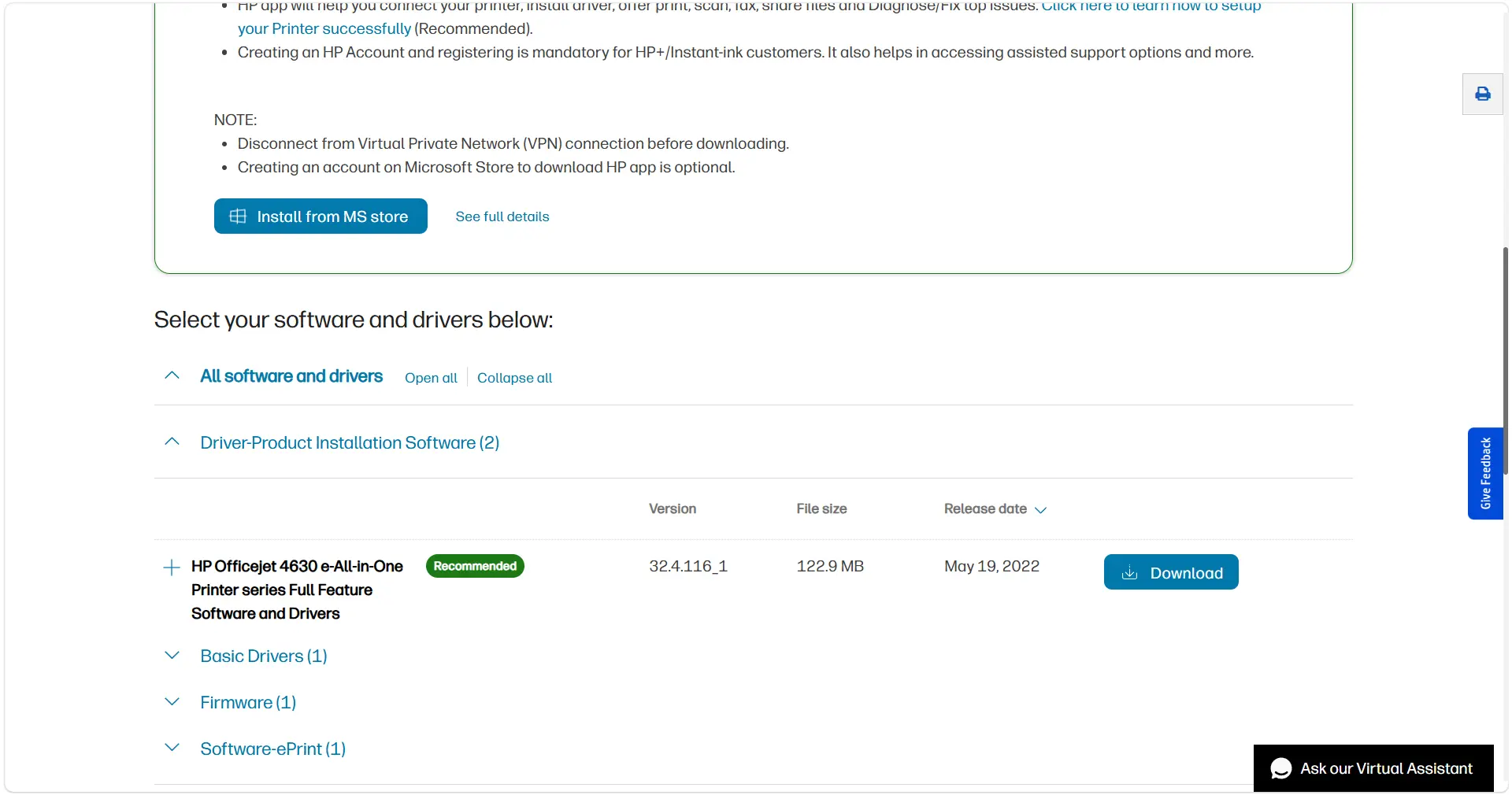
- Restart Windows if the installer requests it.
How to Verify
Confirm that the model appears without a warning in “Printers & scanners,” then print a test page. If the job starts but stalls, or the printer remains offline, investigate the queue, port, connection, and print service before reinstalling the driver.
If the official package is installed but Windows still reports a driver problem, inspect the device through Device Manager.
Method 3: Update the Driver Through Device Manager
When to Use
This method is appropriate when Windows already lists the printer, but the device shows a warning or its installed driver behaves unpredictably.
Step-by-Step Guide
- Press
Win + Xand open “Device Manager.” - Expand “Print queues” or “Printers.”
- Right-click the HP device and select “Update driver.”
- Select the option to search automatically for drivers.
- Install the detected update and restart the computer if prompted.
How to Verify
Open the device properties and confirm that Windows displays no error code. Print a test page next. If the driver is healthy but nothing prints, remove paused jobs and confirm that the correct printer is selected.
If the model or failure point is still unclear, an optional automated check can examine related printing components.
Method 4: Run an Optional Check with Fionn Printer Driver
When to Use
This Windows utility is an optional choice when the exact model is unknown, driver matching is difficult, or the problem may involve the device status, print service, port, or queue. It supports automatic and manual installation modes.
Step-by-Step Guide
- Launch the program and select “Scan Now” to check printer drivers and related issues.

- Wait while the program scans installed printers, drivers, and common printing problems.

- Review the scan result and select “One-Click Fix” to install or repair the required driver automatically.

- Wait for the repair to finish and review the completion result.
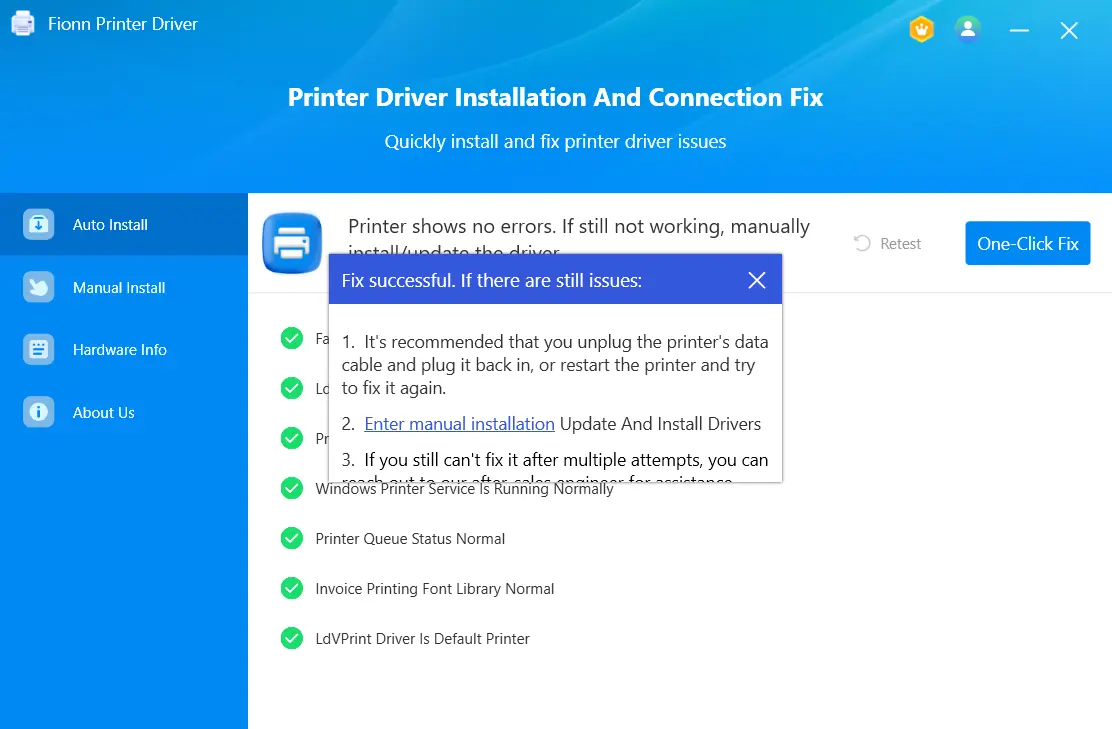
How to Verify
Return to “Printers & scanners” and print a test page. If the printer remains offline, check its power, connection, paper, queue, and default-printer status. A successful driver repair cannot resolve a disconnected printer or an empty paper tray.
Tips and Best Practices
- Create a restore point before manually installing an old or nonstandard driver.
- Keep the working driver until a compatible replacement has finished downloading.
- Close documents with unfinished print jobs before restarting Windows.
- Verify real output with a test page instead of relying only on an “installed” status.
Conclusion
Begin with Windows printer setup and Windows Update. Move to HP’s model-specific package only when automatic installation fails or lacks required features. Reserve Device Manager for a printer that Windows already detects but reports incorrectly. Whatever method you use, success means the device appears without warnings and produces a test page. If the driver is installed but port, service, queue, or device-state problems remain, Fionn Printer Driver can provide an additional diagnostic check. It supplements the official methods rather than replacing them.
Frequently Asked Questions
Can one universal driver work with every HP printer?
Choose the package listed for the exact model and Windows version. Printers in one series can have different features or configurations. If Windows supplies a compatible built-in driver, test basic printing before adding HP software.
How do I find the exact HP printer model?
Check the front or rear panel, the manufacturer label, and purchase records. HP’s search page accepts a model name, serial number, or product number. Copy all letters, numbers, and suffixes.
What should I do if the HP installer cannot detect the printer?
Check power, the USB cable, or whether both devices use the same network. Then add the printer through Settings → Printers & scanners. On an ARM computer, prefer Windows setup unless HP specifies another procedure.
Why is the printer offline after the driver is installed?
“Offline” does not always indicate a driver failure. Check the connection, selected port, print queue, default printer, print service, paper, jams, paused status, and supplies.
Must I remove the old driver before updating it?
Usually, start with Windows Update, HP’s installer, or “Update driver” in Device Manager. Removal may help with a damaged installation, but download a compatible replacement before removing the current package.


