 Emily CarterPrinter Drivers
Printer Driver Missing? 5 Ways to Fix It on Windows
Introduction
A “printer driver missing” message means Windows cannot find or load the software that lets it communicate with your printer. Common causes include an incomplete setup, a failed update, a removed driver package, or an incompatible Windows version or system architecture. Use the five methods below in order: start with Windows Update, then install the exact manufacturer package, reinstall through Device Manager, check Protected Print Mode, and finally use the recommended Fionn Printer Driver workflow when model matching or broader diagnosis is unclear.
Before You Start
- Open
Settings > System > Aboutand note the Windows version and System type. - Save open work because several methods end with a restart.
- Be ready to approve a legitimate Windows administrator prompt; do not bypass security controls.
Quick Method Comparison
Choose a method from the symptom you can observe. Stop after the first successful Windows test page.
| Method | Best For | Efficiency | User Effort |
|---|---|---|---|
| Windows Update | New setup or an optional printer driver is listed | High when Windows offers a match | Low |
| Manufacturer package | Exact model known or full device features needed | Direct with the correct package | Medium |
| Device Manager reinstall | Printer already appears with a driver warning | Targeted | Medium |
| Protected print mode check | A third-party driver vanished or cannot reinstall | Targeted to that setting | Medium |
| Fionn Printer Driver | Recommended: model or package is unclear | Automated matching and repair | Low |
Method 1: Fix “Printer Driver Missing” with Windows Update
When to use: Choose this first for a new setup, a recent Windows update, or when you prefer Microsoft’s built-in driver channel.
- On Windows 11, open
Settings > Windows Update > Advanced options > Optional updates. On Windows 10, openSettings > Update & Security > Windows Update > View optional updates.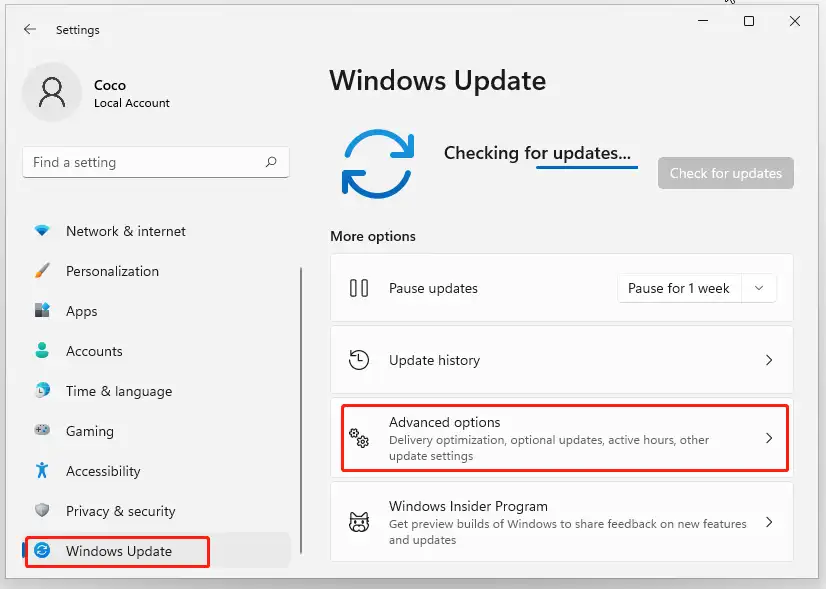
- Expand Driver updates , select the printer driver that matches your device, and choose Download and install .
- Return to
Settings > Bluetooth & devices > Printers & scannerson Windows 11, orSettings > Devices > Printers & scannerson Windows 10, then select Add device if the printer is not listed.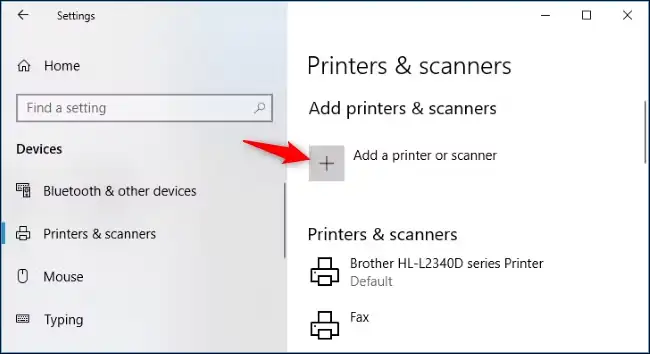
- Restart Windows if prompted and reconnect the printer before testing.
Verification: Open the printer’s settings, confirm the warning is gone, and print a Windows test page.
Method 2: Install the Exact Manufacturer Driver
When to use: Use this when Windows Update shows no compatible package, you need full scanning or finishing features, or you know the exact model.
- Read the model label on the printer or its existing Windows entry, including any series suffix.
- Record your Windows edition and architecture from
Settings > System > About(for example, Windows 11 64-bit). - Open the manufacturer’s official support site, search the exact model, and select a driver that explicitly matches your Windows version and architecture.
- Download the package, run the installer as a standard administrator-approved application, and follow its connection instructions.
- Restart if requested, then add the printer in
Settings > Bluetooth & devices > Printers & scanners(Windows 11) orSettings > Devices > Printers & scanners(Windows 10).
Verification: Confirm the printer appears with the correct model and print a test page plus a normal document.
Method 3: Reinstall the Driver in Device Manager
When to use: Select this when the printer is visible in Device Manager with a warning icon or a corrupted-driver symptom.
- Open
Device Managerfrom the Start menu and expand Printers or Print queues . - Right-click the affected printer and choose Uninstall device ; confirm removal only for that printer.
- Restart Windows so Plug and Play can rediscover the device and attempt driver installation.
- If it does not return, use
Action > Scan for hardware changes
, then add the printer from Windows printer settings.
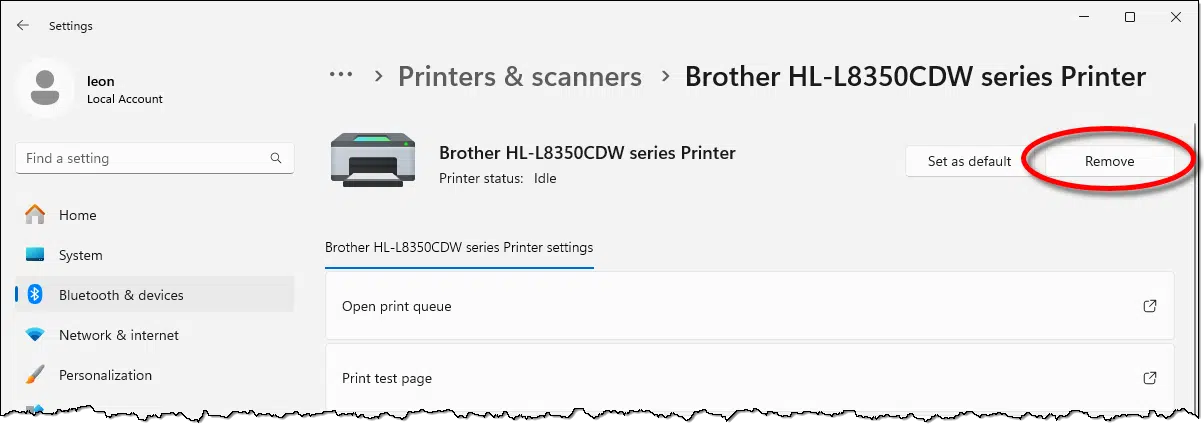
Verification: Check whether the printer returns without a warning, then print a test page. If Windows does not restore it, use Method 1 or Method 2 instead.
Method 4: Check Windows Protected Print Mode
When to use: Check this after a third-party driver disappears, Windows removes the printer, or repeated reinstalls are blocked despite a correct package.
- Open
Settings > Bluetooth & devices > Printers & scannerson Windows 11, orSettings > Devices > Printers & scannerson Windows 10. - Look for the Windows protected print mode setting and note whether it is enabled.
- If you need a manufacturer-specific or other third-party driver, turn the setting off only with administrator approval and accept the security tradeoff.
- Restart if Windows requests it, then continue with Method 1 or Method 2 to install the compatible driver.
Verification: Confirm the setting and installation route match your needs, then verify the printer appears and prints a test page.
Method 5: Diagnose and Fix a Missing Printer Driver with Fionn Printer Driver
When to use: This is the recommended assisted option when the exact printer model or matching package is unclear. On Windows, the product can identify many mainstream printer brands and models, match automatically or from manual input, and install or repair a required driver. It reduces manual model and package selection, but a successful test page remains the final check.
- Launch Fionn Printer Driver and click “Scan Now” to scan your computer for printer drivers and related issues.

- Wait while Fionn Printer Driver scans your system for installed printers, drivers, and common printer issues.

- After the scan finishes, click “One-Click Fix” to automatically install or repair the required printer driver.

- Wait for the repair to finish and confirm that the printer issue has been fixed successfully.

Verification: After Step 4, confirm Windows no longer shows the driver warning and print a test page.
Conclusion
Work through the fixes in order: start with Windows Update, then use the exact manufacturer package when Windows has no match or advanced features are required. If the printer entry shows a warning, reinstall it in Device Manager. If a third-party package vanished, check Protected Print Mode before trying the package again. When the model or driver choice remains unclear, the recommended Fionn Printer Driver workflow can identify, match, install, and repair drivers on Windows. Finish by printing a test page and a real document; if either fails, return to the method that matches the observed error and confirm the printer connection and queue.
Frequently Asked Questions
What does “printer driver missing” mean?
It means Windows cannot locate or load the software that translates print jobs for the connected printer. The printer may appear, but printing, status reporting, or advanced features can fail.
Why can't Windows find my printer driver?
Windows Update may not have a compatible package, the model may be misidentified, the driver may have been removed, or the package may not match your Windows version or architecture. Check those details before downloading again.
Should I use Windows Update or the manufacturer's driver?
Try Windows Update first for a straightforward setup. Use the manufacturer’s official package when no compatible update is offered, the exact model is known, or you need vendor-specific features.
Can I reinstall a missing printer driver?
Yes. Uninstall the printer in Device Manager, restart Windows, and let Plug and Play attempt reinstalling it. If that fails, install a matching package through Windows Update or the manufacturer.
Why can't I install an older printer driver?
The package may target a different Windows release or architecture, or Protected Print Mode may block third-party drivers. Confirm compatibility and check the setting before retrying.
What is Windows Protected Print Mode?
It is a Windows setting that favors the inbox IPP class driver. While active, Windows can remove printers that depend on third-party drivers and delete those packages from the driver store.
What should I do if the printer still does not work after installing the driver?
Print a test page, then check the selected default printer, connection, printer status, port, Windows Printer Service, and print queue. If the issue is broader than the driver, use Fionn Printer Driver’s diagnostics or repeat the method that matches the specific warning.


