 Emily CarterDLL Errors
Introduction
To fix a ucrtbase.dll missing, not found, or faulting module error, start with the affected app, then repair Windows components only if the problem is broader. Three methods are covered below: repair or reinstall one failing app, run DISM and System File Checker, and optionally scan with Fionn DLL Fixer. Follow that order. It keeps the first attempt narrow and low risk while reserving system-wide changes for errors that affect several programs or continue after an app repair.
What a ucrtbase.dll Error Actually Tells You
Microsoft lists
ucrtbase.dll
among the Universal CRT files. On Windows 10 and Windows 11, the Universal CRT in the system directory is a core operating system component and is always used. See
Microsoft's Universal CRT deployment documentation
.

The wording matters. A “missing” or “not found” message reports a loading problem. A “faulting module” entry reports where a crash surfaced, but it does not prove that the named DLL is damaged. Treat the filename as a diagnostic clue and use the scope of the failure to choose a method.
Quick Overview
| Observed scenario | Start here | Why |
|---|---|---|
| Only one app fails | Method 1 | Repair the smallest affected scope first. |
| Several unrelated apps fail, or Windows reports missing files | Method 2 | Check the Windows component store and protected system files. |
| The cause remains unclear after built-in repairs | Method 3 | Use an optional broader DLL and system scan. |
Method 1: Repair or Reinstall the Affected App
When to Use
Use this method when one program crashes or refuses to start while other programs work. An app repair replaces or restores that program's files without assuming that Windows itself is damaged.
Step-by-Step Guide
- Close the affected app and save any app-specific settings or license details that you may need.
- Open
Start > Settings > Apps > Installed apps. - Select the app's More button, open
Advanced options, and chooseRepairif that option appears.
- For a desktop program without Advanced options, open
Control Panel > Programs > Programs and Features, select the program, and chooseRepairorChange. - If no repair option exists or the error continues, uninstall the app and reinstall it from its official publisher.
Microsoft notes that repair, change, and modify options are not available for every program. The exact Windows 10 and Windows 11 paths are in the official Windows app-repair instructions .
How to Verify
Launch the same app and repeat the action that triggered the error. The method worked if the app opens or completes that action without the ucrtbase.dll message. If several unrelated apps now show similar failures, move to Method 2.
Method 2: Repair Windows Components with DISM and SFC
When to Use
Use this method when multiple apps fail, Windows features also misbehave, the message says the file is missing, or Method 1 did not help. DISM repairs the Windows component store that SFC uses, while SFC checks protected system files.
Step-by-Step Guide
- Search for
Command Prompt, right-click it, and selectRun as administrator.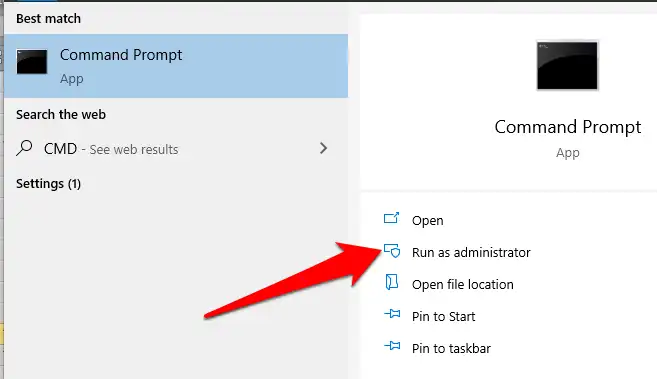
- Run the following DISM command:
DISM.exe /Online /Cleanup-Image /RestoreHealth
- Wait until DISM reports that the operation completed successfully.
- Run System File Checker:
sfc /scannow - Wait for verification to reach 100%, then restart Windows and test the affected app.
How to Verify
Read the final SFC message. “Windows Resource Protection did not find any integrity violations” means protected system-file corruption was not found. A message that corrupt files were repaired means you should restart and retest. If SFC could not repair files, follow Microsoft's system-file repair procedure for its log and recovery guidance.
If SFC finds no integrity problem and only one app still fails, return to the app publisher's support channel. A faulting-module record alone is not enough evidence to replace ucrtbase.dll.
Method 3: Use Fionn DLL Fixer for a Broader Scan
When to Use
Use this optional method after the built-in and app-specific methods when you want a broader scan for missing, damaged, or version-mismatched DLL and system-component issues. It is an aid, not proof that ucrtbase.dll caused the crash.
Step-by-Step Guide
- Launch Fionn DLL Fixer. The software automatically scans your PC for DLL and system issues and displays the detected results when the scan is complete.

- After the scan finishes, click “Repair” to start fixing all detected DLL and system issues automatically.

- Wait while the repair is in progress. During this process, the button changes to “Fixing” until all issues have been repaired.

- When the repair is complete, click “Ok” in the confirmation dialog. If prompted, restart your computer before checking whether the problem has been resolved.

- If the issue still persists after restarting, click “Recheck” to perform another scan. If new issues are found, click “Repair” again to fix them.

How to Verify
Complete the recheck, then repeat the action that originally failed. A clean recheck and a successful app launch provide stronger confirmation than a repaired-item count alone. If the app still crashes, preserve the exact message and contact the app publisher or product support.
Common Mistakes to Avoid
- Replacing the DLL manually: Windows 10 and 11 use the system-directory Universal CRT. A copied file may be the wrong build.
- Assuming “faulting module” means “corrupt file”: Repair the affected app first when the failure is limited to that app.
- Running commands in the wrong order: Use DISM before SFC because Microsoft documents DISM as the source-repair step.
- Skipping verification: Retest the same action after each method so you know which change helped.
Conclusion
Start with the affected app when the ucrtbase.dll error is isolated. Use DISM followed by SFC when several programs or Windows components show problems. Verify each result by repeating the original action and reading the final repair status. If Windows reports no integrity violations but one app still crashes, take the exact message to that app's publisher. For an optional broader DLL and system-component scan after those steps, use Fionn DLL Fixer , then recheck and test the original app again.
Frequently Asked Questions
What is ucrtbase.dll?
ucrtbase.dll is one of the files Microsoft lists for the Universal CRT. On Windows 10 and Windows 11, the system-directory Universal CRT is a core operating system component. Applications may depend on it, but its appearance in a crash record does not identify the root cause by itself.
Is it safe to download ucrtbase.dll from a DLL website?
No safe match can be assumed. A standalone file may come from a different Windows build or an untrusted source. Use app repair, DISM, and SFC before considering any manual system-file action. Microsoft-supported repair paths preserve the component relationships that a single downloaded file cannot verify.
Why does Event Viewer name ucrtbase.dll if the app is the problem?
A faulting-module entry identifies the module where Windows recorded the failure. It does not, by itself, prove that the module's file is corrupt. If only one app fails, repair or reinstall that app first. If unrelated apps fail, check Windows components with DISM and SFC.
What if SFC finds no integrity violations?
That result means SFC did not find corruption in protected system files. It does not certify every application file or configuration. If one app still fails, update, repair, or reinstall that app from its official publisher. Escalate with the exact error text and the action that reproduces it.


