 Emily CarterDLL Errors
How to Fix a DLL not found Error on Windows 10/11
Introduction
A “DLL not found” error means an application could not load a required library. The file may be missing, damaged, misplaced, blocked, or the wrong version; the message alone does not identify the cause. Use the four methods below in order: repair the affected application, review Windows Security actions, repair protected Windows files, and then consider an optional automated scan. Record the exact DLL filename before changing anything, and never install a DLL from an unverified download site.
Symptoms
The error usually appears when an application starts or calls a feature that depends on the unavailable library. Common messages include:
- “The code execution cannot proceed because [filename].dll was not found.”
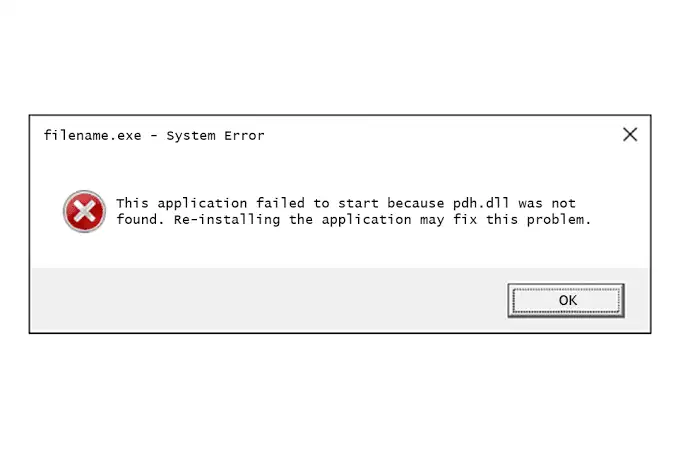
- “The program can’t start because [filename].dll is missing from your computer.”
- “The specified module could not be found.”
- An application closes, shows a black screen, or repeatedly returns to its launcher.
A failure in one application usually points to that application’s files. Similar failures across several unrelated applications or Windows features make protected system-file damage more plausible. Microsoft explains that a broken DLL dependency can result from removal, replacement, or an incompatible version.
Quick Diagnosis Checklist
Match the observable situation to a method before making system-wide changes.
| What you observe | Likely scope | Next step |
|---|---|---|
| Only one application fails | Application installation or private dependency | Use Method 1. |
| The error began after a security notification | A file may have been quarantined | Use Method 2 and verify the detection before restoring anything. |
| Several unrelated applications or Windows features fail | Protected Windows files may be damaged | Use Method 3. |
| The scope remains unclear after the official checks | Broader DLL or system diagnosis may help | Consider Method 4 with Fionn DLL Fixer . |
Method 1: Repair or Reinstall the Affected Application
When to Use
Start here when one application produces the error and other software opens normally. An application repair can restore files supplied by its installer without changing unrelated Windows components. Microsoft notes that Repair, Change, and Advanced options are not available for every application.
Step-by-Step Guide
- Photograph or copy the complete error message and DLL filename.
- Back up application projects, profiles, or settings that are not synchronized elsewhere.
- Open Settings > Apps > Installed apps on Windows 11.
- Select the application’s Advanced options , then choose Repair if available.
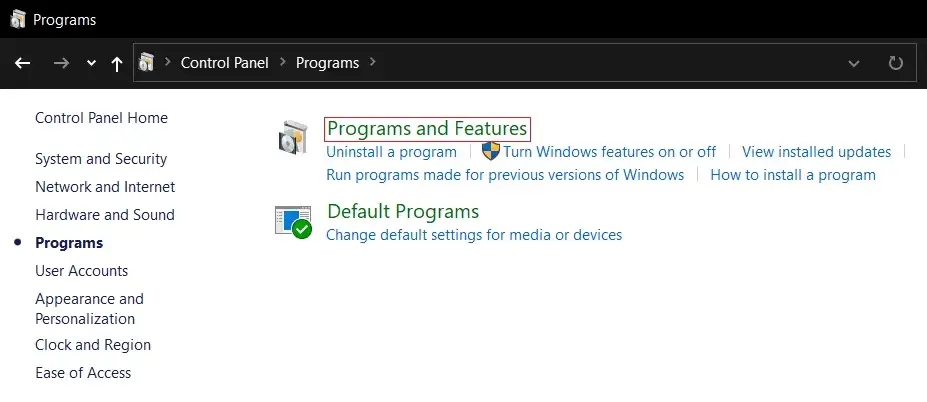
- Use
Control Panel > Programs > Programs and Features > Repair or Change
when the Settings option is absent.
- Reinstall the application from its official publisher if its repair option is unavailable or unsuccessful.
Follow the publisher’s documented removal process because uninstalling may remove local settings. Microsoft provides the current Windows application repair paths for Windows 10 and 11.
How to Verify
Open the same application through the same shortcut or launcher. Repeat the action that previously triggered the message. A successful repair produces no missing-DLL dialog and keeps the tested feature open.
Method 2: Check Windows Security Protection History
When to Use
Use this method when the error appeared after a Microsoft Defender notification, scan, or application installation. Protection History records actions taken by Defender, including quarantined items. A matching filename and timestamp provide stronger evidence than timing alone.
Step-by-Step Guide
- Open Windows Security from the Start menu.
- Select Virus & threat protection , followed by Protection history .
- Look for an event matching the reported DLL filename and the time the problem began.
- Confirm the affected application and file source with its developer or your IT administrator.
- Restore the item only after a false positive has been verified; otherwise, leave it quarantined and reinstall or update the application from its official publisher.
Microsoft’s Windows Security overview explains that Protection History lists Defender actions and removed potentially unwanted applications.
How to Verify
Launch the application and check Protection History again. The error should remain absent, and Defender should not create another detection. Do not add a security exclusion simply to suppress a repeated warning; ask the application publisher to investigate it.
Method 3: Repair Protected Windows Files with DISM and SFC
When to Use
Use DISM and System File Checker when several unrelated applications fail, a Windows feature also malfunctions, or the reported DLL belongs to Windows. SFC repairs protected system files; it does not replace every third-party application DLL.
Step-by-Step Guide
- Search for Command Prompt and select Run as administrator .
- Run the following component-store repair command:
DISM.exe /Online /Cleanup-Image /RestoreHealth - Wait for DISM to report that the operation completed successfully.
- Run System File Checker:
sfc /scannow
- Keep Command Prompt open until verification reaches 100 percent.
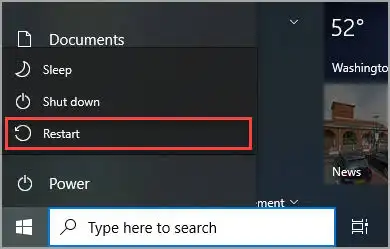
- Restart Windows after repaired files are reported.
This sequence follows Microsoft’s official DISM and System File Checker instructions .
How to Verify
Retest every affected application. “Windows Resource Protection did not find any integrity violations” means SFC found no protected system-file problem. If SFC repaired files, the error should disappear after restarting. If SFC finds no violation but only one application still fails, return to Method 1.
Method 4: Run an Optional Scan with Fionn DLL Fixer
When to Use
Consider this optional method after the official and manual checks when the scope remains unclear or multiple DLL and system issues may be involved. The Windows application scans for missing, damaged, version-mismatched, and path-related DLL problems. It is an auxiliary option, not a substitute for publisher or Microsoft support. The interface displays three free attempts; additional repair access requires VIP.
Step-by-Step Guide
- Launch Fionn DLL Fixer. The software automatically scans your PC for DLL and system issues and displays the detected results when the scan is complete.

- After the scan finishes, click “Repair” to start fixing all detected DLL and system issues automatically.

- Wait while the repair is in progress. During this process, the button changes to “Fixing” until all issues have been repaired.

- When the repair is complete, click “Ok” in the confirmation dialog. If prompted, restart your computer before checking whether the problem has been resolved.

- If the issue still persists after restarting, click “Recheck” to perform another scan. If new issues are found, click “Repair” again to fix them.

How to Verify
Use the post-repair recheck and reopen the affected application. Verification requires both an observable scan result and the absence of the original error during the same launch or feature test.
Verification Checklist
| Check | Observable passing result | If it fails |
|---|---|---|
| Original launch path | The application opens without the same DLL message. | Record the unchanged or new filename. |
| Previously failing feature | The feature completes without closing the application. | Use the method matching the new symptom. |
| Windows Security | No new detection appears after the test. | Leave the file blocked and contact the publisher. |
| System-file scan | SFC reports no violations or successful repairs. | Save the result and contact Microsoft Support. |
Conclusion
A DLL not found error should be repaired through the component’s owner, not by copying an unknown DLL into Windows. Start with the affected application’s Repair or official reinstall option. Check Protection History when the timing matches a security action. Use DISM and SFC only when several applications or Windows components fail. If the scope remains unclear, an optional Fionn DLL Fixer scan can check DLL and system issues. Verify every repair by repeating the original trigger. If the error remains, send the filename, application version, and repair results to the application developer or official support.
FAQ
Is it safe to download the missing DLL from a file website?
No unverified DLL download should be treated as safe. Microsoft warns that a malicious DLL placed in a searched directory can run with the application’s privileges. Obtain files through the application’s official installer, trusted Windows repair tools, or a source confirmed by the publisher.
Why does Windows say a DLL is not found when the file exists?
The visible file may be the wrong version, stored outside the application’s search path, or dependent on another unavailable library. Do not move the file blindly. Use the failure scope to choose application repair, a security-history review, or protected system-file repair.
Does SFC fix every DLL not found error?
No. SFC checks protected Windows system files. It does not guarantee repair of private DLLs installed by third-party applications. If SFC reports no integrity violations and one application still fails, repair or reinstall that application through its publisher.
Do these methods still apply to Windows 10?
The application repair and SFC guidance covers Windows 10 and 11, although menu labels differ. Microsoft ended standard Windows 10 support on October 14, 2025. Windows 10 users should consider that support status when escalating unresolved system-file problems.


