 Emily CarterWindows Errors
Introduction
A reliable programme for computer errors should help identify the affected area, but no single utility can resolve every Windows problem. Start with the affected app’s built-in repair option, install official updates, and then check Windows system files. If the error points to missing or damaged DLLs, use the optional DLL-focused method last. The four methods below progress from simple, low-impact actions to broader system diagnostics. After each method, repeat the action that originally caused the error before moving to the next one.
Choose the Right Fix for the Error
Record the complete error message, file name, error code, and action that triggered it. These details determine which repair scope makes sense:
- One app crashes: repair or reinstall that app first.
- A named runtime is missing: reinstall the dependency through Windows Update or the app’s official installer.
- Several Windows features fail: check the Windows component store and protected system files.
- Games or apps report multiple DLL problems: consider a focused DLL and runtime scan after the built-in methods.
Windows and most US software interfaces use “program” or “app,” although users may search for “programme.” The spelling does not describe a separate class of software. More importantly, a DLL filename alone does not prove that the file itself is the root cause. A damaged app installation, incompatible runtime, or corrupted Windows component can produce the same symptom.
| Method | Best for | Change scope | Verification |
|---|---|---|---|
| App repair | A problem isolated to one app | Affected app | Repeat the failed app action |
| Official updates or reinstall | Runtime or installation errors | App components and updates | Restart and relaunch the app |
| DISM and SFC | Damaged Windows components | Windows system files | Review the final command results |
| Optional DLL-focused scan | Multiple DLL or dependency errors | Detected DLL and system issues | Recheck and reproduce the original task |
Method 1: Repair the Affected App in Windows
When to Use
Begin here when only one application or game fails while Windows and other apps work normally. Repair attempts to restore the app without requiring a broader system change.
Step-by-Step Guide
- Save your work and close the affected app.
- Restart Windows to clear temporary processes and locked files.
- Open
Settings > Apps > Installed appsin Windows 11 orSettings > Apps > Apps & featuresin Windows 10. - Open the affected app’s
Advanced optionsmenu when it is available. - Select
Repairand wait for Windows to finish.
For a desktop program without Advanced options, open Control Panel > Programs > Programs and Features, select the program, and use its Repair or Change option if provided.
How to Verify
Reopen the app and repeat the exact action that previously failed. Confirm that the same crash, message, or blank screen does not return. If it does, continue with official updates and installation components.
Method 2: Update Windows and Reinstall Official App Components
When to Use
Use this method when the message names DirectX, .NET, Visual C++, OpenAL, XInput, or another application dependency. It also fits errors that began after an interrupted installation or update.
Step-by-Step Guide
- Open
Settings > Windows Update. - Select
Check for updates. - Install the available Windows updates.
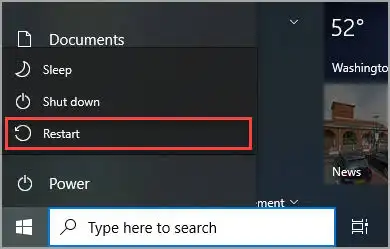
- Restart the computer when Windows requests it.
- Run the affected app’s official installer and choose its repair or reinstall option.
How to Verify
Check Windows Update again for a pending restart, then launch the affected app. Repeat the failed operation and compare the new message with the original. A changed error can identify the next unresolved component.
If several unrelated Windows features still fail, the next method checks the component store and protected system files.
Method 3: Repair Windows Components with DISM and SFC
When to Use
Run these Microsoft tools when several apps or Windows features malfunction, or when the earlier methods suggest missing or corrupted protected system files.
Step-by-Step Guide
- Search for
Command Promptand selectRun as administrator.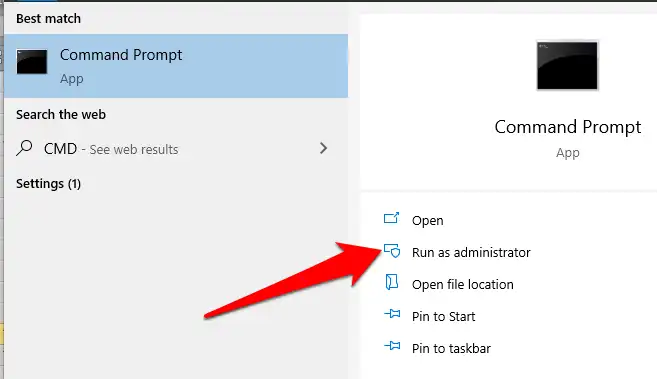
- Run the Deployment Image Servicing and Management command:
DISM.exe /Online /Cleanup-image /Restorehealth
- Wait until DISM reports that the operation completed successfully.
- Run System File Checker:
sfc /scannow - Wait for verification to reach 100%, then restart Windows.
How to Verify
Read the final SFC message. “Windows Resource Protection did not find any integrity violations” means no protected-file corruption remains. A successful repair message means SFC replaced damaged files. After restarting, reproduce the original problem. If SFC cannot repair files, preserve the exact result and consult Microsoft or qualified technical support before manually replacing protected files.
If the remaining symptoms specifically involve DLLs, graphics runtimes, or game dependencies, a focused scan can reduce the amount of manual investigation.
Method 4: Use Fionn DLL Fixer as an Optional Programme for Computer Errors
When to Use
Consider this optional method after the built-in checks when apps or games still show missing, damaged, version-mismatched, or System32-path DLL errors. The Windows desktop application can scan application crashes, startup failures, access conflicts, dependency-loading problems, and components such as DirectX, Visual C++, .NET, OpenAL, and XInput.
Step-by-Step Guide
- Launch Fionn DLL Fixer. The software automatically scans your PC for DLL and system issues and displays the detected results when the scan is complete.

- After the scan finishes, click “Repair” to start fixing all detected DLL and system issues automatically.

- Wait while the repair is in progress. During this process, the button changes to “Fixing” until all issues have been repaired.

- When the repair is complete, click “Ok” in the confirmation dialog. If prompted, restart your computer before checking whether the problem has been resolved.

- If the issue still persists after restarting, click “Recheck” to perform another scan. If new issues are found, click “Repair” again to fix them.

How to Verify
Review the recheck results, then reopen the original app or game and repeat the failed action. A clean recheck is useful evidence, but the practical confirmation is that the original crash, black screen, startup failure, or DLL message no longer occurs.
Tips and Best Practices
- Change one repair layer at a time so the successful fix remains identifiable.
- Keep the complete error text instead of searching only for a DLL filename.
- Use Windows Update and software publishers as the sources for components.
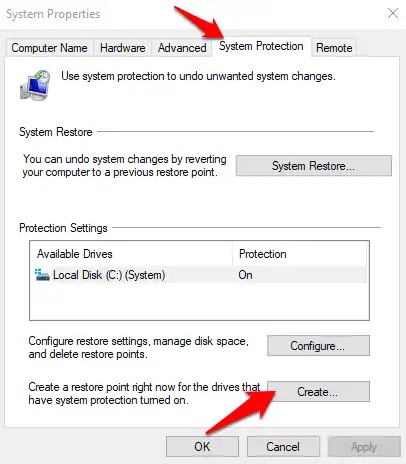
- Create a restore point before advanced manual system-file changes.
- Back up important files before recovery or reinstallation work.
Conclusion
Start with the narrowest repair: fix the affected app, install official updates, and reinstall its approved components. Use DISM before SFC when the evidence points to damaged Windows files. Verify every method by restarting when required and repeating the exact action that produced the error. If the problem survives those checks, record the current error code and seek the app publisher’s or Microsoft’s support. For persistent DLL and runtime symptoms, the focused scan and recheck workflow in Fionn DLL Fixer is an optional next step rather than a replacement for Windows tools.
Frequently Asked Questions
Can one programme fix every computer error?
No. Software faults, system corruption, driver conflicts, malware, and failing hardware require different diagnostics. Choose a method based on the exact symptom.
Is System File Checker safe to run?
SFC is a Microsoft Windows tool for protected system files. Run it as an administrator and allow verification to reach 100%.
Should I download a missing DLL from a file website?
Avoid unverified DLL sites. Restore the app, runtime, or Windows component from Windows Update or the software publisher’s official installer.
Why does the error remain after a successful repair?
The original cause may be app-specific, version-related, driver-related, or hardware-related. Capture the new error and escalate it to the appropriate publisher or support provider.


