 Emily CarterPrinter Drivers
If Windows does not detect your HP LaserJet P1102, shows that the driver is unavailable, or the printer does not print, start by confirming the exact model and Windows version. There are two practical options: manually download the package from the official HP page or run diagnostics in Fionn Printer Driver. First, check the connection and system architecture, then choose the appropriate method and print a test page.
What to Prepare Before Installation
- A computer running Windows 10 or Windows 11.
- A connected HP LaserJet P1102 with access to printer power.
- The exact model name shown on the device or in the device information.
- Your system type: 32-bit or 64-bit Windows.
Comparison of HP LaserJet P1102 Driver Installation Methods
| Method | Best for | Effectiveness | User effort |
|---|---|---|---|
| Official HP page | You already know the model and want to choose the package yourself | High when the correct system is selected | Moderate |
| Fionn Printer Driver | You need to check the driver and related printing issues | High for initial diagnostics | Low |
The manual option is useful when you want control over the download selection. Fionn Printer Driver is appropriate when the cause is unclear: the issue may involve more than the driver, including the device status, queue, port, or print service.
Method 1: Install the Driver from the Official HP Support Page
When to use it: you want to obtain the driver directly from the manufacturer and are ready to select the operating system and package yourself.
- Open the official HP driver download page .
- Enter
HP LaserJet P1102in the search box and select the exact model from the results.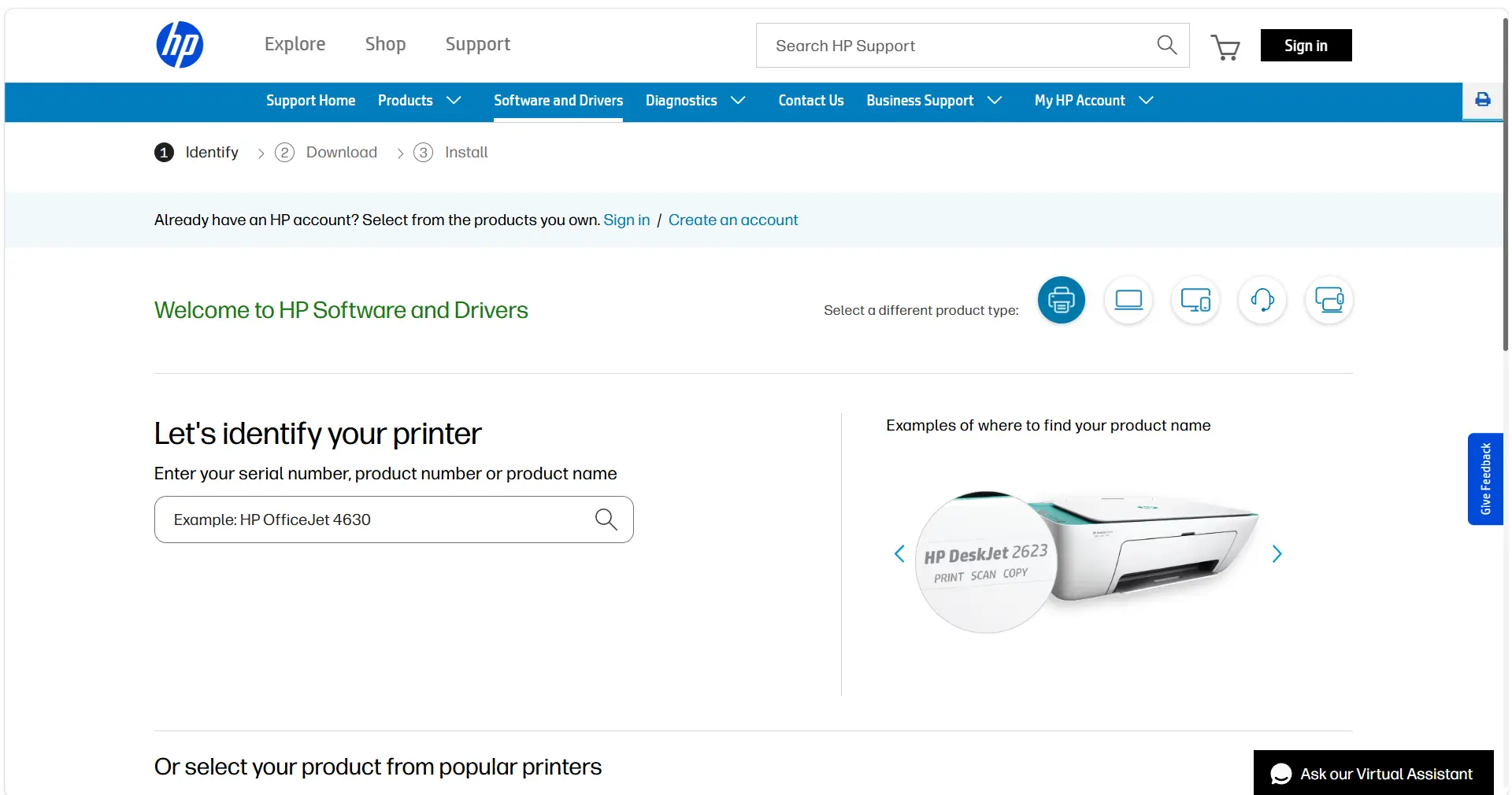
- Specify your installed version of Windows if the website does not detect it automatically.
- Select an available driver package for this model and download it.
- Run the downloaded installer and follow its instructions.
- When the installation is complete, open the Windows printer list and make sure HP LaserJet P1102 appears without a driver unavailable status.
Check: send a test page from the printer properties. If the job appears but does not print, do not immediately reinstall the package; first check the queue and printer status.
Method 2: Fix the Driver Issue with Fionn Printer Driver
When to use it: Windows does not recognize the printer, the driver is unavailable, or printing still does not work after installation. This is the recommended option for an initial check because the product scans printers, drivers, and common printing issues, then offers automatic installation or repair.
- Launch Fionn Printer Driver and click “Scan Now” to check your computer for printer drivers and related issues.

- Wait for the scan of installed printers, drivers, and common printing issues to finish.

- After the scan finishes, click “One-Click Fix” to automatically install or repair the required printer driver.

- Wait for the repair to finish and confirm that the printer issue has been resolved.

Check: after reviewing the results, send a test page from Windows. If it does not print, review the diagnostic message: Fionn Printer Driver also checks the job queue, port status, print service, driver availability, and device status.
Post-Installation Checks and Common Errors
A successful installation means more than seeing no error in the installer. Check three things: HP LaserJet P1102 is visible in Windows, it does not show a Driver unavailable status, and the test page prints on paper.
- The printer does not appear: make sure it is on and connected, then repeat the model search or diagnostics.
- The printer appears but does not print: check the queue for paused or incomplete jobs.
- The driver is installed but the status is offline: check the device status and port; these issues can produce the same symptom as a driver problem.
- Printing stopped after a Windows update: confirm the Windows version again on the HP page and install the package that matches your system.
The main difference between these scenarios is simple: when the model and cause are known, an official download is enough; when the cause is uncertain, it is more useful to get diagnostic results first. This helps avoid wasting time reinstalling the driver when the queue, port, or printer status is blocking printing.
Conclusion
For the HP LaserJet P1102, first confirm the exact model and Windows version. Then install the appropriate package from the official HP page if you want to control the driver selection manually. When the printer is not recognized, the driver is unavailable, or the cause of the failure is unclear, start with Fionn Printer Driver : it checks the driver and related printing components in one process. In all cases, finish by printing a test page. If it does not print, check the queue, port, print service, and physical device condition instead of only repeating the driver installation.
Frequently Asked Questions
Where can I download the HP LaserJet P1102 driver?
Use the official HP driver download page, find the exact HP LaserJet P1102 model, and select the package for your version of Windows.
Why is HP LaserJet P1102 visible in Windows but not printing?
The cause may be the job queue, device status, port, print service, or driver. Start by checking a test page and the printer's current status.
Do I need to know the Windows system architecture?
Yes. When downloading manually, you need to choose a package that is compatible with your Windows version and architecture.
What should I do if Windows says the driver is unavailable?
Select the exact model and Windows version again on the HP page, or use Fionn Printer Driver to scan for and repair the required driver.
How can I confirm that the installation completed successfully?
Make sure HP LaserJet P1102 appears without a driver unavailable message, then print a test page.


