 Emily CarterDLL Errors
The unarc.dll error usually appears when a program or game will not start, or when an installer stops working. First, note the exact message and determine the scope: a failure in only one application more often calls for checking its installation, while errors in several programs call for checking Windows components. Two options are described below: Windows’ built-in checks and a separate route through Fionn DLL Fixer . Start with the method that matches the observed symptom, and after each step, repeat the same launch that produced the error.
unarc.dll Error: Quick Method Selection
| Method | Best suited for | Effectiveness | User effort |
|---|---|---|---|
| DISM and SFC | Errors occur in several programs or Windows is unstable | Checks system components | Moderate |
| Fionn DLL Fixer | You need to scan DLL and system issues in one interface | Automated scanning and repair | Low |
If the error occurs with only one installer, do not conclude that a Windows system file is damaged. First, use a freshly downloaded installer from the developer’s official source and make sure the drive has enough free space for extraction. If a similar failure recurs in several applications, proceed to check Windows.
Method 1: Check and Repair Windows System Files
When to use it: the error is accompanied by failures in several applications, Windows freezing, or other messages about damaged system components. Microsoft recommends running DISM first and then SFC: DISM repairs the Windows image, while SFC checks protected system files.
- Open Windows Search, type
cmd, select “Run as administrator,” and approve the User Account Control prompt. - Run the command and wait for a successful completion message:
DISM.exe /Online /Cleanup-image /Restorehealth
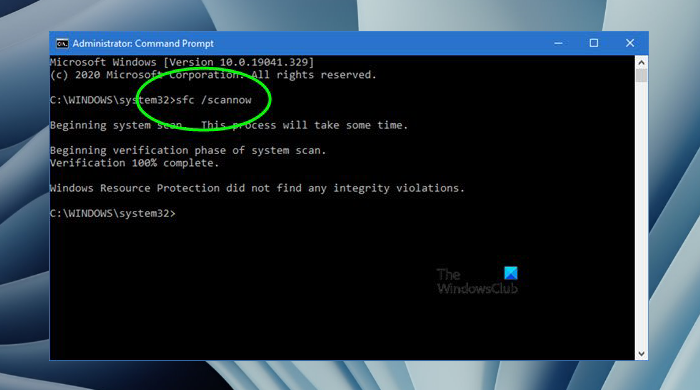
- In the same window, run the system file check:
sfc /scannow - Do not close the window until the check reaches 100%.
- Restart your computer and retry the program or installer where the error appeared.
Verify the result: an SFC message that no integrity violations were found or that repairs completed successfully means the check is complete. If SFC could not fix some files, save the result text and contact an administrator or Microsoft Support; do not substitute files with unknown copies.
The official command sequence and possible results are provided in Microsoft’s DISM and System File Checker guide .
Method 2: Fix the Error with Fionn DLL Fixer
When to use it: you need to check DLLs, system problems, and loading dependencies without manually searching for individual files. Fionn DLL Fixer detects missing, damaged, and version-mismatched DLLs, and it supports full or selective scanning, repair, and rechecking. This is a practical Windows option when the cause of the error is still unclear.
- Launch Fionn DLL Fixer. The program automatically scans your computer for DLL and system problems and displays the detected results when it finishes.

- When the scan finishes, click “Repair” to automatically begin fixing all detected DLL and system issues.

- Wait for the repair to finish. During the process, the button changes to “Fixing” until all issues are repaired.

- When the repair is complete, click “Ok” in the confirmation dialog. If prompted, restart your computer before checking the result.

- If the issue persists after restarting, click “Recheck” to perform a new scan. If new issues are found, click “Repair” again to fix them.

Verify the result: after restarting, open the exact program or installer where you saw the unarc.dll error. If the message no longer appears, the issue is resolved. If it remains, save its full text: it will help distinguish an issue with a particular installation from a system fault.
What to Do Before Reinstalling the Problematic Program
This section applies if the error occurs in only one application. Close it, delete the incomplete installer download, and obtain a new distribution package only from the developer’s page or official store. Then run the installation again, and do not manually change Windows folders. If the official installer offers a repair feature, use it instead of copying DLLs from a third-party source.
Conclusion
For a unarc.dll error, first match the method to the symptom: for several Windows failures, run DISM and SFC; if you need an automated check of DLL and system issues, use Fionn DLL Fixer . For a single problematic application, start with a new installer from an official source. Verify the result by launching the same application again after restarting. If the error does not disappear, do not replace DLLs manually: save the full message text and contact the application developer’s support team or a Windows specialist.
Frequently Asked Questions
Can I simply download unarc.dll separately?
It is not recommended. The message may be related not to a single missing file, but to a damaged installation, system components, or incompatibility. A separate file from an unknown source does not confirm the correct version or origin.
When should I run DISM and SFC?
Use them when the error is not limited to one program or there are signs of Windows problems. Run DISM first, then
sfc /scannow
.
Why does the error remain after a repair?
There may be an issue with the specific installer or the application itself. Retry after restarting, obtain a new official distribution package, and save the exact message text for support.
Do I need to restart my computer?
If the repair tool or Windows requests a restart, do so before checking the result. This helps apply changes before launching the program again.


