 Emily CarterScreen Recording
How to record gameplay with Discord audio: capture system audio, not just your microphone. This puts both game audio and Discord voices that Windows plays through the selected output device into the file. Below are three methods for Windows: try Xbox Game Bar first for a quick recording, choose Fionn Screen Recorder to configure the capture area and audio source, or use OBS Studio for separate audio routing. Before you begin, run a short test: play game audio and ask someone to say a few words in Discord.
How to Record Gameplay with Discord Audio: 3 Methods
| Method | Best for | Effectiveness | User effort |
|---|---|---|---|
| Xbox Game Bar | A quick clip without installing software | High | Medium |
| Fionn Screen Recorder | Selecting an area and recording system audio with a microphone at the same time | High | Low |
| OBS Studio | Controlling sources and checking levels | High | Medium |
If you need one finished file containing the game and conversation, start with Game Bar or Fionn. If you need to see separate audio meters and configure sources in a scene, use OBS Studio.
Method 1: Record Gameplay with Xbox Game Bar
When to use it: the game is running in a window or full screen, and you need a quick system-audio capture without separate software.
- Open the game and Discord, then make sure both apps output audio to the headphones or speakers you are using.
- Press
Win
+
G
to open Xbox Game Bar.
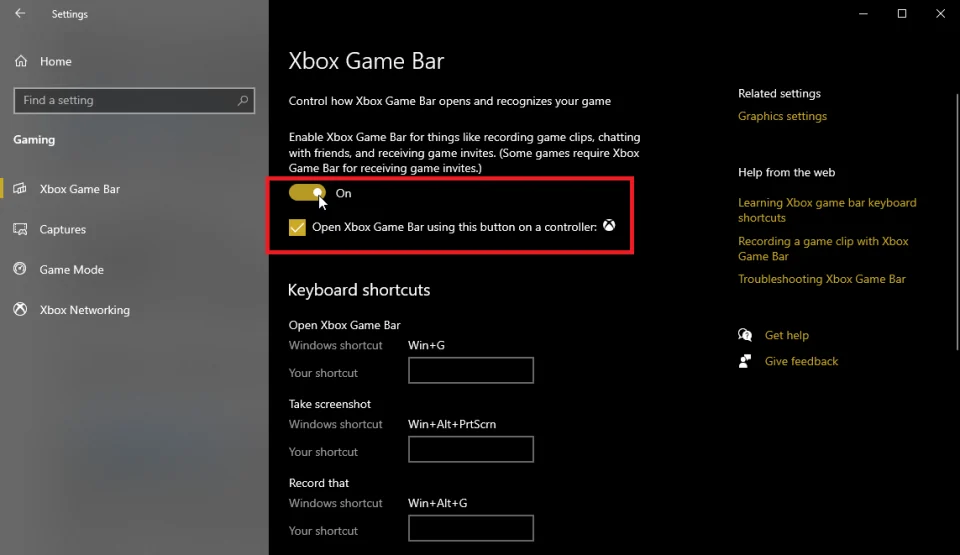
- In the Audio widget, check that you can hear the game and Discord; if necessary, select the correct output device in Windows.
- Click the Record button in the Capture widget or press Win + Alt + R .
- Stop recording with the same shortcut and open the notification to listen to the clip.
Check: at the start of the file, you should hear both the game audio and a phrase from the person in Discord.
Method 2: Fix Gameplay Recording with Discord Audio Using Fionn Screen Recorder
When to use it: you need to select full screen, a window, or part of the screen and record system audio along with your microphone. This option works when you need to choose a capture area and record system audio, microphone audio, or both sources.
- Open Fionn Screen Recorder and select the capture area: Full Screen, Window, or Region.

- In the recording-area menu, select Full Screen, Window, or Region based on what you need to record.
- Choose to record system audio, microphone audio, both, or no sound.

- Before recording, choose MP4 or another video format.

- Click Start to begin recording; when finished, use Pause or Stop.

- Open Media Library to play, edit, locate, or delete your recorded videos.

Check: open the clip in Media Library and listen to the moment where you can hear the game, Discord, and—if selected—your microphone at the same time.
Method 3: Configure Recording with OBS Studio
When to use it: you want to control sources in one scene, see their levels before starting, and add the game and desktop separately if needed.
- Install OBS Studio from the
official OBS Studio download page
and launch it.
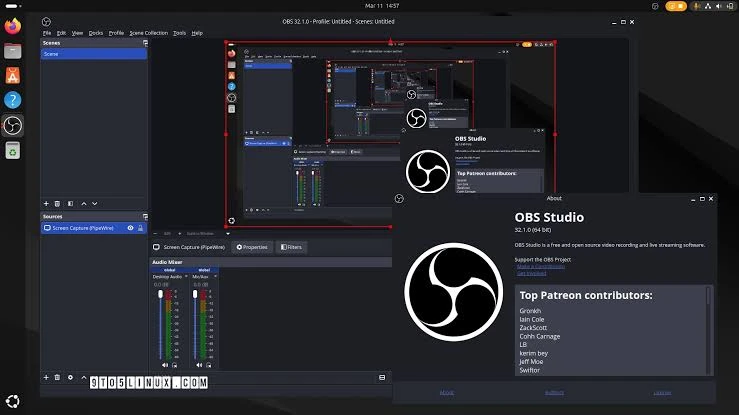
- In the Sources panel, add Game Capture and select the running game.
- In the Audio Mixer, check that the Desktop Audio source responds when Discord voices and game audio play.
- If you want to record your voice, add or enable Mic/Aux and make sure its meter moves too.
- Click Start Recording, say a short test phrase in Discord, then stop the recording and listen to the file.
Check: the required meters should move in the mixer before you start; after starting, check the clip in a media player.
What to Check If You Cannot Hear Discord
Discord Audio Setup
Other participants' voices usually go into system audio; your voice is recorded through a separate microphone source. Do not enable microphone monitoring unless needed, to avoid echo.
- In Discord, select the output device through which you hear the game.
- Play a test sound or ask someone to say a phrase.
- Record 10 seconds.
- Check the saved file before starting a long session.
- You hear the game but not Discord: set the same output device in Discord and Windows settings, then repeat the 10-second test.
- You hear Discord but not yourself: enable the microphone as a separate source only in the recording tool you are using.
- There is audio, but it is too quiet: adjust Discord and game app volume before recording, then check the test file again.
- There is echo in the recording: do not enable both system audio and microphone monitoring through headphones unless necessary.
Conclusion
For a quick clip, use Xbox Game Bar; for selecting a capture area and using the system-audio-and-microphone mode, choose Fionn Screen Recorder ; OBS Studio is useful when you need visible source control. In every case, first make sure the game and Discord play through the correct device, then make a short test recording. Open the file and check the other person's voice, game audio, and, if needed, your own microphone. If Discord is missing, match the output devices in Discord and Windows and repeat the test.
Frequently Asked Questions
Can I record Discord and gameplay in one audio file?
Yes. If both apps play through the same output device, recording system audio usually puts them into one audio stream in the video.
Why does the recording include the game but not Discord voices?
A common reason is that Discord is routed to a different output device. Check Discord's output setting and the active Windows device, then record a short test.
Do I need to enable my microphone to record friends' voices?
No. Friends' voices come through as system audio. Enable the microphone only to record your own voice.
Which capture mode should I choose for a game in Fionn Screen Recorder?
Choose full screen for a full-screen game, window for a windowed game, or region if you need to exclude unnecessary parts of the screen. For games on Windows 10 and later, the high-performance DXGI mode is available; GDI is intended for compatibility.
Why is a test recording more important than checking levels?
Meters confirm that audio is reaching the program, but only the finished file confirms that the required sounds were actually saved at an appropriate volume.


