 Emily CarterScreen Recording
For a short visual explanation, Windows Snipping Tool is the fastest place to start. For a guided recording workflow with capture-area, sound, and media-management choices, Fionn Screen Recorder is a practical option. OBS Studio is better suited to recordings that need a configurable scene and sources. This guide covers three methods, ordered from the quickest built-in route to more configurable choices. Before recording, close notifications and remove sensitive information from the area that may appear on screen.
Quick Method Comparison
| Method | Best For | Efficiency | User Effort |
|---|---|---|---|
| Windows Snipping Tool | Short, silent screen clips on Windows 11 | High | Low |
| Fionn Screen Recorder | Choosing capture and sound settings in one workflow | High | Low to moderate |
| OBS Studio | Recordings that need scenes, sources, or device configuration | Moderate | Moderate |
Use Snipping Tool when the recording is a quick visual clip. Choose the Fionn method when you want to set the recording area and audio choice before starting. Use OBS when you need its source-based setup, such as a display, window, webcam, or game source.
Method 1: Record a Short Clip with Windows Snipping Tool
When to use: You use Windows 11 and need to record a selected rectangular area without setting up another recorder.
- Open Snipping Tool and select Record.
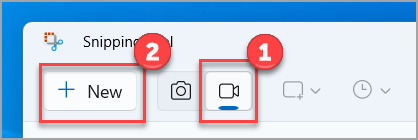
- Select New, or press Windows + Shift + R.
- Drag to select the part of the screen to capture.
- Select Start to begin the video snip.
- Select Stop when finished, then save the recording.
Expected result: The selected screen area is recorded and available to save from Snipping Tool.
Method 2: Record with Fionn Screen Recorder
When to use: You want a single workflow that lets you choose a capture area and recording sound before you start. This is the recommended option for that setup because the supplied workflow directly covers those choices and post-recording media access.
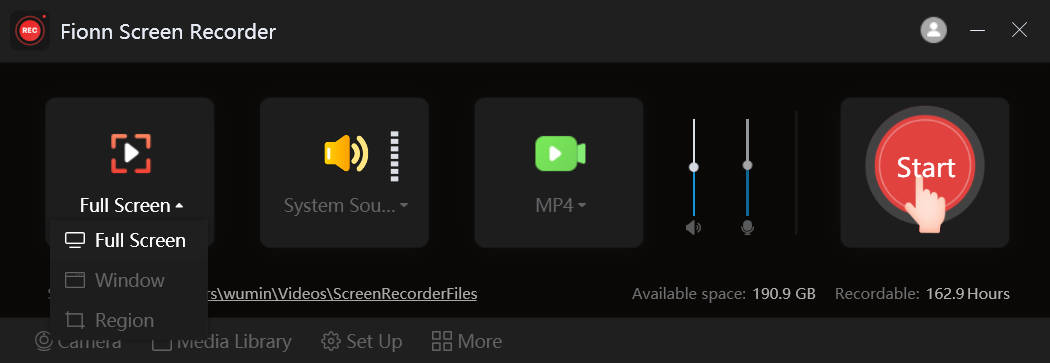
- Open Fionn Screen Recorder and choose the area you want to capture: Full Screen, Window, or Region.

- Choose whether to record system audio, microphone audio, both, or no sound.

- Select MP4 or another video format before you start recording.

- Click Start to begin recording, then use Pause or Stop when you are finished.

- Open Media Library to play, edit, locate, or delete your recorded videos.

Expected result: Your recording appears in Media Library, where you can review it and decide whether to edit, locate, or delete it.
Method 3: Record with OBS Studio
When to use: You need a source-based setup or want to capture a display, app window, webcam, or game. OBS Studio’s official Quick Start Guide describes its Auto-Configuration Wizard, source choices, audio mixer, and recording controls.
- Install OBS Studio from the official OBS Windows installation page.
- Run the Auto-Configuration Wizard and choose recording as the intended use.
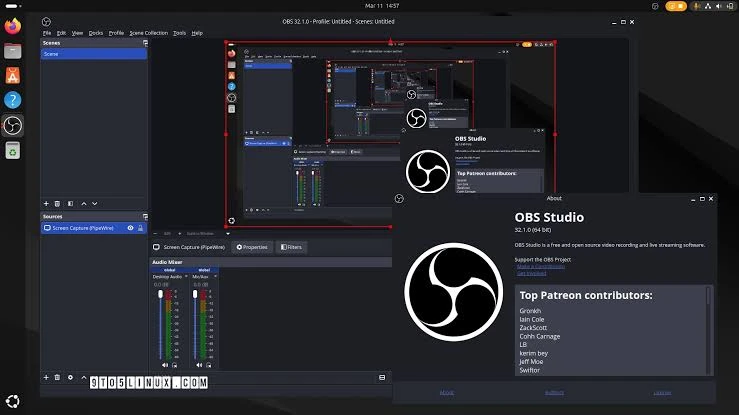
- In the Sources dock, add the source that matches what you need to capture, such as Display Capture, Window Capture, or Game Capture.
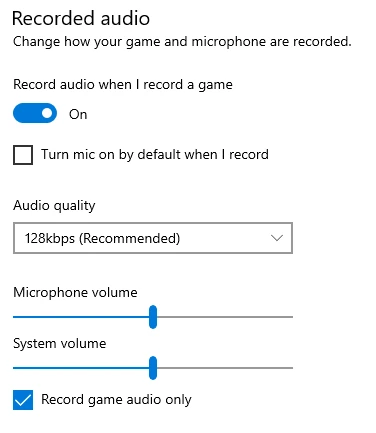
- Check the Audio Mixer meters, then select the correct devices in Settings > Audio if needed.
- Review Settings > Output, select Start Recording, and make a short test recording.
Expected result: OBS records the configured sources after you confirm that the video and audio meters behave as expected.
Tips Before You Share the Recording
- Play the finished file from beginning to end and listen for the intended sound source.
- Check the first and last seconds for accidental cursor movement, notifications, or private content.
- For a tutorial, record a short test whenever you change the capture area or audio source.
Conclusion
Start with Snipping Tool when a short Windows 11 clip is enough. Choose Fionn Screen Recorder when you want its supplied recording workflow for capture-area selection, audio selection, format selection, and Media Library access. Use OBS Studio when a source-based setup is the better fit. Whichever route you choose, verify the result by playing the saved video and checking both the intended picture and audio. If the test is incomplete, adjust the method-specific capture or audio setting and record another short sample before the final take.
Frequently Asked Questions
Can I record only one part of my screen?
Yes. Snipping Tool records a rectangular selection. The Fionn workflow includes a Region choice, while OBS Studio can use a configured capture source depending on what you need to record.
Which method is best for a quick Windows 11 recording?
Snipping Tool is the most direct option for a short selected-area video clip because it is built into Windows 11.
How do I check whether audio was captured?
Make a short test, stop the recording, and play the file. In OBS Studio, confirm that the appropriate Audio Mixer meter moves before starting the final recording.
Why should I make a test recording?
A test reveals unwanted notifications, the wrong capture area, or missing audio before you record a longer session.


