 Emily CarterScreen Recording
The right Loom alternative depends on the result you need after recording. Some workflows need a local video file with control over the capture area, audio, and export. Others need configurable multi-source or game capture. If hosted videos, viewer feedback, and cross-device access are central, use a platform built for that workflow.
For Windows tutorials, demos, meeting clips, or gameplay recordings, Fionn Screen Recorder can capture a full screen, window, or custom region, then let you edit and export the result locally. It is not a documented replacement for Loom’s shared libraries, comments, or viewer insights.
Why Look for Loom Alternatives
Loom documents screen-and-camera-bubble recording, system audio, transcriptions, captions, sharing controls, and collaboration features. Another tool may fit better when local capture, source configuration, game recording, or a different free-tier limit matters more than a hosted collaboration workflow.
Loom’s Starter plan is listed at $0, with up to 25 videos per person, a five-minute recording limit, and 720p recording quality. Check the current Loom pricing page before deciding because plan details can change.
Quick Comparison
| Alternative | Best for | Workflow focus | Key consideration |
|---|---|---|---|
| Fionn Screen Recorder | Windows tutorials, demos, and local recordings | Screen capture, audio selection, editing, and export | Free use is limited to 720p and cannot save videos longer than two minutes. |
| OBS Studio | Configurable desktop, webcam, and Windows game capture | Source-based local recording | Requires choosing and configuring sources and output settings. |
| ScreenPal | Cross-device recording, editing, hosting, and sharing | Video creation and hosted sharing | Its Free plan has a 15-minute recording limit and 10 hosted videos. |
Fionn Screen Recorder for Windows Local Recording
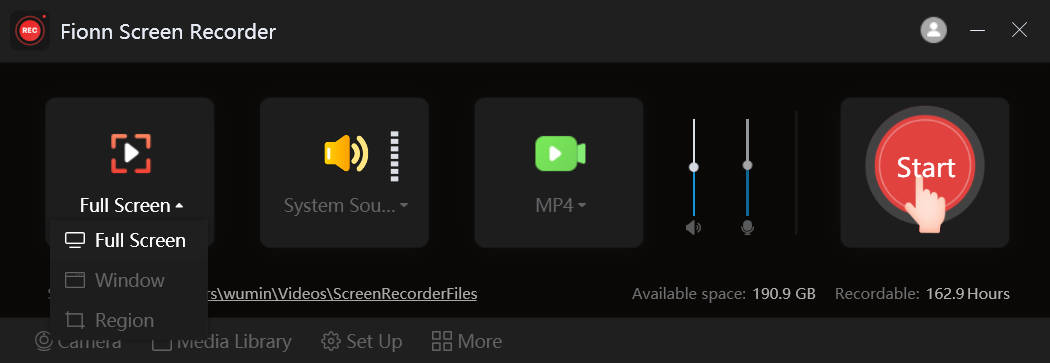
Fionn Screen Recorder is suited to Windows users whose goal is a local file they can review, edit, and export. It supports Windows 10 and Windows 11, plus full-screen, window, and custom-region capture. Membership capabilities include webcam overlay, mouse effects, and real-time annotation.
Use this route when local recording is the priority. For gameplay on Windows 10 or later, DXGI capture is available; GDI is available when compatibility is the priority.
- Open Fionn Screen Recorder and choose the area you want to capture: Full Screen, Window, or Region.

- Choose whether to record system audio, microphone audio, both, or no sound.

- Select MP4 or another video format before you start recording.

- Click Start to begin recording, then use Pause or Stop when you are finished.

- Open Media Library to play, edit, locate, or delete your recorded videos.

Verify the result by reviewing the beginning, middle, and end in Media Library and confirming that the required audio is present. This verifies the recording file; it does not verify delivery through a separate sharing service.
Source: Fionn Screen Recorder recording workflow
OBS Studio for Source-Based Capture
OBS Studio suits recordings that need configurable sources, including a desktop, a single window, webcam, text, images, video, or gameplay. Its Game Capture source is Windows-only and is intended for high-performance 3D-game capture.
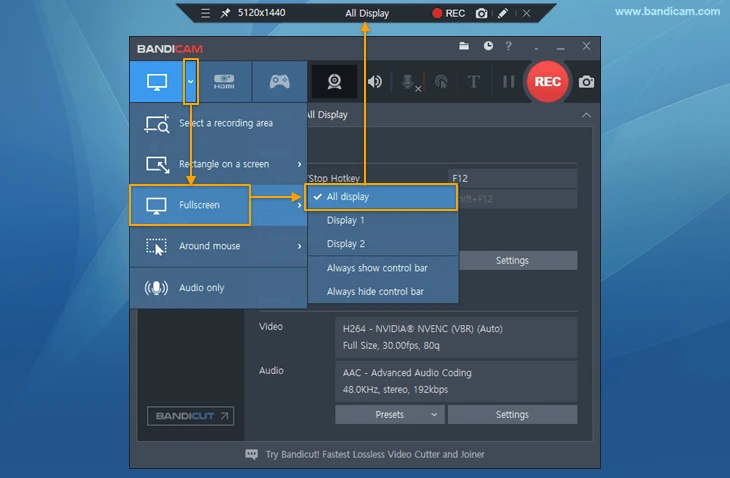
- Run the Auto-Configuration Wizard from Tools when needed.
- Use the plus button in the Sources dock to add the capture source.
- For a Windows 3D game, add Game Capture; otherwise choose a source that matches the content you need to record.
- Check Audio Mixer meters. If a device is inactive or incorrect, choose the device through Settings > Audio .
- Review Settings > Output , then start recording from Controls.
Make a test recording for several minutes before an important session. Confirm that the intended source and audio appear in playback; this is an intermediate test, not proof that a later upload or share will work.
Source: OBS Studio Quick Start Guide
ScreenPal for Cross-Device Video Work
ScreenPal is a video creation and sharing platform with screen recording, editing, hosting, screenshots, quizzing, and analytics. Its plans include screen-and-webcam recording, drawing and annotation while recording, sharing, and privacy controls.
It may suit people who need access across Windows, Mac, Android, iOS, or Chromebook devices. Its Free plan is listed at $0 with a 15-minute recording limit and 10 hosted videos. Review the current ScreenPal plans page for plan details and terms. No supported setup procedure is available here, so use ScreenPal’s current product guidance before relying on it for a time-sensitive recording.
How to Choose a Loom Alternative
- Need a Windows file to edit and export:
use Fionn Screen Recorder when selecting the capture area and audio is the central task.
- Need several configurable sources or a Windows 3D game: use OBS Studio and allow time to configure and test the setup.
- Need hosting and access across device types: consider ScreenPal, then compare its current plan limits with your expected recording length and hosted-video needs.
- Need Loom-style collaboration: confirm whether shared libraries, comments, captions, privacy controls, and viewer insights are required before choosing a local-first recorder.
Conclusion
There is no universal Loom replacement because local capture and hosted collaboration are different tasks. Choose Fionn Screen Recorder for a Windows-focused local recording workflow with capture-area choices, audio options, editing, and export. Choose OBS Studio for configurable source-based setups and Windows game capture. Consider ScreenPal when hosted video and cross-device access are the desired result. Before committing, make a short test recording and confirm the outcome that matters for your workflow: a usable exported file, the correct configured sources, or accessible hosted video.
FAQ
What is a good Loom alternative for Windows screen recording?
Fionn Screen Recorder is a Windows option for recording a full screen, window, or custom region with selectable audio, then editing and exporting the file. OBS Studio is more suitable when you need source-based configuration or Windows 3D-game capture.
Which option is suitable for game recording?
OBS Studio provides a Windows-only Game Capture source for high-performance 3D game capture. Fionn Screen Recorder also offers DXGI capture for game recording on Windows 10 or later, while GDI is available for compatibility-focused capture.
Can I record system audio and my microphone?
Fionn Screen Recorder lets you choose no sound, microphone-only audio, or system audio with a microphone. OBS Studio captures desktop audio and microphone by default; check the Audio Mixer meters and make a test recording to confirm the intended devices are captured.
Are there free Loom alternatives?
OBS Studio is available for local recording. ScreenPal lists a free plan with a 15-minute recording limit and 10 hosted videos. Fionn Screen Recorder offers a seven-day trial; free use is limited to 720p and cannot save videos longer than two minutes.
Which option is closest to a hosted-video workflow?
ScreenPal is the closest option in this comparison for hosted video work because it includes hosting, sharing, privacy controls, and analytics. Loom documents shared libraries, comments, and viewer insights; do not assume local recorders offer those services.


