 Emily CarterDLL Errors
An XAPOFX1_5.dll Missing message usually prevents a game or application from opening because a required library is unavailable, damaged, or not the expected version. Start by identifying the scope: if only one app fails, repair or reinstall that app; if an older game needs legacy DirectX components, use Microsoft’s installer. If the cause is unclear or several DLL-related errors appear, Fionn DLL Fixer can scan for DLL, DirectX, runtime, and related system issues.
Do not download an individual DLL from an unknown website or copy one into a Windows system folder. That can introduce the wrong version or create a new problem. Instead, use the repair path that matches the symptom, then reopen the affected app to confirm the result.
Quick Method Comparison for XAPOFX1_5.dll Missing
| Method | Best For | Efficiency | User Effort |
|---|---|---|---|
| Fionn DLL Fixer | An unclear cause or several DLL and runtime symptoms | Automated scan and repair | Low |
| Microsoft DirectX legacy components | Older software that needs legacy DirectX SDK libraries | Targeted dependency installation | Moderate |
| Repair or reinstall the app | Only one program or game reports the error | Targets that installation | Moderate |
| DISM and SFC | Multiple apps fail or Windows is unstable | Checks Windows system components | Moderate |
Method 1: Fix XAPOFX1_5.dll Missing with Fionn DLL Fixer
Recommended for an unclear or broader DLL problem. Fionn DLL Fixer is documented to detect missing, damaged, or outdated DLL files and related Windows problems. It also checks DirectX DLLs and other runtime issues, which makes it practical when you do not know which dependency is responsible. It supports Windows 10 and Windows 11.
- Launch Fionn DLL Fixer. The software automatically scans your PC for DLL and system issues and displays the detected results when the scan is complete.
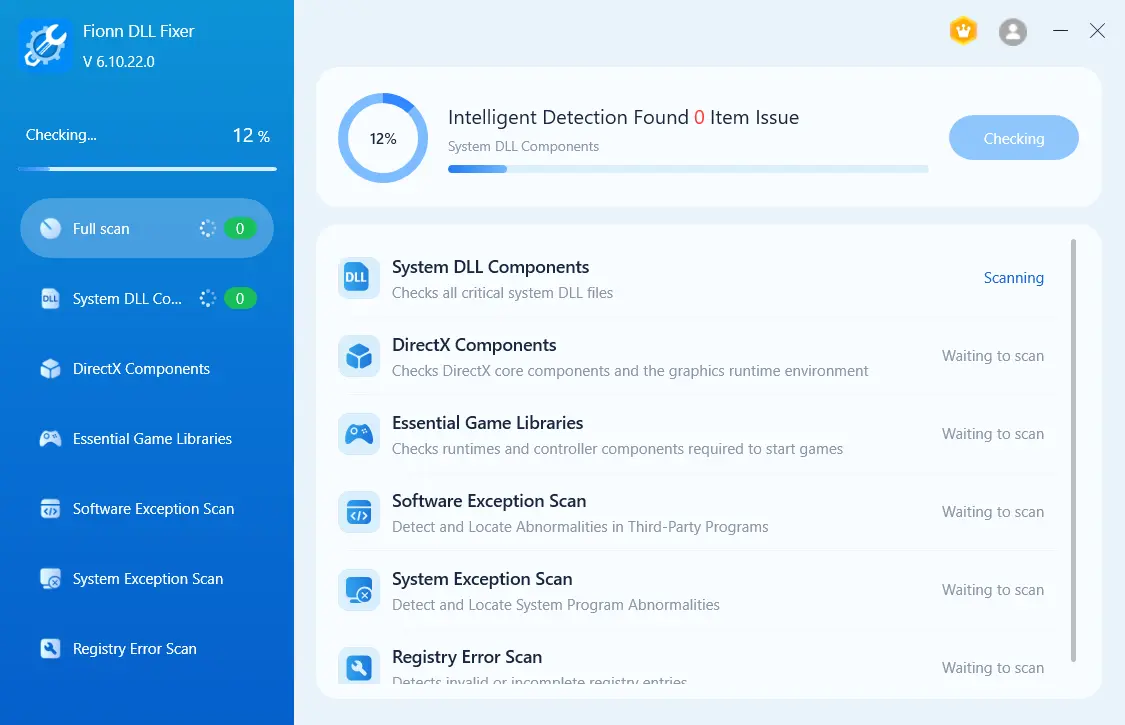
- After the scan finishes, click
Repair
to start fixing all detected DLL and system issues automatically.
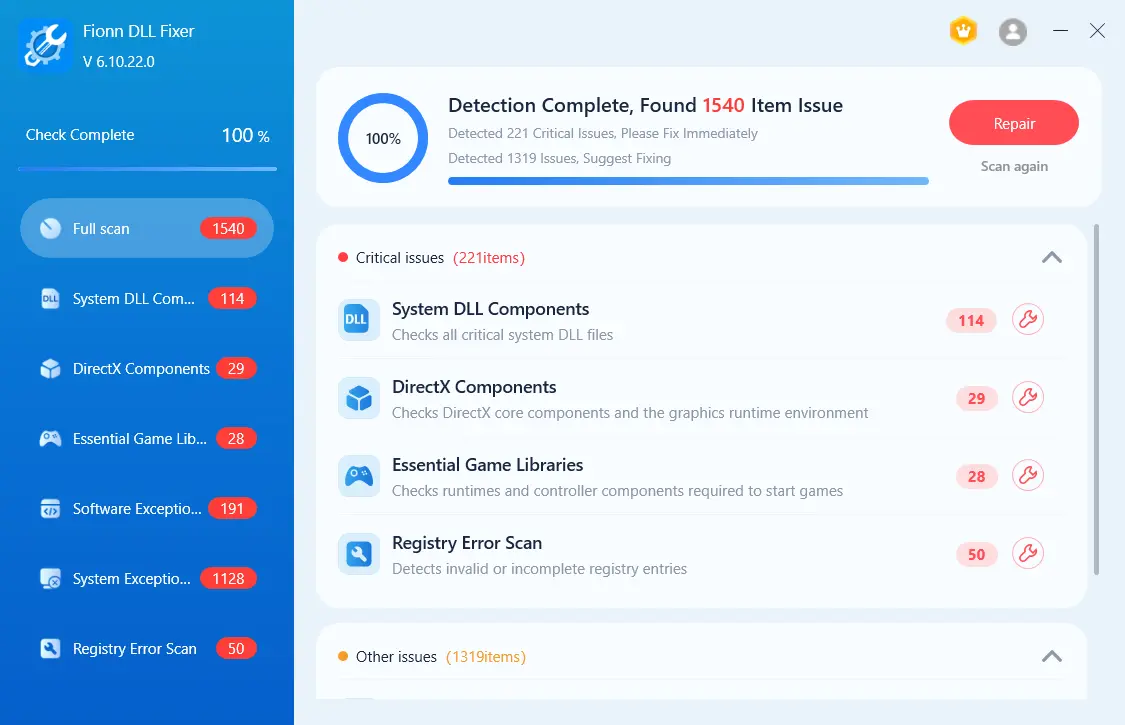
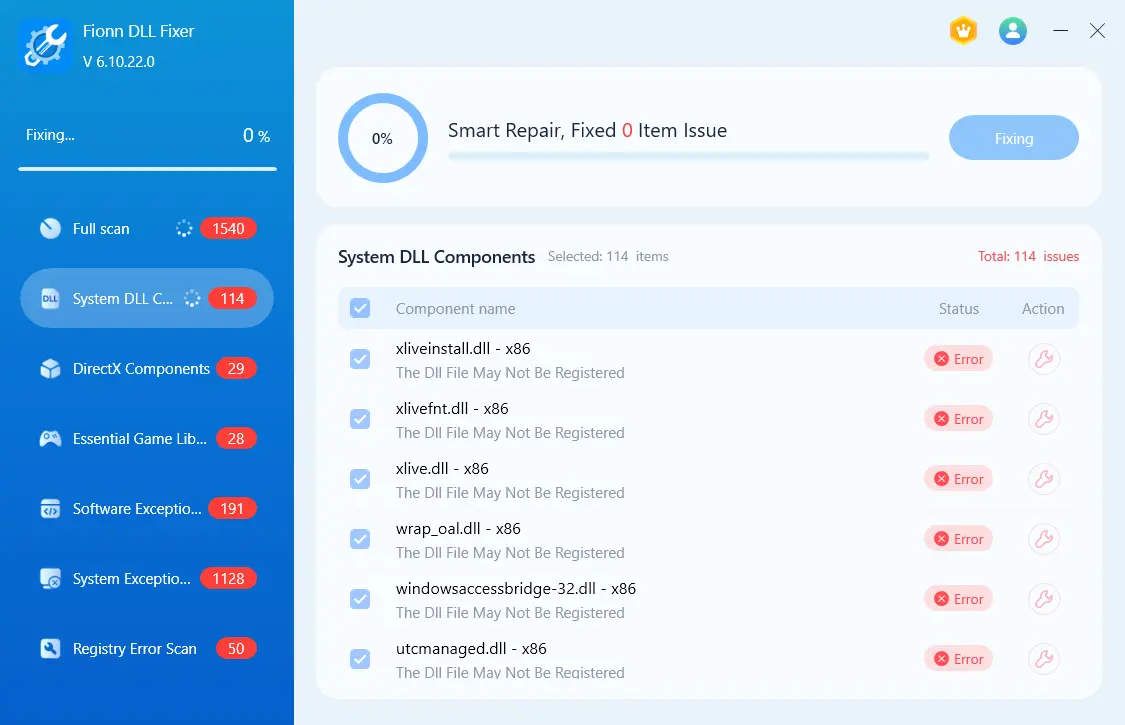
- Wait while the repair is in progress. During this process, the button changes to
Fixing
until all issues have been repaired.
- When the repair is complete, click
Ok
in the confirmation dialog. If prompted, restart your computer before checking whether the problem has been resolved.
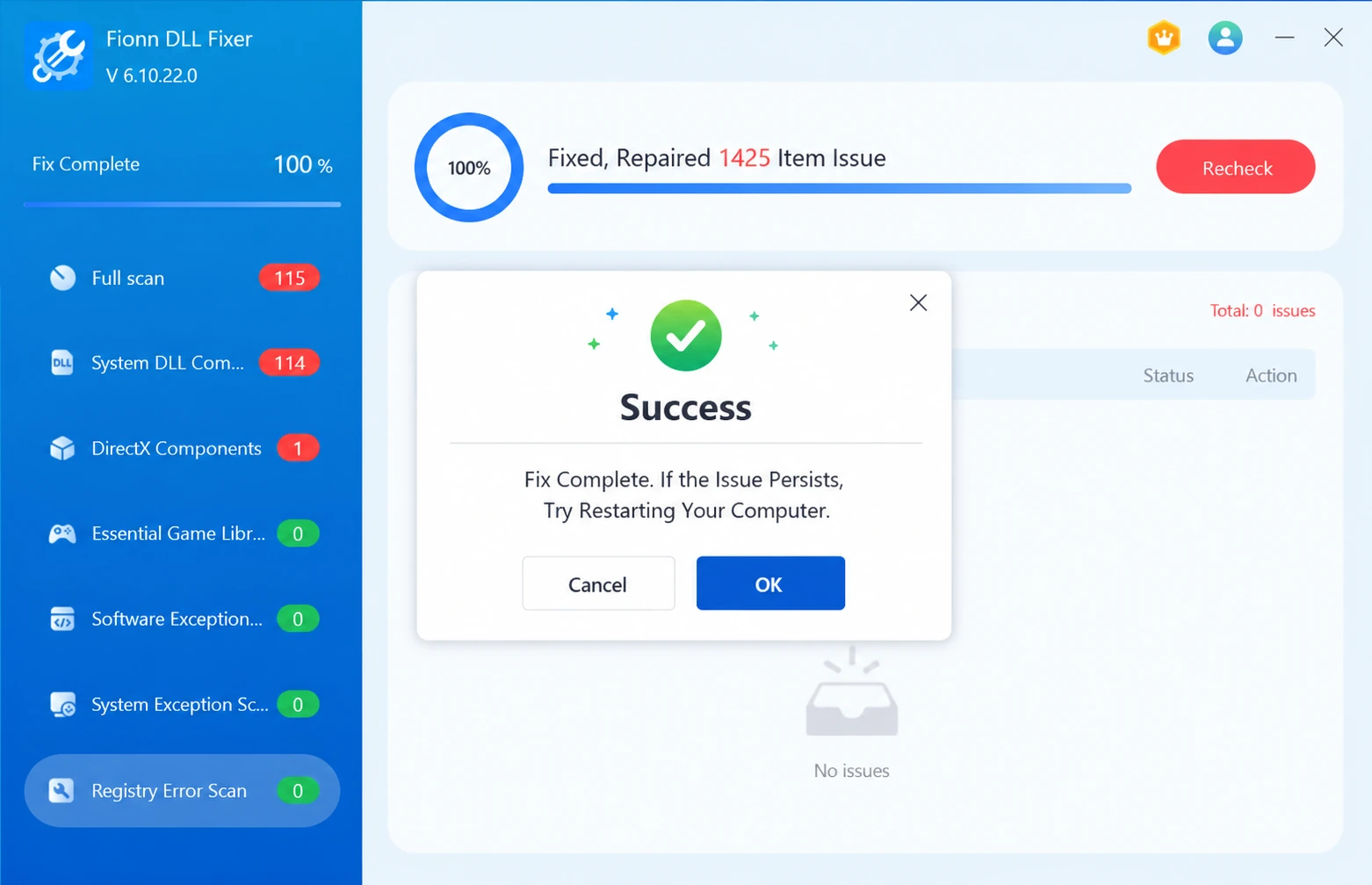
- If the issue still persists after restarting, click
Recheck
to perform another scan. If new issues are found, click
Repair
again to fix them.
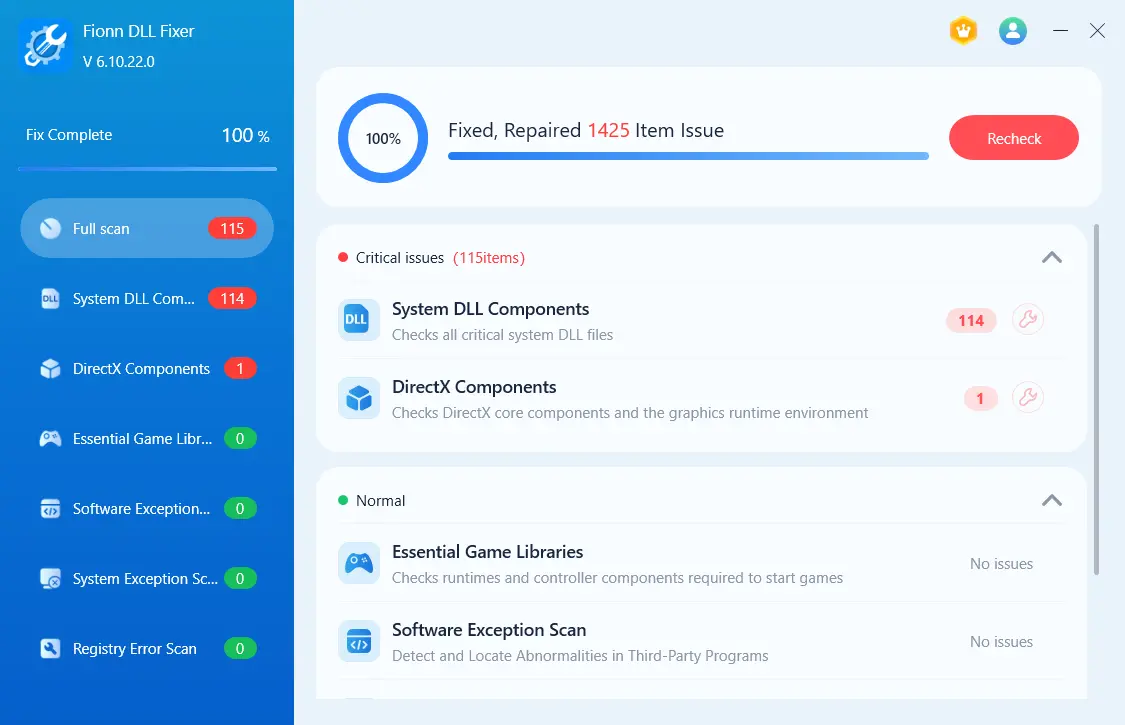
After the restart, launch the same game or app that displayed the message. A completed repair indicates that the repair operation finished; the successful result is the app opening without the XAPOFX1_5.dll error.
Method 2: Install Microsoft DirectX Legacy Components
Use this path when the affected older game or application needs legacy DirectX SDK runtime libraries. Microsoft documents that its DirectX End-User Runtime Web Installer adds legacy libraries used by some games, including XAudio 2.7 and XInput 1.3.
- Open the official Microsoft DirectX End-User Runtime Web Installer download page .
- Select Download to download the installer.
- Select
Open
or
Run
from the download location to begin installation.
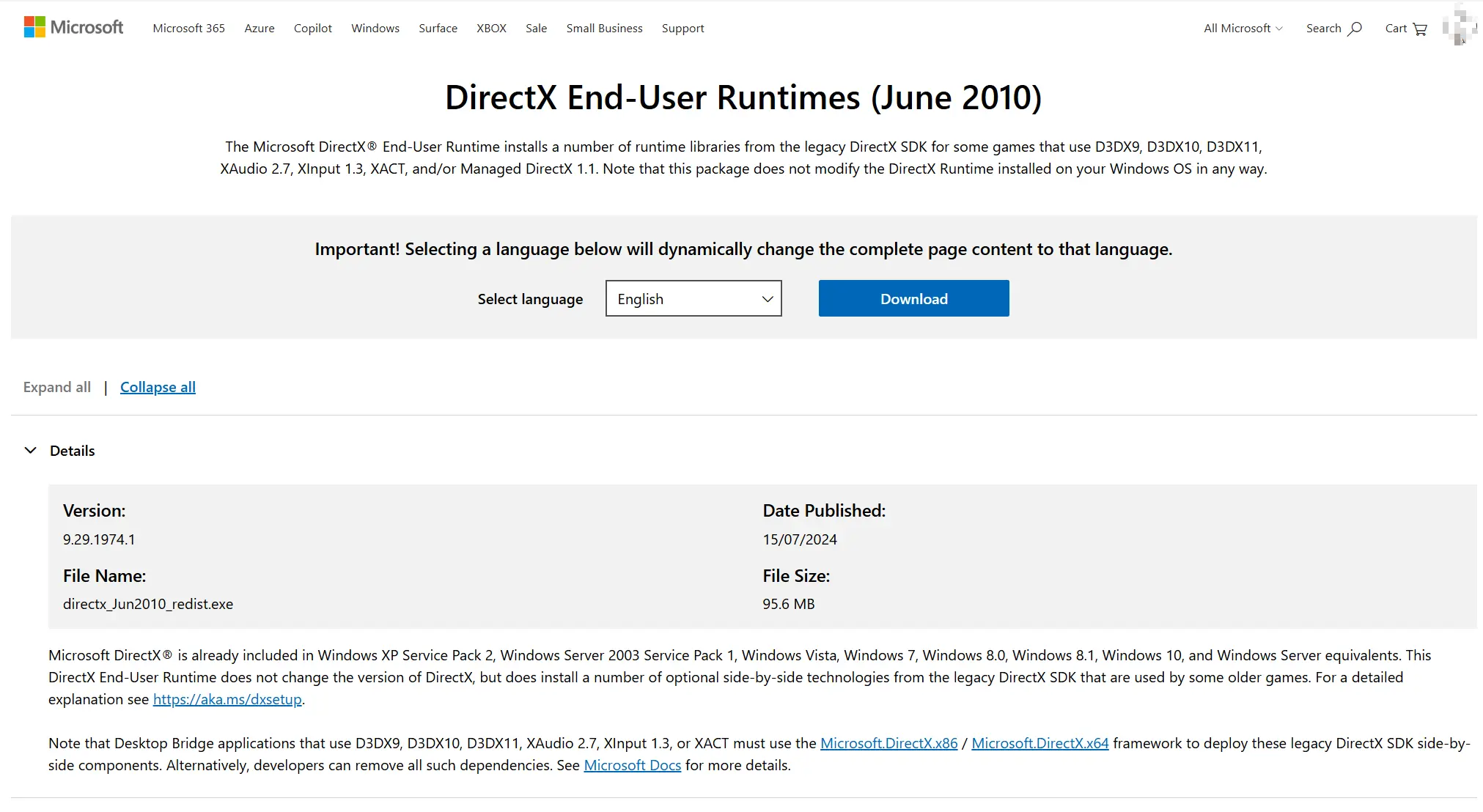
- After installation finishes, restart Windows and open the affected app again.
Use the app launch as the check: it should start without the missing-file message. Do not use DxDiag’s core DirectX version as proof that this worked; Microsoft notes that this package does not modify the DirectX Runtime installed with Windows.
Method 3: Repair or Reinstall the Affected App
Choose this method if the error affects only one program while other apps work normally. In that situation, the app’s installation or components are more likely to be responsible than Windows system components.
- Close the affected app and its related processes.
- Open Settings , then Apps , then Installed apps , and find the program.
- Select its repair option if one is available and wait for it to complete.
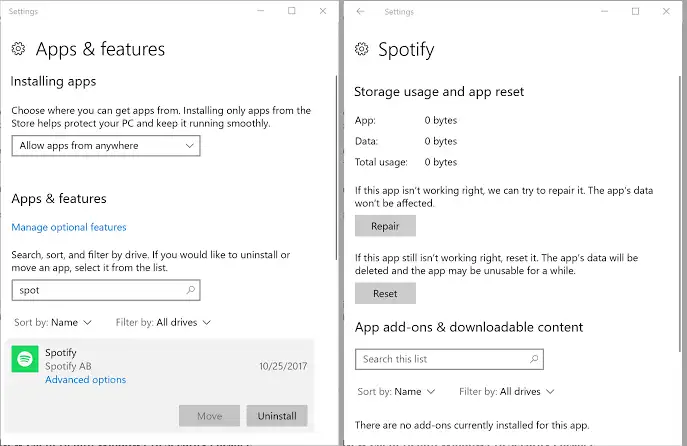
- If repair is unavailable or does not help, reinstall the program from the developer’s official source.
Launch the app using the same action that previously triggered the error. If it still fails, retain the exact message; it can help the app developer or official support identify the needed component.
Method 4: Repair Windows System Files with DISM and SFC
Use this method when several applications show DLL errors or Windows itself appears unstable. These commands repair Windows component health rather than installing a game-specific legacy dependency.
- Open Command Prompt as an administrator.
- Run the following command and wait for it to finish:
DISM.exe /Online /Cleanup-image /Restorehealth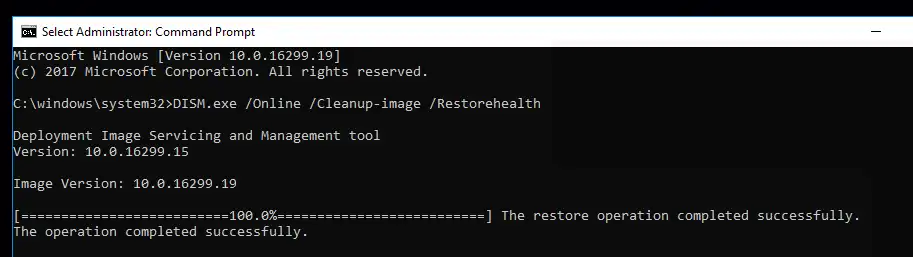
- Run the following command and wait until the scan reaches 100%:
sfc /scannow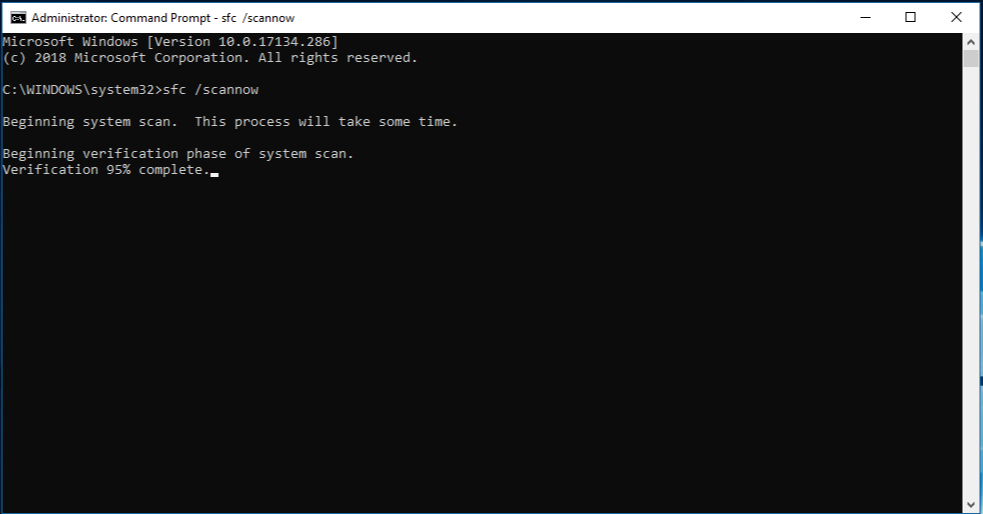
- Restart the computer.
After restarting, reopen every app that displayed the DLL message. If those apps now start normally, the system-file repair helped. If only one app remains affected, return to the app repair or reinstall path.
Conclusion
For an XAPOFX1_5.dll Missing error, first use Microsoft’s legacy DirectX installer when the affected older software needs those components. Repair or reinstall the app when the issue is isolated to one installation, and use DISM plus SFC when multiple apps fail. For a broader or unclear dependency problem, Fionn DLL Fixer provides a scan, repair, restart, and recheck path. In every case, verify success by reopening the affected app rather than relying only on a completed installer or repair message.
Frequently Asked Questions
What is XAPOFX1_5.dll?
It is a DLL name associated with a missing-library launch error. Microsoft’s support content has recorded it alongside X3DAudio1_7.dll missing errors when games fail to load.
Will updating Windows alone fix the error?
Windows 10 and 11 include DirectX 11.3 and DirectX 12, which are updated through Windows Update. However, an older game can require legacy side-by-side DirectX components, so use Microsoft’s legacy installer when that applies.
Can I download XAPOFX1_5.dll by itself?
Avoid downloading individual DLL files from unknown sites or manually placing them in system folders. Use the official DirectX installer, the application’s official repair or reinstall option, or a supported Windows repair path instead.
Why does only one game show the error?
If only one program fails, its installation or included components are more likely to be the cause. Repair the app if Windows offers that option; otherwise reinstall it from the developer’s official source.
What should I do if the error remains after repair?
Restart Windows, reopen the affected app, and note the exact error text. Run a recheck in Fionn DLL Fixer if you used it, or contact the app developer or official support with the complete message.


