 Emily CarterAuto Clicker
A Bongo Cat auto key presser should be treated as a local input test, not as proof that Bongo Cat will accept, count, or reward simulated input. Bongo Cat’s Steam listing says activity is associated with key presses. You can record a short sequence with Fionn Auto Clicker , replay it once, and then watch the open Bongo Cat window for its own visible response.

Use automation only where the applicable game, app, or service permits it. The supplied information does not establish Bongo Cat’s current automation policy or whether its current client accepts synthetic key events.
Before you start
Start Bongo Cat from its official Steam page . Its listing names Windows 10 and Windows 11 in its Windows requirements. Fionn Auto Clicker is documented for Windows 10 and Windows 11 as well.
For the initial test, keep both applications at the same privilege level and keep Bongo Cat in the foreground. A foreground test avoids treating background delivery as established behavior.
Record and replay a minimal Bongo Cat input sequence with Fionn Auto Clicker
This is the documented recording-and-playback path for a small, finite test. It is useful when you want a saved sequence that you can replay once and stop with a documented control. A saved recording proves that Fionn saved the sequence; it does not prove Bongo Cat received or counted it.
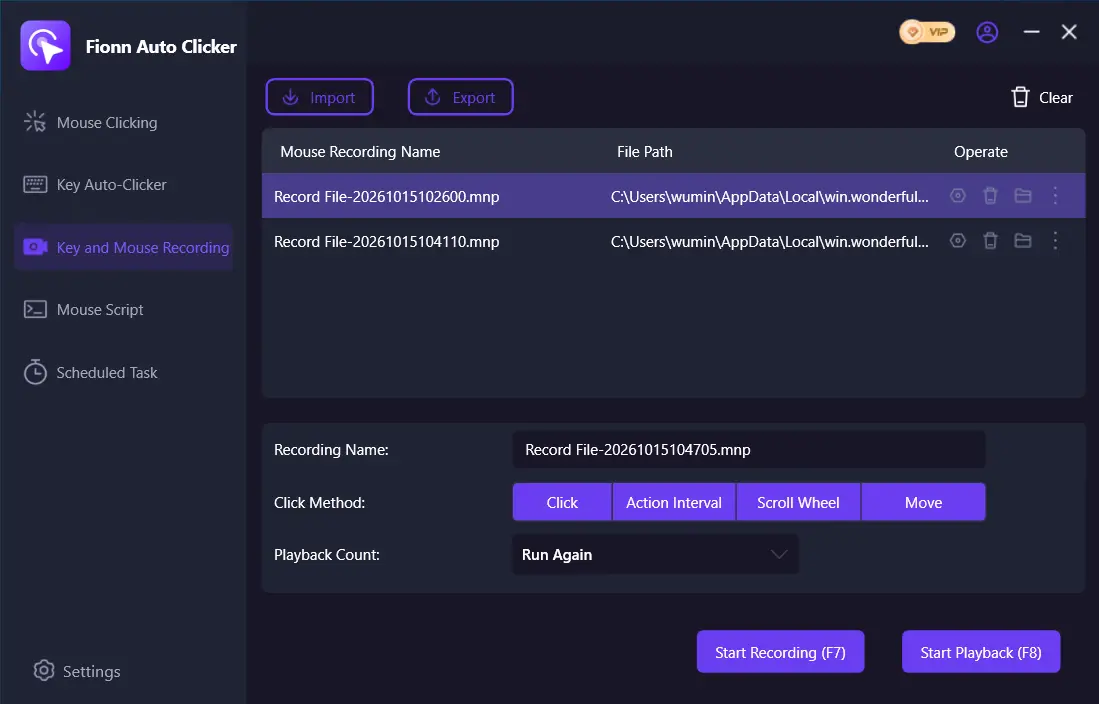
- Open
Key and Mouse Recording
. Enter a
Recording Name
and select the action types to capture:
Click
,
Action Interval
,
Scroll Wheel
, and
Move
. Click
Start Recording
or press
F7
.
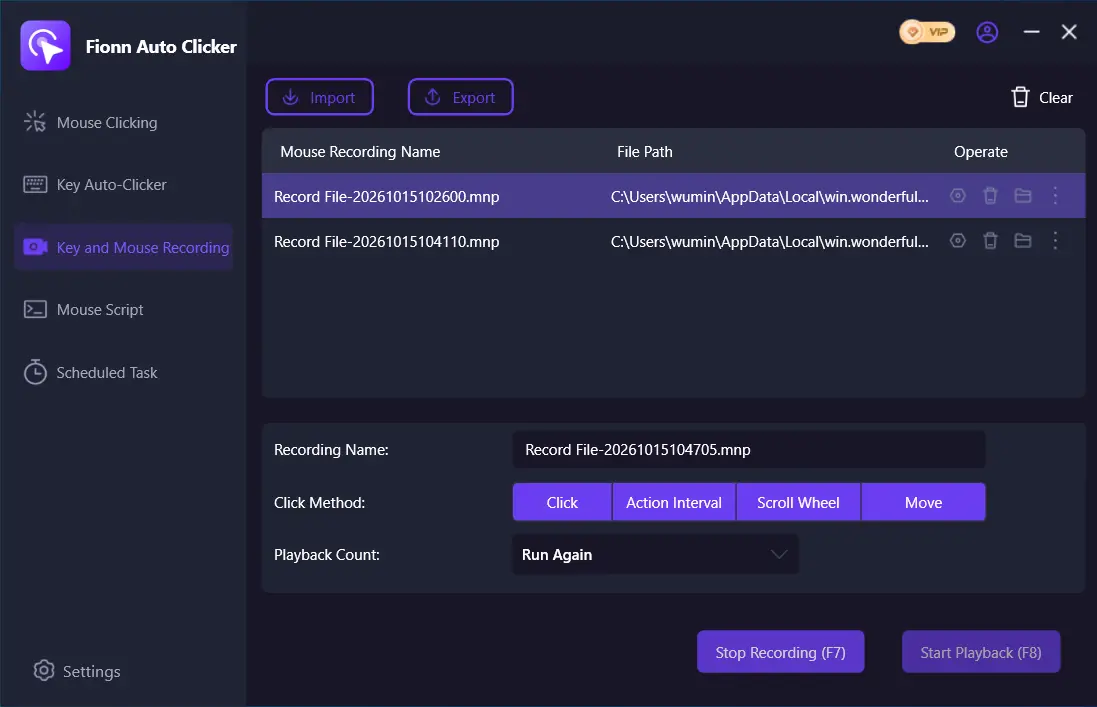
- Perform the actions you want to record. While recording is active, the button changes to
Stop Recording
or
F7
.
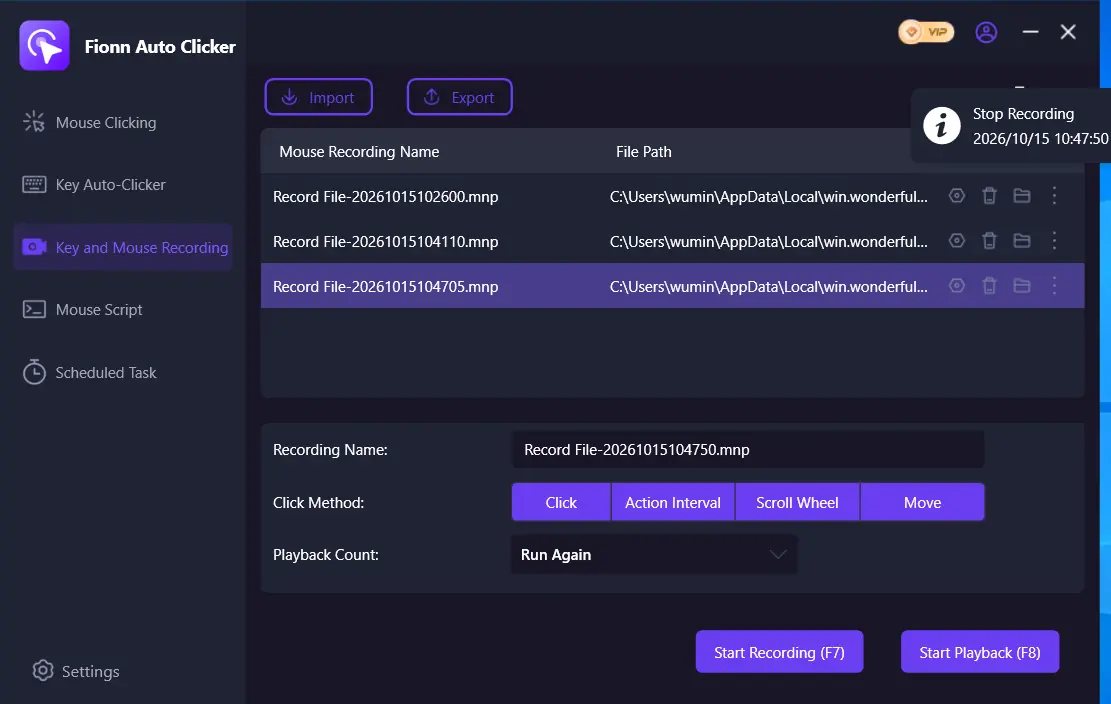
- Click
Stop Recording
or press
F7
to finish. Confirm that the new recording appears in the list, then select the recording you want to replay.
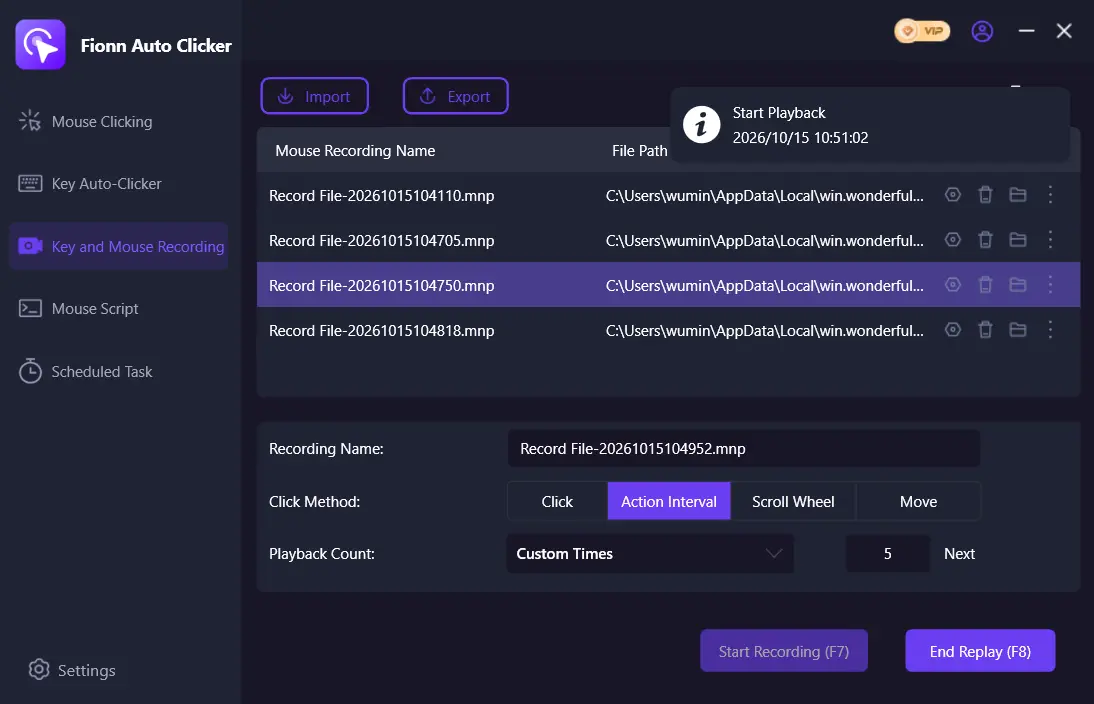
- Set
Playback Count
as needed. To specify a repetition count, choose
Custom Times
and enter a number. Click
Start Playback
or press
F8
to replay the selected recording. During playback, click
End Replay
or press
F8
to stop.
Verification: confirm that the new recording is listed and selected, then use a playback count of one for the first test. If F7 or F8 does not behave as expected, check for a hotkey conflict before continuing; Fionn documents conflict detection for its hotkeys.
Run a conservative foreground test
With Bongo Cat foregrounded, press your intended key physically once. Observe the game’s visible reaction or any activity indicator it provides. This gives you a baseline for that local session.
Identify the intended target key before starting playback. Do not switch focus to another app while the short test is running.
Replay the selected recording once with F8 while Bongo Cat remains in the foreground. Use only a small finite playback count.
Compare Bongo Cat’s visible result from playback with the result from your physical key press. Treat this observation as a local runtime result, not a general compatibility claim.
Press F8 or use End Replay to stop playback. Stop it immediately if the result is unexpected.
If playback does not produce a visible response
If the saved recording appears and playback starts but Bongo Cat does not visibly react, do not conclude that the recorder failed. First repeat the physical-input baseline, then repeat one foreground playback test. The available information does not establish keyboard capture details, target-window delivery, or Bongo Cat acceptance of simulated input.
If you later evaluate background operation, run a foreground baseline first and then a separate background test. Fionn documents that background clicking may not work for some windows; this does not establish that Bongo Cat accepts background input.
If F7 or F8 does not start or stop the expected action, resolve the displayed hotkey conflict before making another recording. Avoid increasing the playback count to compensate for an unverified result.
Conclusion
For a Bongo Cat auto key presser test, first establish that physical input creates the expected visible response, then record and save a minimal sequence, replay it once in the foreground, and stop with F8. Fionn Auto Clicker provides the documented recording, selection, playback-count, and stop controls for that test path. A saved recording and active playback do not, by themselves, show that Bongo Cat accepts or rewards automated input. If the result differs from physical input, keep the test small and review the current app controls and applicable rules before proceeding.
FAQ
Is Normal Click required for Bongo Cat key playback?
No. Normal Click is a separate mouse-clicking branch. The recording-and-playback procedure begins in Key and Mouse Recording.
Does a saved recording prove that Bongo Cat counts it?
No. It shows that the recording was saved in Fionn. You must run the foreground comparison and observe Bongo Cat’s own visible result to determine what happens in your local session.
Can I assume automated input is allowed in Bongo Cat?
No. Use automation only where the applicable game, app, or service permits it. The supplied evidence does not confirm Bongo Cat’s current policy for simulated input.
Why does physical input work while playback has no visible effect?
The available information does not establish how the current client handles simulated keyboard input, how a particular key is captured, or how playback is delivered to the target. Keep Bongo Cat foregrounded, check F7/F8 conflicts, and compare one replay with one physical press.


