 Emily CarterScreen Recording
To record audio from a website, you need to capture Windows system audio while the page is playing. Xbox Game Bar works for a short clip, Fionn Screen Recorder works for recording a website together with a window or screen region, and OBS Studio is useful when you need to control audio sources. Below are three standalone methods for Windows 10 and 11. Before you begin, make sure the website audio can be heard through your current output device.
How to Choose a Method for Recording Website Audio
| Method | Best for | Effectiveness | User effort |
|---|---|---|---|
| Xbox Game Bar | A short recording from the active browser window | High for a quick task | Low |
| Fionn Screen Recorder | Recording a website with the screen, a window, or a region | High | Low |
| OBS Studio | Configuring and checking audio sources | High after setup | Medium |
Start with Xbox Game Bar if you need a short clip. For a tutorial, demonstration, or recording of a selected part of a page, Fionn Screen Recorder is more convenient. Choose OBS Studio when it is important to see the system audio level in the mixer before recording.
Method 1: Record Website Audio With Xbox Game Bar
When to use it: audio is playing in your browser and you need a short video for a personal note, review, or saving permitted content. Keep the browser active before starting.
- Open the page with audio in your browser and start playback.
- Press
Win + Gto open Xbox Game Bar.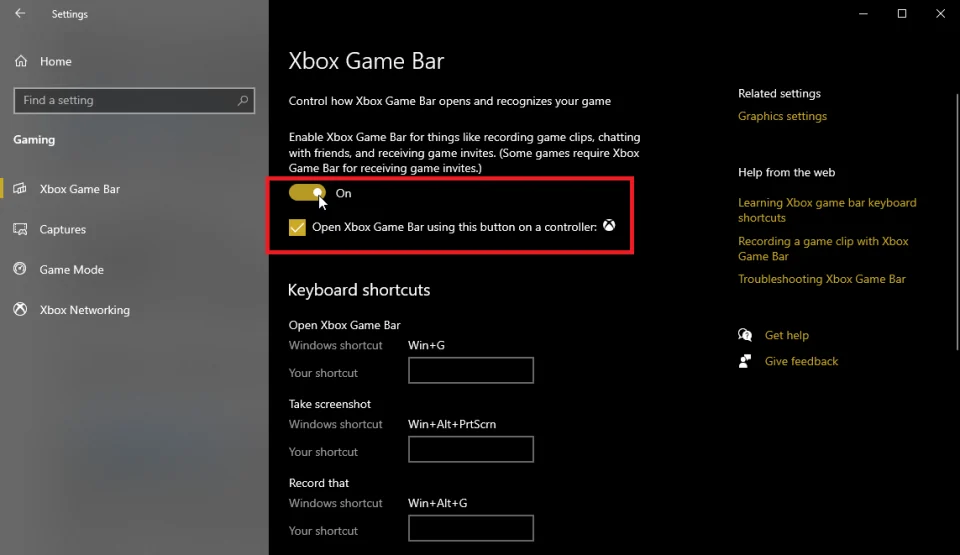
- In the recording widget, turn the microphone on or off as needed.
- Click the Record button or use
Win + Alt + R. - After the required segment, press
Win + Alt + Ragain to stop recording.
Check: open the saved clip and listen to it. If your voice was captured accidentally, record it again with the microphone turned off.
Method 2: Record Audio From a Website With Fionn Screen Recorder
When to use it: you need to save website audio together with the browser, a separate window, or part of the screen. This is the recommended option for demonstrating actions on a page because you select the capture area and audio source in one sequence.
- Open Fionn Screen Recorder and choose the capture area: Full Screen, Window, or Region.

- Choose whether to record system audio, microphone audio, both sources, or no audio.

- Select MP4 or another video format before you start recording.

- Click Start to begin recording, then use Pause or Stop when you are finished.

- Open Media Library to play, edit, locate, or delete recorded videos.

Check: in Media Library, play the completed video and listen to the beginning, middle, and end. After you stop recording, you can trim the video and export the result in the built-in video editor.
Method 3: Capture Website Audio in OBS Studio
When to use it: you need to check the audio source before recording begins or manage system audio and the microphone separately.
- Install OBS Studio from the
official OBS Studio download page
and open the program.
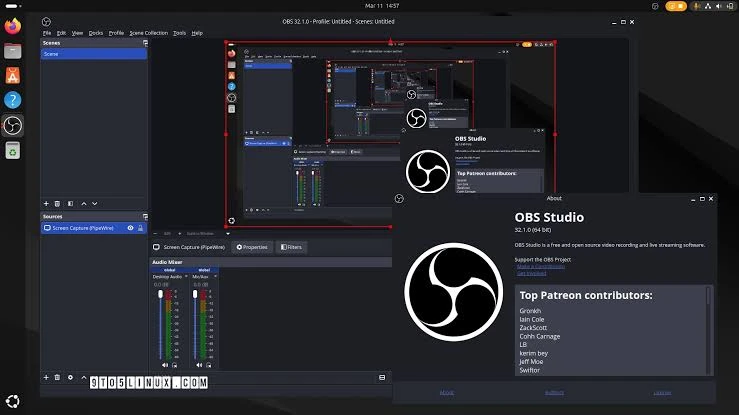
- In Sources, add a display capture or browser window capture.
- In the audio mixer, confirm that the Desktop Audio meter moves while the website is playing.
- Disable or mute Mic/Aux if your voice should not be included in the recording.
- Click Start Recording, play the segment, then click Stop Recording.
Check: open the file created by OBS and make sure the website audio was recorded. If the Desktop Audio meter did not move before you started, first check the Windows output device or OBS settings.
How to Get a Clean Recording
- Listen for a few seconds at the same volume you will use for the recording.
- Close tabs and applications that may play notifications or advertisements.
- If you need only website audio, turn off the microphone in the selected program.
- Make a 10–15 second test recording and check it before recording a longer segment.
The main difference between the methods is when you can check the audio. With Game Bar, you check the result after saving; with Fionn Screen Recorder, you check it in Media Library; and with OBS Studio, the system audio level is visible before recording starts.
Conclusion
To record audio from a website on a computer, first start playback and make sure the audio can be heard through Windows. For a short clip from an active browser window, use Xbox Game Bar. To record a website window or region while choosing the audio source, use Fionn Screen Recorder . OBS Studio is useful when you need to monitor system audio in advance. In every case, listen to the completed file immediately. If there is no audio, check the output device, audio-source settings, and microphone status, then repeat a short test.
Frequently Asked Questions
Can I record only audio from a website without my voice?
Yes. Enable system audio and disable the microphone in your selected program. Then check a short test recording.
Why is there no audio in the recording even though the website is playing?
Check whether you can hear audio through the current Windows output device. In OBS, also check the Desktop Audio meter.
Which format should I choose for recording from a website?
If you need a video that shows actions on the page, choose a format supported by the program you use. In Fionn Screen Recorder, you can choose MP4 or another video format before starting.
Can I record audio from protected services?
The technical ability to record does not override the service terms or copyright holders’ rights. Use the result only within the permitted rules and licenses.


