 Emily CarterWindows Errors
Best Programme for Computer Errors: 4 Tools Compared
Introduction
A programme for computer errors should match the problem you can actually observe. Malware alerts, damaged Windows files, unexplained crashes, and missing DLL messages require different tools. Choosing by symptom is safer than running several repair utilities at random.
This comparison covers four options for Windows 10 and Windows 11: Windows Security, System File Checker with DISM, Reliability Monitor, and Fionn DLL Fixer . We compare their documented scope, diagnostic value, repair method, usability, and limitations. No option is presented as a universal repair tool.
Quick Recommendations
- Best for suspected malware: Windows Security.
- Best for damaged protected Windows files: System File Checker and DISM.
- Best for investigating recurring crashes: Reliability Monitor.
- Best for DLL and runtime dependency checks: Fionn DLL Fixer.
Quick Comparison Table
| Tool | Best use | Primary action | Availability | Main limitation |
|---|---|---|---|---|
| Windows Security | Suspected malware or security alerts | Scans for and responds to detected threats | Built into Windows | Does not diagnose every crash or DLL dependency |
| System File Checker and DISM | Corrupted protected Windows files | Repairs system files and the component store | Built into Windows | Requires administrator commands |
| Reliability Monitor | Recurring crashes with an unclear cause | Shows failures and changes on a timeline | Built into Windows | Primarily diagnoses rather than repairs |
| Fionn DLL Fixer | DLL, DirectX, and runtime dependency issues | Scans, repairs, and rechecks | Three free attempts; VIP options | Focused on supported DLL and system issue categories |
Product 1: Windows Security — Best for Suspected Malware
Windows Security is the appropriate starting point when computer errors appear with browser redirects, unfamiliar processes, blocked applications, or security notifications. Microsoft documents quick, full, custom, and offline scan options for Windows 10 and Windows 11.
Open Windows Security > Virus & threat protection . Review protection updates before choosing a scan. A quick scan checks common threat locations, while a full scan examines every file and running program. Save open work before an offline scan because Windows restarts.
Review detected items before taking action. If the scan finds nothing, move to a tool that matches the remaining symptom. The official Windows Security scan guidance explains each option and where to view protection history.
Product 2: System File Checker and DISM — Best for Windows File Corruption
System File Checker, or SFC, checks protected Windows system files. Deployment Image Servicing and Management, or DISM, repairs the Windows component store that supplies files for SFC. These tools suit persistent Windows errors, damaged components, and features that stop responding correctly.
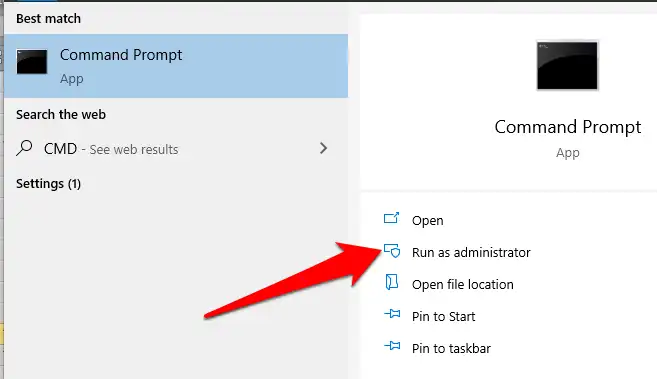
- Open Command Prompt as an administrator.
- Run
DISM.exe /Online /Cleanup-Image /RestoreHealth.
- Wait for DISM to complete without closing the window.
- Run
sfc /scannowand wait for verification to reach 100%. - Restart Windows and repeat the action that produced the error.
Microsoft recommends running DISM before SFC so the repair source is checked first. Its official SFC and DISM instructions also explain the possible scan results.
Product 3: Reliability Monitor — Best for Recurring Crashes
Reliability Monitor is useful when you know a failure occurred but do not yet know why. Search Windows for View reliability history to inspect application failures, Windows failures, warnings, installations, and updates on a timeline.
Find the first day the stability history worsened. Compare that date with a driver, application, or Windows update. Open the relevant failure entry and record its application name, time, and technical details before changing the system.
Product 4: Fionn DLL Fixer — Best for DLL and Runtime Issues
Fionn DLL Fixer is a Windows desktop application for missing, damaged, version-mismatched, and System32-path-related DLL issues. It also checks DirectX DLLs, D3D Runtime, Shader Compiler conflicts, and dependencies such as Visual C++, .NET, OpenAL, and XInput.
Its focused scope is relevant when an application or game reports a missing DLL, displays a black screen, crashes during startup, or fails to load a dependency. The software supports full or categorized scans, automatic repair, manual repair, and a post-repair recheck.
How to use Fionn DLL Fixer
- Launch Fionn DLL Fixer. The software automatically scans your PC for DLL and system issues and displays the detected results when the scan is complete.

- After the scan finishes, click “Repair” to start fixing all detected DLL and system issues automatically.

- Wait while the repair is in progress. During this process, the button changes to “Fixing” until all issues have been repaired.

- When the repair is complete, click “Ok” in the confirmation dialog. If prompted, restart your computer before checking whether the problem has been resolved.

- If the issue still persists after restarting, click “Recheck” to perform another scan. If new issues are found, click “Repair” again to fix them.

The free version displays three free attempts. VIP unlocks DLL, DirectX, runtime, and system repair benefits through monthly, annual, and lifetime plans. Pricing amounts were not supplied, so review the current choices inside the application before deciding.
Optional next step: Consider Fionn DLL Fixer after recording the error and completing the relevant Windows checks, particularly when the evidence points to a DLL or runtime dependency.
How to Choose a Programme for Computer Errors
Choose by error category, not by the largest feature list. A narrow tool makes the result easier to interpret and reduces the chance of unrelated changes. Use this sequence to select and verify a repair method:
- Classify the symptom. Separate security warnings, Windows component errors, application crashes, and named DLL messages.
- Preserve evidence. Save the error code, affected application, faulting module, and failure time.
- Use the narrowest suitable tool. Start with Reliability Monitor for unknown causes, Windows Security for suspicious activity, SFC and DISM for Windows corruption, or a DLL-focused tool for dependency errors.
- Make one change at a time. Test the original failure after each repair.
- Escalate carefully. Back up important files before removing drivers, rolling back updates, or resetting Windows.
Selection method and disclosure
We compared four tools using their documented problem coverage, diagnostic usefulness, repair process, availability, and limitations. We did not claim private benchmarks or unsupported success rates. Fionn publishes this article and develops Fionn DLL Fixer, so its inclusion should be considered alongside that relationship.
Conclusion
The best programme for computer errors depends on the available evidence. Windows Security handles suspected threats, SFC and DISM address protected Windows components, and Reliability Monitor reveals crash patterns. Fionn DLL Fixer is the focused option when missing or damaged DLLs, DirectX components, or runtime dependencies are involved. Start with the narrowest relevant scope and test after every change.
Frequently Asked Questions
Can one programme fix every computer error?
No. Errors may involve malware, hardware, drivers, Windows components, applications, or dependencies. Identify the symptom and collect diagnostic evidence before choosing a tool.
Should I run SFC or DISM first?
Microsoft’s documented sequence runs DISM before
sfc /scannow
. DISM repairs the component store that provides files used during the SFC repair process.
Is downloading a missing DLL from a random website safe?
An unverified download may have the wrong version or architecture and could introduce security risks. Prefer Windows repair tools, the original application installer, or a verified diagnostic workflow.
When is Fionn DLL Fixer relevant?
It is relevant to missing, damaged, or version-mismatched DLLs, System32 path issues, DirectX components, and dependencies including Visual C++, .NET, OpenAL, and XInput.
Why might Windows need a restart after a repair?
Windows or the affected application may still have repaired components loaded in memory. Restarting allows those components to reload before you test the result or run a recheck.


