 Emily CarterScreen Recording
To record part of screen on Windows, select a rectangle around the content you need, start recording, and then check the saved clip. Region recording captures visible content inside that rectangle. Unlike dedicated window capture, the selected region does not necessarily follow an application window when it moves or changes size. This guide covers three methods: Snipping Tool for quick clips, PowerPoint for slide-based demonstrations, and Fionn Screen Recorder for repeatable recordings with audio and output controls. In every method, choose an accurate boundary, keep important controls inside it, and verify the result.
How to Choose the Right Recording Area
- Resize the target app before recording so the required content fits comfortably.
- Include buttons, menus, and dialogs that need to appear in the demonstration.
- Leave a small margin around important controls.
- Keep moving windows within the selected region.
- Use a short test recording to check the edges before making the final clip.
A fixed recording region may cut off menus or pop-ups that extend beyond its boundary.
How to Record Part of Screen on Windows: Quick Method Comparison
| Method | Windows Support | Region Selection | Best For |
|---|---|---|---|
| Snipping Tool | Windows 11 | Drag to select area | Quick clips |
| PowerPoint | Supported desktop PowerPoint versions | Select Area | Presentation demonstrations |
| Fionn Screen Recorder | Windows | Region recording mode | Repeated tutorials with audio and output settings |
Choose Snipping Tool when you need a short standalone clip. Choose PowerPoint when the capture belongs on a slide. Choose Fionn Screen Recorder when you repeatedly record a specific area and want to set the sound source and output format before recording.
Method 1: Record a Selected Area with Snipping Tool
When to use: You use Windows 11 and need a quick clip of a rectangular part of the screen.
- Open Snipping Tool and select
Record
.
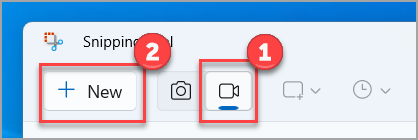
- Select New , or press Windows + Shift + R .
- Drag to select the area you want to record. The selected area captures visible content inside the rectangle.
- Select Start .
- Perform the actions you need to show while keeping windows and controls inside the selected boundary.
- Select Stop , then save the recording from Snipping Tool.
Verification: Open the saved video and check that the recorded boundaries include all expected controls, menus, and actions. If a pop-up menu falls outside the recorded area, select a larger or repositioned area and record again.
Method 2: Record a Selected Area with PowerPoint
When to use: You want the screen recording embedded in a PowerPoint slide, with the option to save it as a separate media file afterward.
- Open the slide where you want the screen recording to appear.
- Select
Insert
→
Screen Recording
.
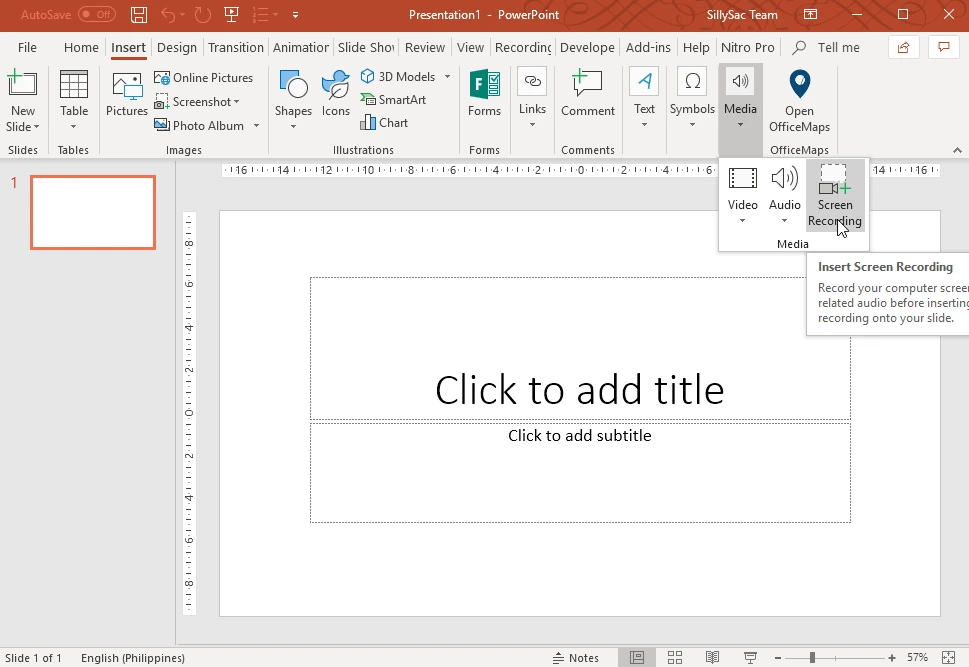
- On the Control Dock, select Select Area .
- Drag to select the part of the screen to capture.
- Select Record .
- Move the pointer to the top of the screen to show the Control Dock, then select Stop .
- Right-click the video on the slide and choose Save Media As to export a separate video file.
Verification: Play the video on the slide and inspect its edges before sharing it. This is PowerPoint Screen Recording , which captures part of the desktop. It is different from Record Presentation , which records slide narration, timings, and presentation elements.
See Microsoft’s official PowerPoint screen-recording instructions if your ribbon labels differ.
Method 3: Record a Selected Region with Fionn Screen Recorder
When to use: Recommended for repeatable tutorials or demonstrations where you need region selection plus sound-source and output-format choices.
- Launch Fionn Screen Recorder.
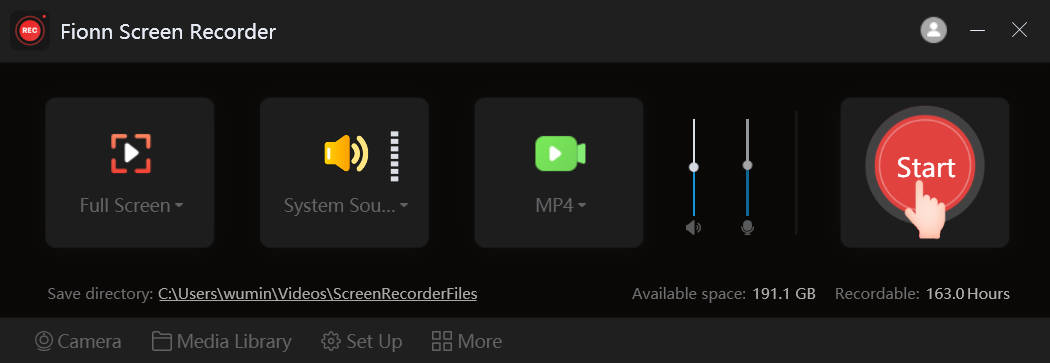
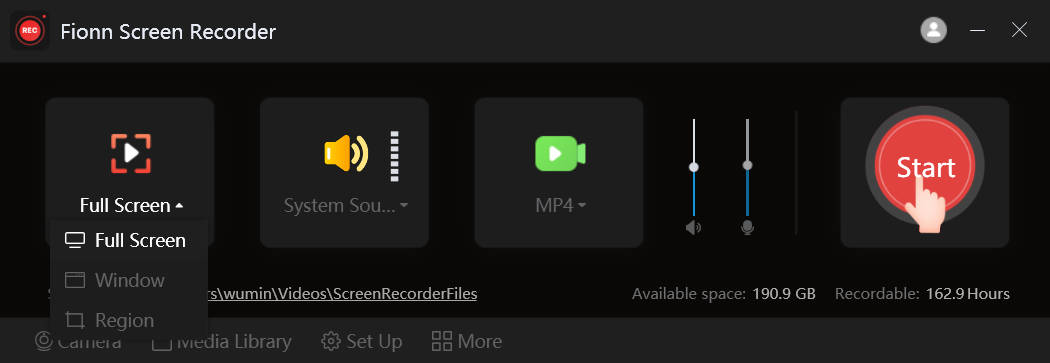
- Select
Region
in the recording area menu, then define the required area.
- Choose the required audio source.
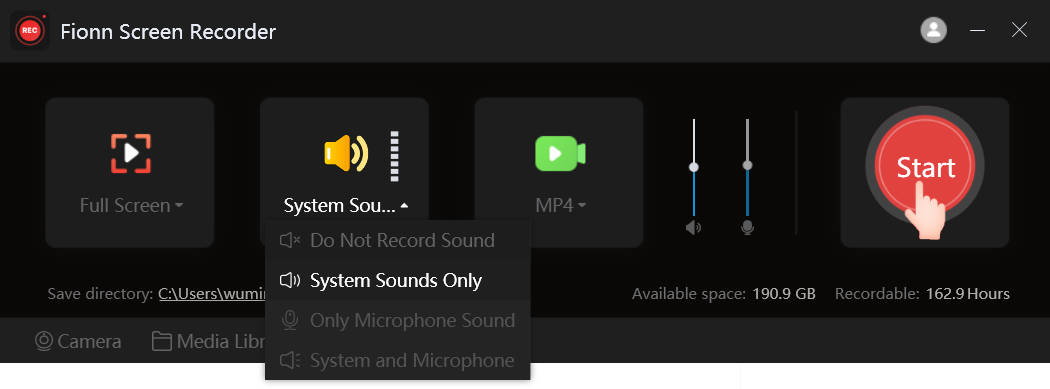
- Configure the output format before recording.
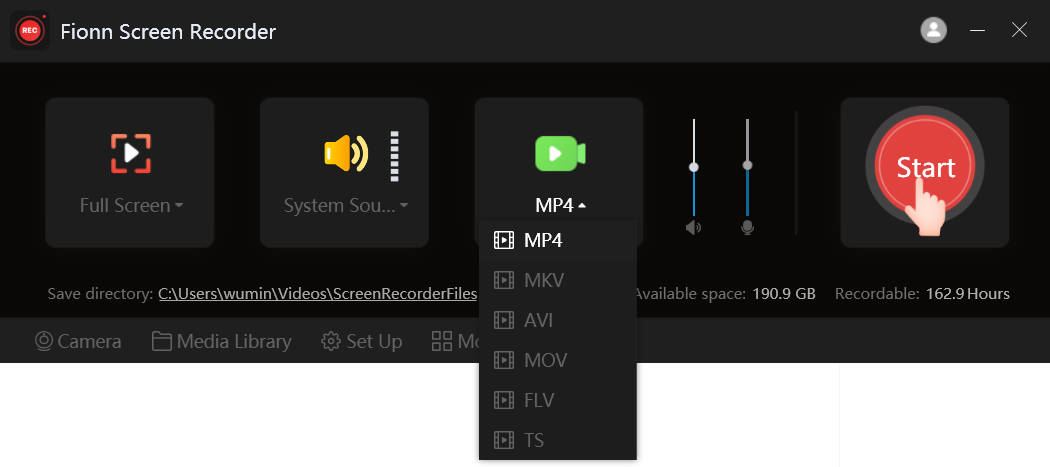
- Start recording, then stop when the demonstration is complete.
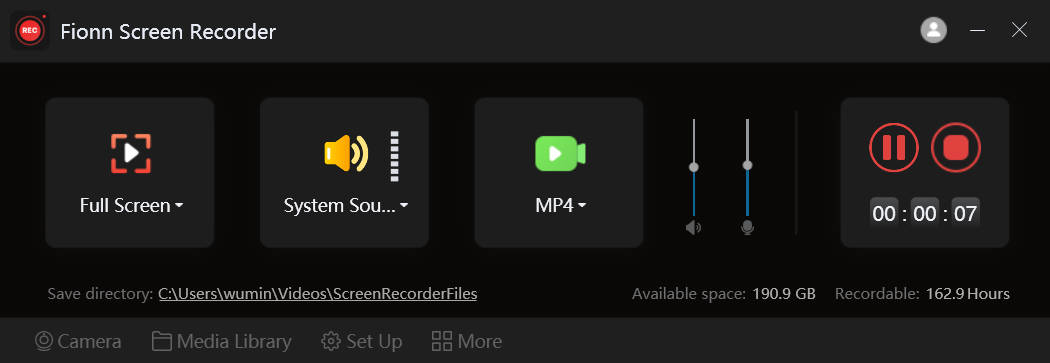
- Open Media Library and verify the completed video.
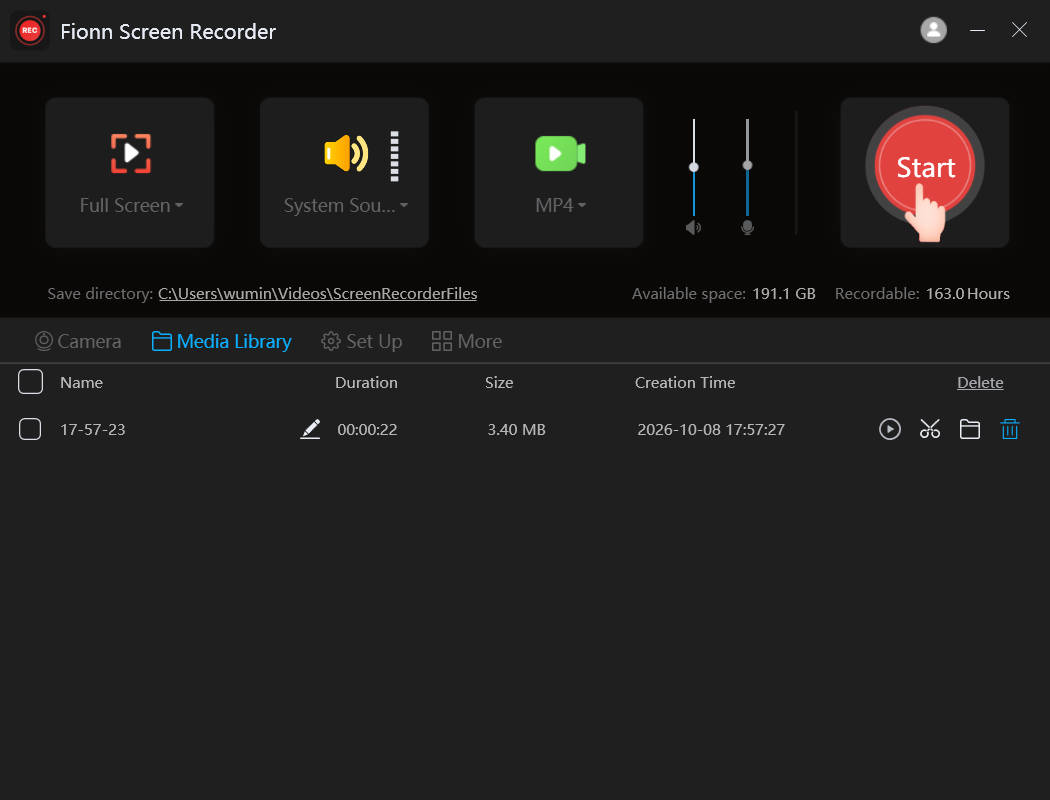
Verification: Play the completed video in Media Library. Confirm that the intended region is visible and that the selected sound source is present when audio was required.
Why Is Part of My Screen Missing from the Recording?
| What you see | Likely cause and correction |
|---|---|
| Menu or pop-up is cut off | The recording region is too small. Reselect a larger area. |
| Application moves outside the recording area | The region is fixed. Reposition the app or reselect the area. |
| Important buttons are missing | Leave margins around interactive controls. |
| Unrelated windows appear in the recording | Other visible content entered the selected region. Move or close it before recording. |
| The recording captures the wrong area | Verify the selection with a short test recording. |
Conclusion
For a quick Windows 11 clip, start with Snipping Tool. Use PowerPoint when the clip should live on a slide and may need to be exported separately. For recurring tutorials, Fionn Screen Recorder is a practical option for setting a region, sound source, and output format in one workflow. Whichever method you choose, verify the saved clip: check the edges first, then confirm that menus, dialogs, and moving app content stayed inside the selected region. If anything is missing, adjust the boundary and make another short test before recording the final version.
Frequently Asked Questions
How do I record only part of my screen?
Select a rectangular recording area before starting. Snipping Tool uses a drag selection, PowerPoint uses Select Area, and Fionn Screen Recorder offers Region recording mode.
Does region recording follow a moving window?
Not necessarily. A region is a fixed screen area, so moving or resizing an app can place part of it outside the captured rectangle.
What if a pop-up opens outside the recording area?
It will not appear in the clip. Stop or discard the test recording, enlarge or reposition the selected area, and record again.
Can I record a selected area with sound?
PowerPoint screen recording can record related audio. Fionn Screen Recorder lets you choose no sound, microphone only, or system sound with microphone before you begin.
How do I record one window instead of a fixed region?
Use a tool’s window-capture option when available. This article focuses on a fixed rectangular region, which is different from selecting an application window.
Can I resize the recording area while recording?
Do not assume that a recording tool can change a region during an active recording. For the methods here, set and verify the area before starting; if the boundary is wrong, stop and reselect it.


