 Emily CarterPrinter Drivers
Installing a Canon LBP2900 driver on Windows 11 requires an important check first: Canon’s retrieved LBP2900/2900B CAPT driver page lists Windows 10 (x64) and earlier specified 64-bit Windows releases, but does not list Windows 11. Do not assume that the listed Canon package is supported on your PC. Confirm the exact model and operating-system option on Canon’s support page, then add the connected printer in Windows and print a test page to confirm that it can communicate with the printer.
If the cause of a printing problem is unclear, Fionn Printer Driver can help check the driver, queue, port, and Windows Printer Service. It does not replace Canon’s operating-system compatibility information.
Before you install
- Confirm that the printer label says LASER SHOT LBP2900 or LBP2900B .
- For USB setup, use a direct connection where possible. Canon warns that the printer’s bidirectional communication can operate incorrectly through some print servers, USB hubs, or switching devices.
- For Canon’s documented USB installation, leave the USB cable disconnected until after the driver installation.
- On some ARM-based Windows PCs, a manufacturer-provided installer may be unable to add or install a printer.
Install the documented Canon CAPT package over USB
Use this route only when Canon offers the package for the operating system you selected. Canon’s retrieved documentation covers a direct USB installation for the LBP2900/2900B; it does not establish Windows 11 support for the retrieved CAPT package.
- Open Canon’s
LBP2900/2900B support page
and confirm that the model matches the printer label.
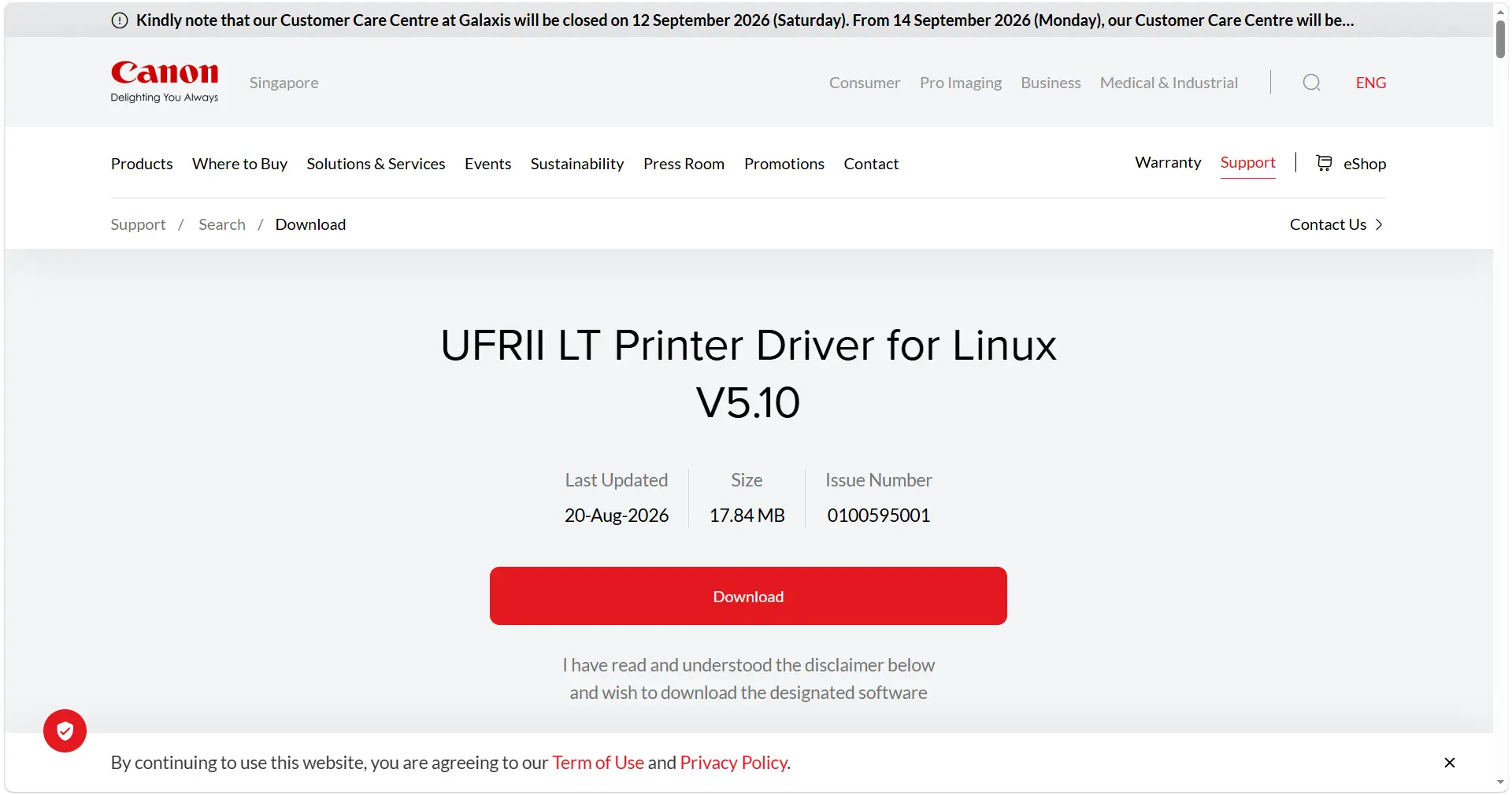
- Disconnect the printer USB cable before starting the driver installation.
- Download the Canon package offered for your selected model-and-system combination, then double-click the self-extracting file to decompress it.
- Open
Setup.exein the decompressed folder. - Choose Canon’s USB printer-driver installation option when it appears.
- After installation, connect the USB cable and restart Windows when Canon’s completion window requests it.
Canon identifies the retrieved 64-bit package as R1.50 Ver.3.30, last updated February 14, 2017, with a size of 10.93 MB. See Canon’s package page and instructions and its USB installation guide .
Add and test the printer in Windows 11
Use Windows printer discovery after the printer is connected and powered on. A local wired printer may install automatically when connected. The network and wireless conditions in Microsoft’s general guidance apply only to printers that support those connections; the supplied Canon material documents direct USB setup for this model.
- For a local wired setup, connect the printer directly to the Windows device and turn it on.
- If the printer is not already installed, choose
Add a printer & scanner
, then
Add device
.

- If Windows does not find it automatically, choose the manual-add option and follow the Add Printer window.
- After the printer installs, open its printer properties. On the General tab, select Print Test Page .
- After installation, check Windows Update for available printer-driver updates.
A printed test page is the outcome to look for: it shows that Windows can communicate with the printer, rather than merely showing a device entry. See Microsoft’s printer installation guidance and test-page instructions .
Diagnose the driver and printing chain with Fionn Printer Driver
For unclear driver or printing problems: Fionn Printer Driver can identify many mainstream printer brands and models, supports automatic and manual driver matching, and can check the Windows Printer Service, printer ports, and unfinished or paused jobs. Fionn is the publisher’s product.
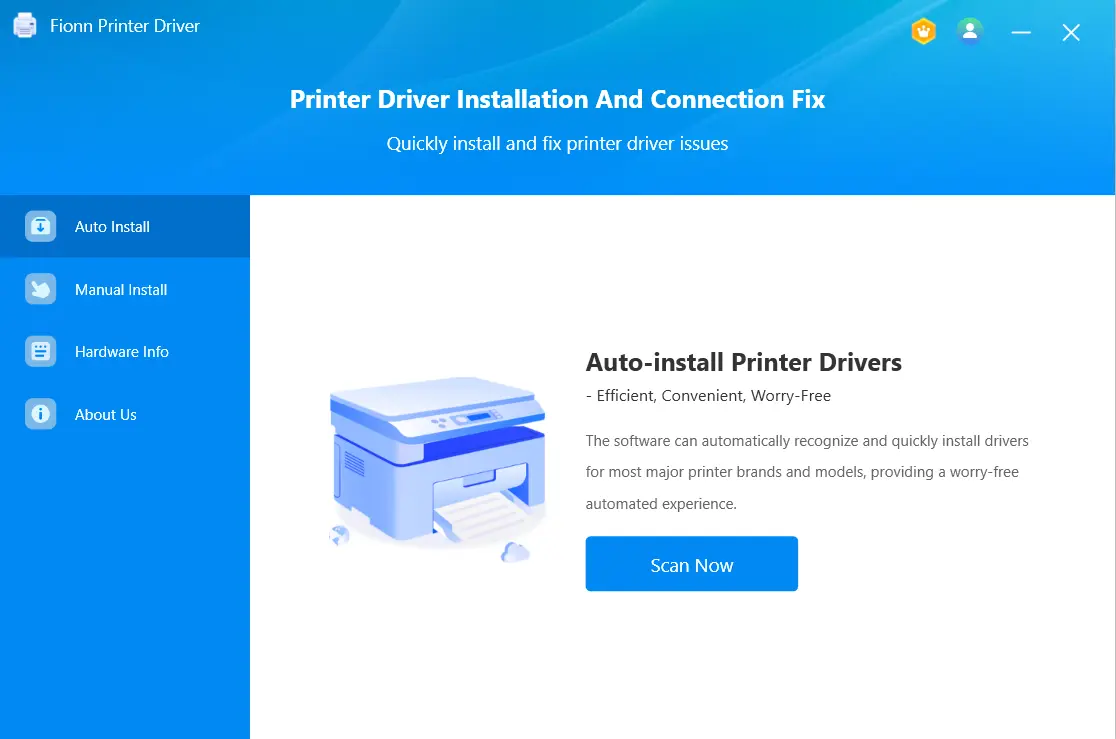
- Launch Fionn Printer Driver and click “Scan Now” to scan your computer for printer drivers and related issues.
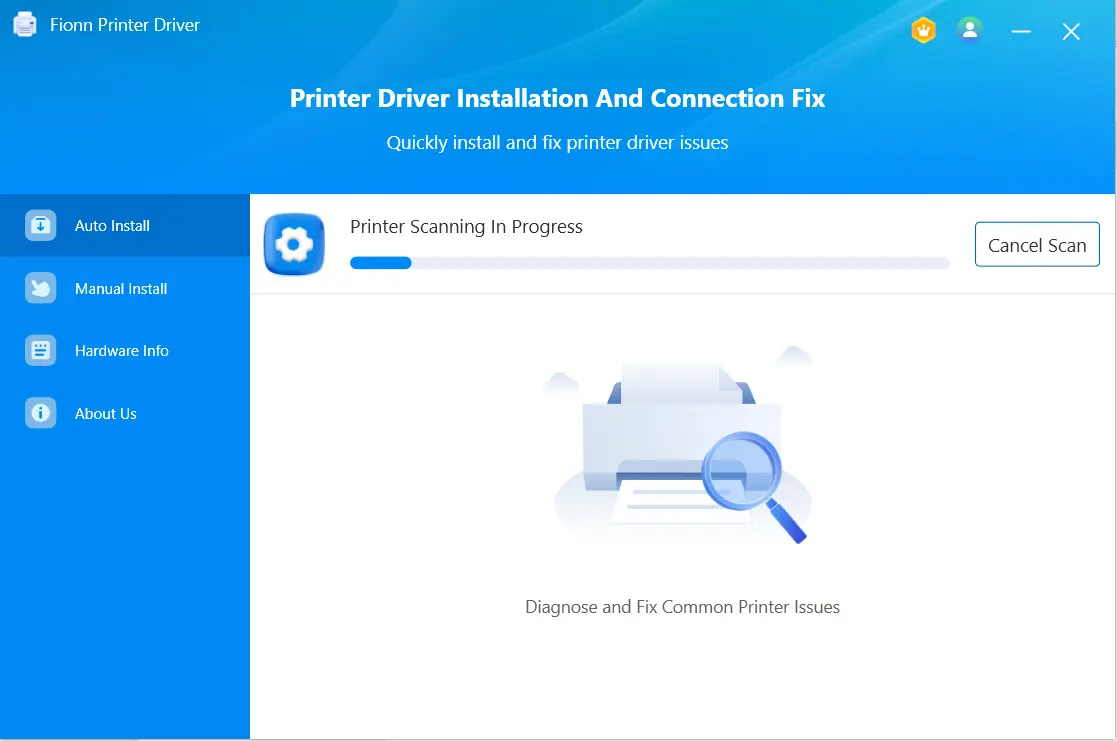
- Wait while Fionn Printer Driver scans your system for installed printers, drivers, and common printer issues.
- After the scan finishes, review the detected driver issue, then click “One-Click Fix” to start the suggested installation or repair.
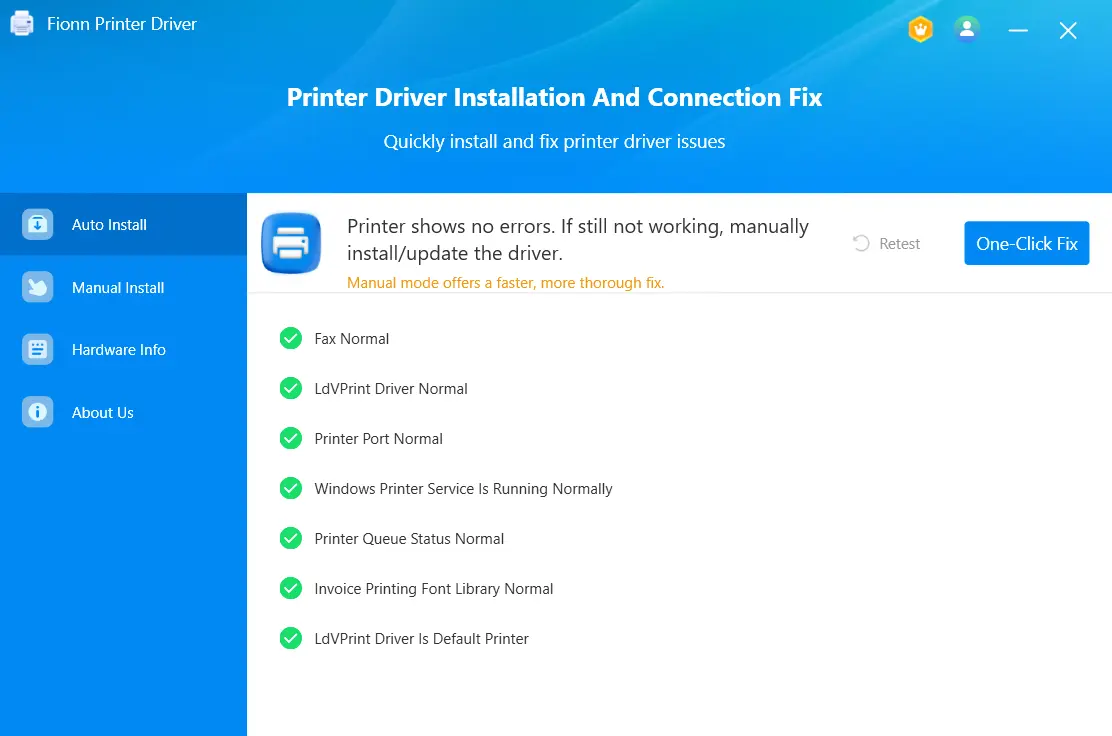
- Wait for the operation to finish and review its result. Then print a Windows test page to check whether the printer actually works.
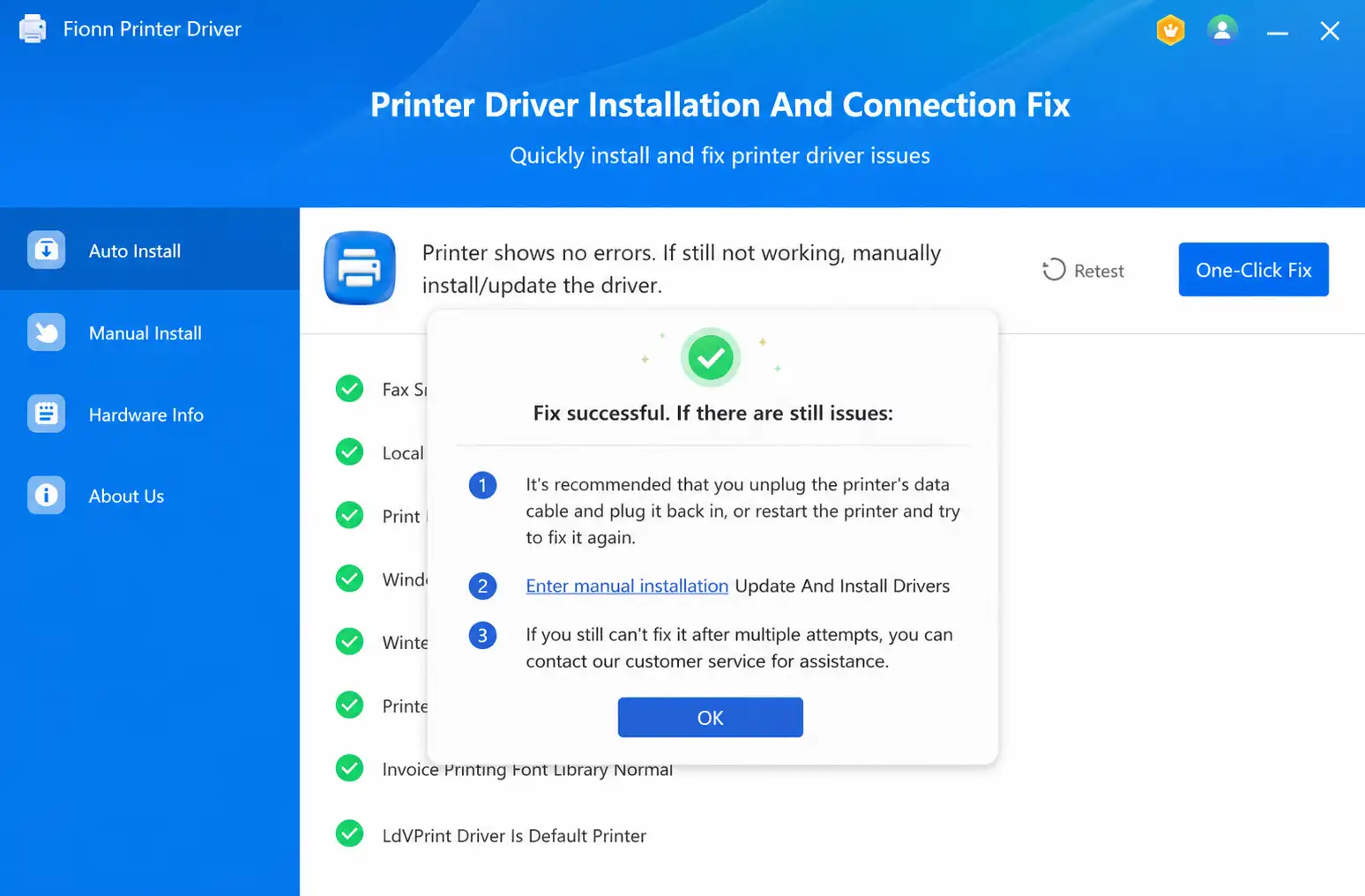
Treat the result as guidance for the next action, not proof that the printer works. Complete the Windows test-page check afterward. If printing still fails, inspect the direct USB connection, paused or unfinished jobs, the Windows Printer Service, and the printer port.
Connection and printing checks
If the printer is not visible, reconnect it directly by USB, turn it on, and repeat Windows discovery. If it is visible but the test page fails, check for paused or unfinished jobs, then check the Windows Printer Service and printer port. If a Canon installer cannot add the printer on an ARM PC, use Windows discovery and consult Microsoft’s current printer guidance rather than repeatedly running the installer.
Conclusion
Canon’s retrieved LBP2900/2900B driver page does not document Windows 11 support, so first confirm that Canon offers a package for your exact operating system. When the printer is connected, use Windows printer discovery and finish by printing a test page. If the printer still does not work, Fionn Printer Driver can help narrow the issue to the driver, queue, port, or Windows Printer Service before you retry the final test.
Frequently Asked Questions
Does Canon provide an LBP2900 driver for Windows 11?
The retrieved Canon LBP2900/2900B package page lists Windows 10 (x64) and earlier specified 64-bit Windows versions, not Windows 11. Check Canon’s current model support page and install only a package explicitly offered for your model and operating system.
Should I connect the USB cable before installing the Canon driver?
No. Canon’s documented USB procedure says to disconnect the cable before installation and connect it after the driver installation.
How do I know whether the installation actually worked?
Print a Windows test page from the printer’s properties on the General tab. A printed page confirms Windows can communicate with the printer; a listed device alone does not.
Can I use a USB hub with the Canon LBP2900?
Canon warns that the printer’s bidirectional communication may operate incorrectly through print servers, USB hubs, or switching devices that require unidirectional communication. Use a direct USB connection as the troubleshooting check.
Why is the printer listed in Windows but unable to print?
Check the test page, then investigate the direct connection, paused or unfinished print jobs, the Windows Printer Service, and the printer port.


