 Emily CarterPrinter Drivers
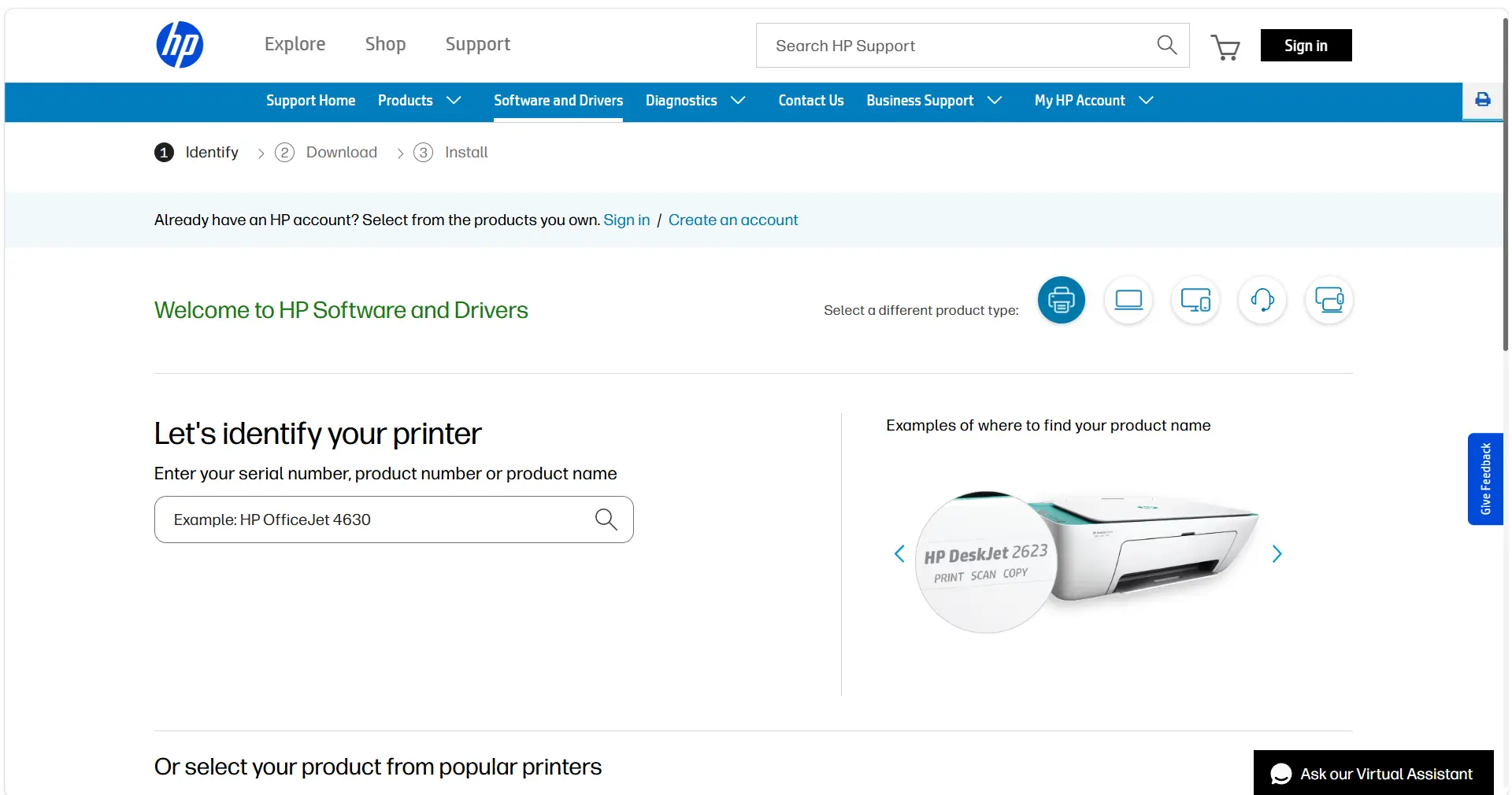
If an HP LaserJet P1102 Driver Not Installing message or failed setup is stopping you from printing, first confirm the exact printer label, your Windows version, and whether the printer is connected by USB or through a network. Then use HP’s model-support entry for model-specific options, try Windows printer discovery, or use Fionn Printer Driver to scan for driver and printing-environment issues.
A directly connected printer often installs automatically in Windows. If it does not, avoid downloading drivers from mirror sites or guessing which package applies. The most useful order is: confirm the model at HP, let Windows add the connected printer, then use a driver diagnostic if the cause is unclear.
Before You Start
- Check the printer’s full model label. Similar LaserJet names can have different support pages and driver choices.
- For USB setup, connect the printer directly to the Windows PC and turn it on.
- For network use, make sure the printer and Windows PC are turned on and connected to the same network.
- Keep your Windows edition and version available before choosing any manufacturer-provided download.
Quick Method Comparison
| Method | Best For | Efficiency | User Effort |
|---|---|---|---|
| Official HP support entry | Confirming the exact model and manufacturer options | High for model-specific information | Moderate |
| Windows Settings | A USB, local, network, or wireless printer Windows can discover | High when discovery succeeds | Low |
| Fionn Printer Driver | Checking drivers and related printer issues in one workflow | Guided | Low |
Method 1: Check the Official HP Support Entry
Use this route when you need to confirm the precise HP LaserJet P1102 variant and see the options HP presents for your Windows configuration. The support entry is a model-support starting point; choose and install only a package that HP explicitly offers for your confirmed model and operating system.
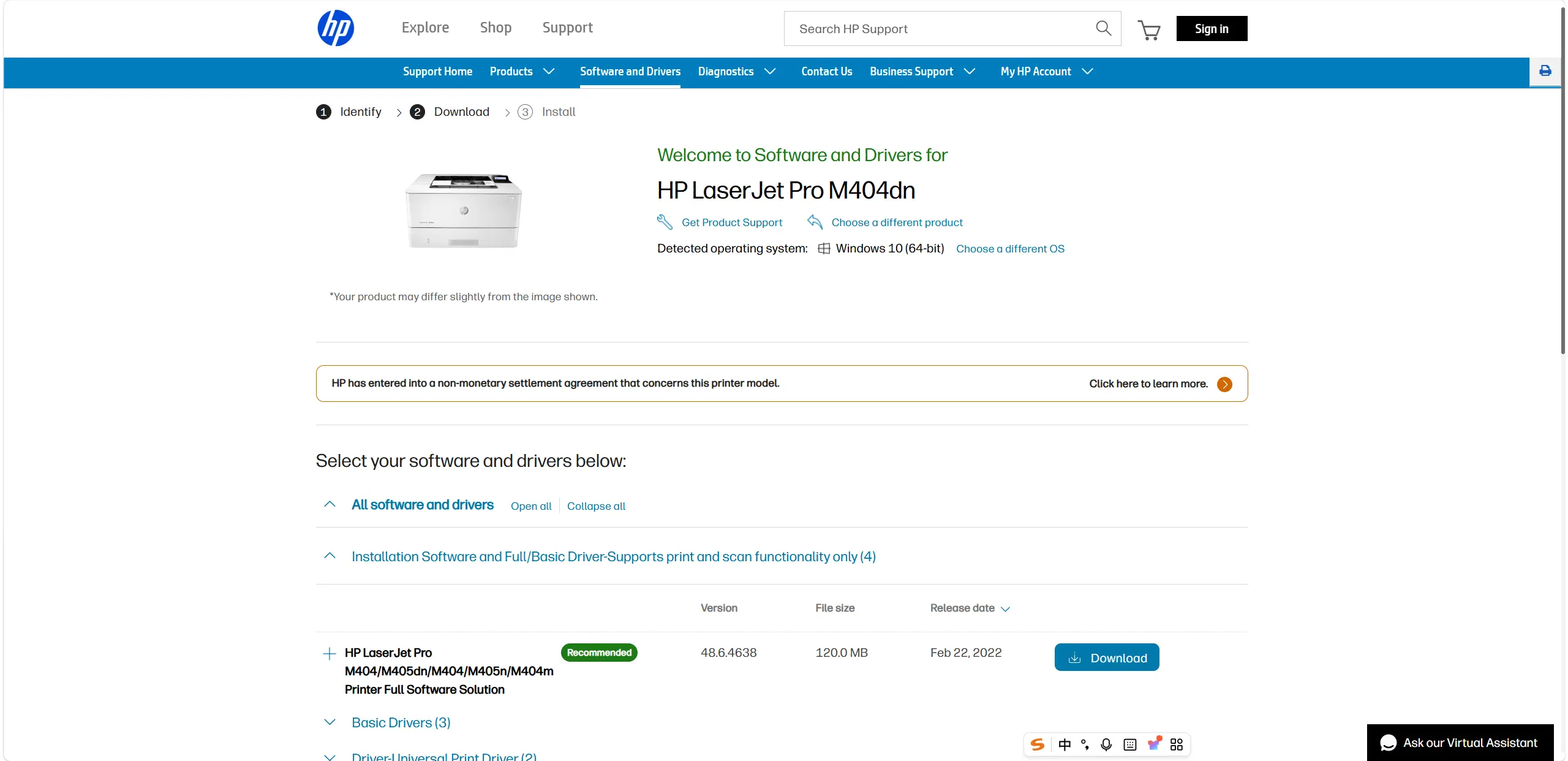
- Open the HP LaserJet Pro P1102 series support entry .
- Confirm that the model shown on the printer matches the model selected on the HP page.
- Select your Windows operating system when HP asks for it.
- Review the installation choices HP displays and use only the option identified for that model-and-Windows combination.
After the installation finishes, check that the printer appears in Windows. Print a Windows test page rather than treating a completed installer as proof that the printer is ready.
Method 2: Add the Printer Through Windows Settings
This method is useful when the printer is connected and powered on but its driver does not install automatically. Microsoft states that many printers work in Windows without separate printer software, so this is the simplest path to try before handling a manufacturer download.
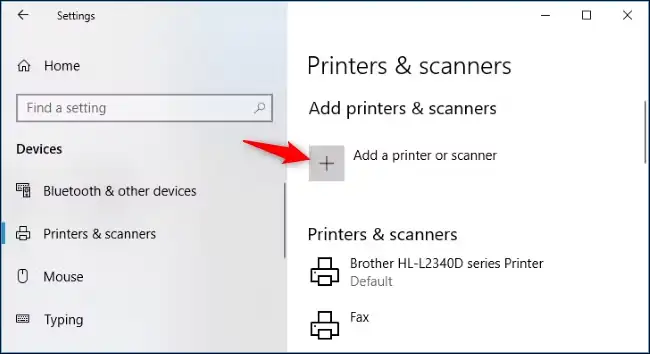
- Open
Start > Settings > Bluetooth & devices > Printers & scannersin Windows 11, or openSettings > Devices > Printers & scannersin Windows 10. - Select Add device or Add a printer or scanner .
- Select the HP printer if Windows finds it.
- If discovery does not find it, select The printer that I want isn’t listed , choose Add a new device manually , and follow the Add Printer window.
- After the printer installs, check Windows Update for any available printer-driver updates.
Verify the result with a test page: select the installed printer, open Printer properties , choose the General tab, and select Print Test Page . Microsoft explains that this confirms whether Windows can communicate with the printer. See Microsoft’s printer installation instructions and test-page instructions for the current Windows guidance.
Method 3: Diagnose and Install with Fionn Printer Driver
Recommended when you want a guided check of the driver and related printing conditions. Fionn Printer Driver is a Windows tool that can identify many mainstream printer brands and models, install drivers, and check items such as the Windows Printer Service and print queue. It is especially useful when Windows does not clearly explain why installation failed.
- Launch Fionn Printer Driver and select
Scan Now
to scan the computer for printer drivers and related issues.

- Wait while Fionn Printer Driver scans the system for installed printers, drivers, and common printer issues.

- After the scan finishes, review the detected driver issue, then select
One-Click Fix
to start the suggested installation or repair.

- Wait for the operation to finish and review its result. Then print a Windows test page to check whether the printer actually works.
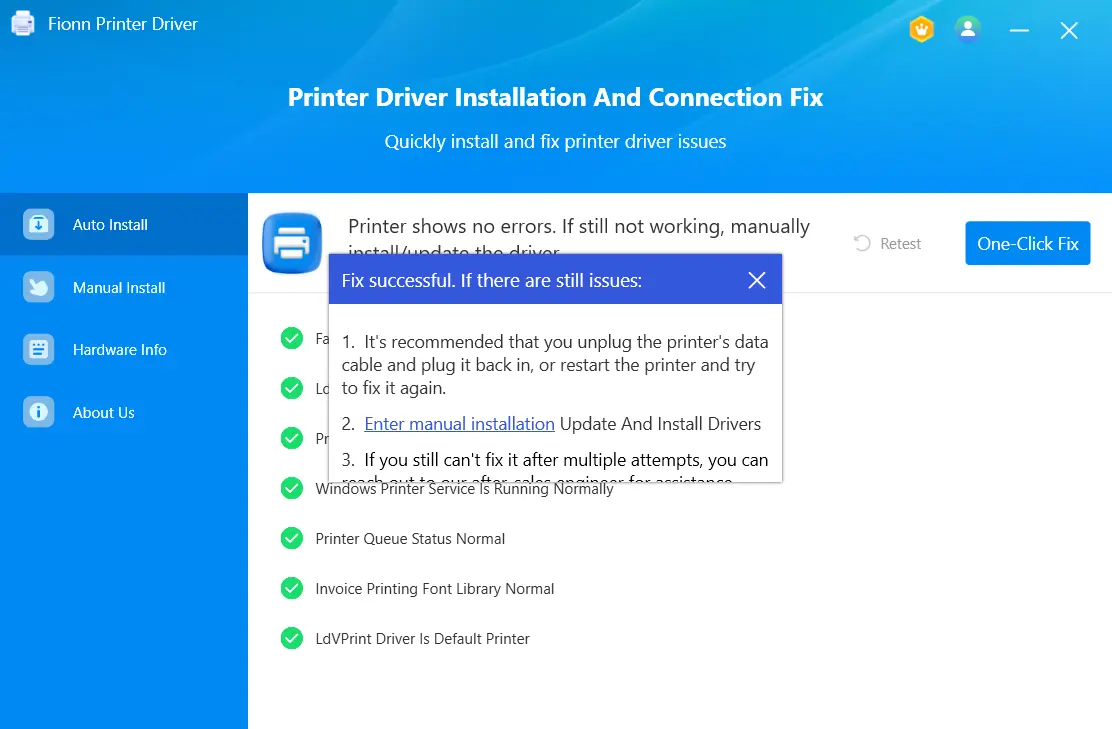
A completed scan or repair indicates that the software workflow has finished; the Windows test page is the practical confirmation that the printer can actually communicate and print.
If Installation Completes but Printing Fails
Separate installation from printing. If the printer appears in Windows but the test page does not print, the remaining problem may be the connection, a paused or unfinished queue, printer status, or the Windows printing service rather than the driver itself. For a USB printer, recheck the direct connection and power. For a network printer, recheck that both devices are on the same network. Then use the test-page result as the next diagnostic signal.
Conclusion
Start by confirming the exact P1102 model at HP, then use Windows Settings to add the connected printer and print a test page. If the driver still will not install or the cause is not obvious, Fionn Printer Driver provides a guided way to scan for driver and printer-environment issues. A printed Windows test page is the final check; if it fails, focus next on the connection, queue, printer status, and printing service.
Frequently Asked Questions
Does Windows need a separate driver for every printer?
Not always. Microsoft says Windows supports many printers without special printer drivers or software. If the HP LaserJet P1102 does not install automatically, use Windows printer setup or confirm the correct model-and-Windows option on HP’s support entry.
What should I do if Windows cannot find my USB printer?
Make sure the printer is connected directly to the Windows computer and turned on. In Printers & scanners, use the manual-add option when automatic discovery does not find the device.
Can I use the same steps for a network printer?
Yes, but first make sure the printer is powered on and connected to the same network as the Windows PC. Then use Add device; if discovery fails, use the manual-add option in the Add Printer window.
How do I know the driver installation actually worked?
Open the installed printer’s properties and print a Windows test page. A successful test page confirms that Windows can communicate with the printer; an installer completion message alone does not.
Why should I avoid a driver download from an unofficial site?
For a model-specific installation, an unofficial page may not match the exact printer variant or Windows version. Use HP’s official support entry to confirm the model and select only an option HP offers for that combination.


