 Emily CarterDLL Errors
How to Fix msvcr100.dll Missing on Windows 10/11
Introduction
The msvcr100.dll missing error usually means the affected program cannot load a required Microsoft Visual C++ 2010 runtime file. Three methods can address it: repair the affected app, install the official Microsoft runtime package, or use an optional assisted DLL scan. Start with app repair because it is low risk. Install the official runtime next. Use the assisted scan only if the error remains or several applications show DLL problems.
Why the msvcr100.dll Missing Error Appears
msvcr100.dll
is associated with the Microsoft Visual C++ 2010 Redistributable, as documented in a
Microsoft Q&A response about reinstalling msvcr100.dll
. An app may fail when the required package is absent, damaged, or installed only for the wrong processor architecture.
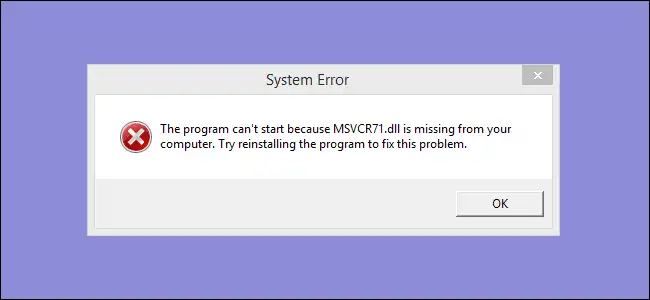
The architecture of the app matters more than the architecture shown in Windows Settings. A 32-bit app needs the x86 runtime, even on 64-bit Windows. Microsoft explains that an x86 Redistributable installs 32-bit libraries on both x86 and x64 computers. A visible DLL elsewhere on the computer does not prove that the failing process can load the correct copy.
Quick Overview
| Observed situation | Best starting method | Why it fits |
|---|---|---|
| Only one app fails after installation or an update | Repair or reinstall the app | Restores the app's own files and installer-managed dependencies. |
The error specifically names
msvcr100.dll
| Install the official Visual C++ 2010 package | Restores the matching centrally installed runtime. |
| Several apps show missing, damaged, or mismatched DLL errors | Fionn DLL Fixer | Provides an optional scan, repair, and recheck workflow. |
Method 1: Repair or Reinstall the Affected App
When to Use
Use this method when one program fails while other software opens normally. The app's installer may include the required runtime or an application-local dependency. Repairing the app preserves data in many cases, although available options vary by program.
Step-by-Step Guide
- Close the program that displays the error.
- Open Control Panel > Programs > Programs and Features .
- Select the affected program, then choose Repair or Change if either option appears.
- Follow the program's installer prompts and restart Windows if requested.
- If no repair option exists, uninstall the program and reinstall it from its official publisher or original installation source.
Microsoft lists both Settings and Control Panel procedures on its official Windows app repair page . Back up program-specific files before uninstalling an app that may remove local settings or saved data.
How to Verify
Launch the same executable or shortcut that produced the error. The repair succeeded if the program reaches its normal startup screen without displaying an
msvcr100.dll
message.
If the same error returns, install the matching Microsoft runtime rather than repeating the app repair.
Method 2: Install the Official Visual C++ 2010 Redistributable
When to Use
Use this method when the error continues after app repair or when the message specifically names
msvcr100.dll
. This is the most direct manual solution because it installs and registers the runtime as a package instead of placing one downloaded DLL into a Windows folder.
Step-by-Step Guide
- Close the affected program and save any open work.
- Open Microsoft's
Visual C++ 2010 Service Pack 1 Redistributable Package MFC Security Update
download page.
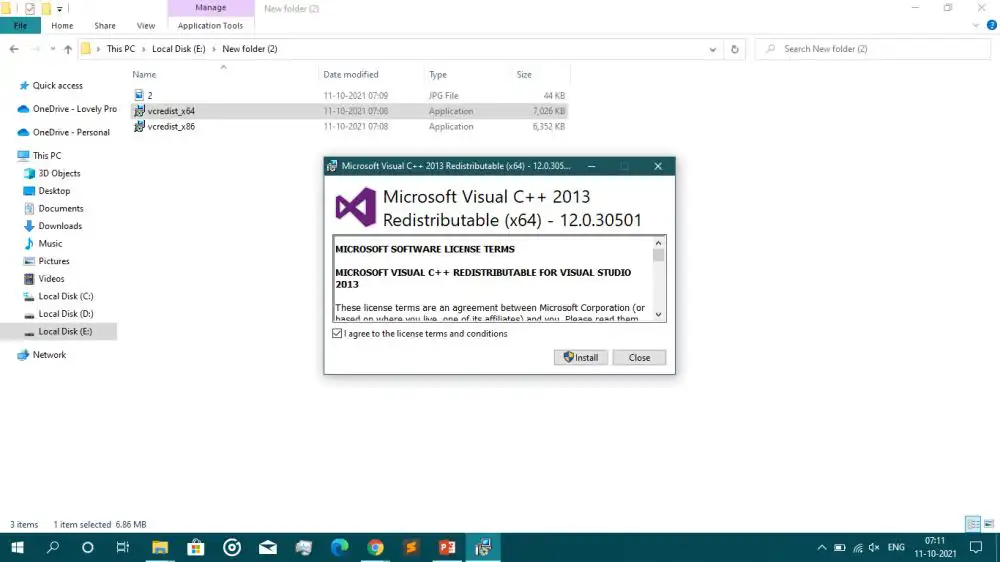
- Select
vcredist_x86.exefor a 32-bit app orvcredist_x64.exefor a 64-bit app. If the app architecture is unknown, try x86 first because the x86 package can install on a 64-bit computer. - Run the downloaded Microsoft-signed installer and approve the User Account Control prompt.
- Complete the installation, choose Repair if the installed package offers that option, and restart Windows when requested.
How to Verify
Open the affected app again. If it starts, close it once and launch it a second time to confirm the result. If the error remains, install the other applicable architecture on 64-bit Windows or continue to the assisted scan.
Method 3: Use Fionn DLL Fixer as an Optional Assisted Scan
When to Use
Consider this optional method when the official runtime installation does not resolve the error, several programs report DLL failures, or you need a scan followed by a repair and recheck. It complements the official and manual methods rather than replacing them.
Step-by-Step Guide
- Launch Fionn DLL Fixer. The software automatically scans your PC for DLL and system issues and displays the detected results when the scan is complete.

- After the scan finishes, click
Repair
to start fixing all detected DLL and system issues automatically.

- Wait while the repair is in progress. During this process, the button changes to
Fixing
until all issues have been repaired.

- When the repair is complete, click
Ok
in the confirmation dialog. If prompted, restart your computer before checking whether the problem has been resolved.

- If the issue still persists after restarting, click
Recheck
to perform another scan. If new issues are found, click
Repair
again to fix them.

How to Verify
Complete the recheck, then launch the original app from the same shortcut or executable. Verification requires the app to start without the missing-DLL message, not merely a completed repair notification.
Tips and Common Mistakes
- Match the app architecture: A 32-bit program needs x86 libraries even when Windows is 64-bit.
- Use the exact runtime generation: A newer Visual C++ package does not automatically replace every older runtime dependency.
- Avoid manual system-folder changes: Loose DLL copies can have the wrong version or architecture and may not receive normal servicing.
- Diagnose by scope: One failing app points toward app repair. Several failing apps justify broader dependency checks.
Conclusion
Repair the affected app first, then install the official Visual C++ 2010 Redistributable that matches the app's architecture. Avoid loose DLL downloads and manual changes to Windows system folders. Confirm success by reopening the same executable and checking that its normal startup screen appears without the error. If several programs still report missing or damaged DLLs, use Fionn DLL Fixer as an optional scan-and-recheck path. Persistent errors limited to one program should be reported to that program's publisher with the exact error text and app architecture.
FAQ
What is msvcr100.dll?
msvcr100.dll
is a Microsoft Visual C++ 2010 runtime file used by applications built with that toolset. The error does not identify which app file became damaged. It states that the launching process could not load the required runtime component.
Should I download msvcr100.dll by itself?
No. Install the Microsoft Redistributable or use the affected app's official installer. A loose DLL may be unsigned, outdated, or compiled for the wrong architecture. Microsoft recommends central deployment through Redistributable packages because packaged libraries can be serviced more reliably.
Why does the error appear when msvcr100.dll already exists?
The visible file may have the wrong architecture for the app, or the program may rely on a damaged local installation. Repair the app and install the correct x86 or x64 Redistributable. Do not move the existing file between Windows folders.
Do I need the x86 or x64 package?
Match the package to the application. Install x86 for a 32-bit app, including a 32-bit app running on 64-bit Windows. Install x64 for a 64-bit app. On 64-bit Windows, both packages can coexist when different applications require them.
Will System File Checker fix this error?
System File Checker targets protected Windows system files, while
msvcr100.dll
is installed through a separate Visual C++ runtime package. Use the Redistributable first. Consider Microsoft's DISM and SFC procedure only when Windows itself shows broader corruption or stability symptoms.


