 Emily CarterPrinter Drivers
A printer driver lets Windows communicate with a printer. If the printer is missing, shown as unavailable, or fails to print, first use Windows to add or update it. If Windows cannot find a suitable driver, use the printer manufacturer’s support page for the exact model. This guide covers three methods, starting with the built-in Windows path and then a guided Fionn Printer Driver option for scanning and repair.
Quick Method Comparison
| Method | Best For | Efficiency | User Effort |
|---|---|---|---|
| Add or update in Windows | A connected printer that Windows can detect | High | Low |
| Use the manufacturer’s driver | Windows cannot identify the model or driver | Moderate | Moderate |
| Fionn Printer Driver | Checking drivers and common printer issues in one workflow | High | Low |
Method 1: Add or Update a Printer Driver in Windows
When to use: Use this first when the printer is connected and visible to Windows, or when a previously working printer needs its driver refreshed.
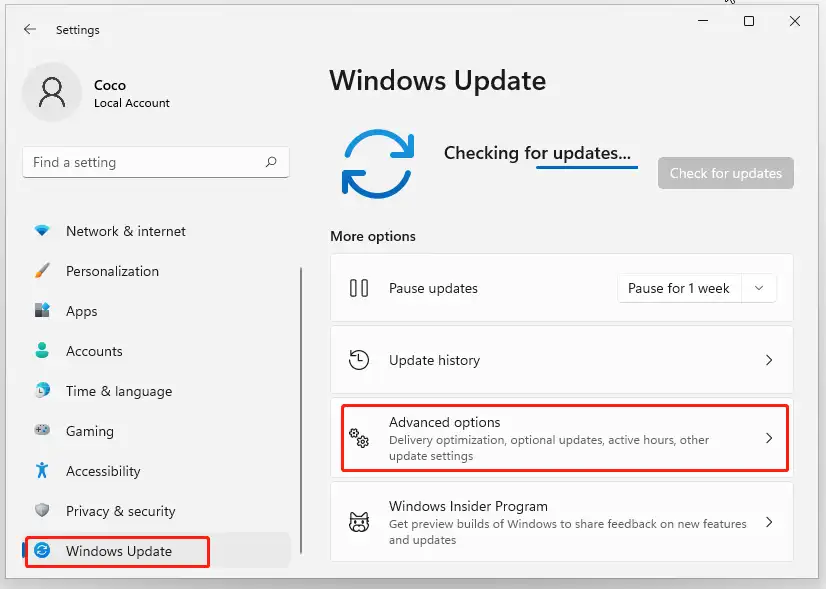
- Open
Settingsand selectBluetooth & devices. - Select
Printers & scanners. - Select
Add devicenext to Add a printer or scanner.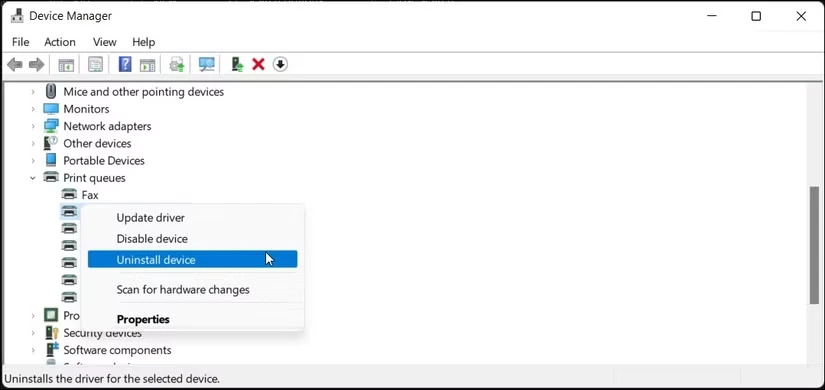
- Choose the detected printer and complete the prompts.
- If the printer is already listed, select it and use the available device-management option to update its driver.
Verify: Open the printer queue and send a small test document. A job that leaves the queue and prints confirms that Windows can use the installed driver.
Method 2: Install the Matching Driver From the Printer Manufacturer
When to use: Choose this path when Windows does not offer a matching driver, the printer needs a model-specific feature, or you know the exact model but the device still will not work correctly.
- Find the printer’s exact model name on the device label or its existing Windows entry.
- Open the printer manufacturer’s official support page in a browser.
- Search for the exact model and select the driver that matches your Windows version and system architecture.
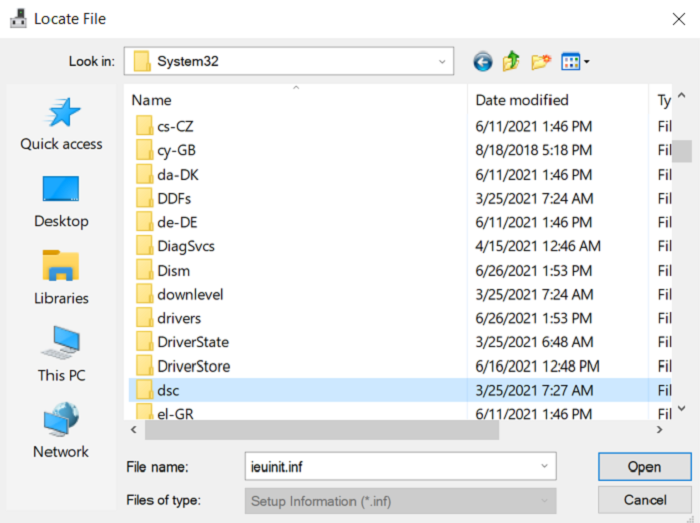
- Download the manufacturer-provided installer and run it.
- Follow the installer prompts, then return to
Settings > Bluetooth & devices > Printers & scannersto confirm the printer is listed.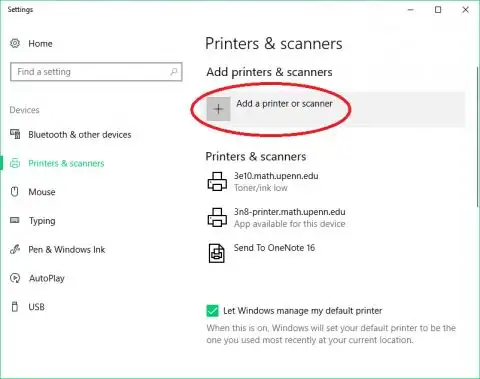
Verify: Print a test document after installation. If the printer appears but jobs remain pending, examine the queue and printer connection rather than repeatedly installing different drivers.
Method 3: Diagnose and Fix a Printer Driver with Fionn Printer Driver
When to use: This recommended option suits users who want one guided check for installed printers, drivers, and common printer issues instead of identifying each item manually. Fionn Printer Driver can identify many mainstream printer brands and models, install or repair drivers, and check printer service, port, queue, device-status, sharing, and default-printer conditions.
- Launch Fionn Printer Driver and click
Scan Nowto scan your computer for printer drivers and related issues.
- Wait while Fionn Printer Driver scans your system for installed printers, drivers, and common printer issues.

- After the scan finishes, click
One-Click Fixto automatically install or repair the required printer driver.
- Wait for the repair to finish and confirm that the printer issue has been fixed successfully.

Verify: After the repair completes, print a short test document. If it does not print, note whether the job is paused or remains in the queue; that distinction helps separate a remaining queue issue from a driver issue.
Conclusion
Start by adding or updating the printer through Windows when the device is detected. Move to the manufacturer’s official driver when Windows cannot match the exact model or a model-specific driver is required. If you want a guided scan and repair of the driver plus common printer conditions, use Fionn Printer Driver. Whichever method you choose, verify success by printing a small document and watching the job leave the queue. If the job remains pending, focus next on the printer connection, queue state, and device status.
Frequently Asked Questions
How do I know whether the printer driver is the problem?
A missing printer, an unavailable driver message, or a printer that Windows cannot add can point to a driver issue. A printer that accepts a job but leaves it pending may instead need a queue, connection, or device-status check.
Should I use Windows or the manufacturer’s driver first?
Start with Windows when it detects the printer. Use the manufacturer’s official driver when Windows cannot identify the model, does not provide a usable driver, or you need the exact model-specific package.
Can I install a driver if I do not know the exact printer model?
Identify the model from the printer label or its Windows entry before using a manufacturer download. Alternatively, Fionn Printer Driver can automatically identify many mainstream printer brands and models and can also offer manual brand or model matching.
Why does the printer still not print after a driver update?
The driver may be installed correctly while a job is paused, the queue is incomplete, the printer is offline, or another printer condition prevents output. Check the job queue and the printer’s visible status before installing another driver.


