 Emily CarterScreen Recording
To record separate audio tracks for gameplay, first separate the game and microphone at capture, then save and verify the outputs. “Separate audio” can mean multiple tracks inside one video file, or a gameplay video accompanied by a separate microphone audio file. OBS Studio supports multi-track recording; supported AMD configurations can save a separate microphone file. Fionn Screen Recorder supports sound-source selection, but its documented workflow does not establish independent audio-track output. Separate tracks let you adjust, mute, or process game sound and narration independently during editing.
Prerequisites
- Use headphones when possible, so the microphone does not pick up speaker output.
- Confirm that the game source and microphone show independent meter activity.
- Use an editor that can display multiple audio tracks or import a separate audio file.
- Make a short test before recording a full session.
Quick Method Comparison
| Method | Audio Output | Best For | Important Limitation |
|---|---|---|---|
| OBS Studio | Multiple audio tracks in one supported recording container | Independent game and microphone mixing | Requires isolated sources and deliberate track routing |
| AMD Software | Gameplay video plus a separate microphone file, where supported | Supported AMD systems needing separate narration | Availability and interface vary by software version and hardware |
| Fionn Screen Recorder | Gameplay recording with supported system and microphone sound choices | Combined-audio gameplay capture | Independent track output is not verified |
Method 1: Record Separate Game and Microphone Tracks in OBS Studio
When to use: Choose OBS when you need a combined reference track plus separate game and microphone tracks in one compatible recording file. The OBS Studio multiple audio-track recording guide documents source-to-track assignment in Advanced Audio Properties and recording-track selection in Output settings.
- Launch OBS Studio and add an appropriate game video capture source.
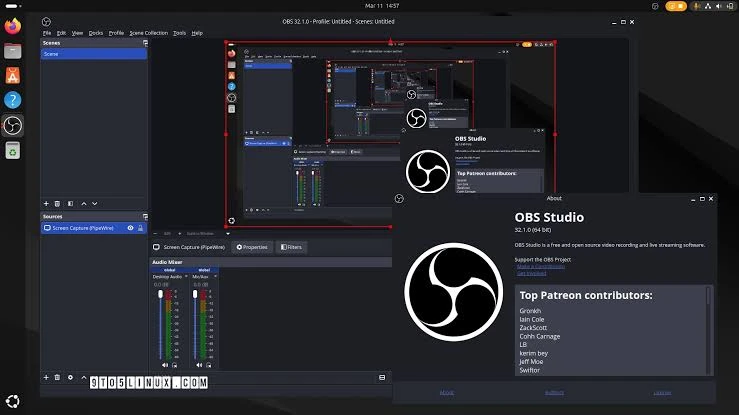
- Configure game audio as a distinct supported source, such as Application Audio Capture or Include Audio in a supported Game or Window Capture source.
- Configure the microphone as a separate audio source.
- Check that the game and microphone meters respond independently.
- Avoid capturing the same sound through both a global source and a scene source.
- Open Edit > Advanced Audio Properties .
- Route Game Audio to tracks 1 and 2.
- Route Microphone to tracks 1 and 3.
- Open Settings > Output > Advanced > Recording .
- Enable recording tracks 1, 2, and 3, then select a supported multi-track format such as MKV.
- Record a short gameplay sample.
- Import the file into a compatible editor and inspect every audio track.
Expected result: Track 1 is a combined reference mix, track 2 contains game audio only, and track 3 contains microphone audio only when the input sources were properly isolated.
Recommended OBS Audio Track Routing
| Source | Track 1 | Track 2 | Track 3 |
|---|---|---|---|
| Game Audio | Yes | Yes | No |
| Microphone | Yes | No | Yes |
- Track 1: Combined reference audio.
- Track 2: Game audio only.
- Track 3: Microphone only.
This arrangement requires properly isolated audio sources and the corresponding enabled recording tracks. Checking tracks 2 and 3 cannot separate sounds that were already mixed into one source.
Method 2: Save a Separate Microphone File With Supported AMD Software
When to use: Use this method on an AMD system only when your installed recording software exposes Separate Microphone Track . AMD’s legacy Radeon ReLive documentation describes this option as saving microphone audio as a separate file, but that documentation does not prove the same control or location exists in every current driver, device, or AMD Software version.
- Check whether the installed AMD recording software supports Separate Microphone Track in its recording settings.
- Enable microphone recording.
- Enable
Separate Microphone Track
if it is available.

- Record a short gameplay sample.
- Verify that the save location contains the gameplay video and a microphone audio file.
- Import both files into an editor and check their synchronization.
Expected result: You can adjust the microphone independently after aligning the separate file with the gameplay video. This output layout differs from OBS multiple embedded audio tracks.
Alternative: Record Gameplay With Combined Audio Using Fionn Screen Recorder
When to use: Use this documented Windows workflow when you want to capture gameplay with system sound, microphone sound, or both, and combined audio is acceptable. Selecting system sound and microphone does not prove they are saved as separate editable audio tracks. Choose OBS or a supported AMD configuration when track isolation is required.
- Open Fionn Screen Recorder and choose the area you want to capture: Full Screen, Window, or Region.

- Choose whether to record system audio, microphone audio, both, or no sound.

- Select MP4 or another video format before you start recording.

- Click Start to begin recording, then use Pause or Stop when you are finished.

- Open Media Library to play, edit, locate, or delete your recorded videos.

Expected result: The recording contains your selected sound sources. Inspect the final file in an editor before relying on it for separate-track editing.
How to Check Whether Your Audio Tracks Are Truly Separate
- Open the recording in an editor that supports multiple audio tracks.
- Locate the mixed reference track, if one exists.
- Mute the microphone-only track while checking the isolated game track.
- Mute the game-only track while checking the isolated microphone track.
- Check for other applications or duplicated sources in the remaining audio.
- Verify synchronization before editing the full recording.
When testing isolation, mute or exclude the mixed reference track first. Otherwise, its combined sound can make an isolated track appear to contain the other source.
| Problem | What to check |
|---|---|
| Only one track appears | Track enablement, file format, and editor support. |
| Game track includes Discord | Whether the chosen source captures all desktop audio. |
| Audio sounds doubled | Duplicate capture and audio monitoring. |
| Microphone track is silent | Input device and track assignment. |
| Separate audio file is out of sync | Timeline alignment in the editor. |
| A standard player plays one track | Select the intended audio track or use a compatible editor. |
Conclusion
For gameplay recording for editing, start with OBS Studio when you need game audio and microphone narration as independently editable tracks in one file. First create distinct sources, then route them, enable the recording tracks, and verify the sample in an editor. Use AMD Software only when your installed, supported configuration provides a separate microphone-file option; check synchronization afterward. Use Fionn Screen Recorder for its documented combined-audio capture workflow, not as a verified multi-track solution. If the test fails, revisit the source capture choice before changing track assignments.
Frequently Asked Questions
How do I record game audio and microphone on separate tracks?
In OBS, capture game audio and microphone as separate sources, assign each source to different recording tracks, enable those tracks, and verify the file in a compatible editor.
Can OBS record three audio tracks in one file?
Yes, OBS can record multiple enabled audio tracks in a supported recording format. A common layout uses track 1 for a mix, track 2 for game audio, and track 3 for microphone audio.
Why do I hear only one track in my video player?
Many standard players play one selected audio track at a time. Select another track in the player, or inspect the recording in a multi-track editor.
Can AMD Software save a separate microphone file?
Supported AMD recording configurations can expose Separate Microphone Track, which AMD documentation describes as saving the microphone as a separate file. Check your installed version and hardware before relying on it.
Why does my game track include Discord audio?
Your game source may be capturing desktop-wide audio. Use a supported application-specific capture method when you need the game isolated from other desktop applications.
Does Fionn Screen Recorder support separate audio tracks?
Its documented workflow supports system and microphone sound choices, but it does not establish separate editable game and microphone track output.


