 Emily CarterPrinter Drivers
If you need an Epson L4260 driver, begin by confirming the label says L4260 Series and choose a setup route that matches how the printer is connected. Epson provides an L4260 Series Download Center entry, while Windows can add many connected printers directly. The meaningful finish line is a printed Windows test page—not simply a completed download.
Before you start
For a USB connection, connect the printer to the Windows PC and turn it on. For a wireless connection, the printer and PC must be on the same wireless network. Microsoft’s documented printer-installation guidance applies to Windows 10 and Windows 11.
Use the Epson L4260 Series Download Center
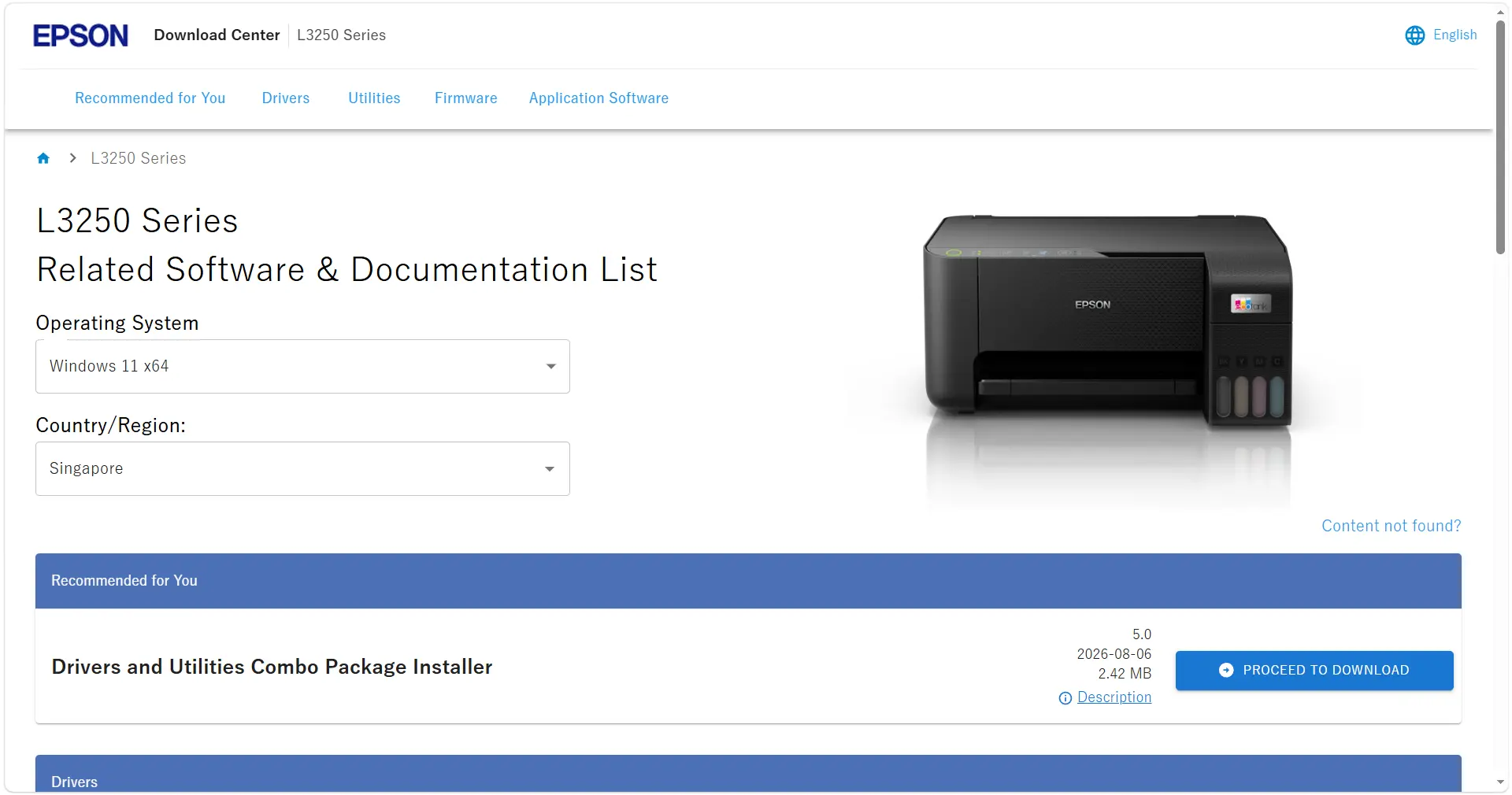
Use Epson’s route when you want to start from the manufacturer’s L4260 Series entry. Confirm the device name shown on the page before choosing anything to download.
- Open the Epson L4260 Series Download Center .
- Confirm the page identifies the device as L4260 Series.
- Select only software Epson explicitly lists as appropriate for your Windows configuration, then follow Epson’s displayed instructions.
- After setup, use the Windows test-page check below to confirm communication with the printer.
A download page or installer completion message alone does not confirm that the printer can print.
Add the printer through Windows
Windows normally installs many directly connected printers after they are plugged in and turned on. This is the practical route to try when the printer is connected and discoverable; it does not by itself prove that Windows has a model-specific L4260 driver available.

- For USB, connect the powered-on printer to the Windows device. For Wi-Fi or network use, confirm that the printer and PC are on the same network.
- Open the Windows
Printers & scannerssettings and select the printer-add control. - Choose the desired printer and select its
Add devicecontrol when it appears. - If Windows does not find it, choose the manual-add option and follow the Add Printer window.
- After installation, check Windows Update for any available printer-driver updates.
These steps follow Microsoft’s Windows printer installation guidance .
Verify Windows can communicate with the printer
Verification separates an installed entry from a working print path.
- Open the added printer’s properties in Windows.
- On the
Generaltab, selectPrint Test Page. - Confirm that the page prints.
A successful test page confirms that Windows can communicate with the printer. See Microsoft’s test-page guidance .
Use Fionn Printer Driver to check driver candidates
Fionn Printer Driver is a Windows tool that can recognize many mainstream printer brands and models, show local driver candidates after a brand or model search, and provide automatic or manual installation modes. It can be useful when you want a guided way to inspect candidates and then verify the actual printing result.
Its supplied information does not confirm a compatible match for the exact Epson L4260. Check the complete model label before selecting any candidate, and use a Windows test page afterward.
- Turn on the printer and connect it to the computer. Open Fionn Printer Driver, select
Auto installin the sidebar, and clickScan Now.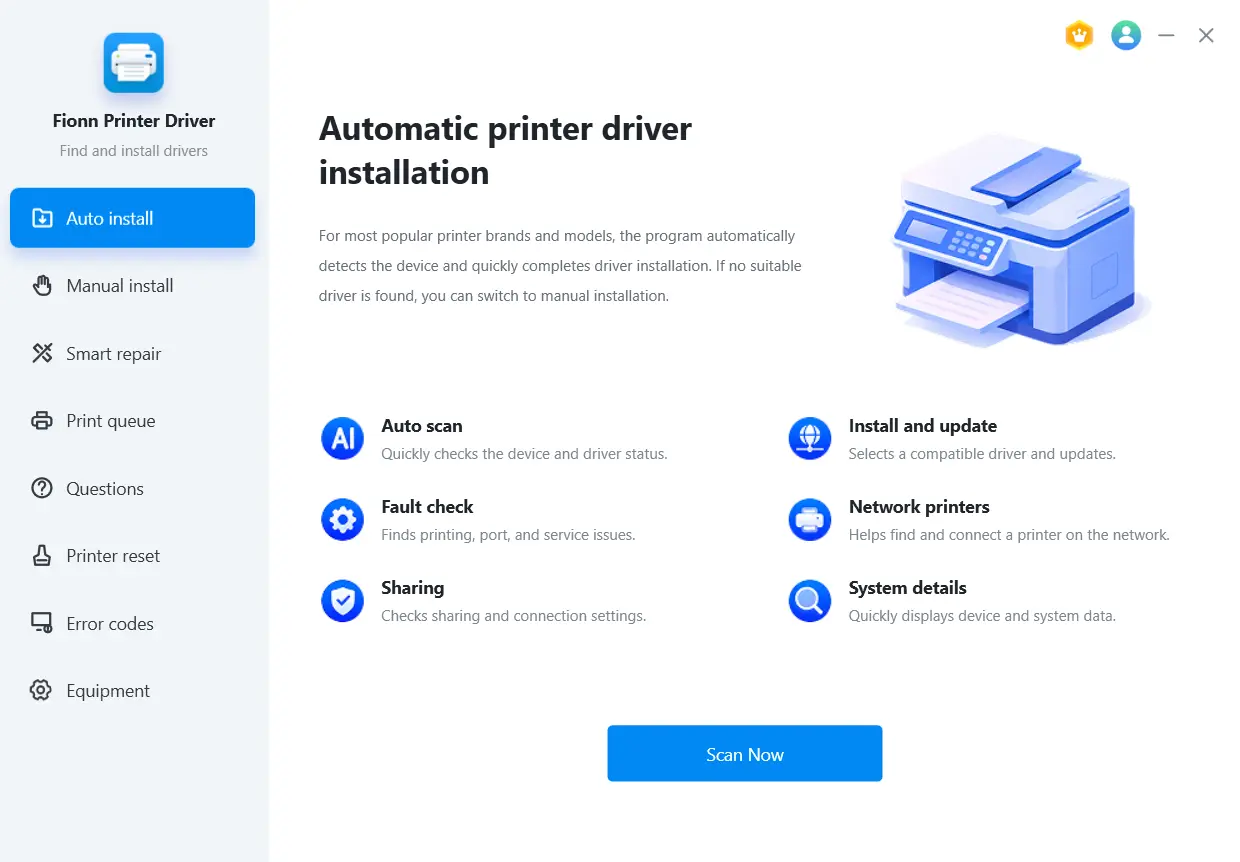
- Keep the printer connected while the scan runs. Wait for the detected printer and driver list to appear.
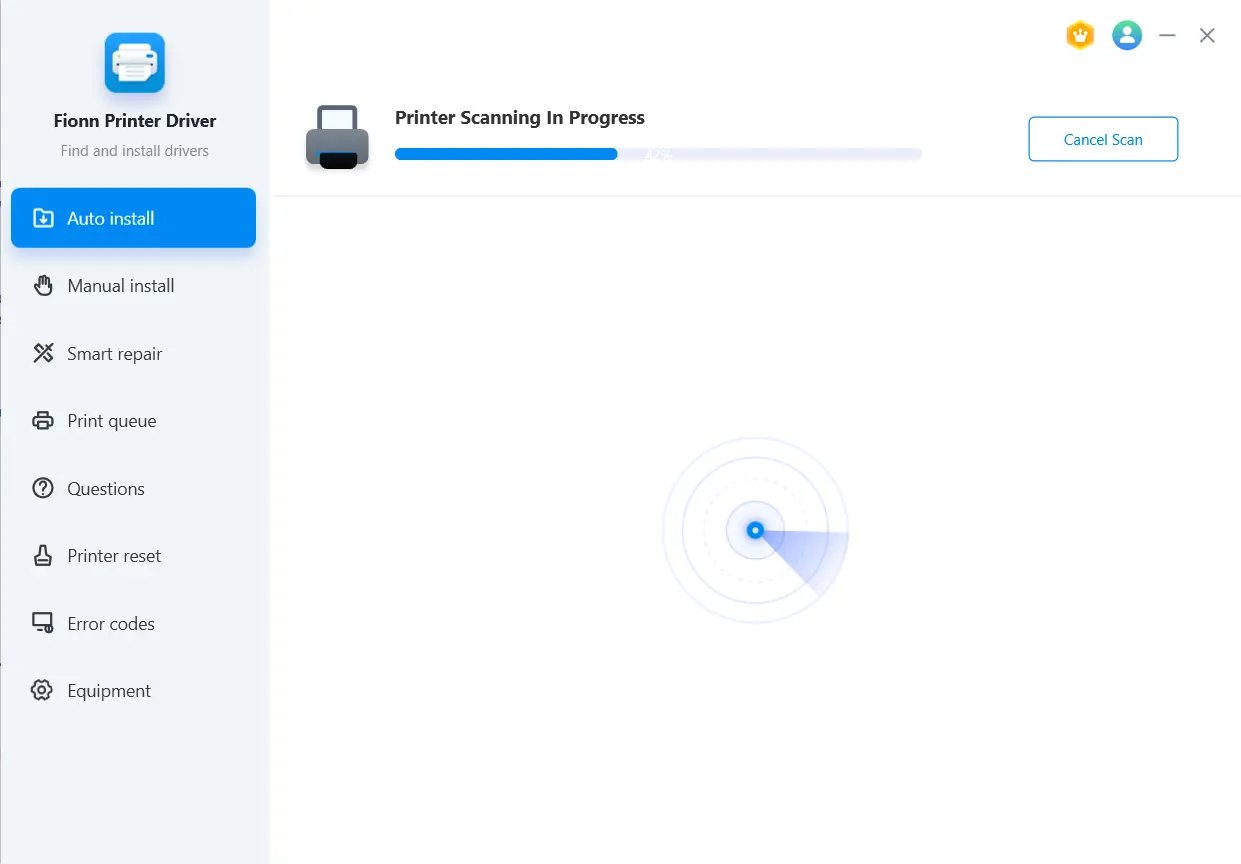
- Confirm the printer’s exact model, then click
Install nowbeside the matching driver. If no match appears, clickSearch manuallyand look up the full model name.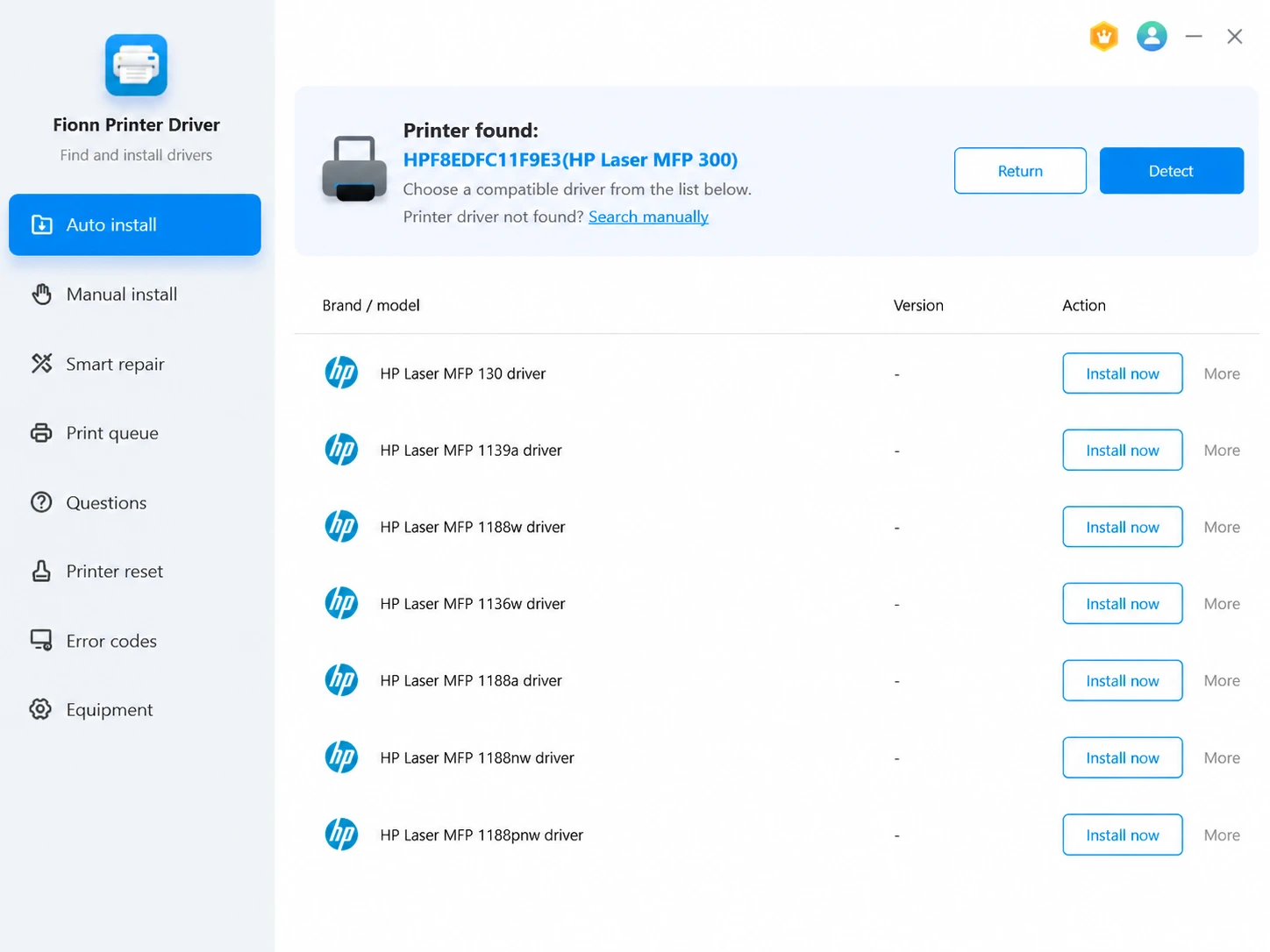
- When the dialog shows
Download Complete, clickInstall & Fix Driversand follow the prompts. After installation, print a Windows test page to confirm that the printer works.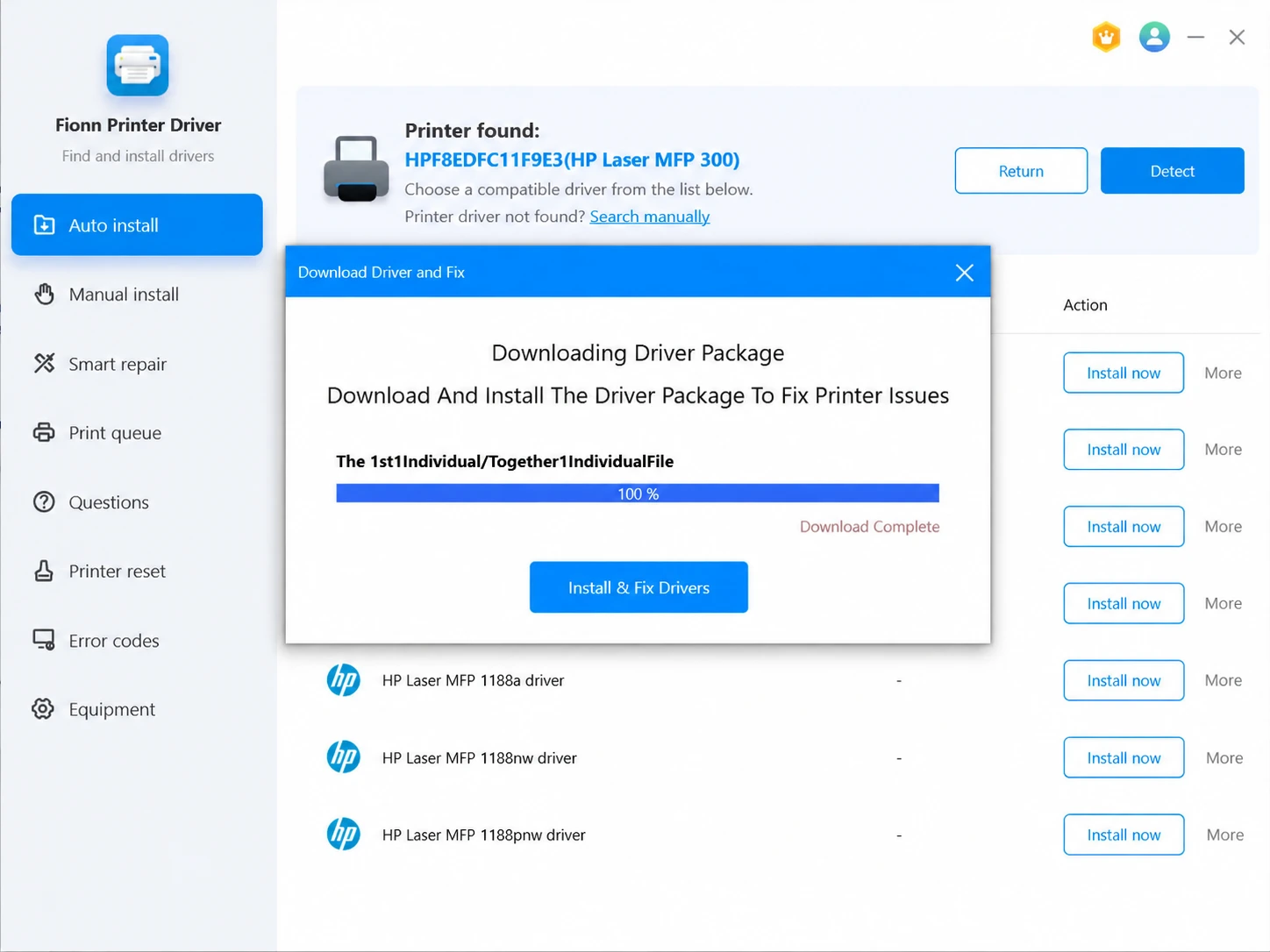
If the printer is still unavailable
For a USB printer, recheck the cable connection and power, then repeat the Windows add-device flow. For a wireless printer, first confirm both devices are on the same network.
For an L4260 network-use problem, Epson documents a network status-sheet check:
- Press
Starton the printer to print the network status sheet. - Inspect the printed settings for clues about the network problem.
This check is documented in Epson’s L4260 network status-sheet instructions . If a test page remains in the queue, check for paused or unfinished jobs and whether the printer is offline. On some Windows ARM PCs, Microsoft notes that a manufacturer-provided installer may be unable to add or install a printer; the Windows built-in route is a reasonable alternative to try.
Conclusion
Start with the Epson L4260 Series Download Center if you need the manufacturer’s model entry, or use Windows when the printer is connected and discoverable. If you use Fionn Printer Driver, treat its candidate list as a selection step rather than proof of compatibility. Whichever route you use, print a Windows test page: a successful page is the supported sign that Windows can communicate with the printer.
FAQ
Do I always need to install an Epson L4260 driver manually?
No. Windows normally installs many directly connected printers automatically after they are connected and turned on. If the printer is not added, use the Windows add-device and manual-add paths or start from Epson’s L4260 Series Download Center.
How do I verify that setup actually worked?
Open the printer’s properties, select
Print Test Page
on the
General
tab, and confirm that the page prints. This verifies communication between Windows and the printer.
Why can’t Windows find the printer over Wi-Fi?
Confirm that the printer is on and that it and the Windows PC are connected to the same wireless network. If the L4260 still cannot print on the network, print its network status sheet and inspect the displayed settings.
Can Fionn Printer Driver install the exact Epson L4260 driver?
The supplied evidence confirms its general Windows driver-candidate and installation functions, but does not confirm an exact L4260 match. Confirm the full model label and verify the result with a Windows test page.
Does a completed download prove that printing works?
No. A completed download confirms only that download action. A printed Windows test page is the relevant confirmation that Windows can communicate with the printer.


