 Emily CarterPrinter Drivers
If Windows cannot find your Epson L3150, shows it as unavailable, or it will not print, first confirm the connection type and then add the printer in Windows. You can also check Epson’s model-specific driver page or use Fionn Printer Driver when you want a guided Windows driver scan and repair. Finish by printing a Windows test page: a completed installer or scan is not the same as a successful print.
Before You Start
For USB, connect the powered-on printer to the PC. For Wi-Fi, the printer and Windows PC must be on the same wireless network before Windows can discover it. If you plan to use WPS, your router or access point must support WPS.
Use Epson’s L3150 Driver Page
Use Epson’s manufacturer route when you need the documented L3150 Series 64-bit printer-driver entry. It is appropriate only when the operating-system support shown on the page matches your PC.
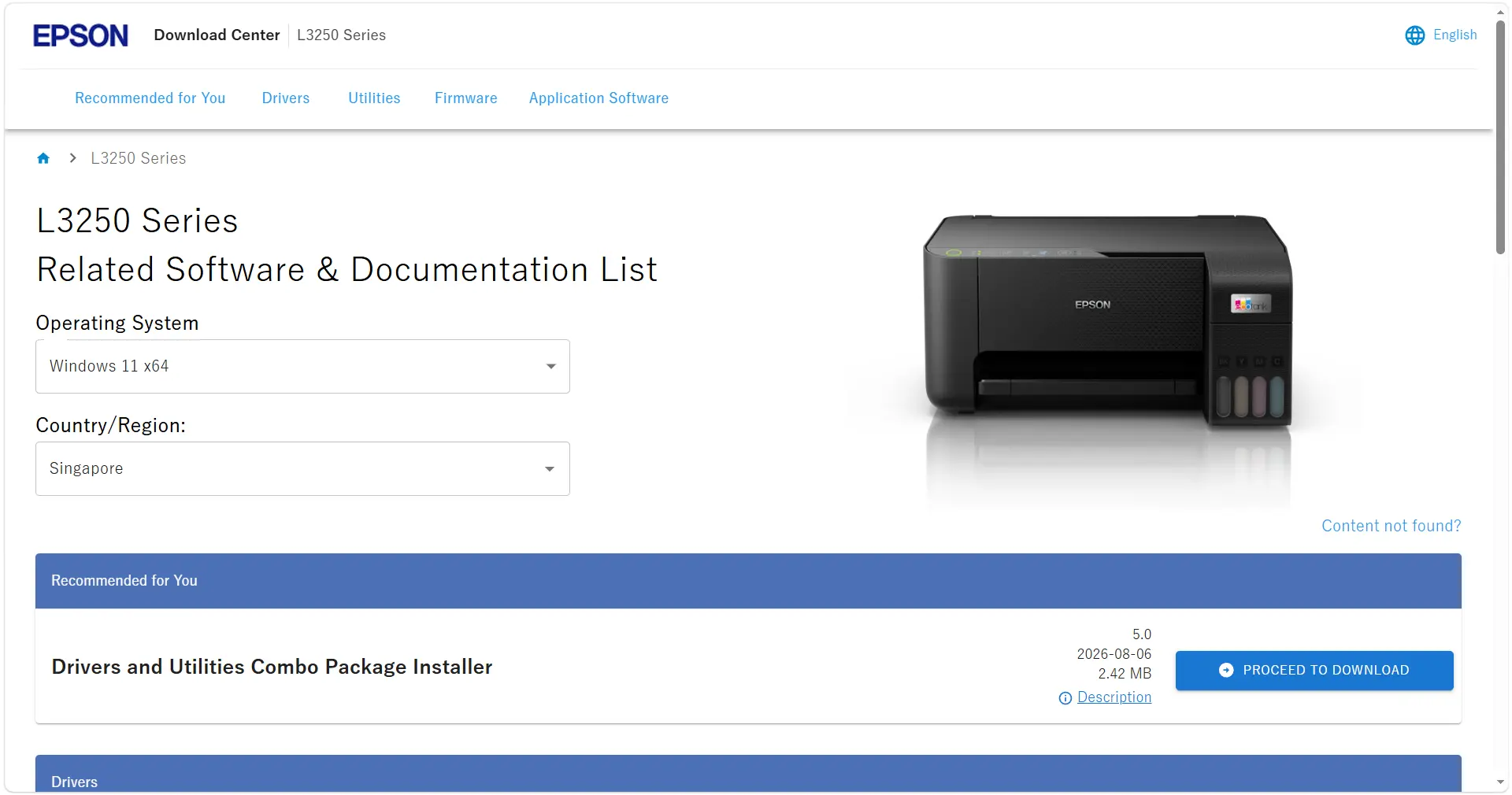
- Open Epson China’s L3150 Series Windows 64-bit printer-driver page .
- Compare the listed Windows architecture and version with your PC before selecting a package option.
- After completing Epson’s available installation flow, continue in Windows and print a test page.
The retrieved Epson page documents the supported 64-bit platforms and the driver’s purpose—controlling a printer connected to the PC—but does not document every installer screen or connection prompt. Do not assume an unlisted package or regional download is equivalent.
Add the Epson L3150 in Windows
Use this route when the L3150 is connected by USB or has already joined the same Wi-Fi network as the PC. Windows normally installs a directly connected printer automatically; if it does not appear, add it manually.

- For USB, connect the powered-on printer to the Windows PC. For Wi-Fi, confirm that the printer and PC are on the same wireless network.
- Open
Settings > Bluetooth & devices > Printers & scanners. If the printer is absent, choose Add a printer or scanner , then select Add device beside the Epson L3150 when it appears. - If Windows does not find the printer automatically, select the manual-add option and follow its displayed instructions.
- Confirm that the Epson L3150 appears in the installed-printers list.
Microsoft recommends checking Windows Update for printer-driver updates after the printer is installed. Source: Microsoft: Add or install a printer in Windows .
Install or Repair with Fionn Printer Driver
Fionn Printer Driver is a Windows option for cases where the printer model is difficult to identify or a driver issue may be mixed with printer status, the print queue, or Windows printing services. It can recognize many mainstream printer brands and models, offer automatic or manual installation, and download, install, or repair driver packages.
- Launch Fionn Printer Driver and click
Scan Now
to scan your computer for printer drivers and related issues.
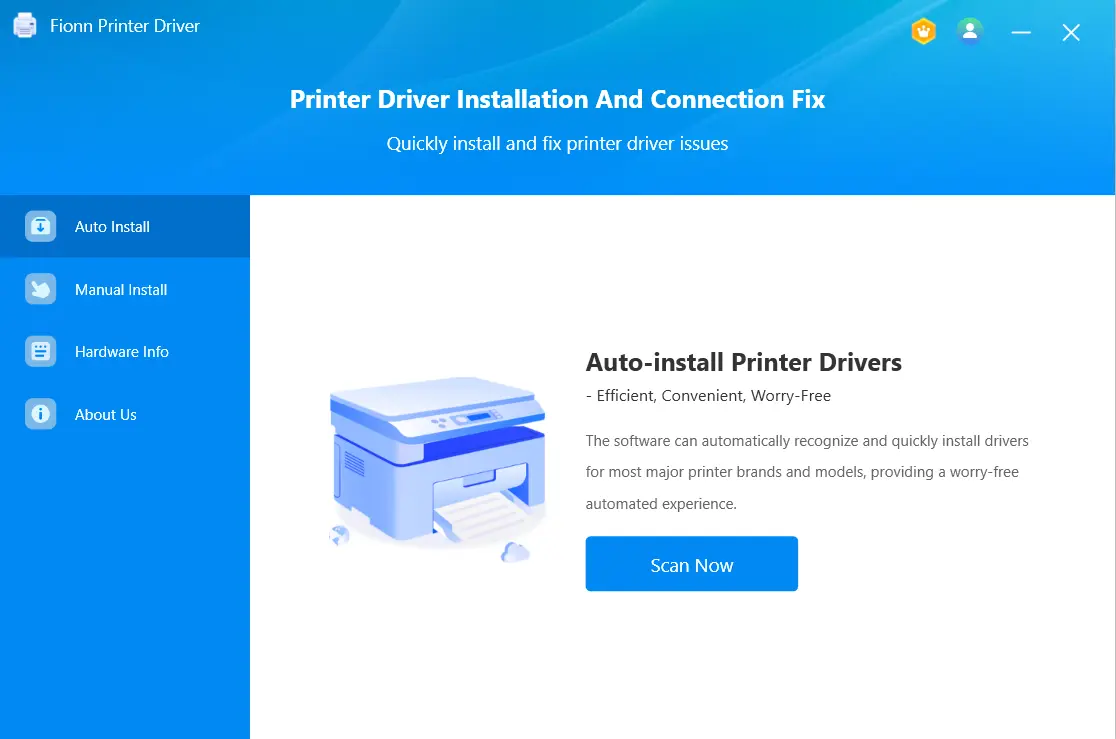
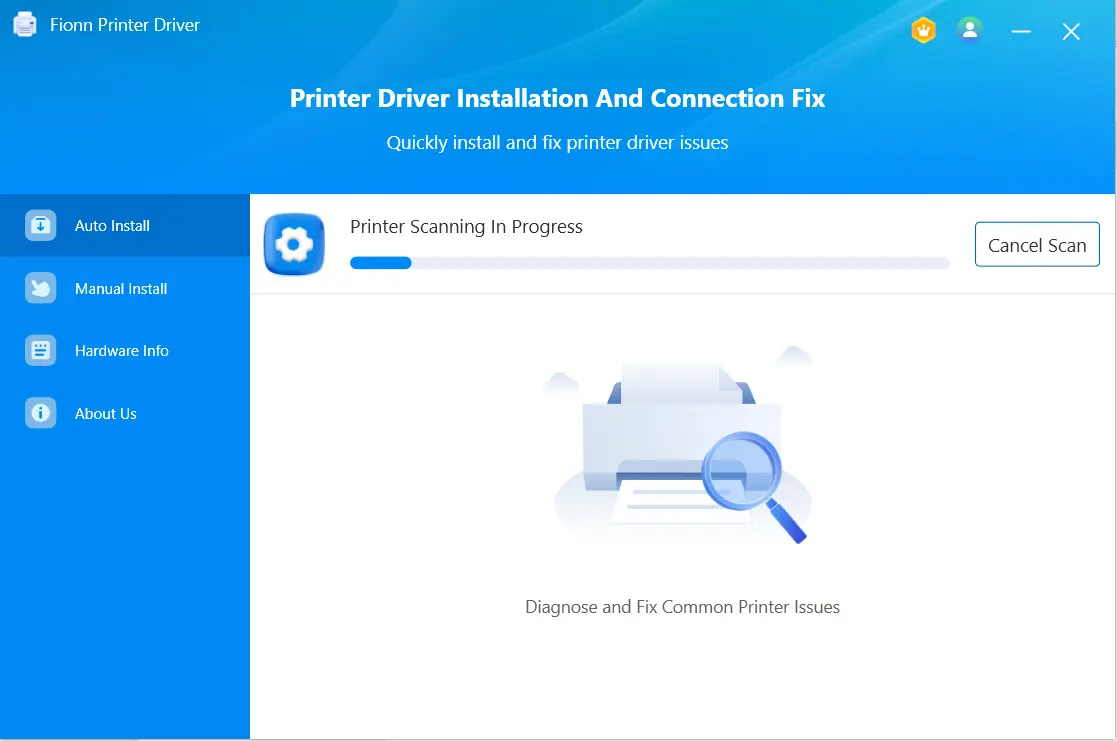
- Wait while Fionn Printer Driver scans your system for installed printers, drivers, and common printer issues.
- After the scan finishes, review the detected driver issue, then click
One-Click Fix
to start the suggested installation or repair.
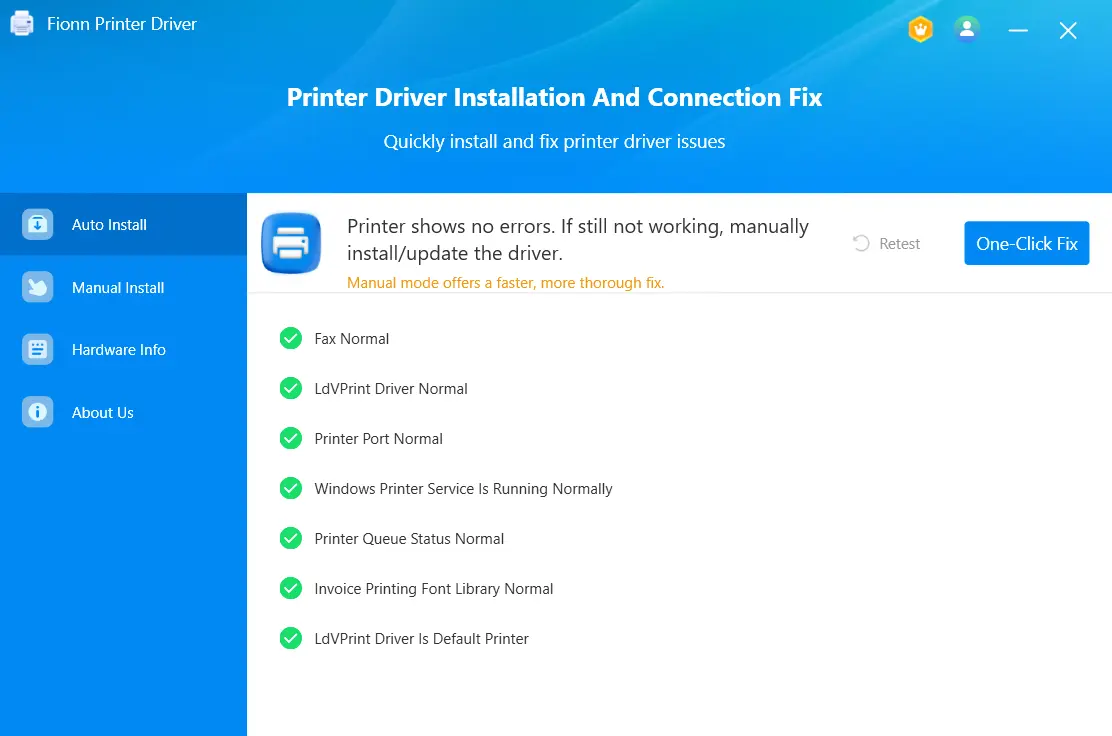
- Wait for the operation to finish and review its result. Then print a Windows test page to check whether the printer actually works.
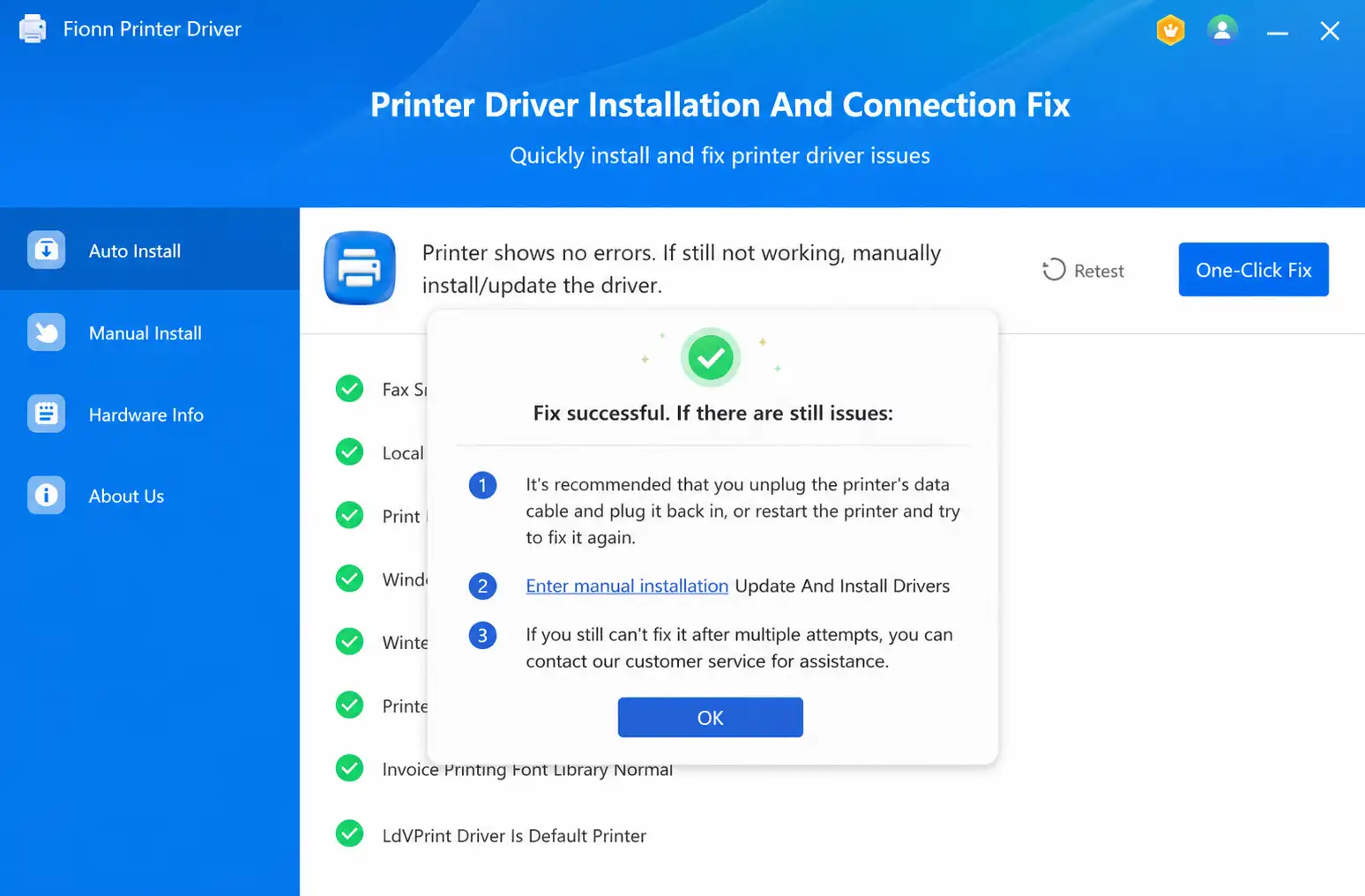
This can reduce the need to locate a driver package manually when the scan identifies a supported issue. Its completion result confirms only that its operation finished; a Windows test page remains the practical check that the L3150 can print. A 7-day trial and paid membership options are offered; check the product page for current terms.
Connect and Check the Printer
If you are using Wi-Fi and your router supports WPS, establish the network connection before trying to add the printer in Windows.
- Press the WPS button on the router or access point.
- Within two minutes, hold the printer’s Wi-Fi button for about five seconds until the Wi-Fi and Wi-Fi Direct lights flash alternately.
- Wait for the Wi-Fi light to turn green, then return to Windows and add the printer.
A green Wi-Fi light confirms the WPS network connection, not that Windows printing is complete. Print a test page after adding the printer to confirm the actual Windows print path. Source: Epson: Connect the L3150 using WPS .
Troubleshooting
If the printer is detected but does not work, Windows identifies printer-not-found errors, stuck jobs, and Print Spooler crashes as separate problems. Reinstalling a driver may not resolve a queue or service problem.
- In Windows 11, open
Settings > Bluetooth & devices > Printers & scanners, select the affected printer, and choose Remove . - Return to Printers & scanners, select Add device or Refresh , and add the listed printer again.
- Print a test page after reinstallation.
If jobs remain stuck or the spooler fails, follow Microsoft’s applicable repair guidance rather than repeating the same driver installation. Source: Microsoft: Fix printer connection and printing problems in Windows .
Conclusion
Start by connecting the Epson L3150 and adding it through Windows; use the manufacturer’s documented 64-bit driver page only when its listed platform matches your PC. For an unclear Windows driver state, Fionn Printer Driver offers a guided scan and repair workflow. In every case, print a Windows test page before treating setup as complete.
FAQ
Does Windows install the Epson L3150 automatically?
Windows normally installs a printer connected directly to the PC. If it does not appear, use Printers & scanners to add the device or select the manual-add option.
Which Windows versions are listed on Epson’s L3150 64-bit driver page?
The documented page lists Windows XP x64, Vista x64, 7 x64, 8 x64, 8.1 x64, 10 x64, 11 x64, and Windows 11 ARM64. It does not prove that a 32-bit package or the same package is available in every region.
Can I add an Epson L3150 over Wi-Fi?
Yes, provided the printer is turned on and connected to the same wireless network as the Windows PC. Add it from Printers & scanners. With WPS, a green Wi-Fi light indicates that the printer joined the network.
How do I know the driver setup worked?
Print a Windows test page. Seeing the printer in Settings, a green Wi-Fi light, or a completed software operation is useful, but only a successful test page confirms the Windows printing path.
What should I do if jobs are stuck?
Use Microsoft’s printer troubleshooting guidance for the queue or Print Spooler issue, then print a test page. A stuck queue can persist even when a driver is installed.


