 Emily CarterPrinter Drivers
To install or repair the Canon PIXMA G3010 Driver, use Canon’s model-specific Windows package, add the connected printer through Windows when needed, and finish by printing a Windows test page. A completed installer or repair scan is not the final result: the test page confirms that Windows can send a job to the printer.
Canon’s listed G3010 MP Drivers provide printing and scanning functionality. Choose a connection route that matches your setup: USB, Wi-Fi through the same router, or Wireless Direct.
Before you begin
- Confirm the printer label says PIXMA G3010 .
- For ordinary Wi-Fi printing, connect the printer and Windows device to the same wireless router.
- For USB setup, have a USB cable ready and connect it when the selected setup route requires it.
- If you use Canon’s Full Driver & Software Package, keep the PC connected to the Internet throughout setup.
Install the Canon PIXMA G3010 Driver from Canon
Use Canon’s MP Drivers package when you want the official model-specific driver route. The listed package provides printing and scanning functionality.
- Open Canon’s PIXMA G3010 MP Drivers page .
- Confirm that the model and operating system shown on the page match your printer and PC.
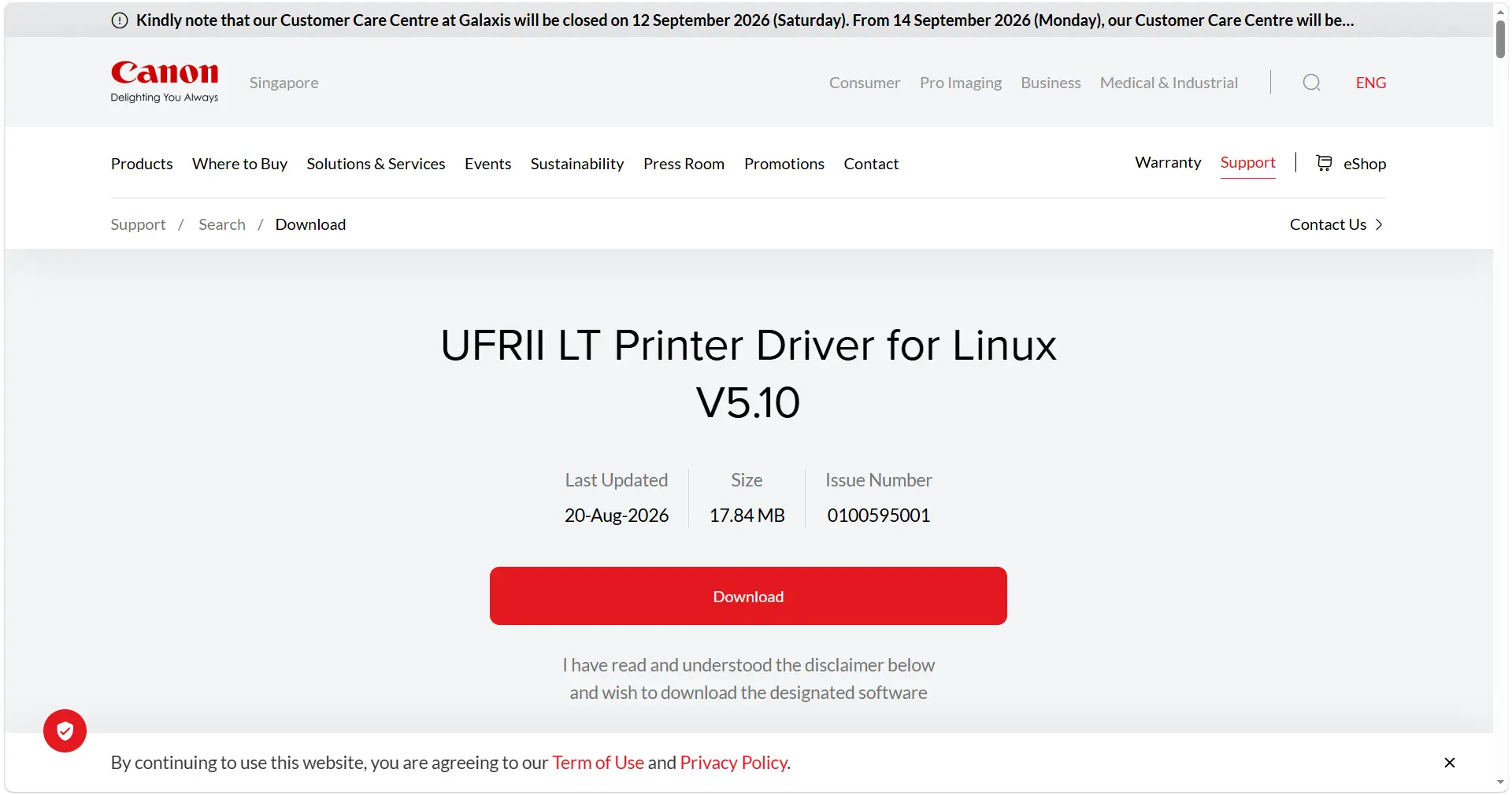
- Download the offered MP Drivers file.
- Double-click the downloaded EXE file. Canon documents that it decompresses and starts installation automatically.
Afterward, check whether the PIXMA G3010 appears in Windows’ installed-printers list, then print a test page. If Canon offers the Full Driver & Software Package for your region and you need initial USB or network setup, keep the PC online, download the package, open its EXE, and follow the Setup screen instructions. Canon’s Full Driver & Software Package instructions
Add the Canon PIXMA G3010 through Windows
Use this route when the connected printer was not installed automatically. It is also Microsoft’s documented fallback for affected Windows on Arm PCs when a manufacturer-provided installer cannot add the printer.
- In Windows printer settings, select Add a printer & scanner , then select Add device .
- Choose the PIXMA G3010 if it appears.
- If it is not found, select Add a new device manually beside The printer that I want isn't listed .
- Follow the instructions in the Add Printer window.
Confirm that the printer appears in the installed-printers list. Then select Print a test page to confirm that the printer works. Microsoft’s add-printer instructions

Install or repair with Fionn Printer Driver
Fionn Printer Driver is an optional Windows 10 or Windows 11 route when the cause is unclear. It lists Canon among supported popular brands and checks driver, print-service, and connection status. Fionn is the publisher’s product.
- Launch Fionn Printer Driver and click “Scan Now” to scan your computer for printer drivers and related issues.
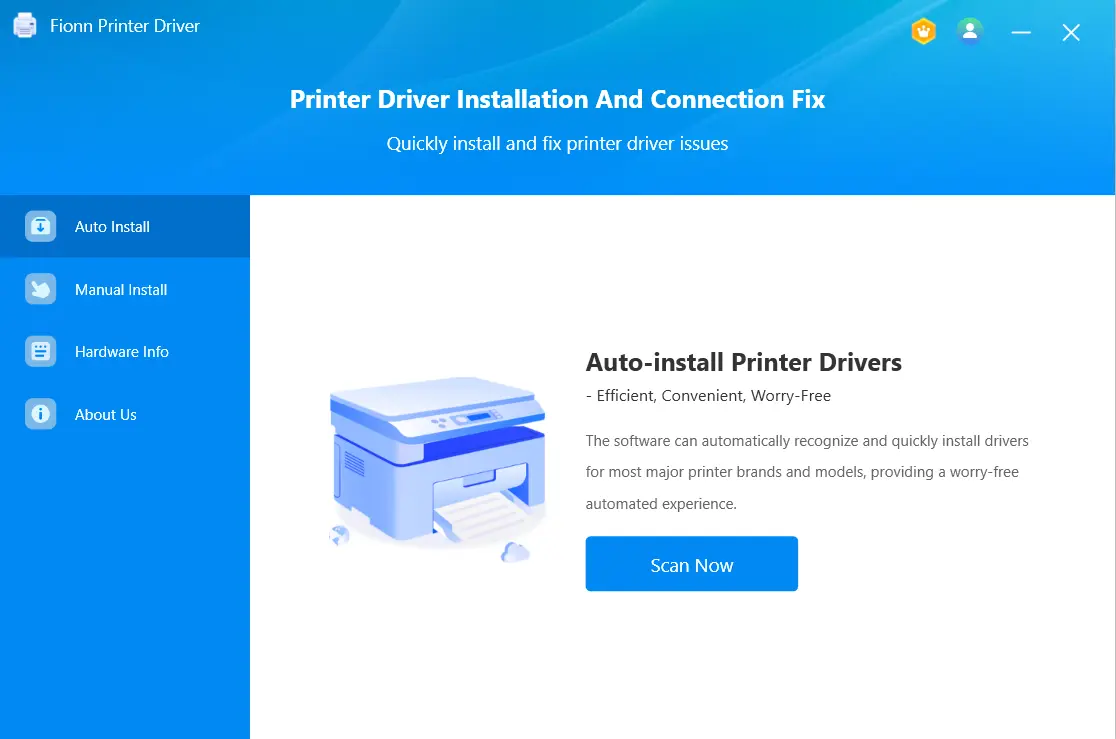
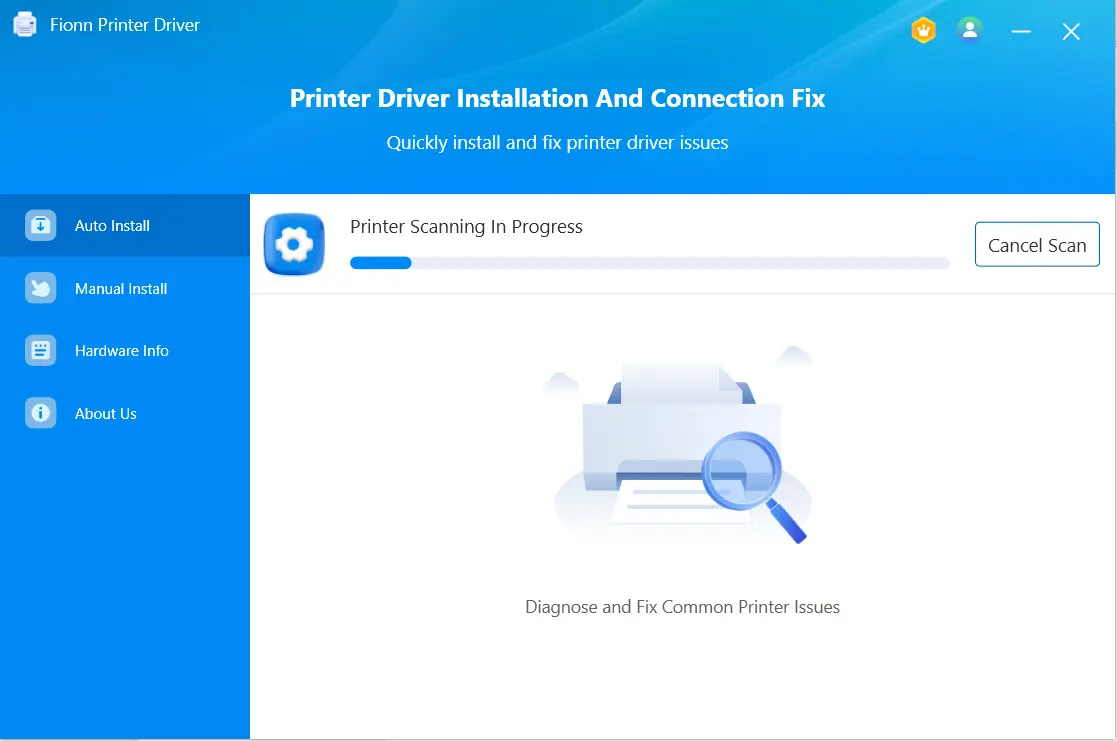
- Wait while Fionn Printer Driver scans your system for installed printers, drivers, and common printer issues.
- After the scan finishes, review the detected driver issue, then click “One-Click Fix” to start the suggested installation or repair.
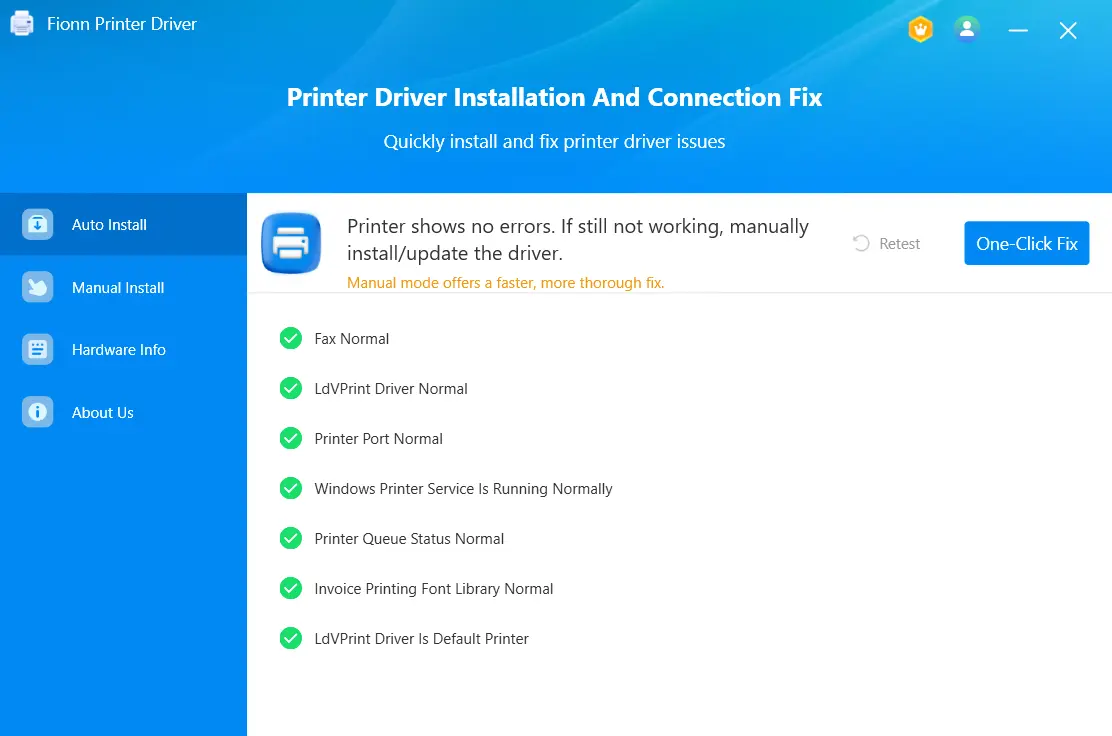
- Wait for the operation to finish and review its result. Then print a Windows test page to check whether the printer actually works.
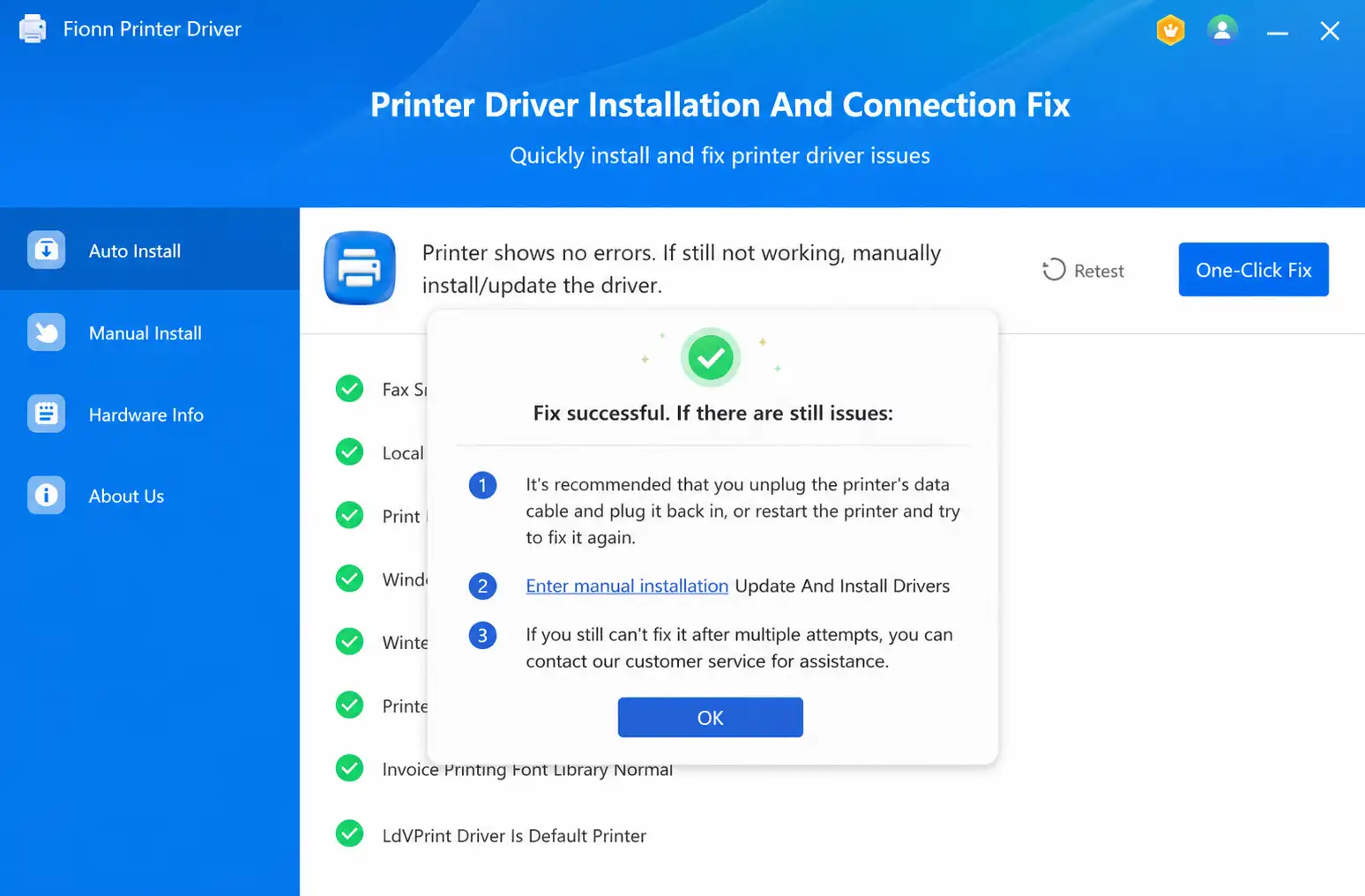
A successful in-app result means the operation completed. The Windows test page is the separate check that the Canon PIXMA G3010 can actually print.
Connection checks when the printer is not found
For Wi-Fi through a router, confirm that the computer and printer use the same wireless router. If Canon setup cannot find the printer, select Redetect and search again by IP address. If the IP-address search also fails, check the network settings. Canon’s discovery guidance
Wireless Direct is a separate mode. Press the printer’s Direct button to enable or disable it. If you need its connection details, press the Information button to print LAN setting information, then use the printed SSID and password in the device’s Wi-Fi settings. The printer’s Network button enables or disables its wireless connection. Canon’s G3010 connection-mode instructions
Conclusion
Start with Canon’s driver page for the official G3010 package, or use Canon’s online Full Driver & Software Package when it is offered for your region and you need initial USB or network setup. If the connected printer is missing, add it through Windows. Fionn Printer Driver is an optional diagnostic route when driver, service, or connection status is unclear. In every case, finish by printing a Windows test page.
Frequently Asked Questions
Which Windows versions does the Canon PIXMA G3010 MP Driver support?
Canon’s listed G3010 MP Drivers Ver. 1.04 page names Windows 11, Windows 10, Windows 8.1, and Windows 7 SP1 or later. Availability can vary by Canon region, so verify the operating system on the download page you use.
What should I do if Windows cannot find my Canon PIXMA G3010?
Select Add a printer & scanner and then Add device. If automatic discovery fails, use the manual-add option beside The printer that I want isn't listed and follow the Add Printer window. For a router-based wireless connection, also confirm that the PC and printer are on the same router.
Do I need the same Wi-Fi network for the G3010?
Yes, for normal network printing Canon and Microsoft require the Windows device and printer to use the same wireless router. Wireless Direct is a different mode that uses the printer’s SSID and password.
How do I know the driver installation worked?
Check that the G3010 appears in Windows’ installed-printers list and print a Windows test page. The test page checks the actual printing outcome; an installer-complete message only shows that the installation process ended.


