 Emily CarterPrinter Drivers
If Windows cannot find your Brother DCP-T420W or print jobs do not reach it, start by confirming the complete model name, Windows version, and connection type. You can use Brother’s model download page, let Windows discover an already connected printer, or use Fionn Printer Driver for a guided scan and repair path. The goal is not only to finish an installer: print a Windows test page to confirm that the printer can receive a job.
Before you start
Turn on the Brother DCP-T420W. Check that its USB cable is firmly connected, or that the printer is connected to the network you intend to use. Brother documents network printing and network scanning for this type of network connection, so keep the connection type consistent during setup.
Choose a setup route
| Route | Use it when | What confirms progress |
|---|---|---|
| Brother support | You want the manufacturer’s download area for the exact model and operating system. | The appropriate installer completes, followed by a successful Windows test page. |
| Windows printer setup | The USB or network printer is already connected and Windows can discover it. | Windows adds the device, followed by a successful Windows test page. |
| Fionn Printer Driver | You want to check the driver together with common printer conditions such as the queue, port, and printer service. | The repair finishes, followed by a successful Windows test page. |
Get the Brother DCP-T420W Driver from Brother Support
Brother provides a DCP-T420W(-V) downloads page with operating-system selection. Use this route when you want to begin with Brother’s model-specific download area.
- Open the Brother DCP-T420W(-V) downloads page.
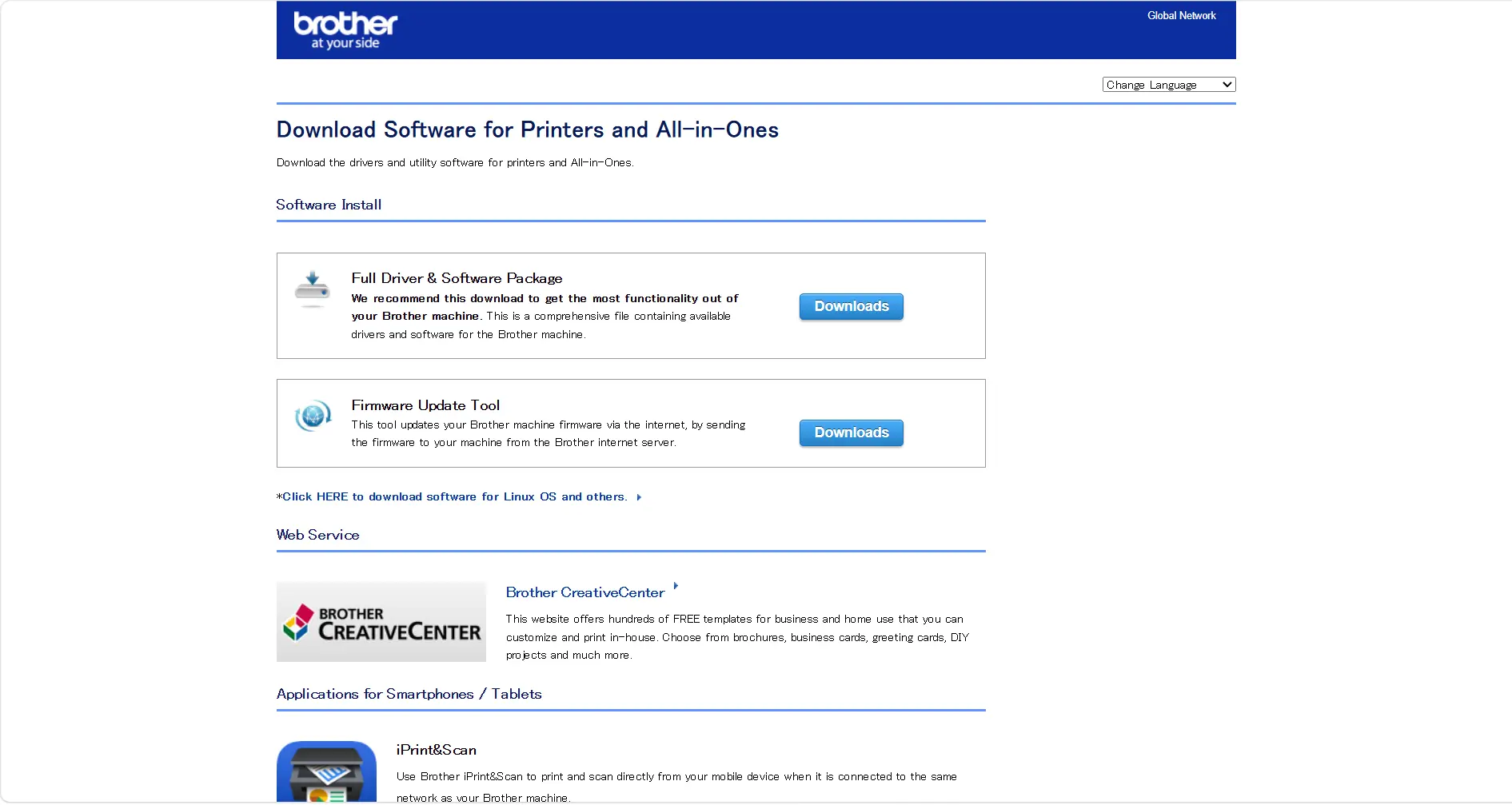
- Select the Windows operating system shown for your PC.
- Review the installation choices displayed for that operating system and select only an option explicitly listed for it.
- Run the downloaded installer and follow its on-screen instructions.
- Open Windows printer settings and print a Windows test page.
An installer completion message only confirms that the installer finished. A test page that reaches the Brother printer and prints correctly is the useful outcome check. If the printer remains unavailable, continue with Windows discovery or check the connection and print queue.
Add the Brother DCP-T420W in Windows
Use Windows setup when the printer is connected by USB or available on the local network. Microsoft states that directly connected printers often install automatically; when that does not happen, try adding the device in Windows.
- Open Settings and select Bluetooth & devices , then Printers & scanners .
- Select
Add device
beside Add a printer or scanner.

- Wait for Windows to search for the USB-connected or network-connected Brother DCP-T420W.
- Select the detected printer and complete the Windows prompts.
- Open the added printer in Windows and use its test-page option to confirm printing.
If the printer does not appear, confirm the USB connection or that the PC and printer can reach the same network. Microsoft also notes that manufacturer-provided printer installers can fail on some ARM PCs; Windows printer setup is a reasonable route to try in that situation.
Install or Repair with Fionn Printer Driver
Choose this path when the issue may involve more than acquiring a driver. Fionn Printer Driver can scan installed printers, drivers, and common printer issues, then check related conditions such as the print queue, port, and Windows printer service.
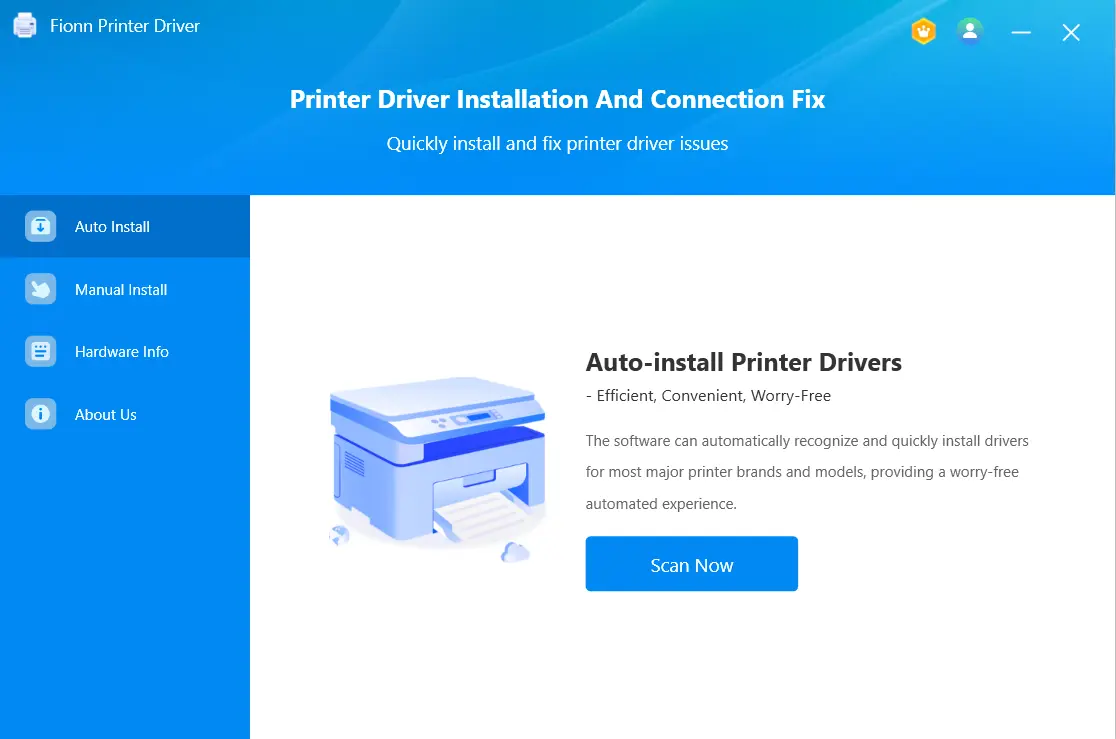
- Launch Fionn Printer Driver and click
Scan Now
to scan your computer for printer drivers and related issues.
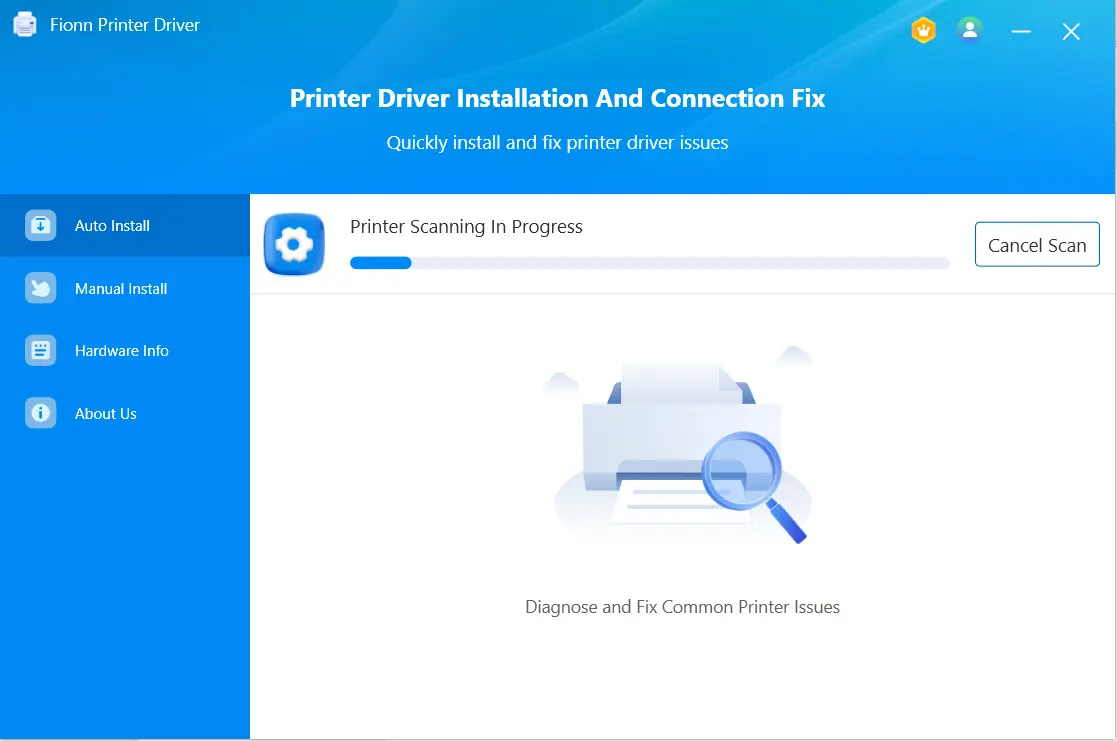
- Wait while Fionn Printer Driver scans your system for installed printers, drivers, and common printer issues.
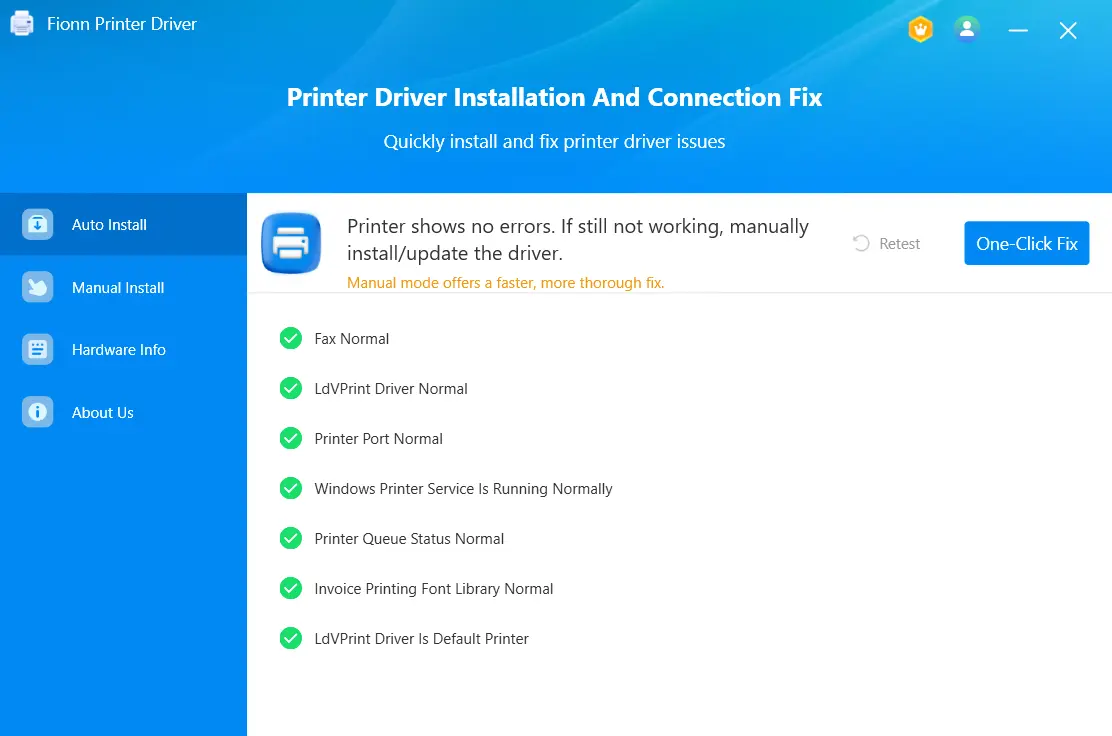
- After the scan finishes, review the detected driver issue, then click
One-Click Fix
to start the suggested installation or repair.
- Wait for the operation to finish and review its result. Then print a Windows test page to check whether the printer actually works.
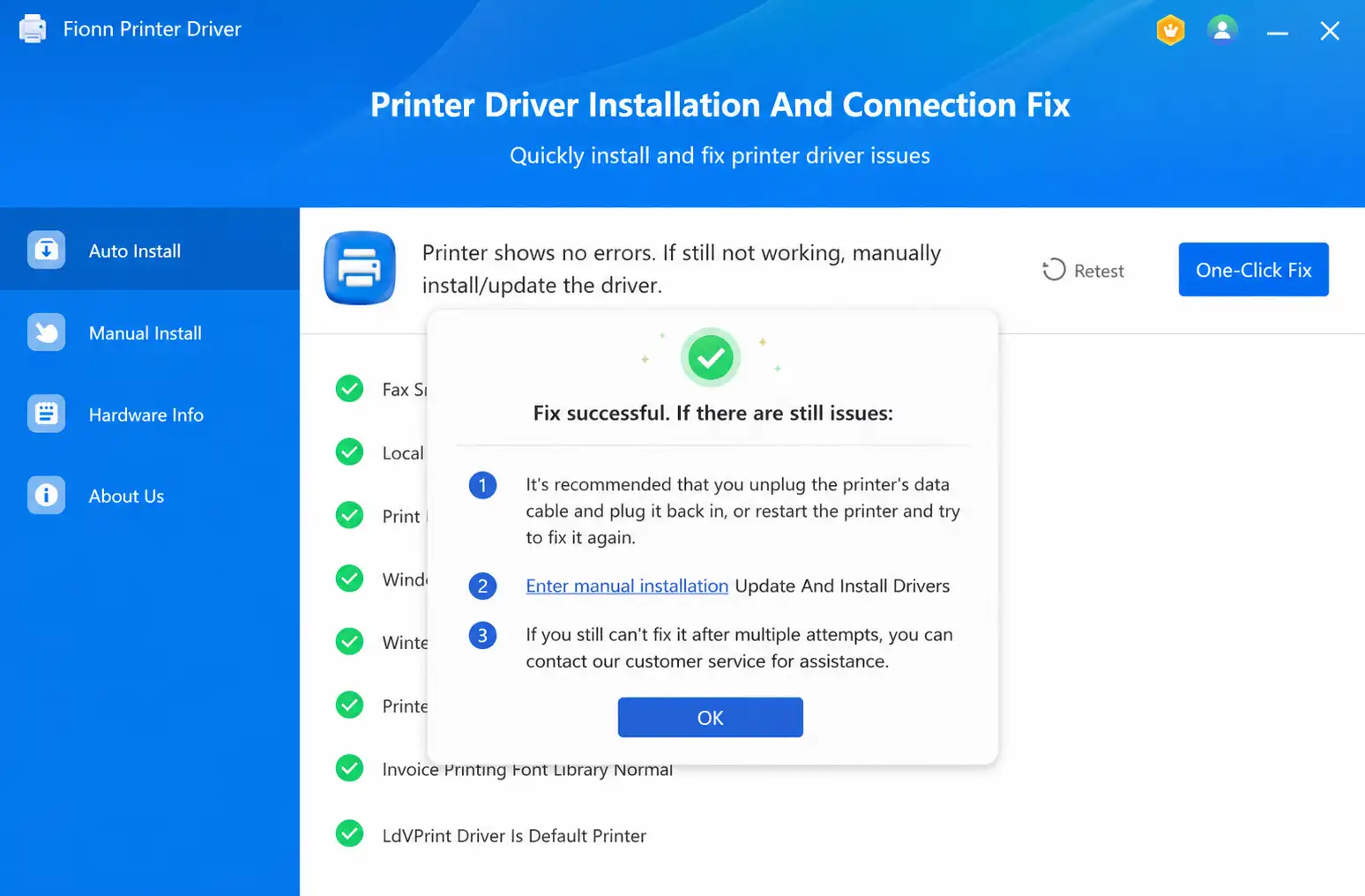
The app’s completion message means its operation has finished. The separate Windows test page checks whether the Brother DCP-T420W can actually receive and print a job.
If the printer is still unavailable
Match the next check to the symptom. If Windows cannot find the printer, recheck the USB or network connection and repeat discovery. If the printer is visible but jobs stay pending, inspect the print queue and whether the printer is paused. For a network printer with an address problem, Brother’s Network Connection Repair Tool guidance says the tool can assign the correct IP address and subnet mask. Do not use it when a network administrator deliberately assigned a static IP address, because changing that address can disrupt the intended configuration.
Conclusion
Start with Brother support when you need the manufacturer’s model page, or use Windows discovery when the printer is already connected. Use Fionn Printer Driver when a guided check of the driver and related printing conditions is useful. Then print a Windows test page. If it fails, investigate the connection, queue, printer service, and network configuration instead of repeatedly reinstalling the same driver.
Frequently Asked Questions
Where can I download the Brother DCP-T420W Driver?
Use Brother’s official DCP-T420W(-V) downloads page. Select the operating system shown for the PC before choosing an installation option.
Can Windows install the Brother DCP-T420W automatically?
Microsoft says directly connected printers often install automatically. If yours does not, open Windows printer settings, choose Add device, and let Windows search for the connected printer.
Why does Windows add the printer but nothing prints?
Adding a printer creates a Windows device entry, but it does not confirm every printing condition. Print a Windows test page, then check whether the printer is paused, jobs are waiting in the queue, or the USB or network connection is unavailable.
Can the DCP-T420W be used over a network?
Brother documentation states that the machine can connect to a network for network printing and network scanning. Ensure that the printer and computer are reachable on the intended network before trying discovery.
Should I use Brother’s Network Connection Repair Tool with a static IP address?
No. Brother advises against this when an administrator set a static IP address, because the tool can change the IP address and subnet mask.


