 Emily CarterData Recovery
Deleted files on a USB drive may still be recoverable when new data has not overwritten the space they used. Stop copying, editing, or formatting the drive first. This guide explains three methods: check Windows recovery locations, restore from an existing backup, and scan the USB drive with Fionn Data Recovery . Use the methods in that order when they match your situation, and always save recovered files to a different disk.
Quick Method Comparison
| Method | Best For | Efficiency | User Effort |
|---|---|---|---|
| Check Recycle Bin and Previous Copies | A recent deletion or an extra copy may exist on the PC | Fast | Low |
| Windows File History or Backup | A backup was configured before the deletion | Fast after setup | Low to moderate |
| Fix USB File Loss with Fionn Data Recovery (Recommended) | Emptied Recycle Bin, formatting, missing folders, or no backup | Scan-based | Moderate |
How to recover deleted files from USB drive: choose a method
Use Method 1 when the file may have been moved to a Windows folder or Recycle Bin. Use Method 2 only when a usable backup already exists. Choose Method 3 when the data is absent from those locations or the USB was formatted. The less you write to the USB after deletion, the more likely a scan can find intact file content.
Method 1: Check the Recycle Bin and Previous Copies
When to use: Try this method when the file was deleted through File Explorer or when you may have copied it to the Windows computer. Removable-drive deletions can bypass the Recycle Bin, so an empty result does not prove that recovery is impossible.
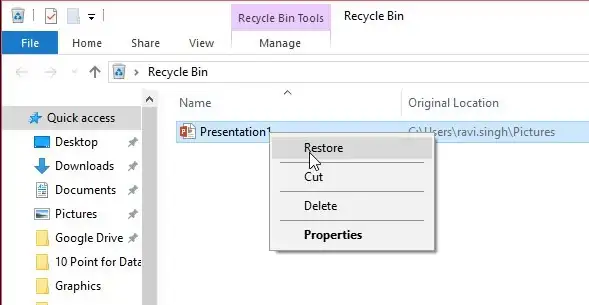
- Open the Recycle Bin on the Windows desktop.
- Search for the missing file by name, file type, or deletion date.
- Right-click a matching item and choose Restore .
- If no item appears, inspect folders where you may have copied the file and look for an earlier version or a manually created backup.
Expected result: Windows returns a listed Recycle Bin item to its original location. Confirm that the file opens before moving or copying it elsewhere.
Method 2: Use Windows File History or Backup
When to use: Select this route only if File History, Windows Backup, or another backup system was configured before deletion and includes the USB file. A backup cannot restore a file that was never included in a saved version.
- Open Settings and search for Backup , or open the backup application and location you previously configured.
- Browse available backup dates and locate the folder that contained the USB file.
- Select the file or folder and choose the restore command provided by that backup system.
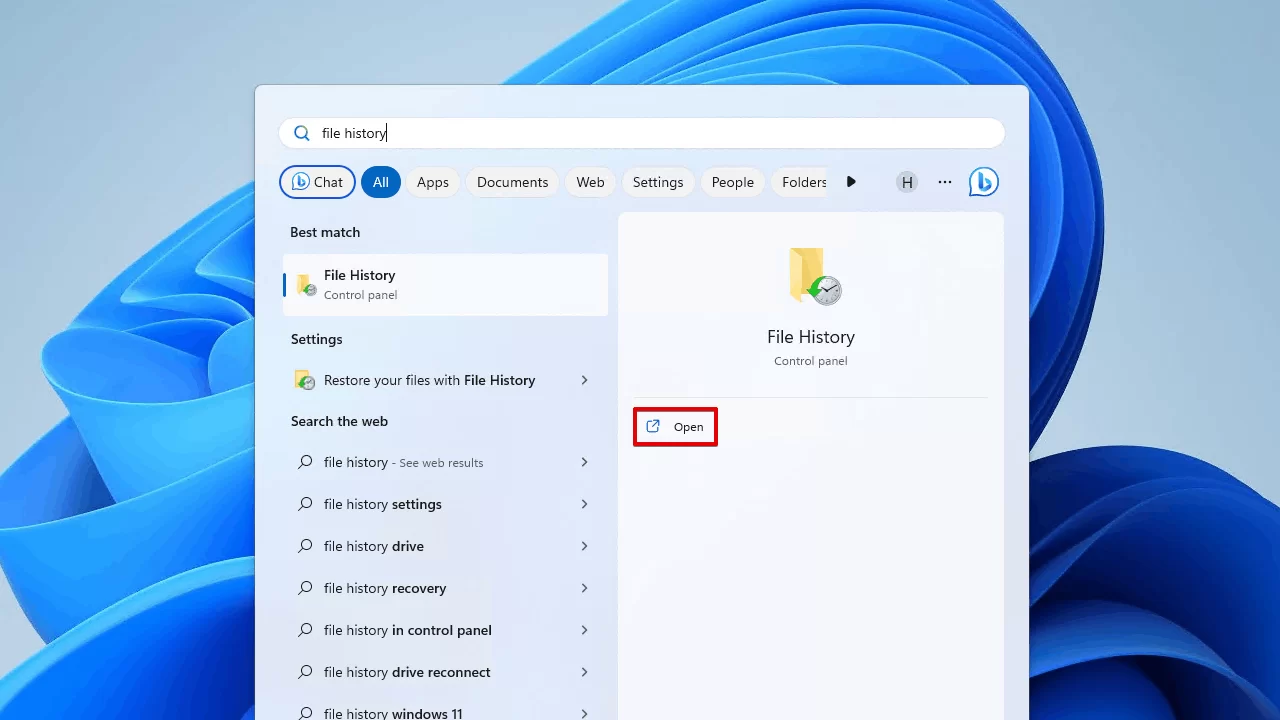
- Save the restored copy to your computer or another disk first, then copy it to the USB only after checking the result.
Expected result: The backup system creates a readable copy when the file exists in one of its saved versions.
Method 3: Fix USB File Loss with Fionn Data Recovery
When to use: Use this method when the file is not in the Recycle Bin, no backup is available, the USB was formatted, or folders have disappeared. Fionn Data Recovery is a Windows desktop app that scans local and external storage, including USB drives, and lets you preview results before recovery. It is the Recommended option when a scan is required.
- Launch Fionn Data Recovery and select the recovery option for the type of data or storage location you want to recover.

- Start the automatic scan and wait while Fionn Data Recovery searches the selected location for deleted or lost files.

- After the scan finishes, browse the results and preview the files to select the data you want to restore.

- Select a destination folder to save the recovered files, then start the recovery process.

Fionn provides quick scan, deep scan, and RAW signature scan modes. If a quick scan does not show the target, continue with a deep or RAW search. Filter results by file name, location, type, time, or size, then preview important files before restoring them. Deep scans can be paused or resumed. The app scans locally in read-only mode and does not upload files, while recovered data should still be saved to another disk.
VIP access includes all file types, unlimited recovery, file previews, deep scanning, and dedicated support. Choose a plan only if those listed benefits match your recovery needs.
Tips and Common Mistakes
- Leave the USB drive idle until you are ready to scan; disconnect it if the computer keeps writing temporary data to it.
- Check the drive’s capacity and label before selecting it, especially when several removable devices are connected.
- Recover to the computer or another external disk, never the source USB.
- Preview documents, photos, and videos before restoring them so you can avoid saving unusable results.
- If folders disappeared after formatting or a partition problem, scan the whole USB device rather than only a visible folder.
- After recovery, open several files and compare names, sizes, and content with what you remember.
Conclusion
Start with Windows’ quick checks, then use a configured backup if it contains the missing file. When those options cannot find the data, Fionn Data Recovery offers a USB-focused scan, filtering, preview, and restore workflow on Windows. Verify several recovered files by opening them and checking their names, sizes, and contents. If important files remain missing, stop using the USB and preserve a read-only copy for further recovery work or consult a qualified service. Continued writes can reduce what remains recoverable.
FAQ
Can I recover files deleted from a USB drive?
Often, yes, if the deleted space has not been overwritten. Recovery becomes less likely after new files are copied to the USB.
Why can’t I use the Recycle Bin?
Files deleted from removable drives may bypass the Recycle Bin, and an emptied Recycle Bin no longer contains the item. A backup or scan may be needed.
What file types does Fionn Data Recovery support?
The product information lists images, videos, audio, documents, email, databases, and compressed files. Actual results depend on what remains readable on the USB drive.
Where should recovered files be saved?
Save them to a different disk or partition to avoid overwriting recoverable data on the source USB.
What if a quick scan finds nothing?
Continue with a deep scan or RAW signature scan, then filter and preview results before recovery.


