 Emily CarterAuto Clicker
Do You Need a VimeWorld Auto Clicker?
For simple repeated input on Windows, start with a tool that lets you set the button, interval, repeat count, and a stop hotkey. Before launching it, however, check the rules for VimeWorld and the specific game mode: automation may be prohibited. An auto clicker does not make automation permitted or guarantee that it will work in the game.
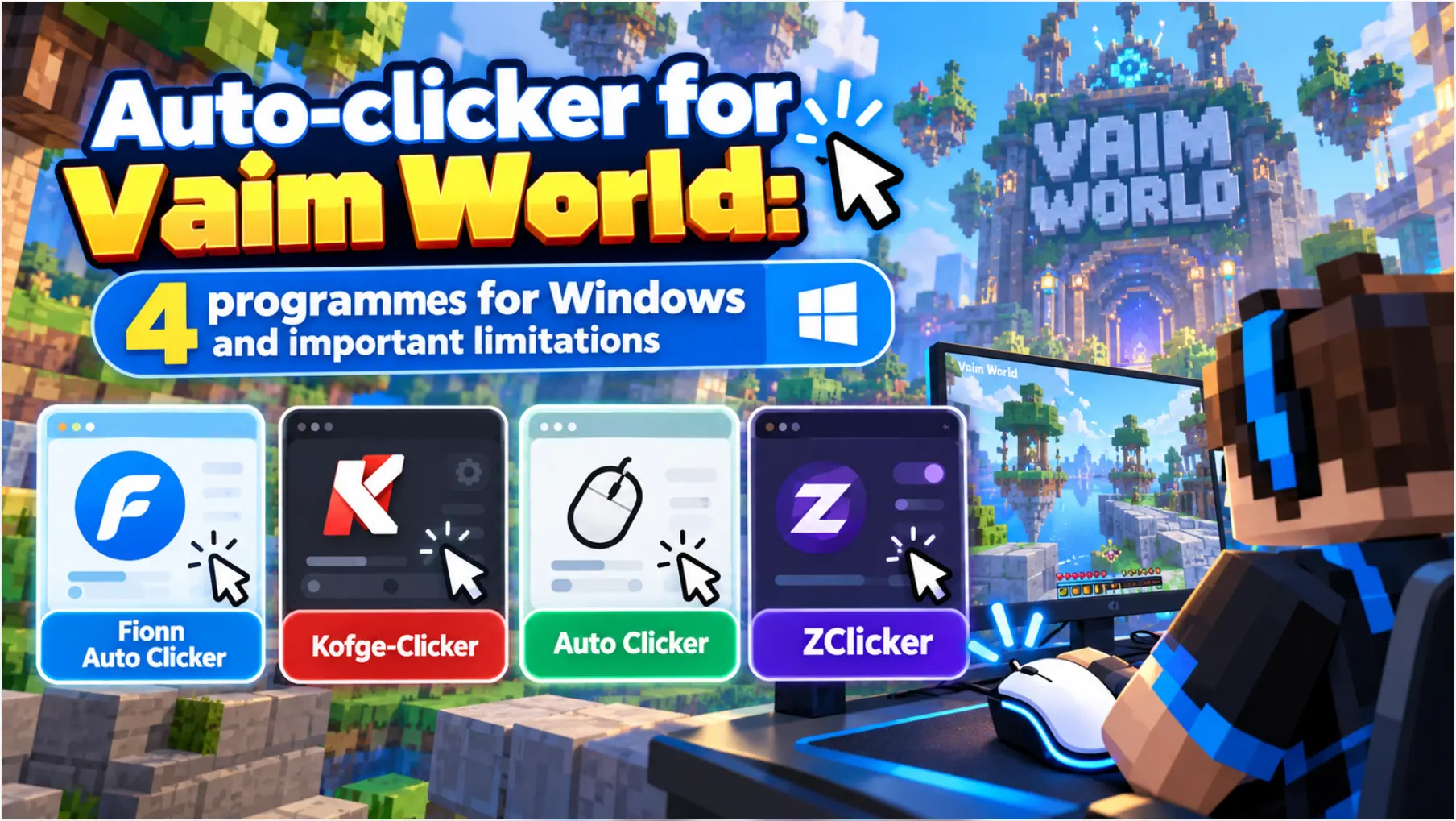
For regular clicks and recorded actions, Fionn Auto Clicker is the first option to consider: it has documented separate modes for simple clicking and recording keyboard and mouse actions. If a free MIT license and portable file matter most, Kofge-Clicker may be more useful. Auto Clicker suits sequences with several actions, while ZClicker Free is an option for basic mouse and keyboard input without installation.
Top Picks
Choose Fionn Auto Clicker for configurable regular clicks and recorded keyboard-and-mouse actions. Choose Kofge-Clicker for free portable use with profiles and window binding, Auto Clicker for saved multi-step sequences, or ZClicker Free for a portable basic clicker.
Quick Comparison Table
Fionn Auto Clicker
Fionn Auto Clicker is suitable when you need one Windows tool for simple repeated clicks and recorded keyboard-and-mouse actions: button, click method and position, interval, repeats, hotkeys, and recording and playback are documented. This is useful when a task begins with one click at a coordinate but may later need a repeatable set of actions. Consider it for Windows users who need a current or fixed click position or playback of recorded actions, provided this is allowed by the rules of the target service.
If this set fits your task, open Fionn Auto Clicker and first configure a short, safe test outside the game.
How to Use Regular Clicking
- For regular clicks only, without recording: open Fionn Auto Clicker and select the mouse clicking section, then regular clicking. Select the mouse button, method, and click position. Set the interval and repeat settings, then press start auto clicking or F6.

- After checking, stop regular clicking with the stop button or F6. Confirm that automatic clicks have stopped before moving the pointer or changing settings.

Kofge-Clicker
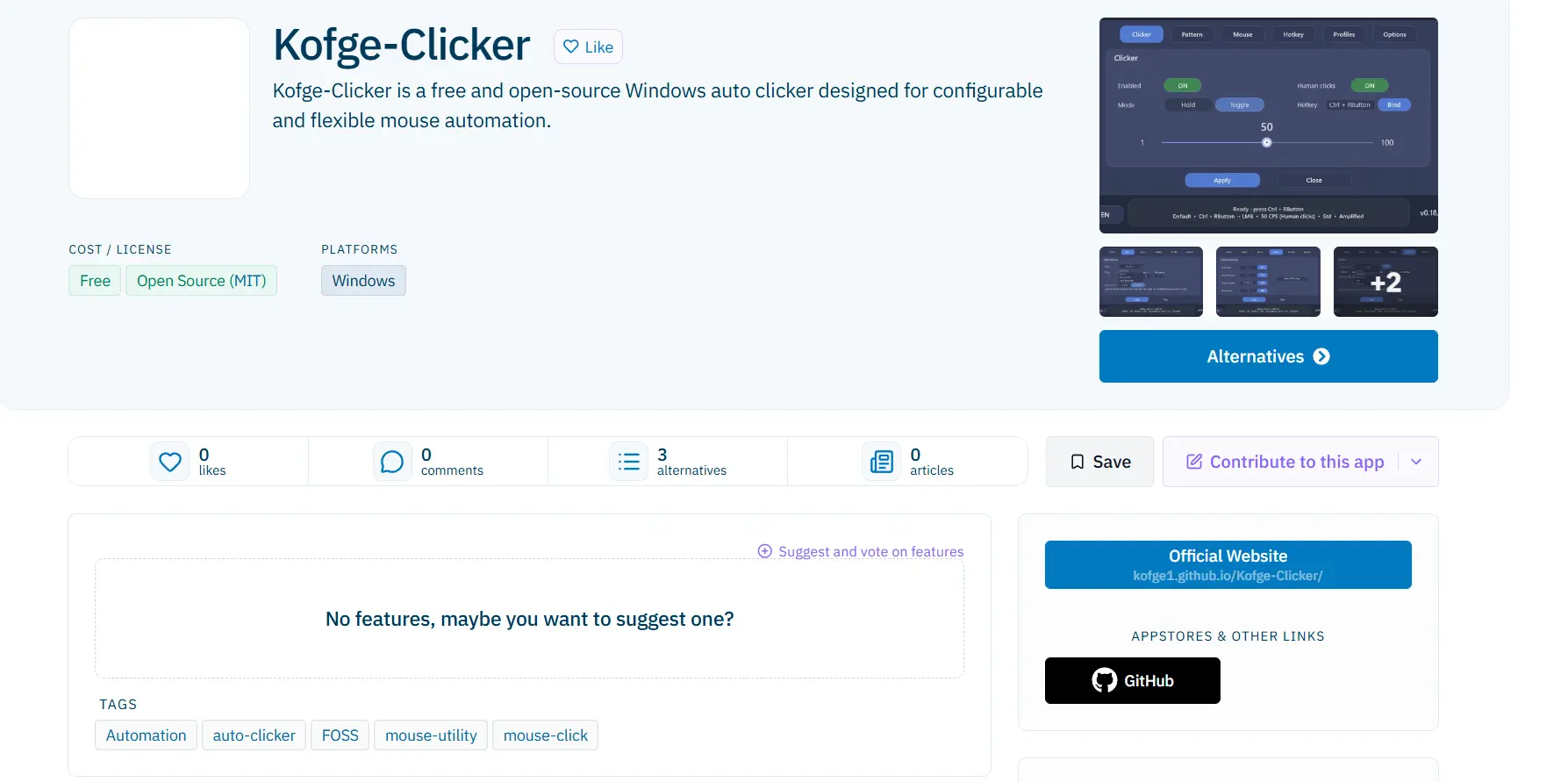
Kofge-Clicker is a sensible choice for Windows 10/11 x64 when profiles, macro recording and playback, global hotkeys, and binding to a selected window matter. Its official project also states an adjustable rate from 1 to 100 CPS and click patterns. It is especially suitable for repeatable, varied tasks when you need to save separate configurations. Details are available on the official Kofge-Clicker page .
Auto Clicker
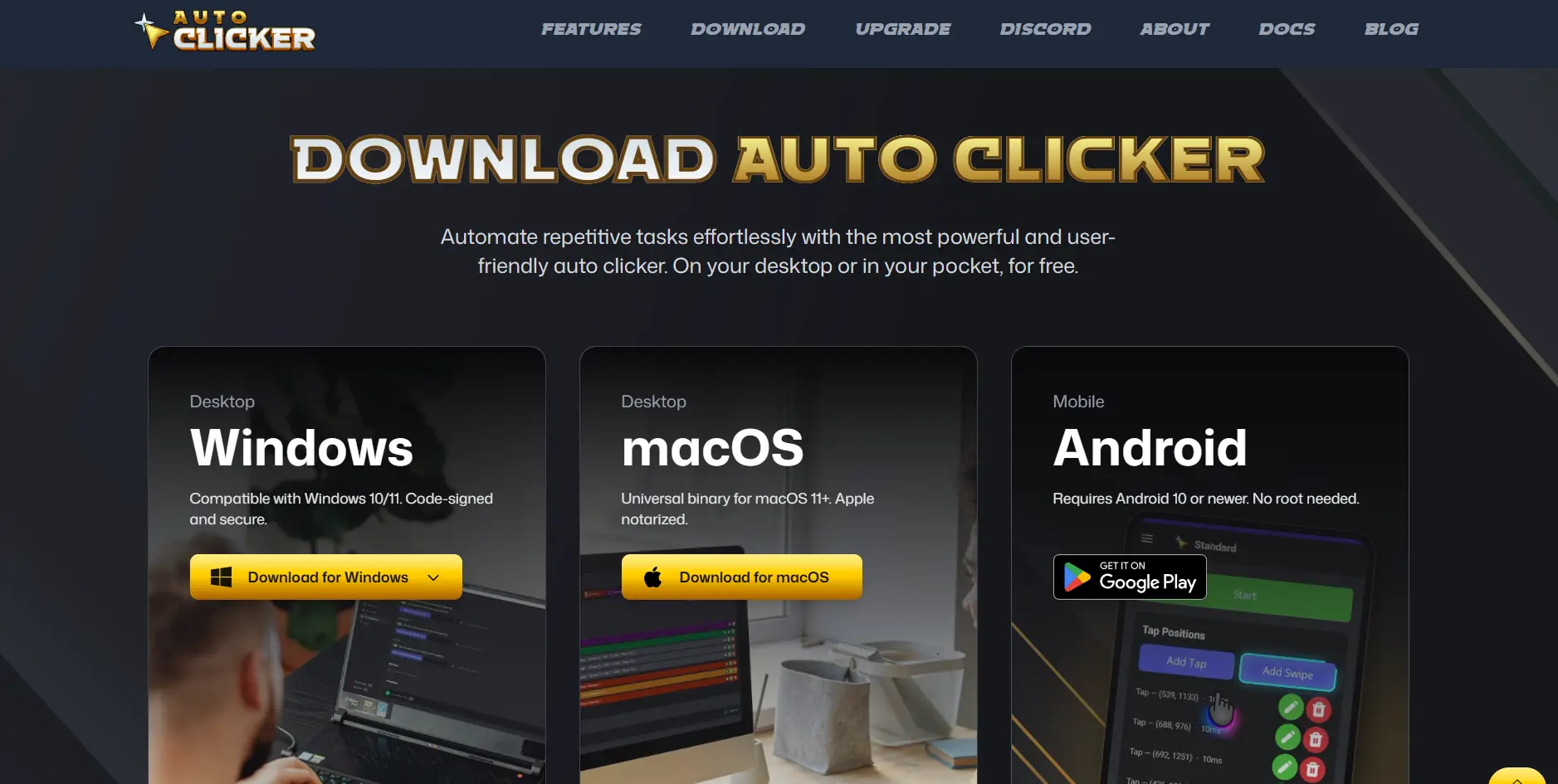
Auto Clicker by Fluffer is worth considering when repetition is not a single click but a saved sequence of clicks, holds, drags, scrolling, and keystrokes. It offers button selection, fixed or current points, a finite repeat count or operation until stopped, and a hotkey assignable from F1–F12. This is an option for Windows users who need multi-step scenarios, profiles, and window binding. See the official Auto Clicker repository .
ZClicker
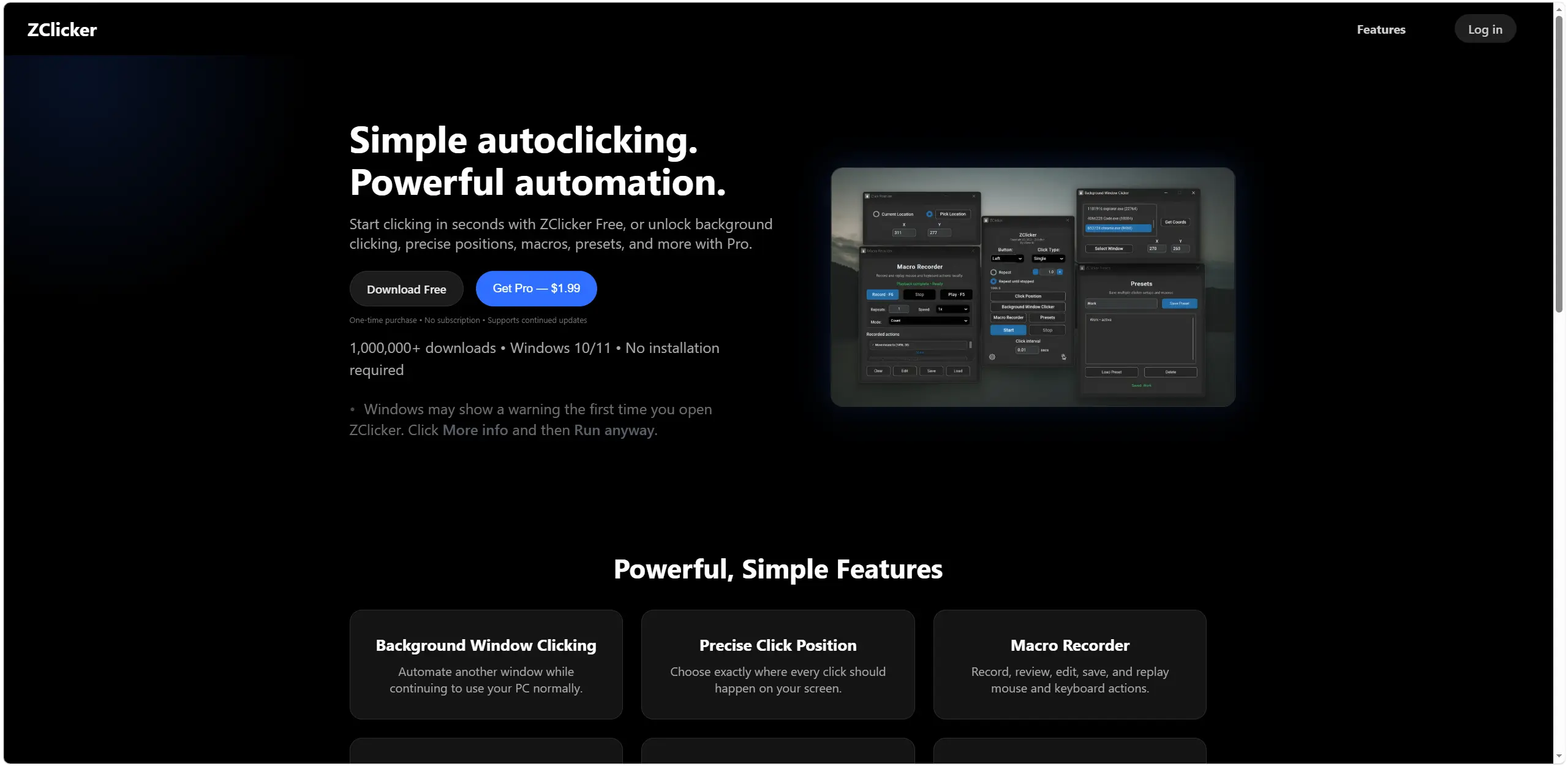
ZClicker Free is a free portable version: download the executable and run it without installation. It supports left, middle, and right buttons, intervals, single-, double-, triple-click, and hold modes, as well as F5. ZClicker Free suits a Windows user who needs only basic input and values running from a portable file. Information about Pro and releases is available in the official ZClicker repository .
How the Programs Were Compared
The comparison is based on capabilities stated on official pages, not hands-on testing. The same criteria were considered for all four programs: supported Windows versions, click and hotkey configuration, licensing model, launch requirements and limitations, and recording, profiles, sequences, and window binding. Background-input limitations matter especially because they depend on the specific game or application, so a feature's presence does not prove that it will work in VimeWorld.
How to Choose
First decide whether you need one repeated click or a sequence of actions. For the first case, compare position, intervals, repeats, and ease of stopping. For the second, check for recording, editing, profiles, and window binding. Then choose an access model: Kofge-Clicker and Auto Clicker have MIT licenses, Fionn Auto Clicker has three free trials and membership, and ZClicker has a documented free version, but Pro terms and pricing are not confirmed.
Finally, confirm that automation is allowed in VimeWorld before launching it. If the target uses protected, Raw Input, or DirectInput input, background control may not work regardless of the program selected.
Final Verdict
Consider Fionn Auto Clicker first if you need both configurable regular clicks and recorded keyboard-and-mouse actions on Windows; keep in mind the three free trials, membership for advanced capabilities, and the rules of the target game. Choose Kofge-Clicker for free profiles and window binding on Windows 10/11 x64. Auto Clicker makes more sense for complex saved sequences, while ZClicker Free fits a need for a free portable basic clicker. In all cases, do not use a tool where automation is prohibited.
Frequently Asked Questions
Is an auto clicker allowed in VimeWorld?
This is determined by the rules of VimeWorld and the specific game mode. An automation tool should be used only where such actions are allowed.
Which program can record keyboard and mouse actions?
Fionn Auto Clicker, Kofge-Clicker, and Auto Clicker document action recording and playback. ZClicker lists a macro recorder among Pro capabilities.
Why might background clicking not work?
Some applications and games use protected, Raw Input, or DirectInput input. Kofge-Clicker and Auto Clicker explicitly state that background input may be ignored or fail to reach the target in these cases.
Are there options that do not require installation?
Kofge-Clicker is distributed as a portable self-contained executable, and ZClicker Free is a free portable version that can be downloaded and run without installation. Auto Clicker is installed through MSIX.


