 Emily CarterAuto Clicker
Introduction
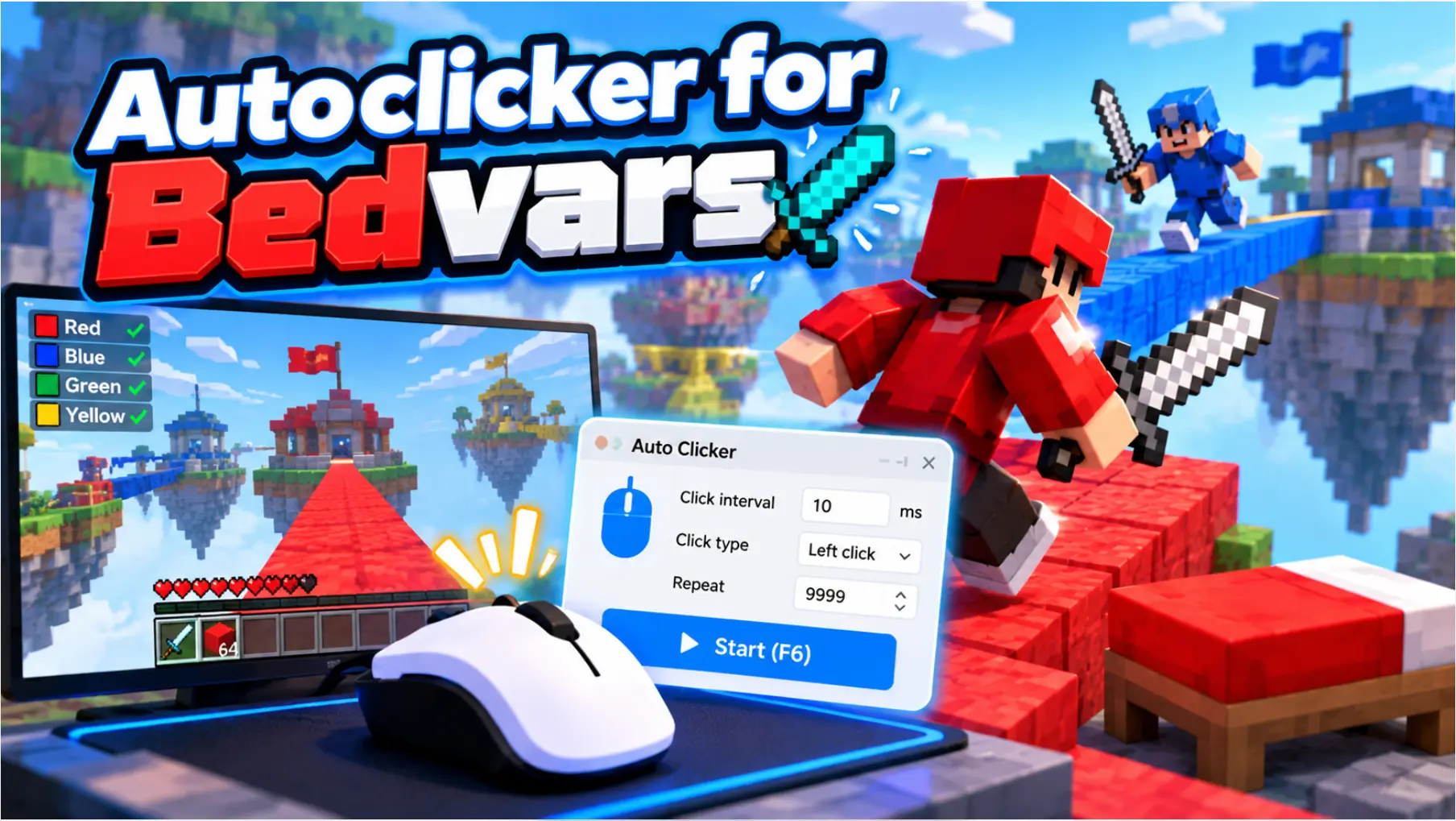
If you are looking for an auto clicker for Bedwars , first check the rules of the specific game, server, and service: automated input may be prohibited and can lead to penalties. None of the tools reviewed has confirmed compatibility specifically with Bedwars or a guarantee of bypassing anti-cheat.
For permitted repetitive tasks on Windows, consider Fionn Auto Clicker first: it combines configurable clicking with action recording and playback. For free basic clicking, consider OP Auto Clicker and Speed Auto Clicker, while AutoClicker is useful when multi-platform options matter.
Top Picks by Need
- Fionn Auto Clicker — a starting point for Windows when you need keyboard and mouse action recording and playback in addition to repeated clicks; membership unlocks unlimited clicks, recording, custom scripts, and scheduled tasks.
- OP Auto Clicker — an option for simple clicks at the current cursor position or a fixed location; it is free and open source.
- AutoClicker — an alternative if you need Windows, macOS, or Android and are willing to compare the free and full-version features.
- Speed Auto Clicker — for Windows when a portable ZIP release, global hotkeys, and stopping after a set number of clicks or time matter.
Quick Comparison Table
Fionn Auto Clicker
For permitted repetitive actions in Windows, choose Fionn Auto Clicker first if ordinary clicking is not enough and you need to save an action sequence: the tool configures click type, interval, repeat count, and hotkeys, and it also supports keyboard and mouse recording and playback.
It suits a Windows 10 or Windows 11 user who needs repeated clicks and, with membership access, recording, custom scripts, and scheduled tasks. Official page: Fionn Auto Clicker .
The best choice for Windows users who need to move from a single repeated click to a repeatable keyboard-and-mouse sequence—but not as a way to bypass Bedwars rules.
How to Use It
- For ordinary automatic clicks only, without recording: open Fionn Auto Clicker and select “Mouse Clicks” > “Normal Click.” Choose the mouse button, method, and click position, set the interval and repeats, then select “Start Auto Click” or press F6.

- After checking that the sequence works, stop normal clicking with the “Stop Clicking” button or F6. Confirm that automatic clicks have stopped before moving the pointer or changing settings.

AutoClicker
Choose AutoClicker if availability on Windows, Android, or macOS matters for your permitted task and you are prepared to decide whether the free mode is sufficient. It supports intervals, random offsets, button selection, finite or unlimited runs, and clicking at the cursor or fixed coordinates; advanced features are listed for the full version.
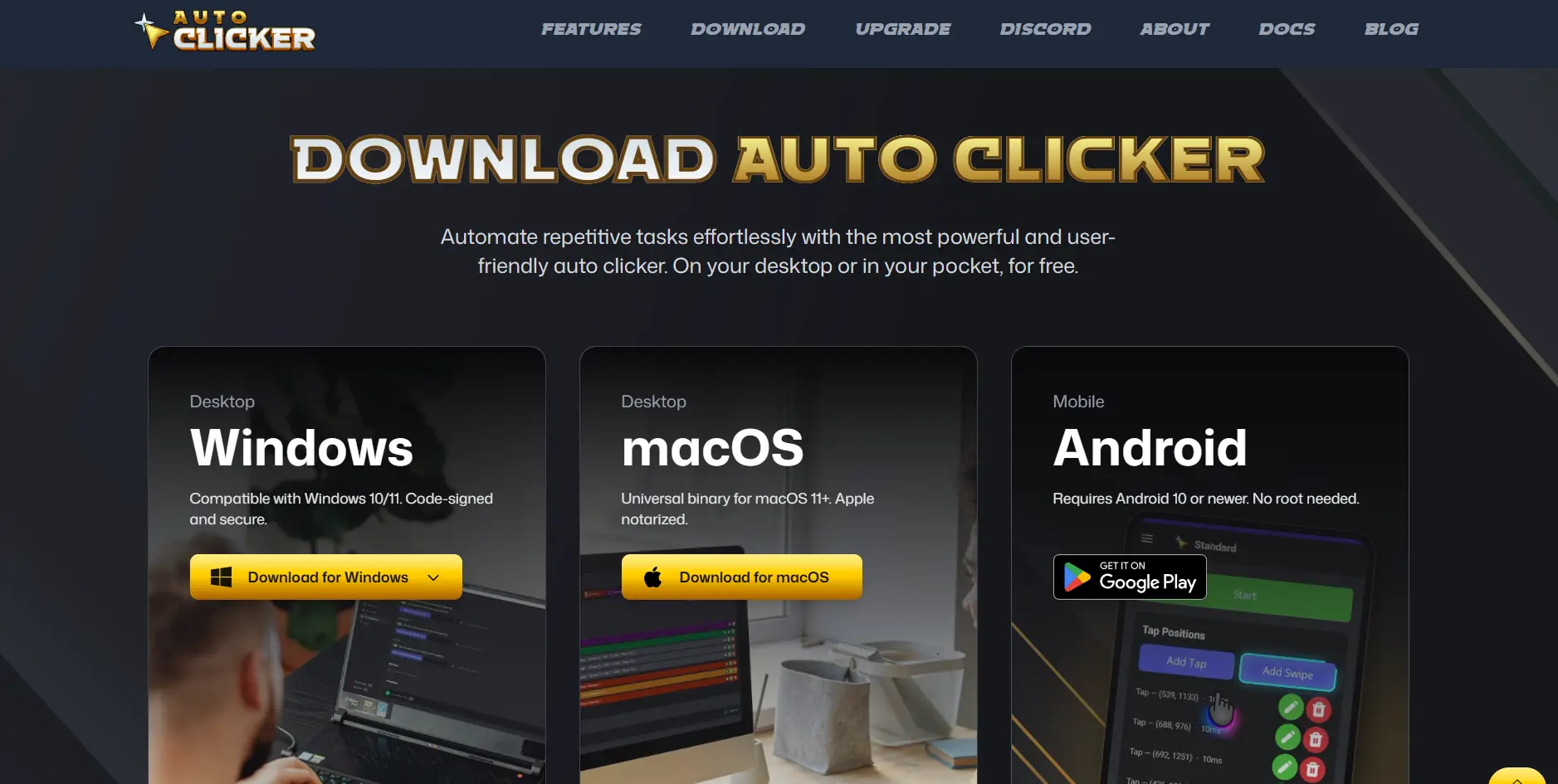
The full version includes listed key and scroll automation, recognition, recordings, and macros. Learn more on the official AutoClicker website .
Suitable for people who want to choose between free basic clicking and paid advanced features on the listed platforms.
OP Auto Clicker
OP Auto Clicker is worth considering for a simple permitted click run without a confirmed need for macros. It offers two modes: at the current cursor position or at a specified point, plus a finite or unlimited number of clicks.
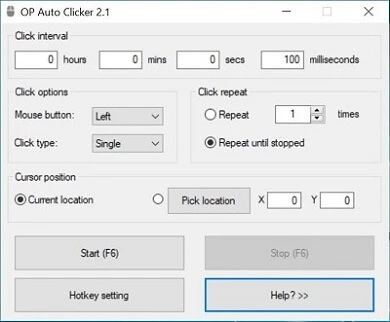
Background hotkey operation, button selection, and single, double, or triple clicks are confirmed. The platform and download list is available on the official OP Auto Clicker website .
Suitable for a user who needs basic repeated-click settings on a supported platform and values an open license.
Speed Auto Clicker
Consider Speed Auto Clicker on Windows if you need a portable basic clicker with explicit control over how long a run lasts. Its documentation lists mouse-button selection, global hotkeys, hold and toggle modes, random delay, and batch mode.
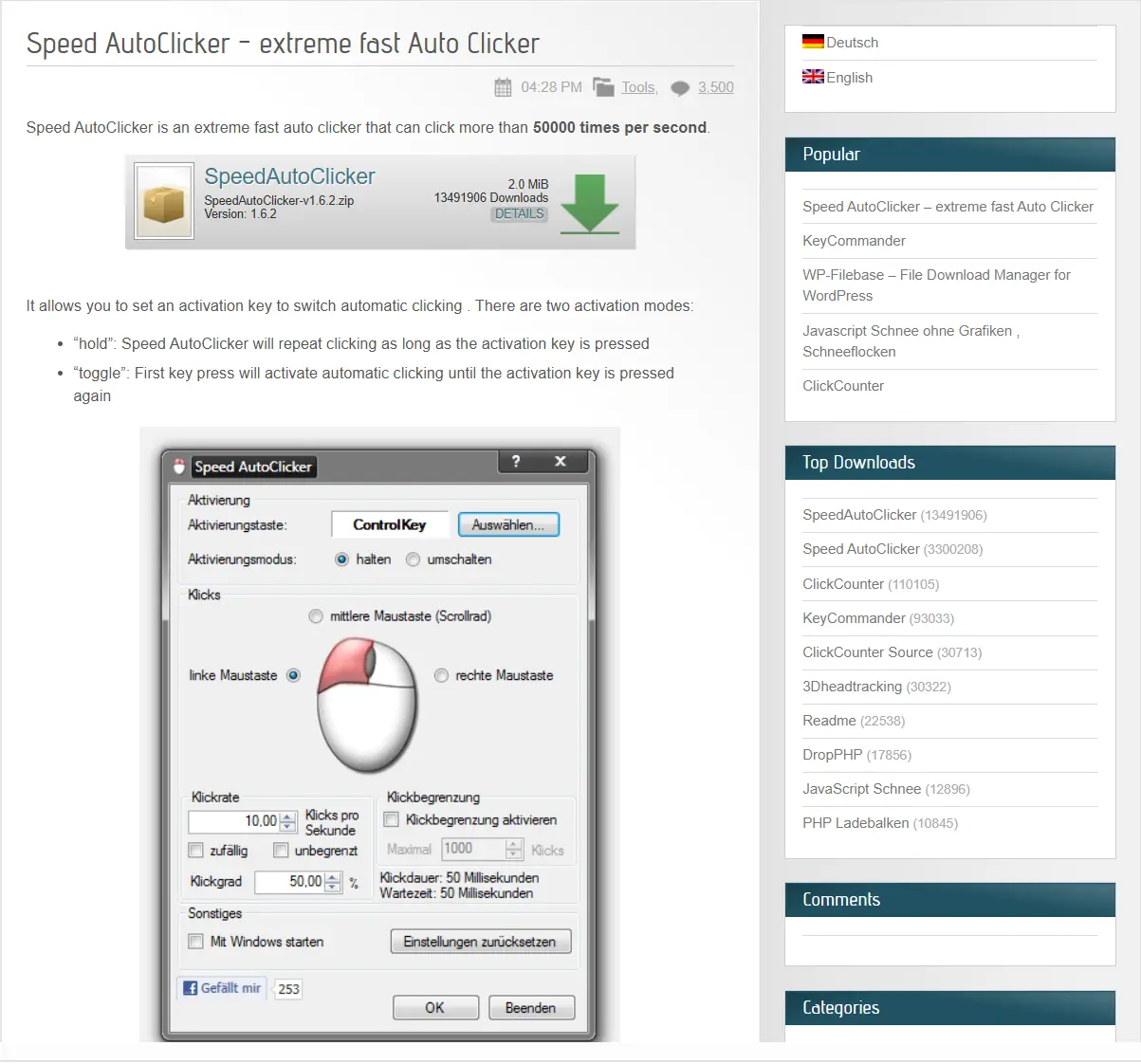
Its official releases include portable ZIP files for Windows x64 and x86; source code and releases are available in the official Speed Auto Clicker repository .
Suitable for a Windows user who needs a portable tool with a controlled end to a run, rather than a confirmed action-recording system.
How We Compared
The same criteria were used for all four products: listed operating-system support, clicking and macro capabilities, licensing model, control limitations, and information about Bedwars risk. The comparison relies on official pages and provided confirmed information, not hands-on testing. A lack of confirmed Bedwars compatibility does not mean a tool is allowed or prohibited: the specific server rules determine that.
The key choice is between simple repeated clicking and a confirmed need for a saved action sequence; neither criterion replaces checking game rules.
How to Choose
- First determine whether the Bedwars server permits automated input. The absence of a prohibition in the rules is not permission.
- For Windows with action recording and playback, choose Fionn Auto Clicker; for simple free clicking, choose OP Auto Clicker.
- If a listed mobile or macOS alternative matters, review the Free and Full capabilities of AutoClicker.
- If you need a portable Windows option with a run limit, consider Speed Auto Clicker.
Final Verdict
For Windows, consider Fionn Auto Clicker first when you need both configurable repeated clicks and recording with playback; account for the three free tries and membership model. For simple free clicking, OP Auto Clicker is a direct open-source option. AutoClicker lists options for Windows, macOS, and Android, but advanced capabilities belong to the full version and the free version contains ads. Speed Auto Clicker is appropriate for portable Windows runs with limits. In every case, an auto clicker is not a confirmed compatible tool for Bedwars: use it only when the rules explicitly allow it.
Frequently Asked Questions
Is an auto clicker allowed for Bedwars?
That depends on the rules of the specific server, game, and service. Compatibility with Bedwars is unconfirmed for the reviewed tools, and automated input may violate rules or anti-cheat.
Which option works for Windows 10 and Windows 11?
Fionn Auto Clicker officially supports Windows 10 and Windows 11. AutoClicker lists Windows 10/11, OP Auto Clicker publishes a Windows download, and Speed Auto Clicker releases portable ZIP files for Windows x64 and x86.
Is there a free auto clicker?
OP Auto Clicker is listed as a free, open-source product. AutoClicker offers a free version with ads and an optional paid version. Fionn Auto Clicker provides three free tries and a membership plan.
Can I record keyboard and mouse actions?
Fionn Auto Clicker supports keyboard and mouse action recording and playback. AutoClicker lists recording and macros in the full version. Such capabilities are unconfirmed in the available information for OP Auto Clicker and Speed Auto Clicker.
Why might background clicking not work?
Fionn Auto Clicker supports background clicking, but some windows may not support it. Check this in a short permitted task and stop automation before switching windows or changing settings.


