 Emily CarterScreen Recording
Recording two monitors separately can mean two different workflows: capturing both displays at the same time into independent video files, or recording one display and then the other. Sequential recording creates separate monitor video files, but it cannot preserve simultaneous screen activity. Start by deciding which outcome you need, identify the physical displays in Windows, then use a tool and workflow that match that requirement. This guide covers simultaneous independent capture, a Fionn Screen Recorder workflow for separate passes, and a recorder-agnostic sequential method.
Simultaneous vs Sequential Monitor Recording
| Recording need | Workflow | Output |
|---|---|---|
| Two monitors recorded at the same time into two files | Simultaneous independent recording | Two files with overlapping timelines |
| Monitor 1 recorded first, Monitor 2 recorded later | Sequential recording | Two files from different time periods |
| Both displays recorded as one wide video | Combined desktop capture | One combined video file |
| One wide recording split into two videos afterward | Post-production cropping or splitting | Two derived files, based on the same original recording |
Two files alone do not prove that you recorded two screens at once. If both displays show activity that must match in time, choose simultaneous independent recording. If timing does not matter, recording each monitor separately in two passes is simpler.
Identify Your Two Monitors Before Recording
- Open
Settings > System > Display. - Choose Identify to display monitor numbers.
- Confirm which physical screen is Monitor 1 and Monitor 2.
- Check whether the displays are set to Extend or Duplicate .
- Confirm that the selected capture area does not unintentionally include the other display.
Extended displays show different desktop space, while duplicated displays show the same image. Do not assume Windows monitor numbers match the screens’ left-to-right physical positions.
Quick Method Comparison
| Method | Best For | Efficiency | User Effort |
|---|---|---|---|
| Simultaneous independent recording | Events that must be captured on both monitors at the same time | High once configured | High |
| Fionn Screen Recorder separate passes | Windows users who need separate recordings at different times | High | Low |
| Recorder-agnostic sequential recording | Any recorder that can target one display or region per pass | Moderate | Moderate |
Method 1: Record Two Monitors Simultaneously into Separate Files
When to use: Use this method when both monitors must capture the same event and you need independent files. It requires recording software or a configuration that can create multiple independent recording outputs. Do not assume a normal dual monitor recording creates two files.
- Confirm that your chosen recording software documents support for multiple independent capture sources or outputs.
- Assign one capture source and one output path to each monitor.
- Set distinct file names or save locations so neither output overwrites the other.
- Start both recording paths before the shared event begins.
- Stop both paths after the event, then compare their start and end points.
Verification: Each monitor should have its own file, and both timelines should overlap during the event. CPU or GPU load and storage write speed can affect performance, so review a test recording before relying on this setup.
Method 2: Fix Separate-Monitor Recording with Fionn Screen Recorder
When to use: Use this Windows workflow when sequential recording is acceptable and you want to choose a full screen, window, or custom region for each pass. The available product information confirms these capture choices, but does not verify simultaneous independent recording into two files. Repeat the workflow once for each monitor.
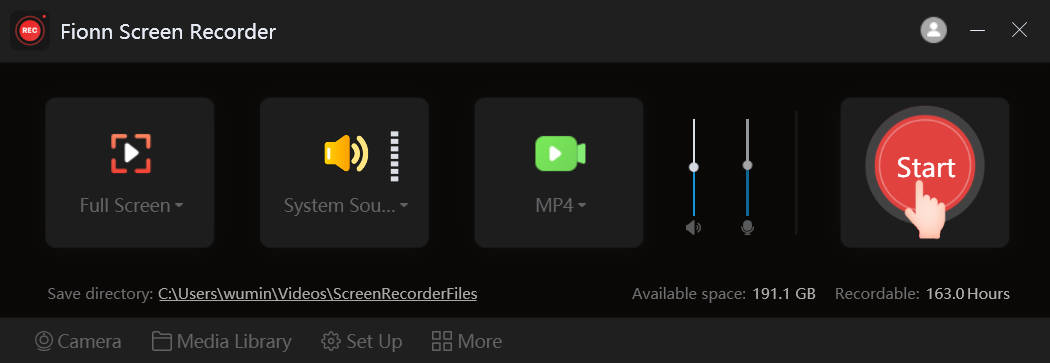
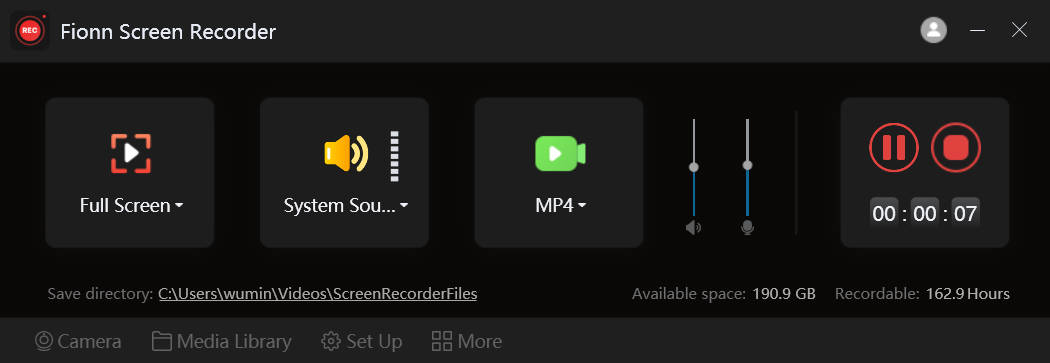
- Open Fionn Screen Recorder and choose the area you want to capture: Full Screen, Window, or Region.
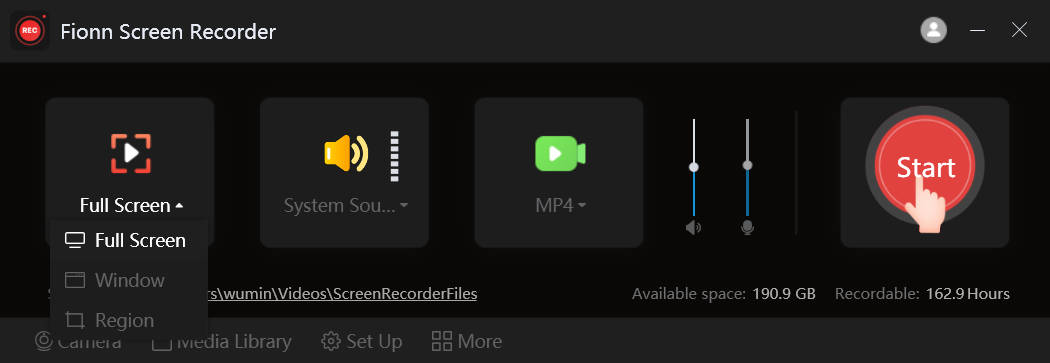
- Select Full Screen, Window, or Region from the recording area menu based on what you need to record.
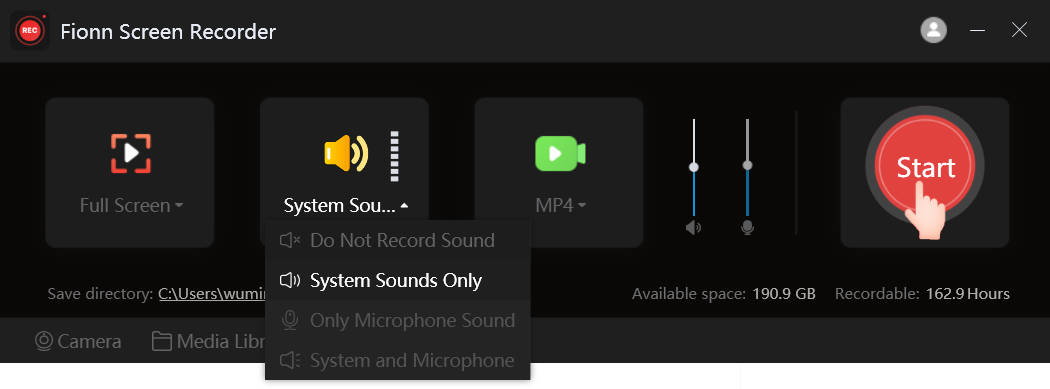
- Choose whether to record system audio, microphone audio, both, or no sound.
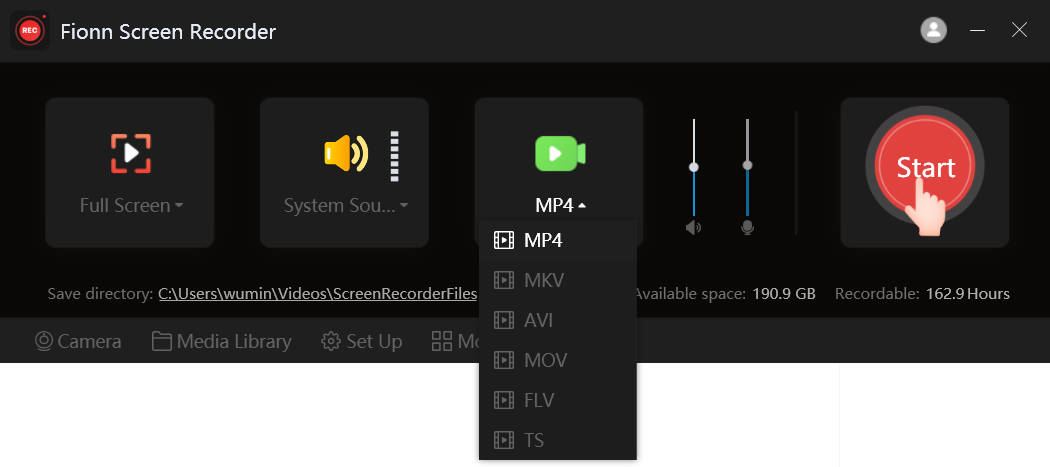
- Select MP4 or another video format before you start recording.
- Click Start to begin recording, then use Pause or Stop when you are finished.
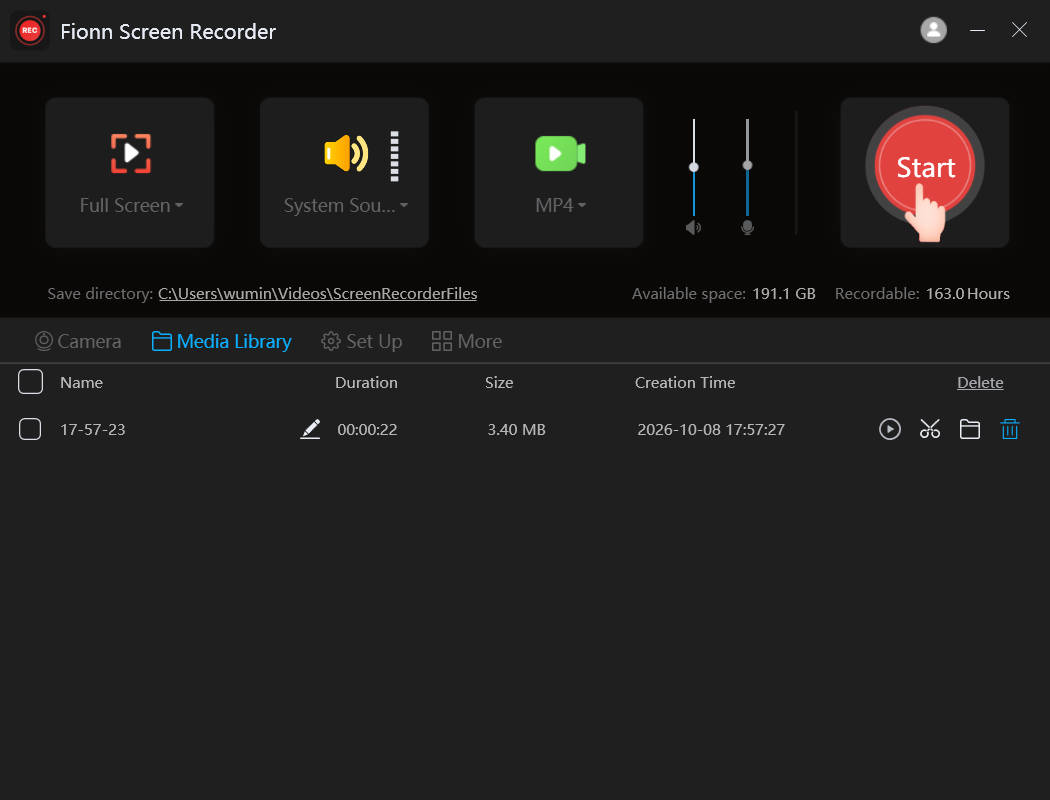
- Open Media Library to play, edit, locate, or delete your recorded videos.
Verification: Confirm the first recording contains only the intended display or area. Then repeat the same workflow for the other display and confirm the second result is a separate file. These are sequential passes, not evidence of simultaneous capture.
Method 3: Record One Monitor at a Time
When to use: Choose this method with any recorder when you only need two independent deliverables and the content can be captured at different times.
- Identify the first display.
- Choose its capture area.
- Record and save the first video.
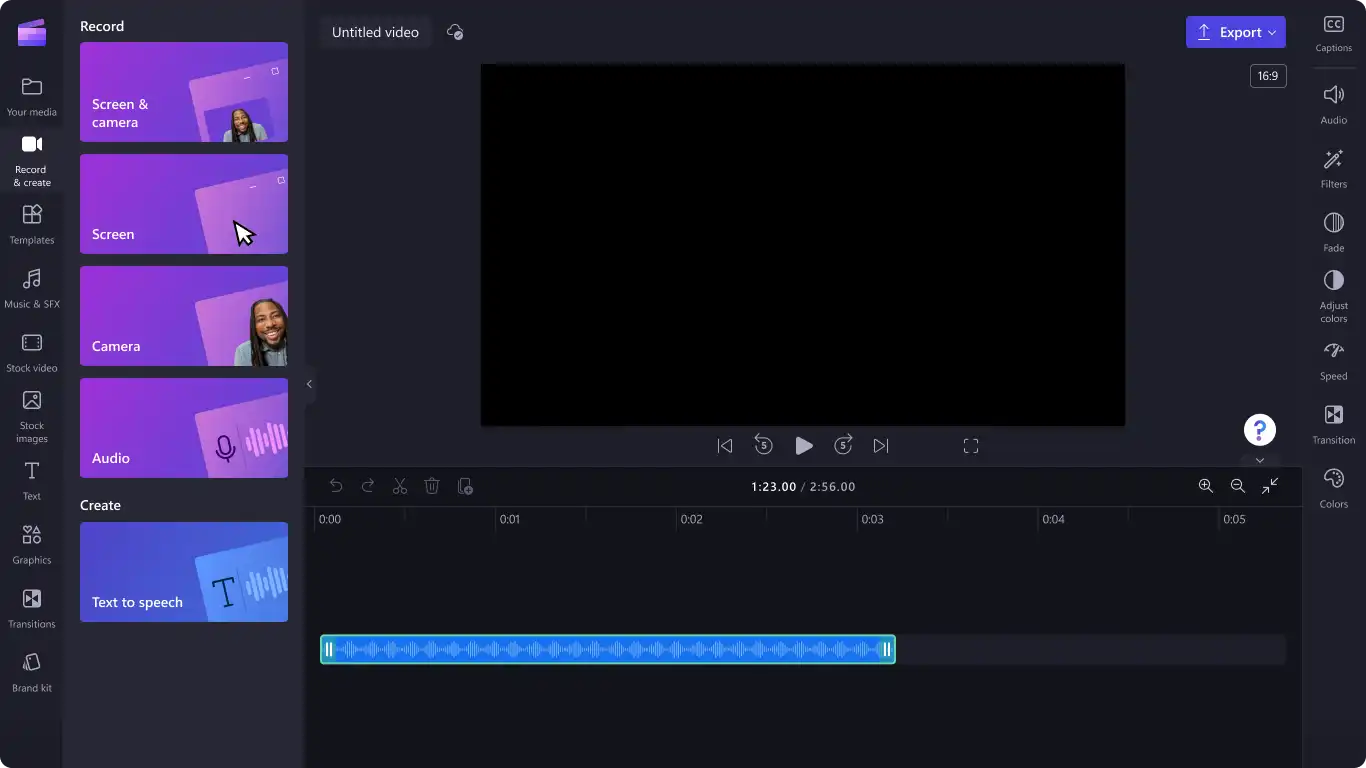
- Switch to the second display.
- Record and save a second video.
- Open both files and verify their contents.
Expected result: You have two separate files, but they capture different time periods. A visible cue recorded in separate passes cannot recreate events that occurred simultaneously.
How to Verify Two Separate Monitor Recordings
- Two distinct video files exist, with clear names such as
monitor-1.mp4andmonitor-2.mp4. - The Monitor 1 video contains only the intended content.
- The Monitor 2 video contains only the intended content.
- Resolution and aspect ratio are appropriate for each display.
- Audio is present where intended.
- For simultaneous recording, the timelines actually overlap.
Check the first few seconds, a point in the middle, and the end of each file. This catches wrong-monitor selections, empty audio, and a capture that includes both displays.
Conclusion
To record dual monitors separately, first decide whether you need two simultaneous files or simply two independent files. Use a documented multi-output setup when the recordings must overlap in time; verify both paths with a short test. For different time periods, record each monitor in its own pass and inspect both results. Fionn Screen Recorder can support the sequential approach through its screen, window, and region capture choices. Before sharing, confirm the monitor content, audio, and file boundaries. If simultaneous timing is required, choose software explicitly documented for independent concurrent outputs.
Frequently Asked Questions
Can I record two monitors simultaneously into separate files?
Yes, but only with software or a configuration capable of creating multiple independent capture outputs. Each monitor needs its own source and saved output, and both must be active during the event.
How do I identify Monitor 1 and Monitor 2?
Open
Settings > System > Display
and select
Identify
. Numbers appear on the physical displays so you can map Windows labels to your actual screens.
Can Fionn Screen Recorder record two monitors at once?
The provided product information verifies full-screen, window, and custom-region recording, but does not verify simultaneous independent recording of two monitors into separate files. Use it for separate sequential passes unless that capability is confirmed elsewhere.
Is recording one monitor after another the same as simultaneous recording?
No. It creates two separate files, but each file captures a different time period. It cannot preserve activity that happened on both monitors at the same time.
Can I split one wide recording into two videos?
Yes. You can crop or split a combined wide recording in post-production. The resulting files are derived from one original combined recording, rather than independently captured monitor feeds.
How do I prevent recording the wrong monitor?
Use Windows Identify first, confirm the display mode and capture boundary, and make a short test recording before the main session.


