 Emily CarterScreen Recording
To record a Zoom meeting, use Zoom’s built-in local or cloud recording when you are the host or have recording permission. If you need to capture the meeting window and choose the audio sources yourself, a screen recorder is another route. This guide covers four methods: start with Zoom local recording, use cloud recording when your account provides it, use the recommended Fionn Screen Recorder for flexible Windows capture, or use Snipping Tool for a simple screen recording. Whichever option you use, notify participants as required and follow applicable meeting policies.
Choose the Right Way to Record a Zoom Meeting
| Method | Best For | Permission or Availability | Output Location | Audio Control | User Effort |
|---|---|---|---|---|---|
| Zoom local recording | Hosts or permitted participants who want a file on the computer | Requires Zoom recording permission | Computer running the Zoom desktop client | Managed through Zoom recording settings | Low |
| Zoom cloud recording | Eligible Zoom accounts that need online processing and access | Depends on account and meeting permissions | Zoom account after processing | Managed through Zoom recording settings | Low |
| Fionn Screen Recorder | Capturing a meeting window, region, or full screen with chosen audio | Available on Windows; plan limits apply | Saved recording in Media Library | Choose system audio, microphone audio, both, or no sound | Moderate |
| Snipping Tool | A quick Windows screen capture when Zoom recording is unavailable | Depends on the installed app version and settings | Saved video file | Check the saved file because audio behavior can vary | Low |
Before You Record: Permission, Privacy, and a Short Audio Test
- Tell participants that the meeting is being recorded and follow your organization’s rules and local privacy requirements.
- Close private chats, notifications, and unrelated browser tabs before sharing or capturing the screen.
- Choose a window or region when possible to avoid capturing confidential content outside the meeting.
- Check storage space before a long local or screen recording.
- Make a short test recording before an important meeting, especially when you need system audio or microphone audio.
Method 1: How to Record a Zoom Meeting to Your Computer
When to use: You are the host, co-host, or a participant whom the host has allowed to record, and you want the recording stored locally.
- Join the meeting in the Zoom desktop client.
- Select Record in the meeting controls.
- Choose Record on this Computer when Zoom presents the recording location choices.
- Use Pause or Stop Recording from the meeting controls when needed.
- End the meeting or stop the recording and wait for Zoom to convert the recording files.
Verify: Zoom opens or identifies the local recording location after conversion. Play the video and confirm that the meeting audio and picture are present.
See Zoom’s official local recording instructions for account and permission details.
Method 2: Record a Zoom Meeting to the Cloud
When to use: Your Zoom account has cloud recording available and you want Zoom to process the recording online rather than save it only on the meeting computer.
- Start or join the meeting with the account that is allowed to create cloud recordings.
- Select Record in the Zoom meeting controls.
- Choose Record to the Cloud .
- Select Stop Recording when the meeting segment is complete.
- Wait for Zoom to process the recording, then open the recording from your Zoom account.
Verify: After processing completes, the recording appears in the account’s recording area and can be played before you share it.
Check Zoom’s official cloud recording guide for current eligibility and processing information.
Method 3: Fix Zoom Meeting Recording with Fionn Screen Recorder
Recommended for: Recording a Zoom meeting on Windows when you need to choose a window, a region, or the whole display and select the sound you want in the capture. It is a practical option when Zoom’s built-in recording permission is unavailable, but it does not remove the need to follow consent, workplace, or legal requirements.
- Open Fionn Screen Recorder and choose the area you want to capture: Full Screen, Window, or Region.

- Choose whether to record system audio, microphone audio, both, or no sound.

- Select MP4 or another video format before you start recording.

- Click Start to begin recording, then use Pause or Stop when you are finished.

- Open Media Library to play, edit, locate, or delete your recorded videos.

Verify: Play the saved file from Media Library and check the Zoom speaker audio, microphone track if selected, and captured meeting area before sharing it.
Method 4: Screen Record Zoom with Snipping Tool
When to use: You need a basic Windows screen recording and do not have access to Zoom recording controls. This method is best for a short visual capture; check the saved file afterward because audio behavior can depend on the installed Snipping Tool version and settings.
- Open Snipping Tool from the Start menu.
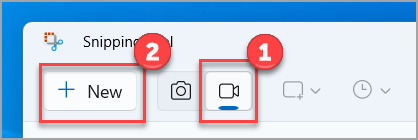
- Select the Record mode.
- Select New and drag to select the Zoom meeting area.
- Select Start after the countdown begins.
- Select Stop , then save the recorded video.
Verify: Open the saved video and confirm that it shows the intended meeting area. If you need configurable audio capture, use Zoom recording or the Fionn method instead.
After Recording: Locate, Review, and Share Safely
- Wait for Zoom to finish local conversion or cloud processing when applicable.
- Locate the saved recording in Zoom, your Zoom account, Media Library, or the save location you selected.
- Play the recording from beginning to end or review the important sections.
- Confirm that the intended meeting area, speaker audio, and selected microphone audio are present.
- Share the file only after you have verified the result and confirmed that sharing follows the meeting’s privacy requirements.
Conclusion
Use Zoom local recording first when you have the needed host or participant permission and want a computer-based file. Choose cloud recording when your account makes that option available. For configurable Windows capture with selectable recording areas and sound choices, Fionn Screen Recorder is a practical alternative when your plan supports the intended recording length; Snipping Tool suits a simpler visual capture. Whichever route you choose, review the saved file before sharing it and confirm the correct speakers, shared content, and audio were captured.
FAQ
Can a participant record a Zoom meeting?
Yes, if the host grants that participant recording permission. Otherwise, the participant may not see the Zoom Record control.
What is the difference between Zoom local recording and cloud recording?
Local recording saves and converts files on the computer running the Zoom desktop client. Cloud recording is processed and accessed through the eligible Zoom account.
Can I record a Zoom meeting without host permission?
Zoom’s built-in recording controls require the relevant meeting permission. A separate screen recorder can capture what is displayed on your Windows device, but you should notify participants and comply with applicable policies and laws.
Why is my Zoom recording missing audio?
Review the selected recording source before the meeting, then make a short test recording. For a screen recorder, confirm whether system audio, microphone audio, both, or no sound is selected.
Where are Zoom local recordings saved?
Zoom provides the recording location after it converts the files. You can also review the local recording location in the Zoom desktop client’s settings.


