 Emily CarterWindows Errors
For Windows 10 and Windows 11, Microsoft’s standard repair sequence is DISM first, then SFC.
DISM /Online /Cleanup-Image /RestoreHealth
repairs the Windows component store that SFC can use as a repair source;
sfc /scannow
then checks and repairs protected Windows system files. For a quick integrity check, you can run SFC on its own. This guide covers the recommended two-command sequence, how to interpret the results, and a separate workflow for app- or game-specific DLL symptoms.
SFC vs DISM: Quick Method Comparison
| Tool | Checks | Repairs | Typical command | Place in the standard sequence |
|---|---|---|---|---|
| SFC | Protected Windows system files | Missing or corrupted protected files | sfc /scannow
| After DISM; also useful as a quick check |
| DISM | Windows component store and image | Component-store corruption | DISM /Online /Cleanup-Image /RestoreHealth
| First |
| Fionn DLL Fixer | Reported DLL and dependency-related system issues | Detected DLL and system issues through its repair workflow | In-app scan and repair | For application, game, or DLL-specific symptoms |
DISM can use Windows Update as its default repair source. When that is unavailable or unsuitable, DISM also supports a known-good source through its
/Source
option. SFC has no equivalent direct
/Source
parameter.
Method 1: Recommended Repair Sequence
When to use: Use this sequence when Windows features fail across the system, corruption is suspected after an update or unexpected shutdown, or you want the standard repair order. If one application or game alone reports a missing DLL, first consider its supported reinstall or dependency repair path; SFC and DISM do not fix every application-specific dependency problem.
Step 1: Run DISM RestoreHealth
DISM checks the component store and attempts to repair corruption that could prevent SFC from obtaining healthy files. A standalone SFC scan remains useful as a quick check, as shown below, but it does not replace the standard DISM-first repair sequence.
- Open an elevated Command Prompt or Windows Terminal.
- Run
DISM /Online /Cleanup-Image /RestoreHealth.
- Keep an internet connection available while DISM uses its default repair source, unless you have an approved local repair source.
- Wait for the command to finish and read its final status.
Verification:
“The restore operation completed successfully” means DISM completed its repair operation. If DISM reports
0x800f081f
or that source files could not be found, use an approved matching repair source with DISM’s
/Source
option or contact your IT administrator.
Step 2: Run SFC
When to use: Run SFC after DISM succeeds to check protected system files against the repaired component store.
- In the same elevated command window, run
sfc /scannow.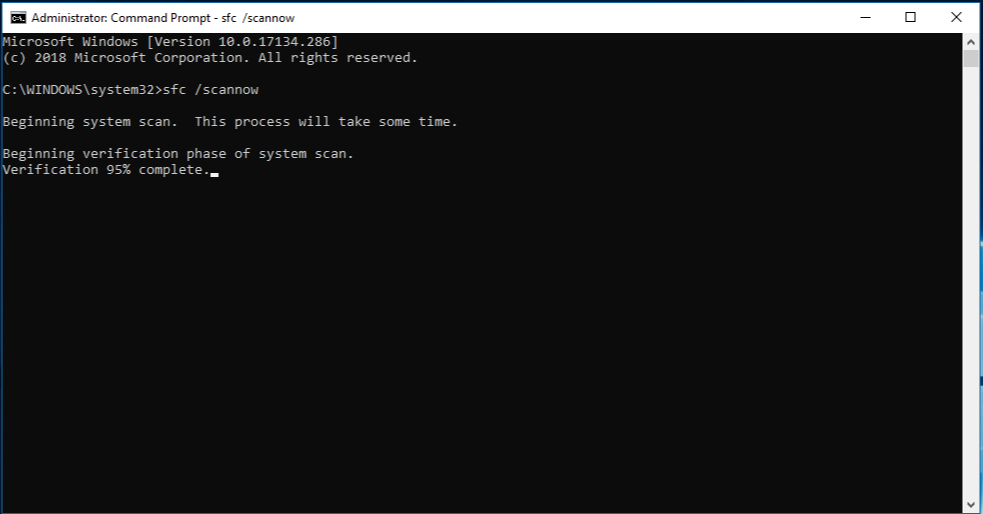
- Wait until verification reaches 100%.
- Read the final Windows Resource Protection message.
Step 3: Read the SFC Result
When to use: Use the final SFC message to decide whether the Windows repair sequence is complete or further troubleshooting is needed.
| SFC result | What it means | Next action |
|---|---|---|
| Windows Resource Protection did not find any integrity violations | No protected-file integrity violation was found. | Retest the original Windows feature or app. |
| Windows Resource Protection found corrupt files and successfully repaired them | SFC repaired protected files. | Restart Windows, then retest the original symptom. |
| Windows Resource Protection found corrupt files but was unable to fix some of them | Some protected files remain unresolved. | Confirm DISM completed successfully, then consult the SFC details or seek IT support. |
| Windows Resource Protection could not perform the requested operation | The scan could not complete in the current environment. | Try the scan in Safe Mode or follow Microsoft’s further troubleshooting guidance. |
Verification: The repair sequence is most convincing when SFC returns a clean or successfully repaired result and the original problem no longer occurs.
Method 2: Diagnose and Fix DLL Issues with Fionn DLL Fixer
When to use: Use this separate Windows workflow when an application or game reports DLL or dependency-loading issues. Fionn DLL Fixer scans DLL and system issues and offers repair and recheck actions. It complements, rather than replaces, the DISM-then-SFC sequence for protected Windows system files.
- Launch Fionn DLL Fixer. The software automatically scans your PC for DLL and system issues and displays the detected results when the scan is complete.

- After the scan finishes, click “Repair” to start fixing all detected DLL and system issues automatically.

- Wait while the repair is in progress. During this process, the button changes to “Fixing” until all issues have been repaired.

- When the repair is complete, click “Ok” in the confirmation dialog. If prompted, restart your computer before checking whether the problem has been resolved.

- If the issue still persists after restarting, click “Recheck” to perform another scan. If new issues are found, click “Repair” again to fix them.

Verification: After the repair and any requested restart, recheck the issue and relaunch the affected application or game.
Conclusion
For SFC vs DISM on Windows 10 or Windows 11, use DISM first and SFC second for the standard repair sequence. DISM repairs the component store; SFC then checks protected system files. Confirm success by reading the final command message and retesting the feature that failed. A standalone SFC scan remains useful as a quick integrity check, but it is not a reason to skip DISM when a full repair is needed. For application or game DLL symptoms, Fionn DLL Fixer provides a separate scan, repair, and recheck workflow. If the issue persists, use the affected publisher’s supported repair route or contact IT support.
Frequently Asked Questions
Should I run SFC or DISM first?
For the standard Windows repair sequence, run DISM RestoreHealth first, then run SFC. SFC alone is still useful as a quick check for protected-file integrity issues.
What is the difference between SFC and DISM?
SFC checks and repairs protected Windows system files. DISM repairs the Windows component store that SFC can use as a repair source.
Does DISM replace SFC?
No. The tools handle different layers of Windows servicing. Run SFC after DISM to check and repair protected system files.
What does DISM error 0x800f081f mean?
It commonly indicates that DISM could not locate source files for the repair. Use an approved matching repair source with
/Source
, or ask your IT administrator for the correct source.
Can SFC or DISM fix every missing DLL error?
No. They address Windows servicing and protected system-file issues. A DLL error can also be specific to an app, game, or runtime dependency and may need the publisher’s supported repair or reinstall path.


