 Emily CarterVoice Changer
To change your voice on PC in real time, install Fionn VoxMagic , select a microphone and voice effect, then enable voice changing. Check the result in headphones with voice preview.
To use your changed voice in Discord, a game, or another app, select the VoxMagic virtual microphone in that app’s input-device settings. Below is the basic setup and a way to verify the connection to an external app.
What You Need
- A computer running Windows 10 or Windows 11.
- A working microphone.
- Headphones to check the effect.
- Fionn VoxMagic.
Download Fionn VoxMagic
Quick Method Selection
- Need to hear the effect on your computer: first complete the six steps in VoxMagic.
- You can hear the effect in VoxMagic but not in a game or chat app: select the virtual microphone in the target app’s input settings.
These actions work together: voice preview checks processing inside the software, while the virtual-microphone setting sends processed audio to another app.
Change Your Voice in Fionn VoxMagic
When to use it: when you need to change your voice through a microphone in Windows and check the effect before a call, game, or recording. This is the recommended basic approach: the software lets you choose devices, an effect, voice preview, pitch, and noise suppression in one workflow.
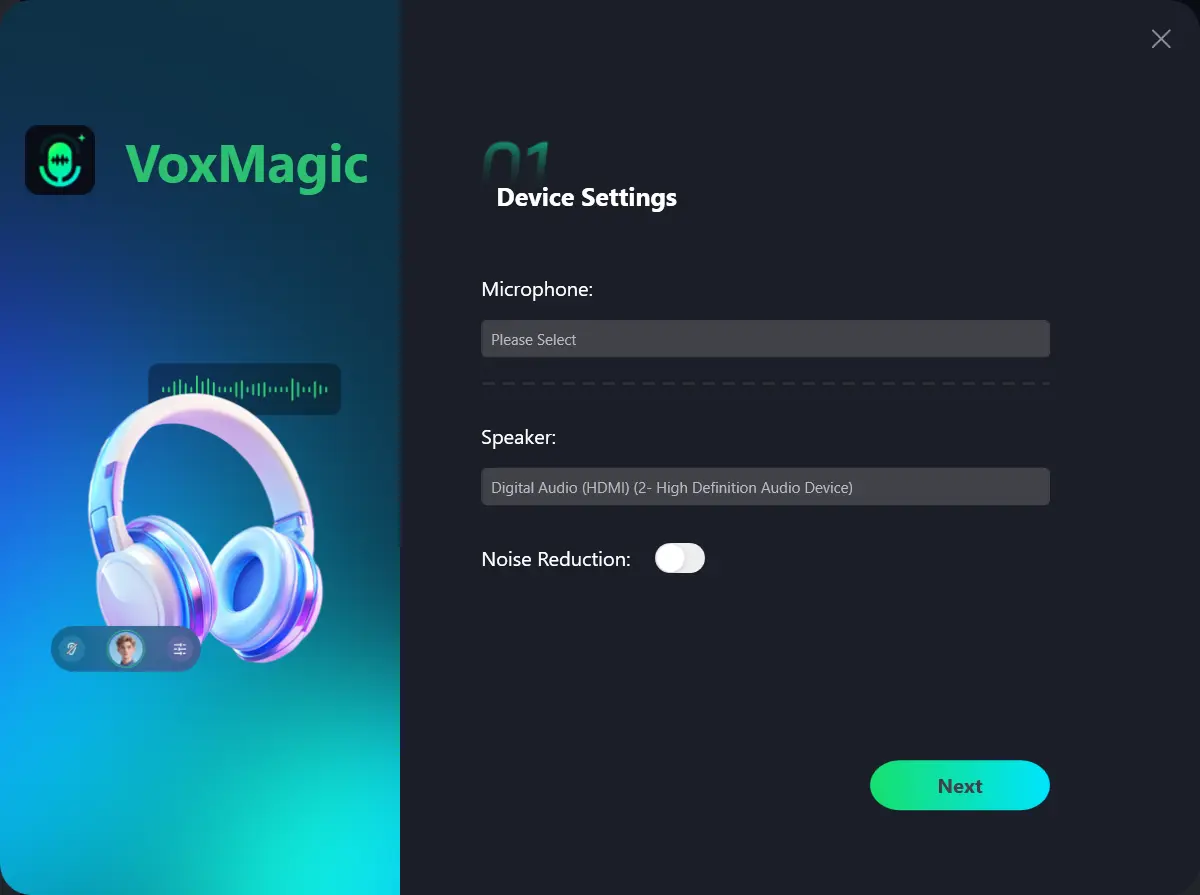
- Select your microphone and playback device. If needed, enable noise suppression, then click Next.
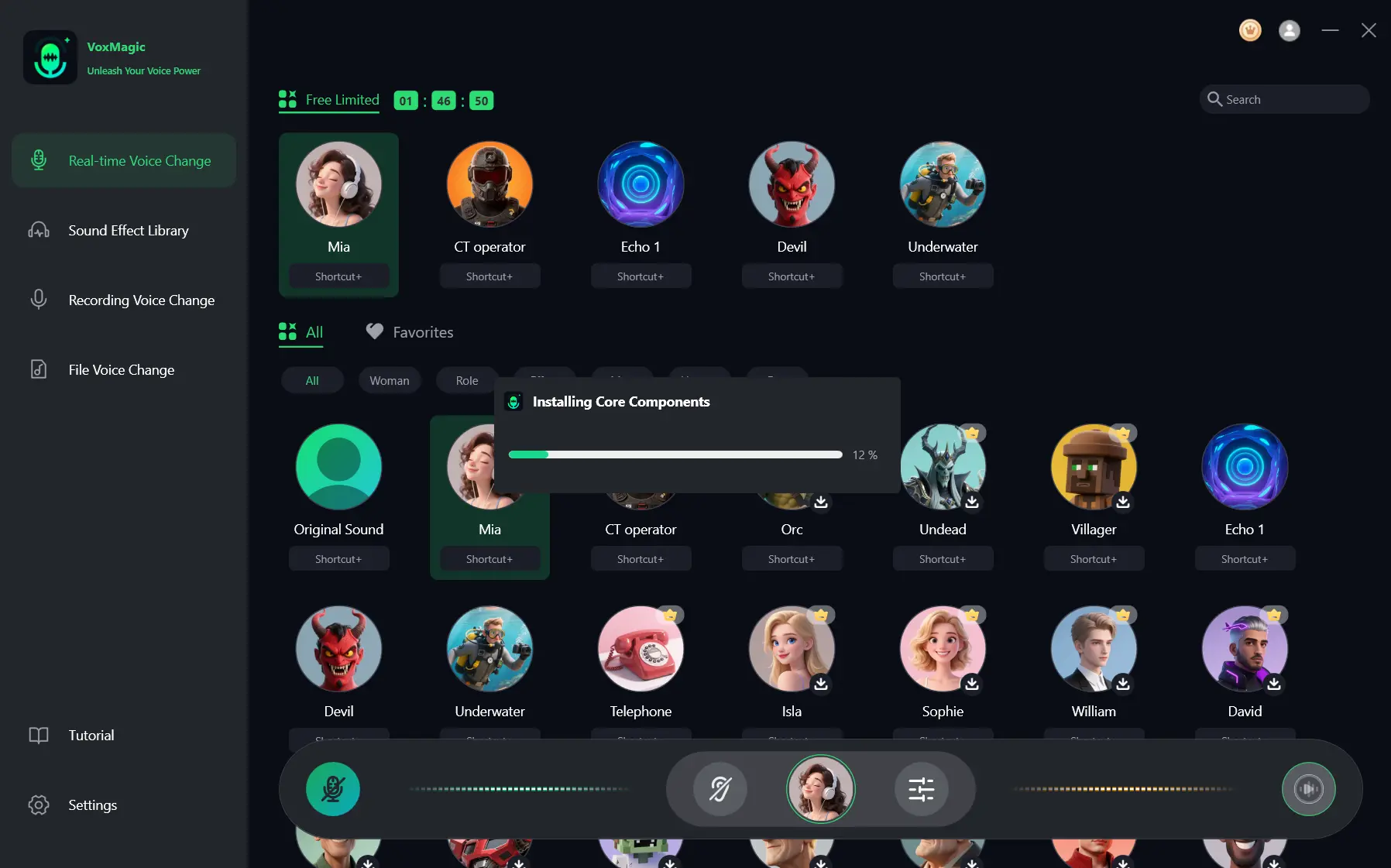
- If the core-components installation window appears, wait for the installation to finish before continuing.
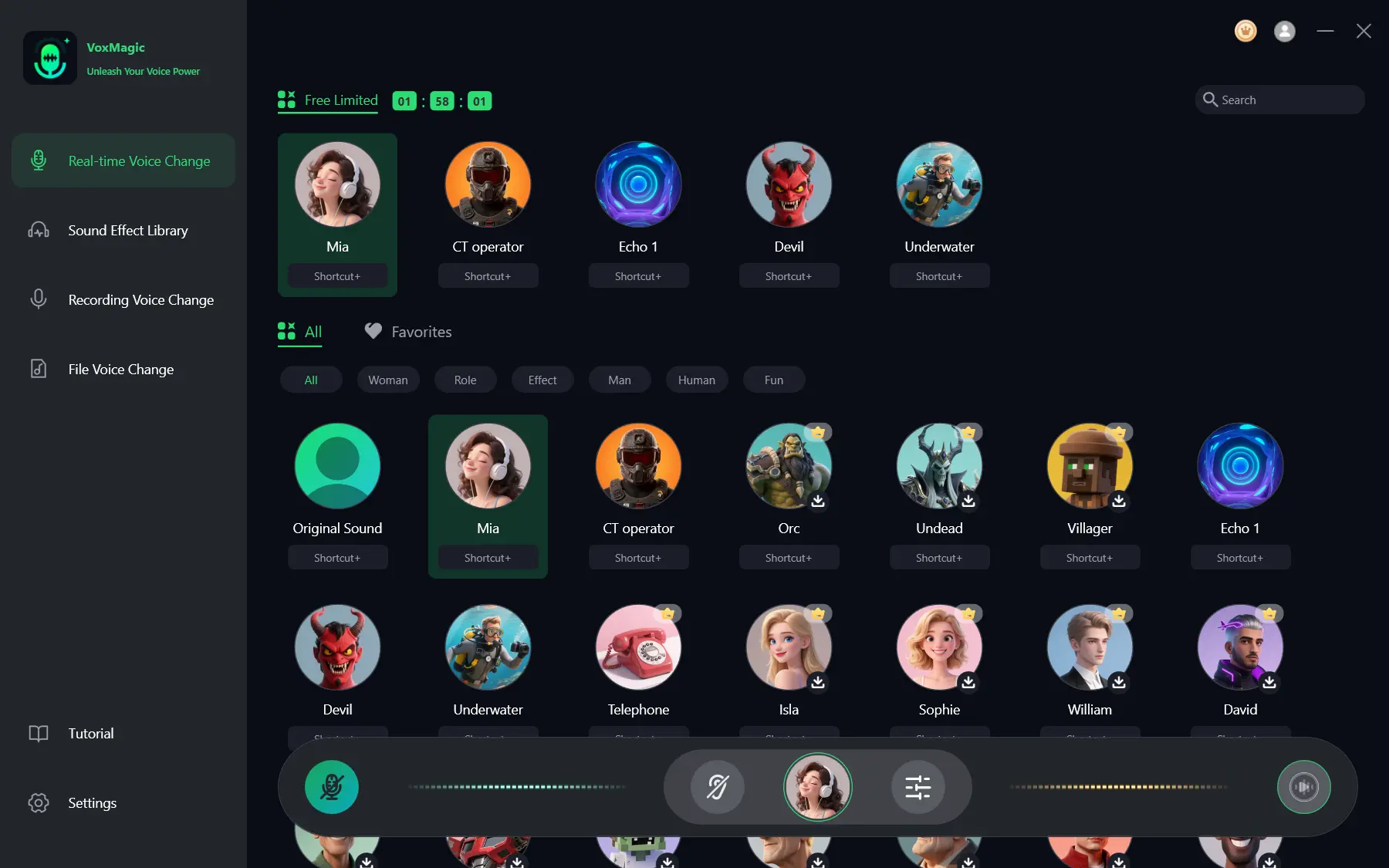
- In the real-time voice-changing section, select a voice effect. The selected effect appears in the bottom control bar.
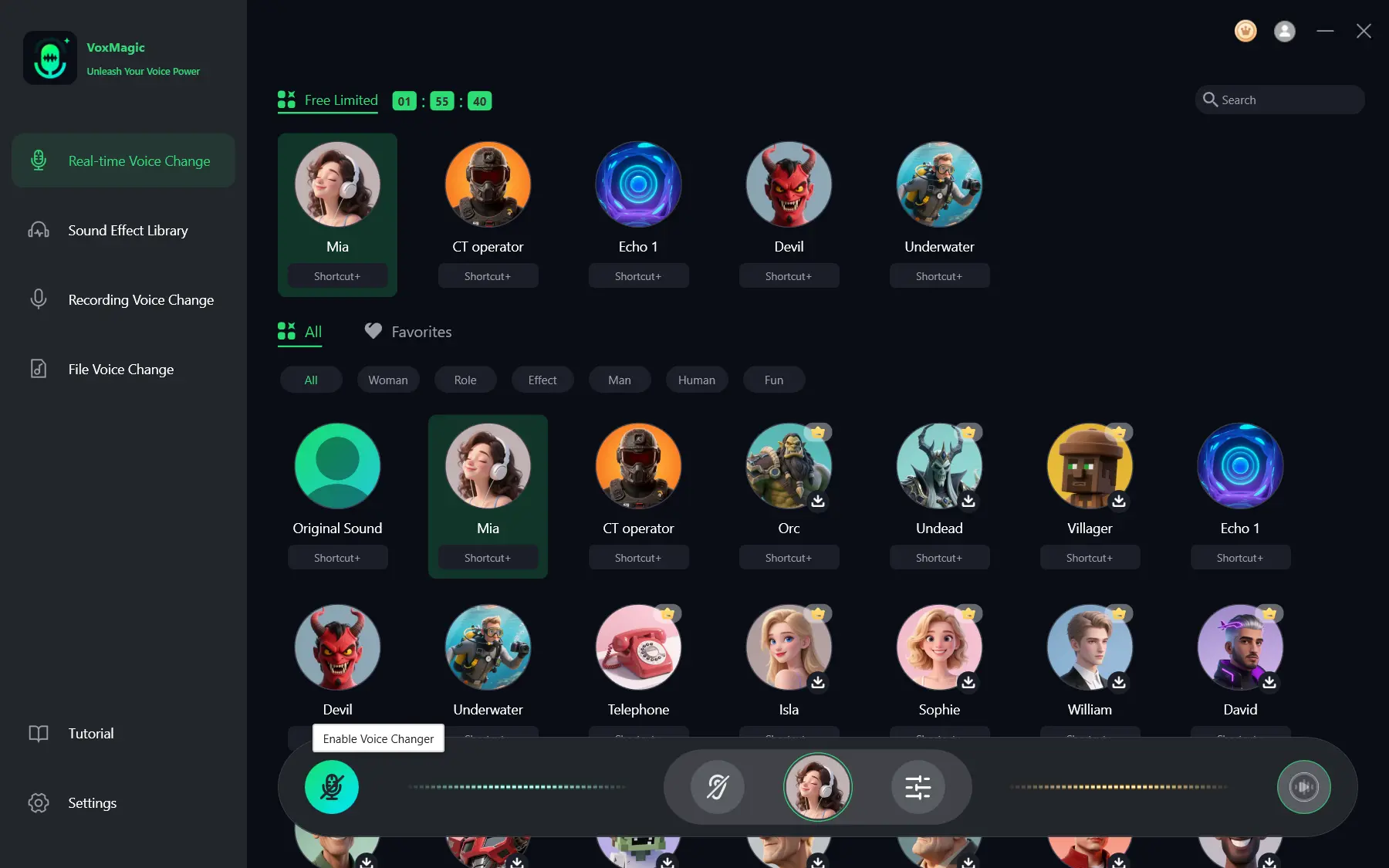
- Click the microphone button labeled Enable Voice Changer in the lower-left corner of the control bar.
- Click the ear icon in the bottom bar to enable voice preview. Use headphones for this check.
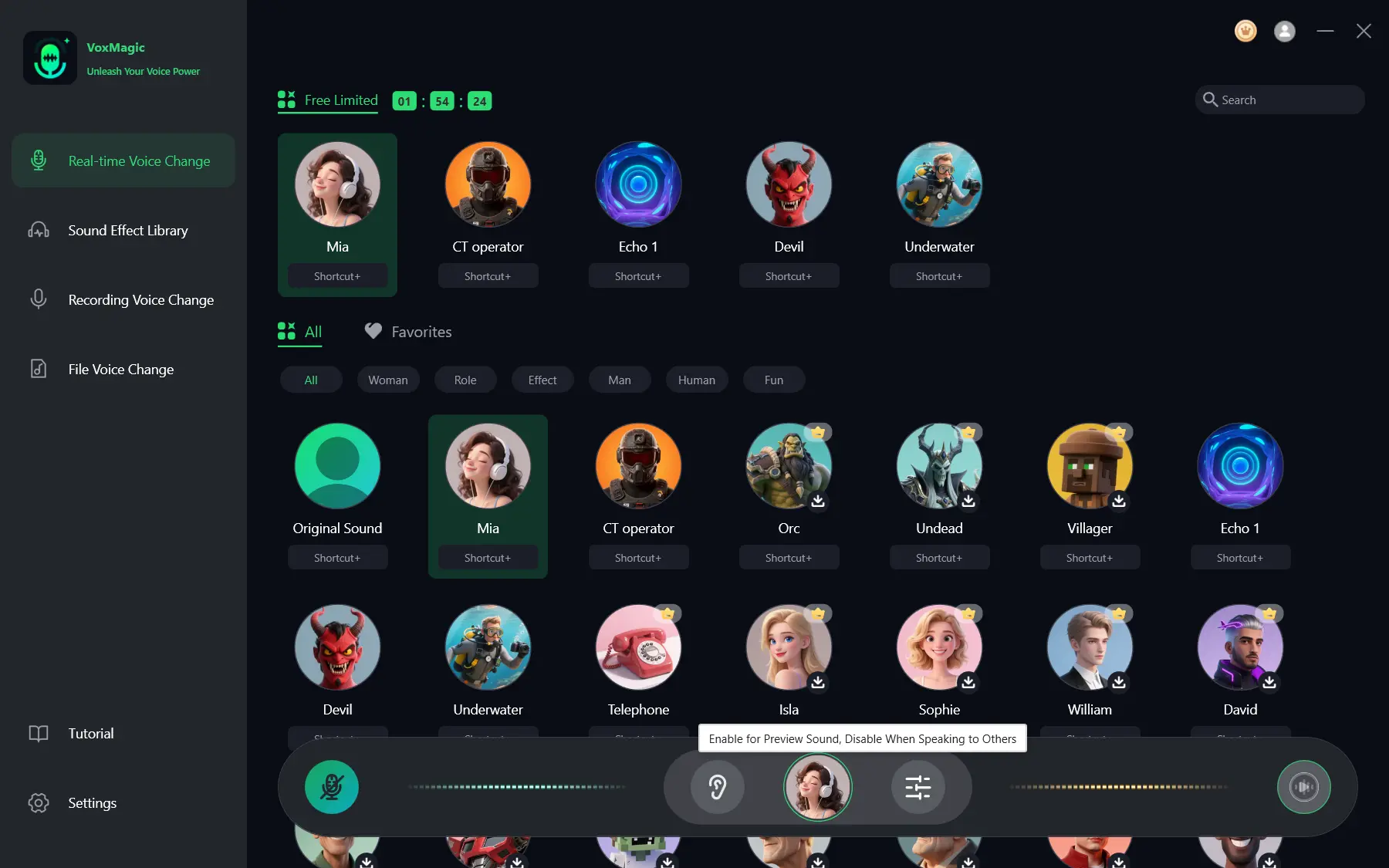
- Say a short phrase and check the effect. The audio-level indicators should respond to your speech.
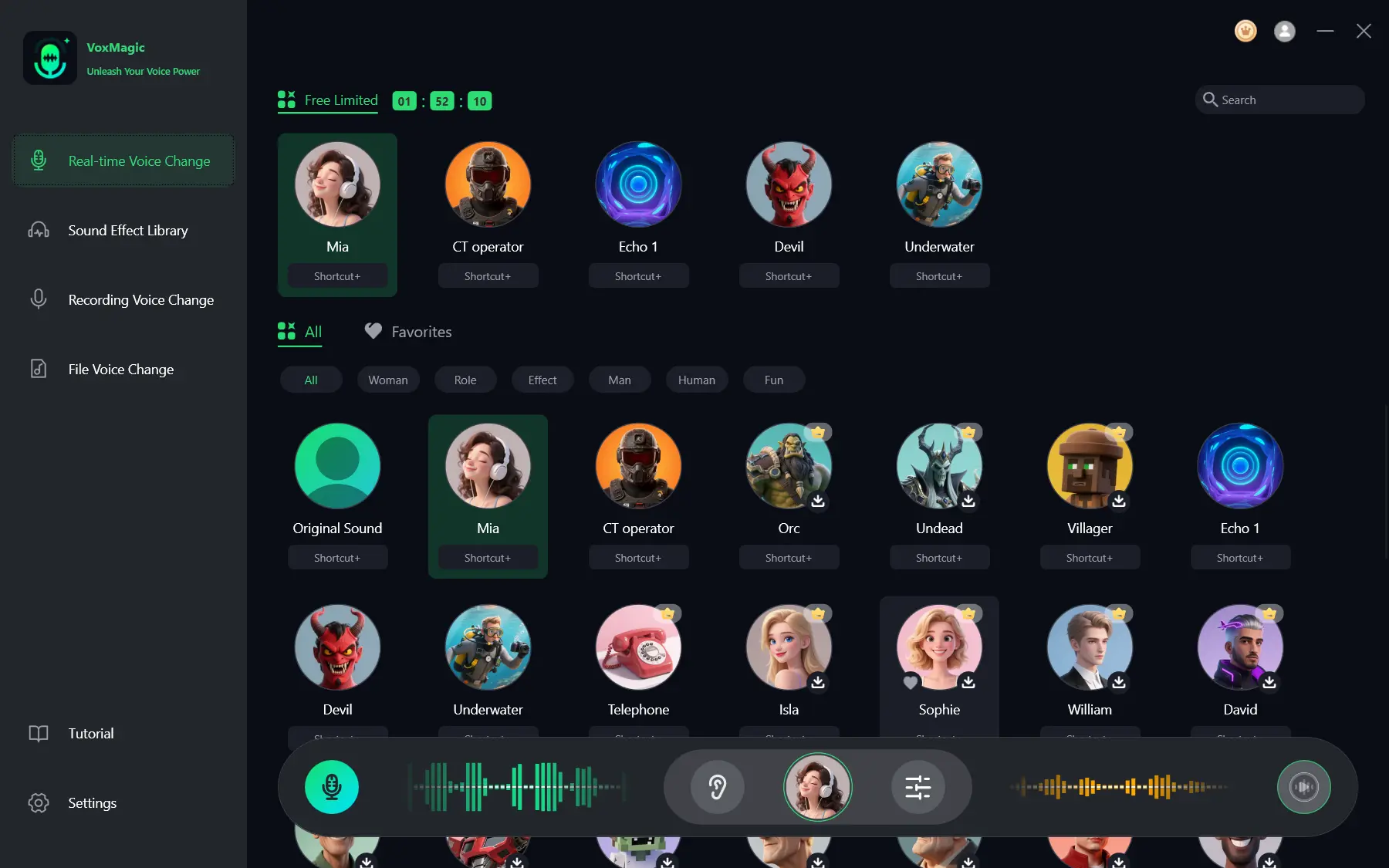
Check: you should hear the selected effect in your headphones and see the indicators respond to speech. Turn off voice preview after testing if you no longer need it.
How to Use Your Changed Voice in Other Apps
Hearing the effect inside VoxMagic does not necessarily mean that Discord or a game is already receiving processed audio. Your regular microphone is the source input for VoxMagic; the virtual microphone sends the processed voice to the target app.
- Keep voice changing enabled in VoxMagic.
- Open the target app’s audio settings.
- Select
Fionnshare Virtual Audio
as the input device.
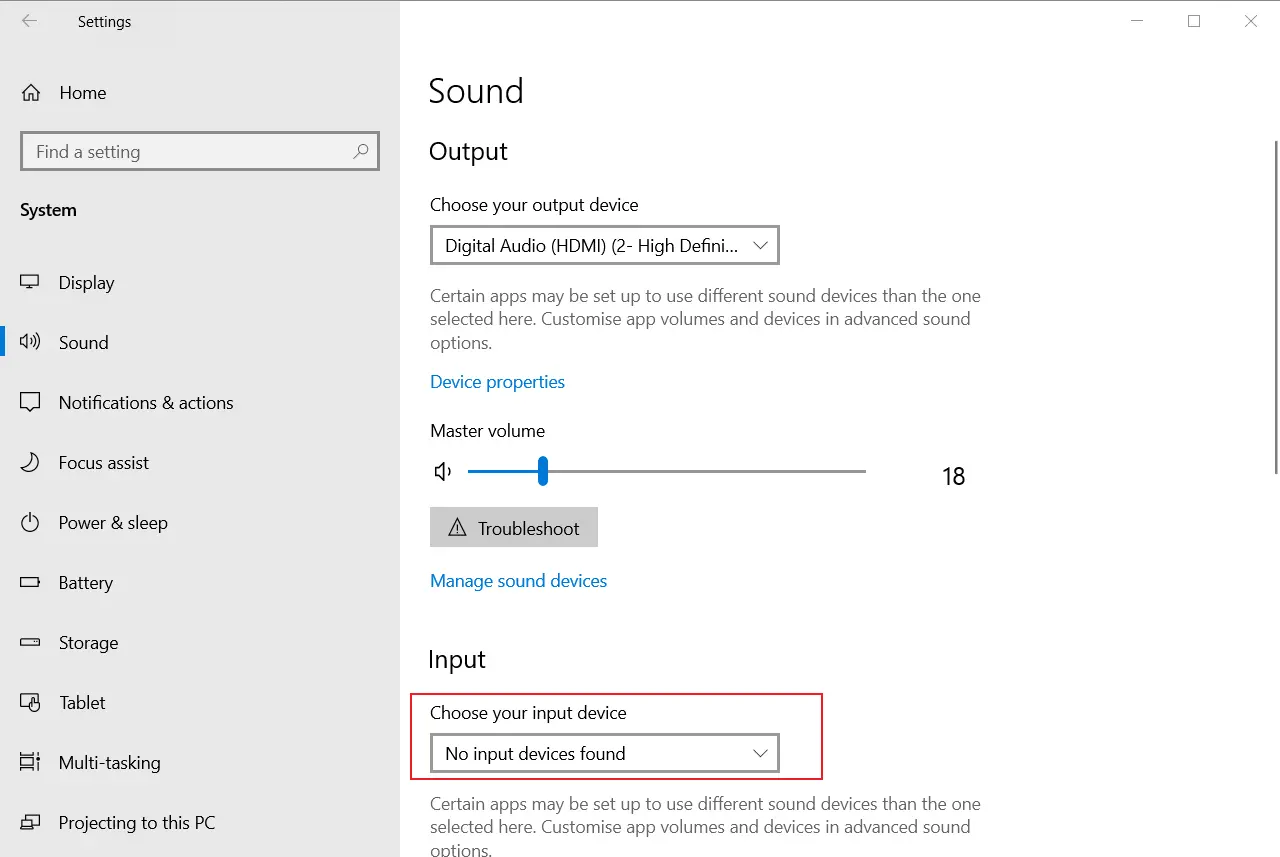
- Run the microphone test in the app itself.
- Confirm that the app receives the processed voice rather than the original microphone.
For Discord, Steam, Twitch, and specific games, use each app’s separate instructions because the input-setting location may differ.
What to Do If Your Voice Does Not Change
- Your microphone does not work: check the selected input device in VoxMagic.
- You cannot hear the effect: make sure an effect is selected, voice changing is enabled, and voice preview is active.
- Your voice changes in VoxMagic but not in Discord or a game: check that the target app is using Fionnshare Virtual Audio.
- Your voice sounds unnatural: change the effect or adjust pitch and noise-suppression level, then test again.
Conclusion
If you want to change your voice on a computer, begin by choosing your devices and effect, then check the result in headphones in VoxMagic. Next, set Fionnshare Virtual Audio as the input source in your game or chat software; this confirms that the processed voice is being sent outside the app. If the indicators do not respond, check the source microphone. If the effect works only inside the software, check the virtual microphone in the target app. For the basic setup, use Fionn VoxMagic .
Frequently Asked Questions
Can I change my voice in real time on PC?
Yes. In Fionn VoxMagic, choose a voice effect and enable voice changing, then check the result with voice preview.
Why do I need headphones?
Headphones let you hear the preview without speaker audio and assess the effect before a conversation.
Why does my voice change only in VoxMagic?
The external app may still be using the original microphone. In its input settings, select Fionnshare Virtual Audio and run a microphone test.
Which microphone should I select in a game or chat app?
To send processed voice, select Fionnshare Virtual Audio. Select the original microphone in VoxMagic settings.
Does noise suppression affect my voice?
Yes. High noise suppression can affect voice quality. Compare the result in voice preview and select an appropriate level.


