 Emily CarterVoice Changer
Real-time voice changer lag can come from two different places: the changed voice is already delayed or distorted in a local preview, or the preview is clear but the game or chat app is receiving the wrong microphone. Start by testing the local audio path with headphones, then check the target app’s input device. This order avoids changing app settings when the microphone or voice-processing setup needs attention first.
Fionn VoxMagic can help you separate these cases by letting you select devices, enable voice changing, and listen to a local preview before you route its virtual microphone to another application.
Symptoms of Real-Time Voice Changer Lag
- Your own preview sounds delayed after you speak.
- Listeners hear your normal voice, while the local effect appears enabled.
- The changed voice crackles, clips, or becomes unclear.
- The effect works in the voice changer but not in one game or voice-chat app.
- The problem started after changing microphones, headphones, or Windows audio settings.
A clear local preview with a poor result in only one app usually points to that app’s microphone routing. If the preview itself is delayed or noisy, work on the voice changer’s device and processing settings before changing the game or chat client.
Quick Diagnosis Checklist
- Is the local preview delayed or noisy? Use Method 1 to confirm the selected microphone and playback device, then listen through headphones.
- Is the preview clear but the target app hears no effect? Check that the app is using the correct virtual microphone. The Discord steps below cover one documented routing path.
- Does a Windows game show only Default or no microphone selector? Use Method 2, which sets the virtual microphone as the Windows input and then restarts the game.
- Do you hear crackling in Voicemod’s own monitoring? Follow Method 2’s input-level and Windows audio checks before blaming the game or call.
Quick Method Comparison
| Method | Best For | Efficiency | User Effort |
|---|---|---|---|
| Fionn VoxMagic setup and preview | Checking whether delay is present before audio reaches a target app | Direct local diagnosis | Low |
| Voicemod virtual-microphone routing | Windows games or platforms that use Default or offer no microphone selector | Requires Windows input routing | Moderate |
Method 1: Fix Real-Time Voice Changer Lag with Fionn VoxMagic
Recommended for a local setup check. This path is useful when you need to tell whether the delay is already present in the voice changer or appears only after routing audio to a game or call. It keeps microphone selection, playback, voice selection, and preview in one setup flow.
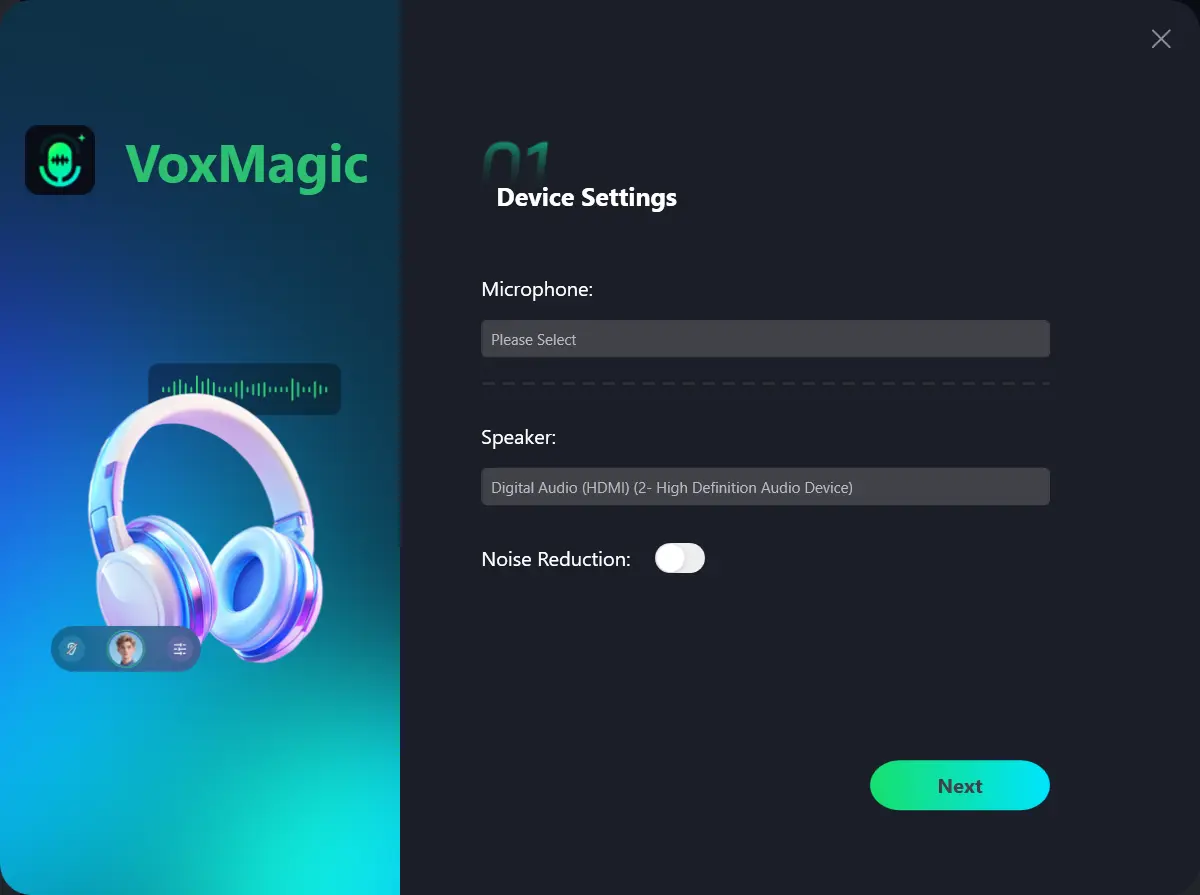
- Open Fionn VoxMagic. In Device Settings, select your microphone and playback device. Enable Noise Reduction if needed, then click Next.
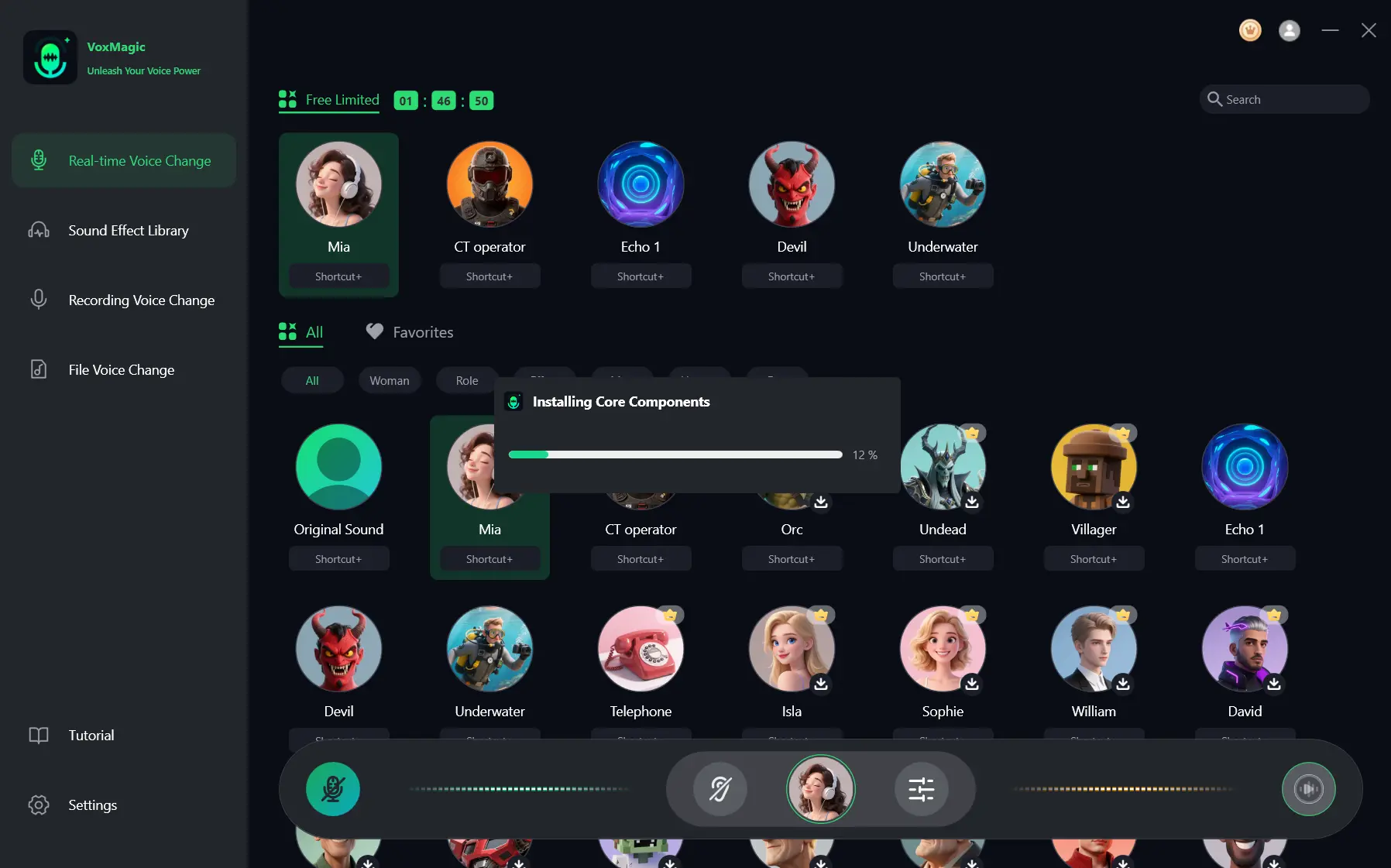
- If the Installing Core Components dialog appears, wait for the installation to finish before continuing.
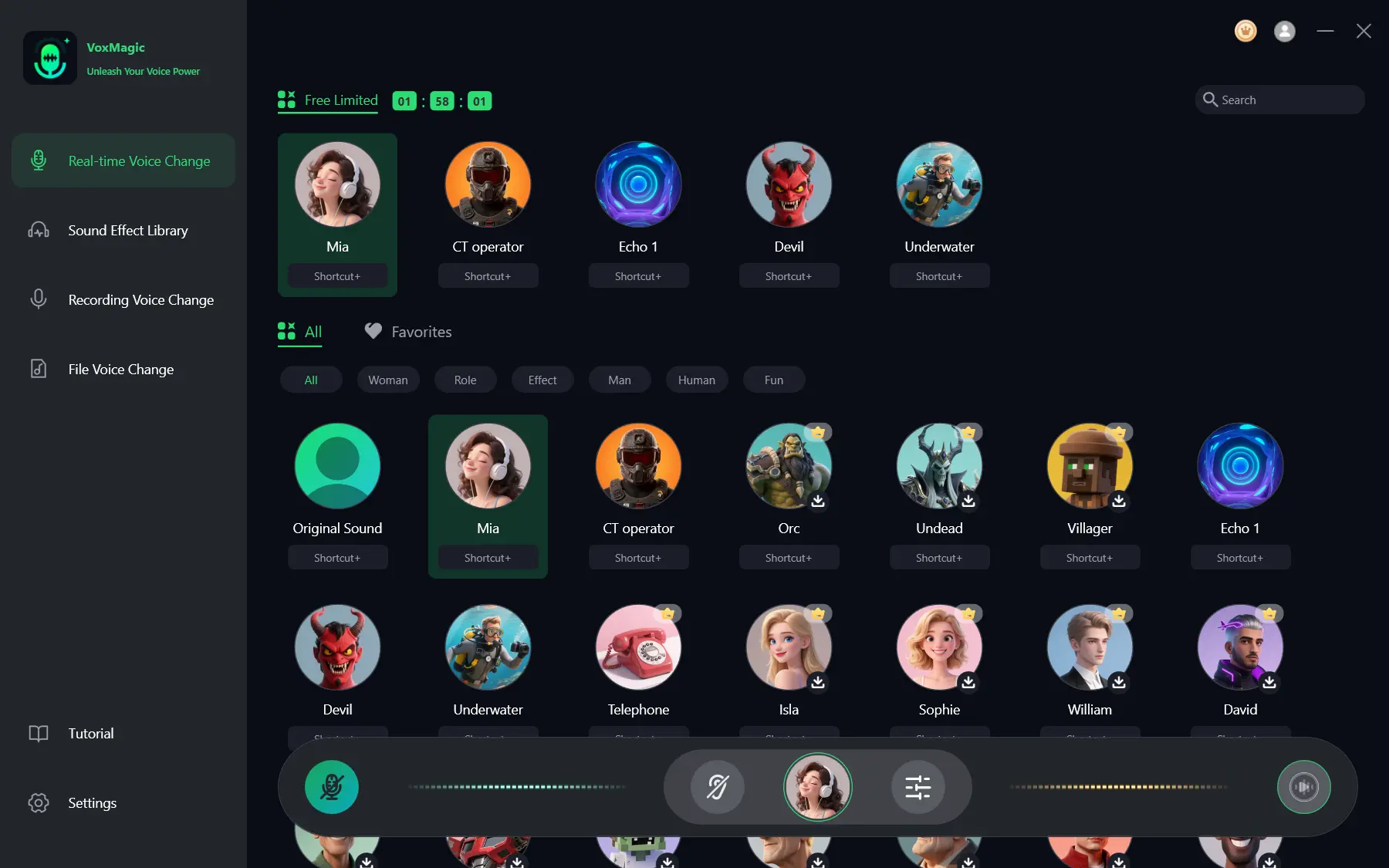
- Open Real-time Voice Change and select a voice effect, such as Mia. The selected effect is highlighted and appears in the bottom control bar.
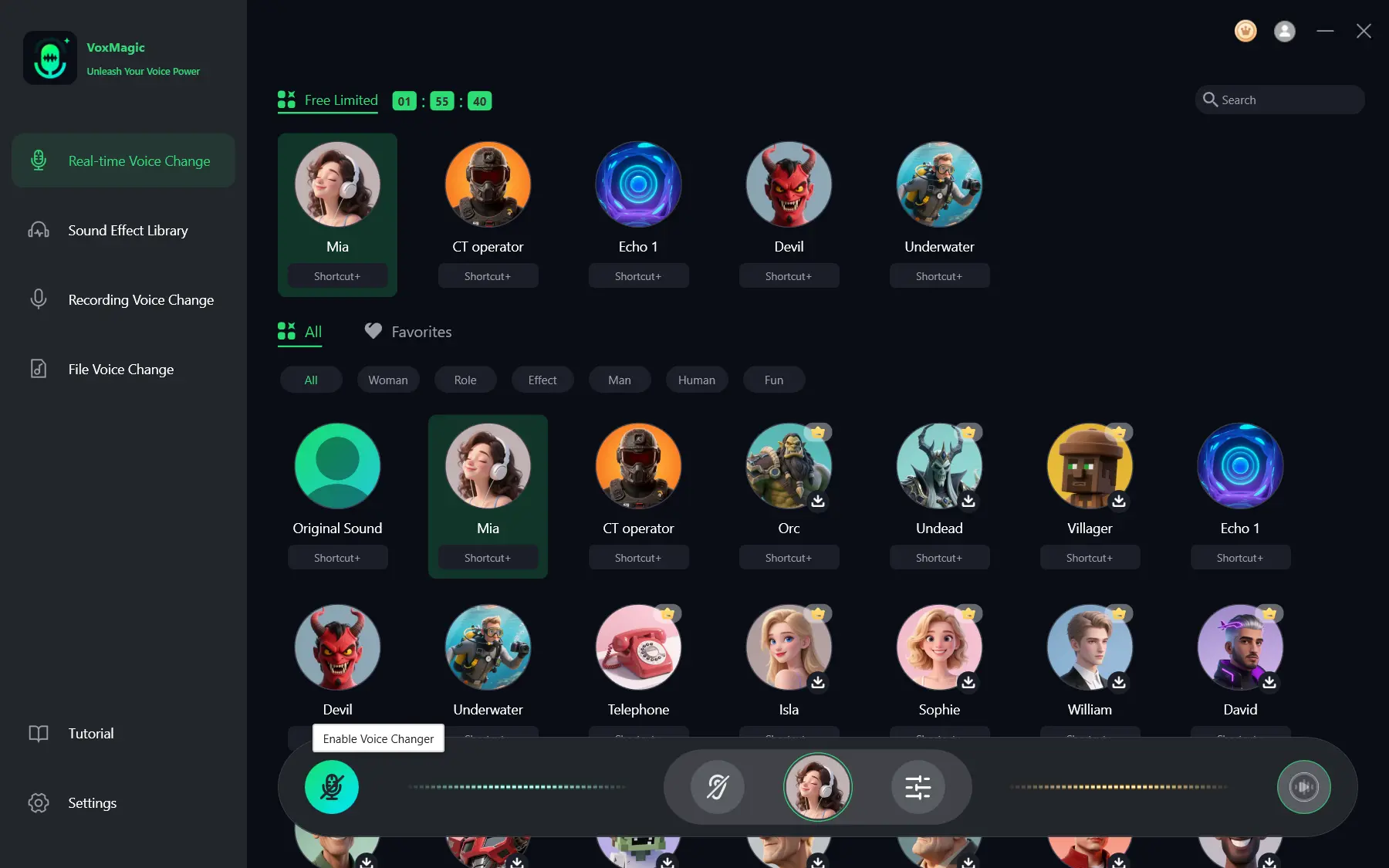
- Click the microphone button labeled Enable Voice Changer in the bottom-left corner of the control bar to turn on voice changing.
- Click the ear icon in the bottom control bar to enable voice preview. Use headphones to listen to your voice while testing the selected effect.
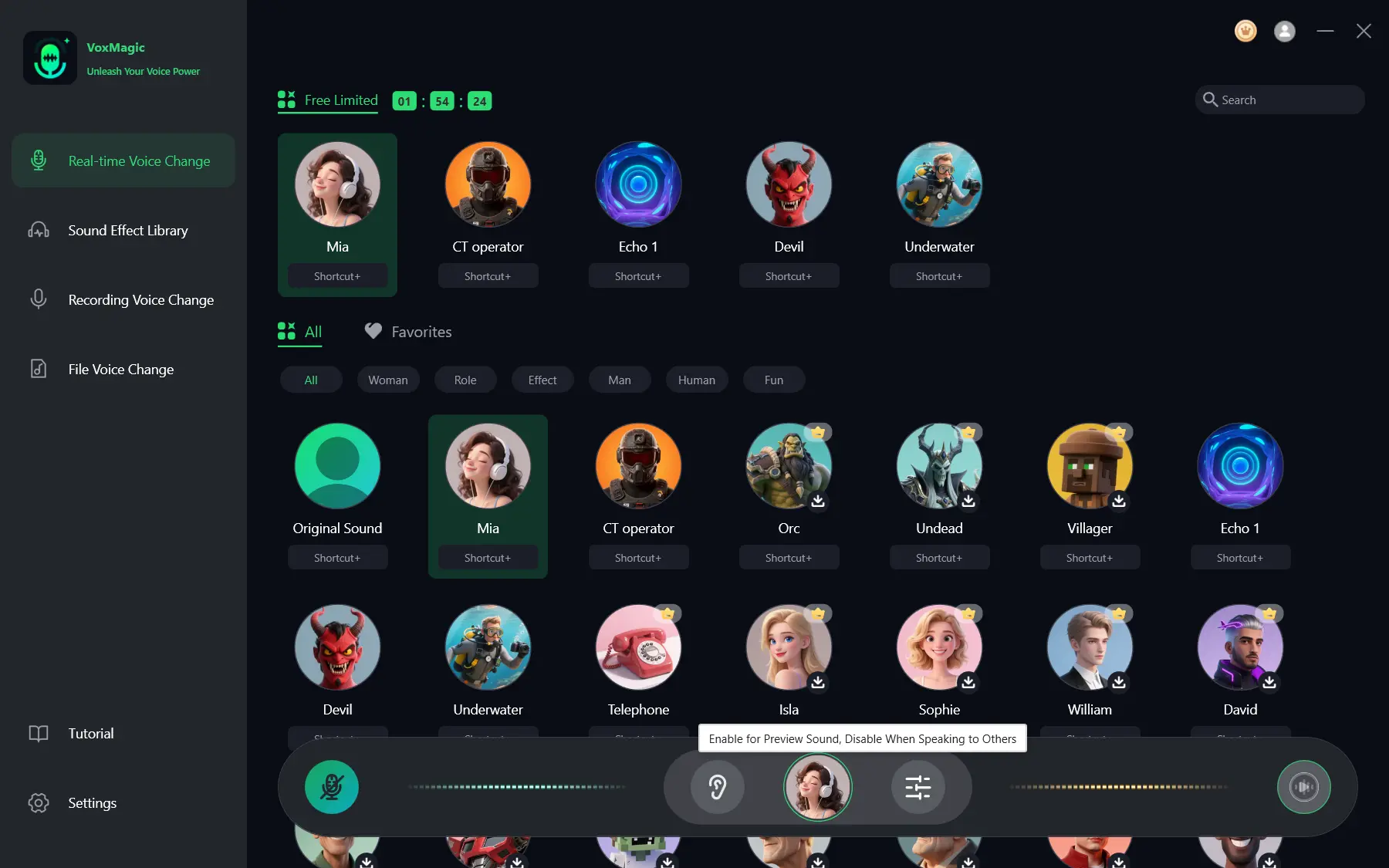
- Speak into your microphone and listen to the preview to check the selected voice effect. Check that the audio level meters respond as you speak. Disable voice preview before speaking to others.
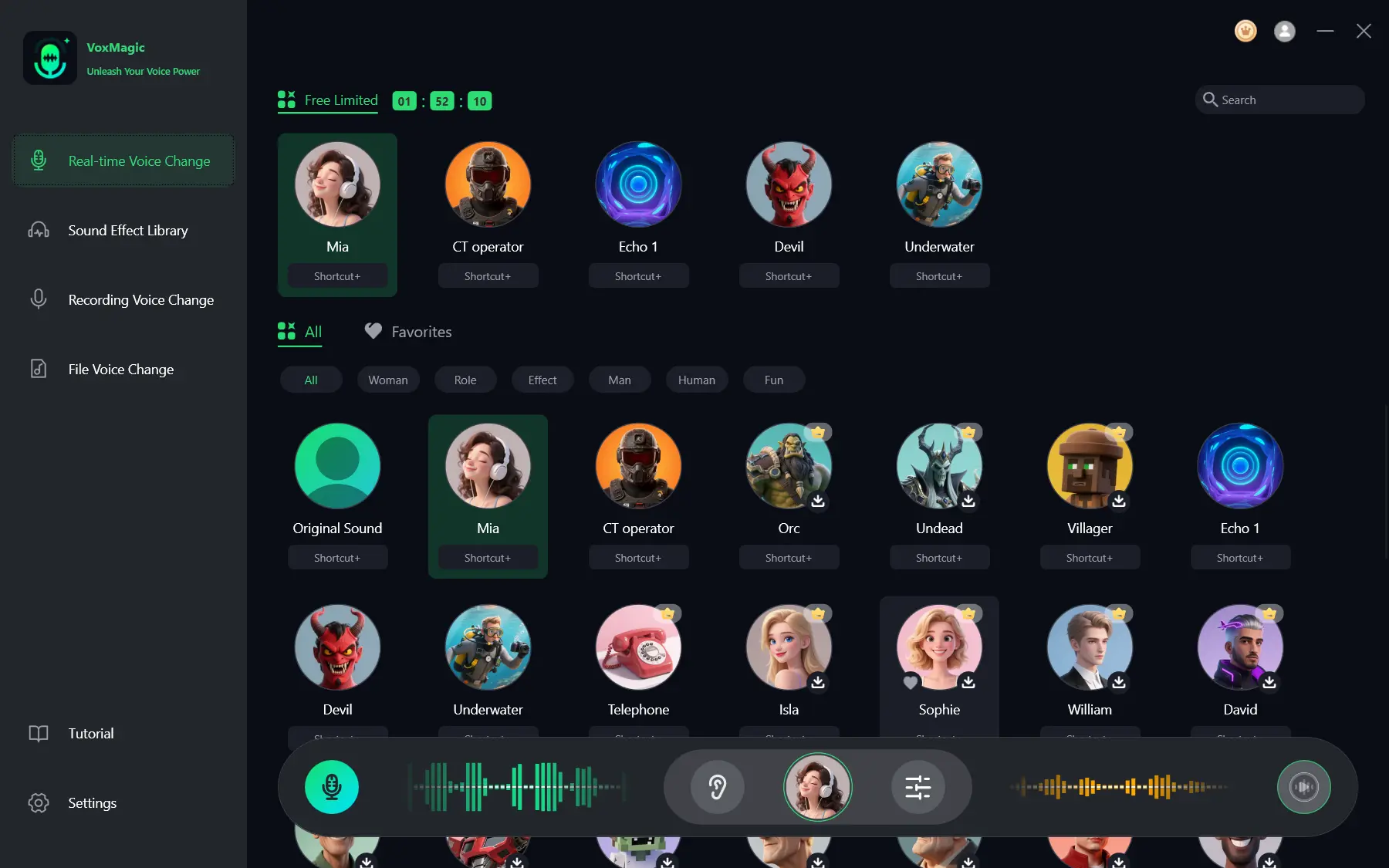
The useful success signal is a responsive audio meter and a changed voice in the headphone preview. If that result is clear, the remaining issue is more likely to be target-app input selection than the local effect.
Noise Reduction offers high and low levels, but a higher level can affect voice quality. If the voice sounds filtered rather than delayed, lower the reduction level and preview again.
Method 2: Route Voicemod Through Its Virtual Microphone
Use this independent real-time option when a Windows game or platform has no microphone selector, or only exposes Default . Voicemod’s official routing guide documents this setup.
- In Voicemod audio settings, choose your physical microphone as Input and headphones as Output. Turn on Voice Changer and select a voice.
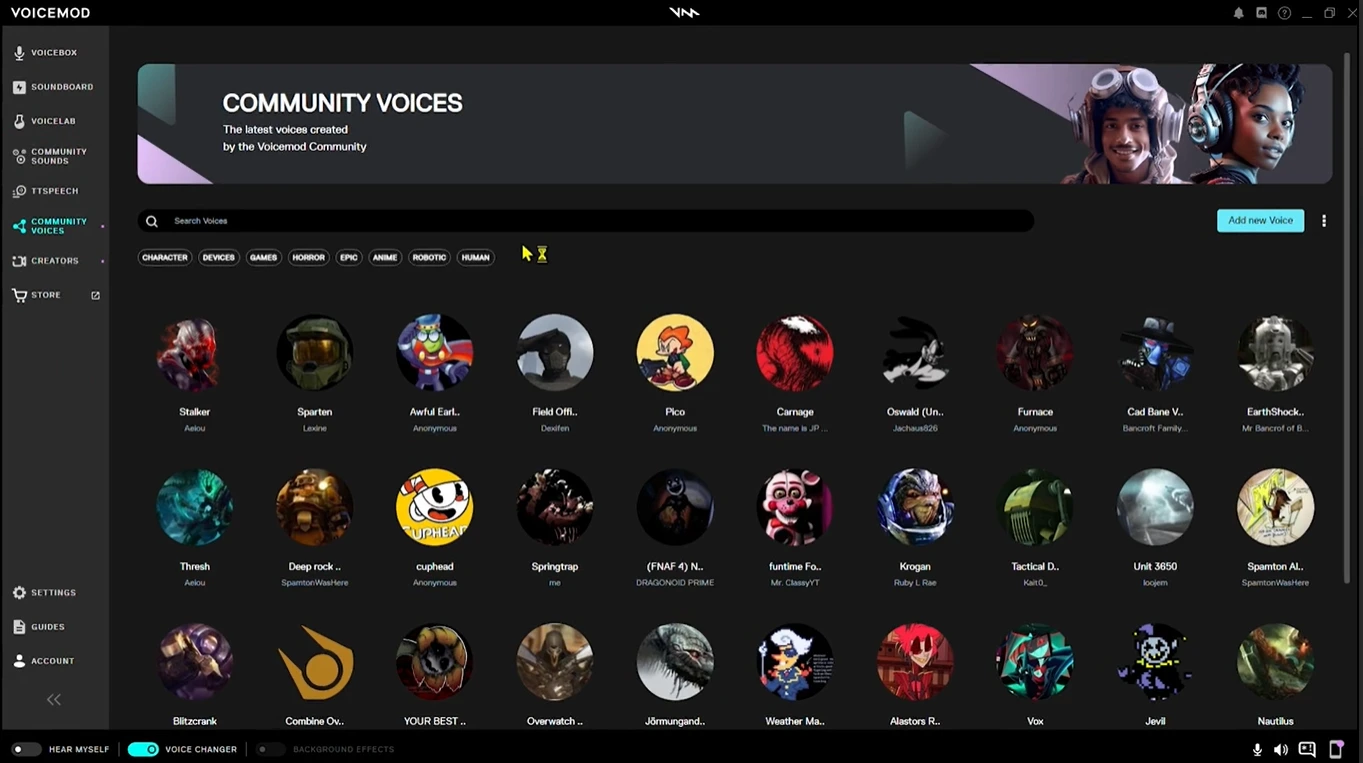
- Open Windows through Start, then Settings, System, and Sound.
- Under Input, select Voicemod Virtual Audio Device or the Voicemod microphone name shown on your computer.
- If the game offers Default, select it. If it has no input option, close and reopen the game after changing the Windows input.
Use the game’s microphone test when available, or ask another player whether they hear the selected voice. For crackling, Voicemod advises lowering an input level that reaches red, testing an available 48,000 Hz device format, and temporarily turning off Windows audio enhancements when that option is available in its official crackling troubleshooting steps .
Check Target-App Microphone Routing
If your local preview is clear but Discord receives the unmodified voice, open Discord User Settings, choose Voice & Video, and select Fionnshare Virtual Audio as the Input Device. This virtual microphone is created for third-party applications to select.
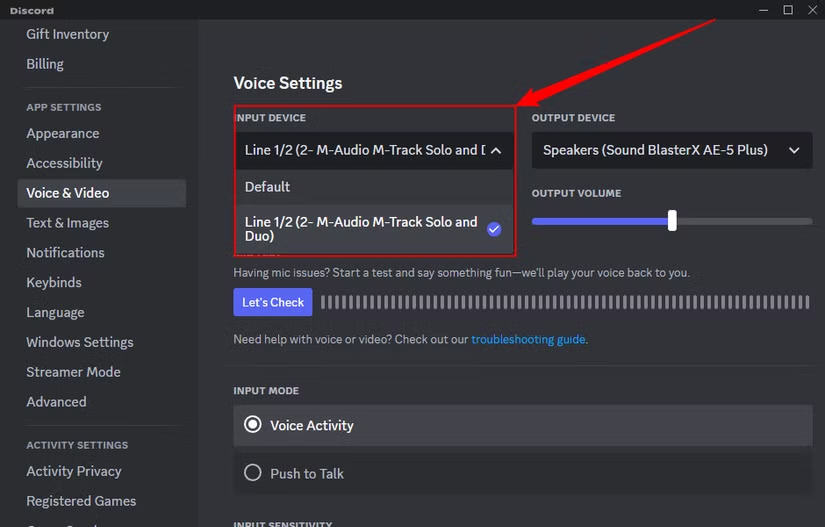
For better voice-changing results, the documented Discord setup also calls for turning off Automatic Input Sensitivity Detection, Echo Cancellation, Noise Suppression, MP3 Download, and Automatic Gain Control. Re-test after each routing change so you can identify whether the change affected the result.
Verification Checklist
- Audio level meters respond when you speak into the selected physical microphone.
- Headphone preview contains the selected effect without obvious crackling or excessive delay.
- The target app’s microphone setting names the intended virtual microphone, or uses Default after Windows input was changed for the Voicemod path.
- A microphone test or another listener confirms that the changed voice—not the dry microphone—is reaching the call or game.
- Voice preview is disabled before you begin speaking to other people.
Conclusion
Begin with a local headphone preview to determine whether the lag starts inside the voice changer. If local audio is clear, correct the target app’s microphone routing instead of repeatedly changing voice effects. Use the Voicemod route when a Windows game relies on the system Default input; otherwise, use Fionn VoxMagic to select devices and verify the effect locally. If delay or distortion remains after these checks, contact the relevant product’s official support with the affected app, selected input and output devices, and the result of the local preview test.
FAQ
Why is my voice changer clear in preview but not in Discord?
The likely issue is microphone routing. In Discord Voice & Video settings, select Fionnshare Virtual Audio as the Input Device, then run another voice test. A local preview does not automatically choose the virtual microphone in Discord.
Can noise reduction make a changed voice sound worse?
Yes. Fionn VoxMagic offers high and low noise-reduction levels, and higher reduction can affect voice quality. If the voice sounds overly filtered, reduce the level and compare the headphone preview again.
What should I do when a game has no microphone setting?
For the Voicemod workflow, set its virtual audio device as the Windows input, then close and reopen the game. A game without an input selector may pick up the new system input only when it starts again.
How can I tell whether crackling comes from the voice changer or the game?
Listen to the voice changer’s local monitoring first. If the local audio crackles, check microphone input level, device format, and audio enhancements. If it is clear locally but crackles only in one app, test that app’s microphone configuration next.


