 Emily CarterVoice Changer
If Discord is not detecting a virtual microphone, first determine whether the device is missing everywhere or only unavailable inside Discord. The usual path is to configure the physical devices and voice effect, confirm Windows can see and permit microphone access, then select the virtual input in Discord and run its Mic Test. This order separates a missing-device issue from a routing or permission issue.
For users routing a live voice effect, Fionn VoxMagic creates the Fionnshare Virtual Audio virtual microphone for third-party applications to select on Windows.
Symptoms
- Fionnshare Virtual Audio is absent from Discord: Discord cannot select the virtual input.
- The device appears but Discord receives no voice: the input route, Windows permission, or Discord input mode may be blocking audio.
- Discord receives audio but it is not the intended effect: the voice changer may not be enabled, or the selected physical microphone may not be the one in use.
- Only Discord fails: focus on Discord’s Voice & Video input selection and Mic Test before changing Windows settings.
Quick Diagnosis Checklist
- Open Windows Sound settings and look under Input . If the relevant microphone is not listed there, start with the VoxMagic setup and Windows device check below.
- If Windows lists the microphone but Discord does not, restart Discord after the device is available, then choose the virtual microphone under Voice & Video.
- If Discord lists the device but its Mic Test is silent, check Windows microphone access and confirm Discord is not set to Push to Talk by mistake.
- If VoxMagic preview is silent, verify the actual microphone and playback device selected in VoxMagic before changing Discord settings.
Quick Method Comparison
Use this sequence rather than treating each check as a competing fix: configure the local audio route in VoxMagic, select the resulting virtual input in Discord, then use Windows privacy settings only when Discord still has no signal.
Set up Fionn VoxMagic before routing to Discord
Recommended for live voice changing: use this path when Fionnshare Virtual Audio is missing, or when VoxMagic has not yet been configured with the physical microphone and playback device. It keeps device selection, voice-effect selection, and preview in one real-time workflow.
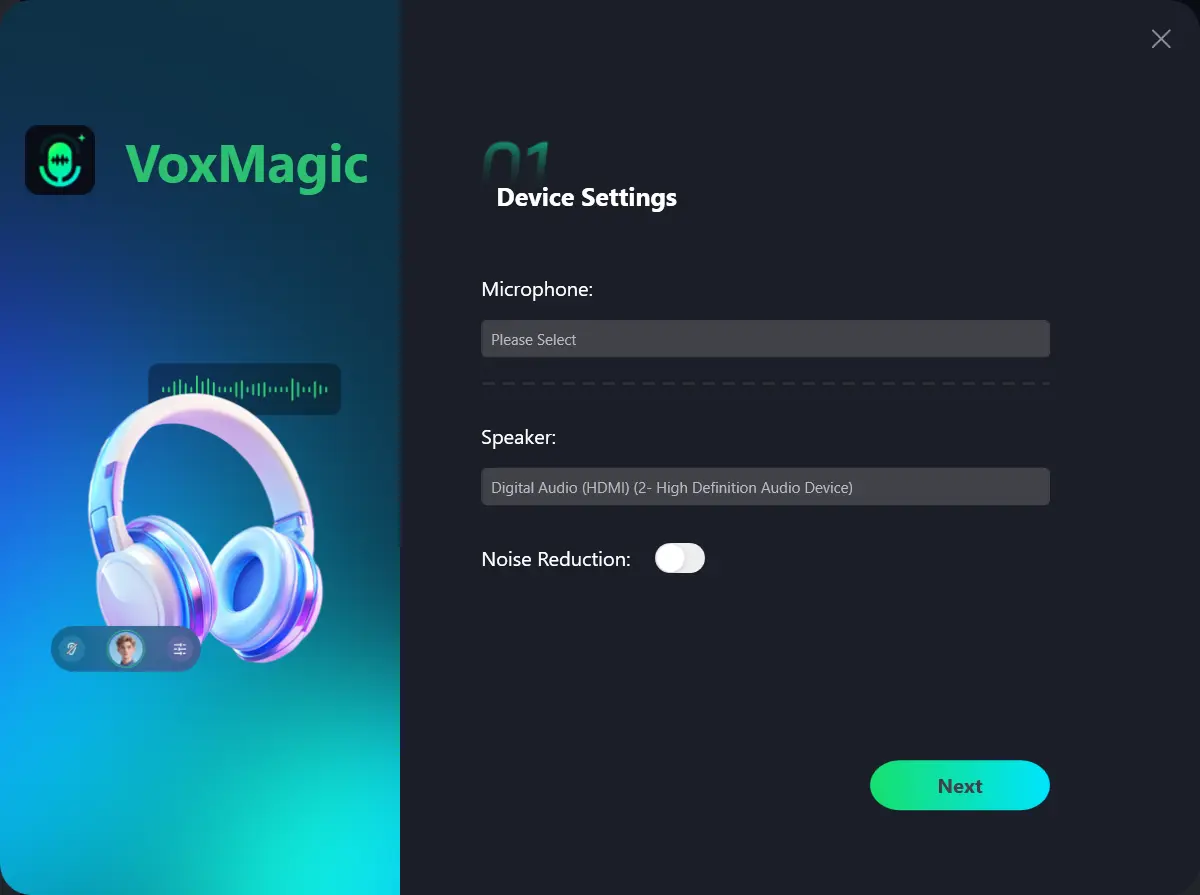
- Open Fionn VoxMagic. In Device Settings, select your microphone and playback device. Enable Noise Reduction if needed, then click Next.
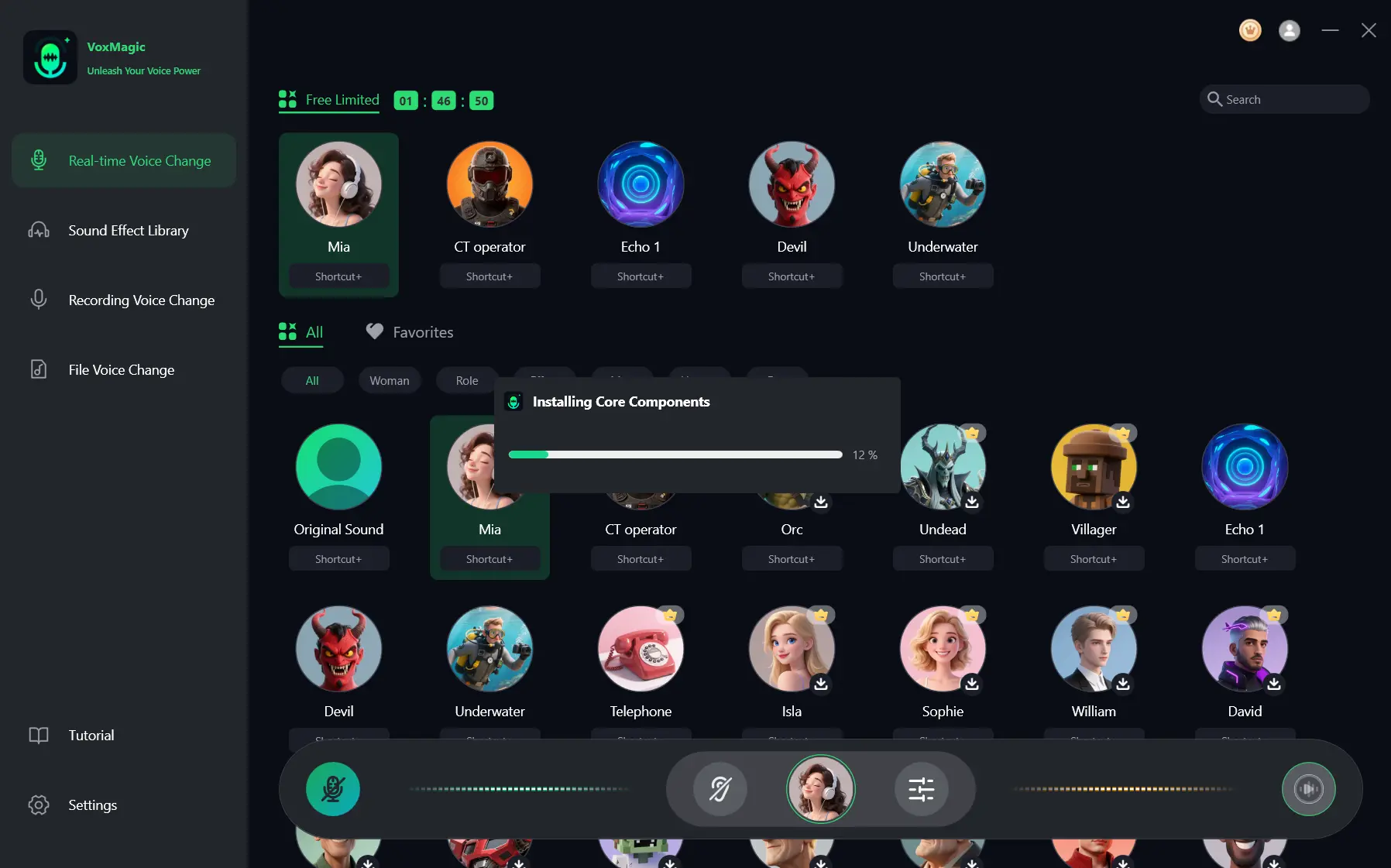
- If the Installing Core Components dialog appears, wait for the installation to finish before continuing.
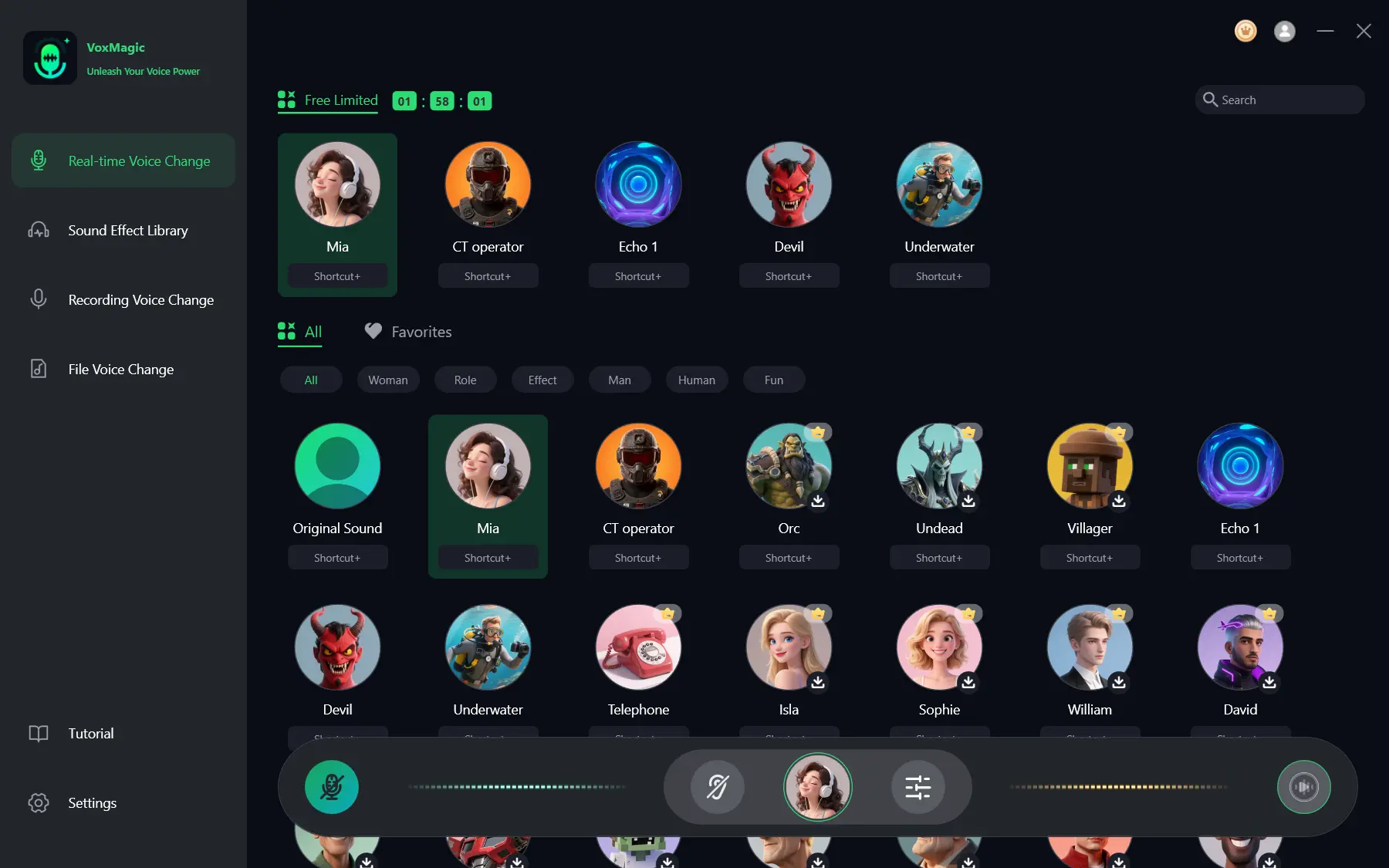
- Open Real-time Voice Change and select a voice effect, such as Mia. The selected effect is highlighted and appears in the bottom control bar.
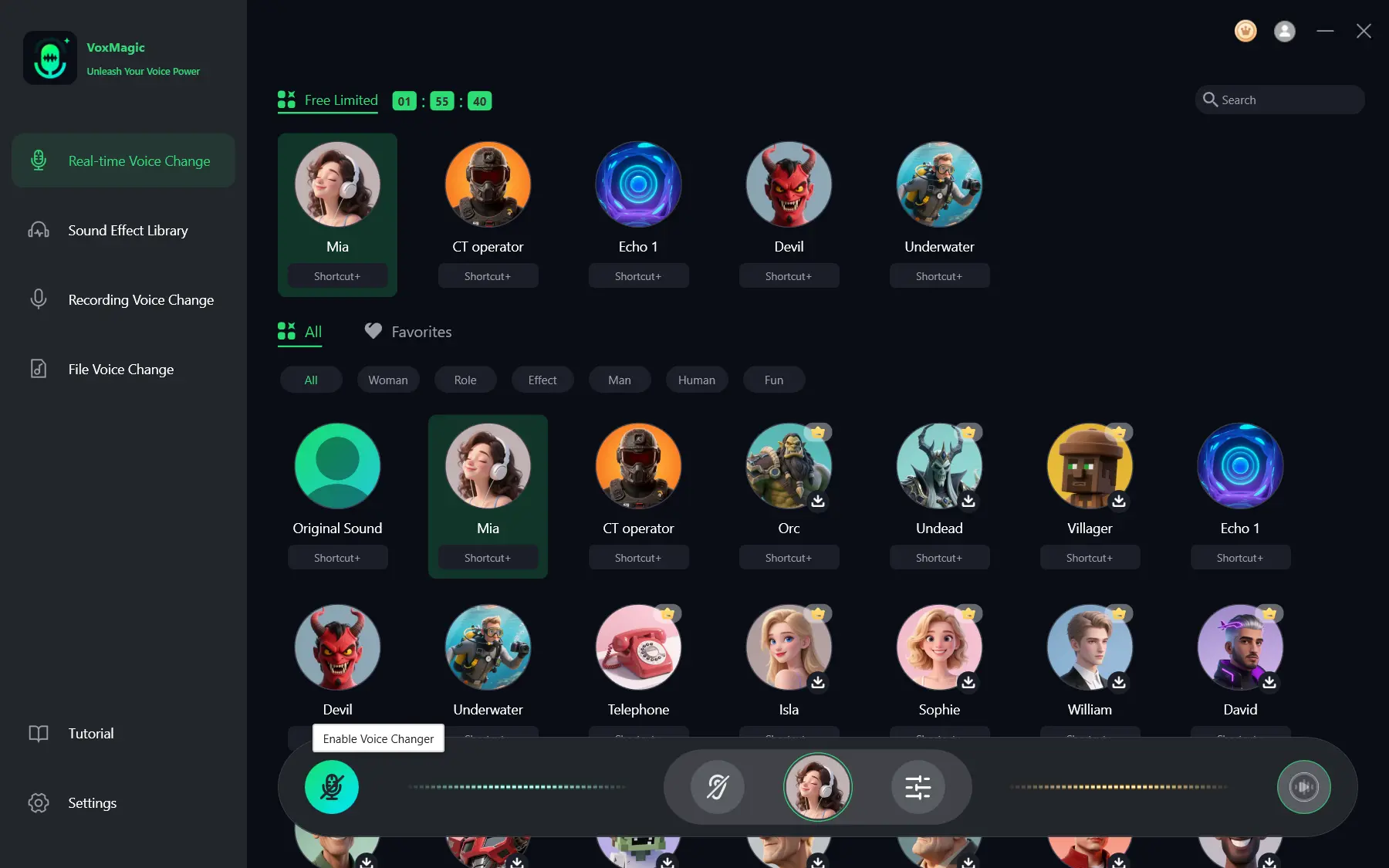
- Click the microphone button labeled Enable Voice Changer in the bottom-left corner of the control bar to turn on voice changing.
- Click the ear icon in the bottom control bar to enable voice preview. Use headphones to listen to your voice while testing the selected effect.
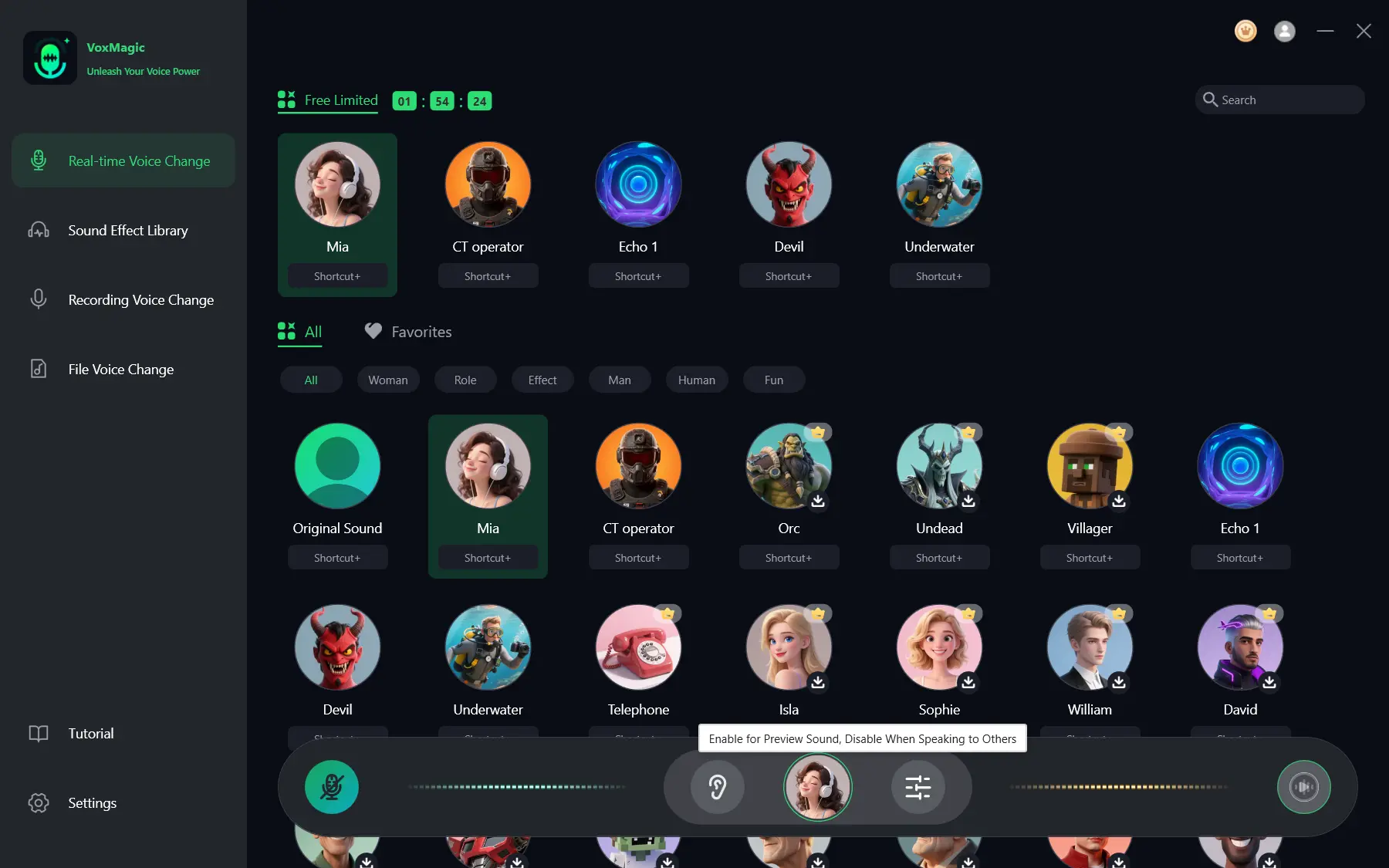
- Speak into your microphone and listen to the preview to check the selected voice effect. Check that the audio level meters respond as you speak. Disable voice preview before speaking to others.
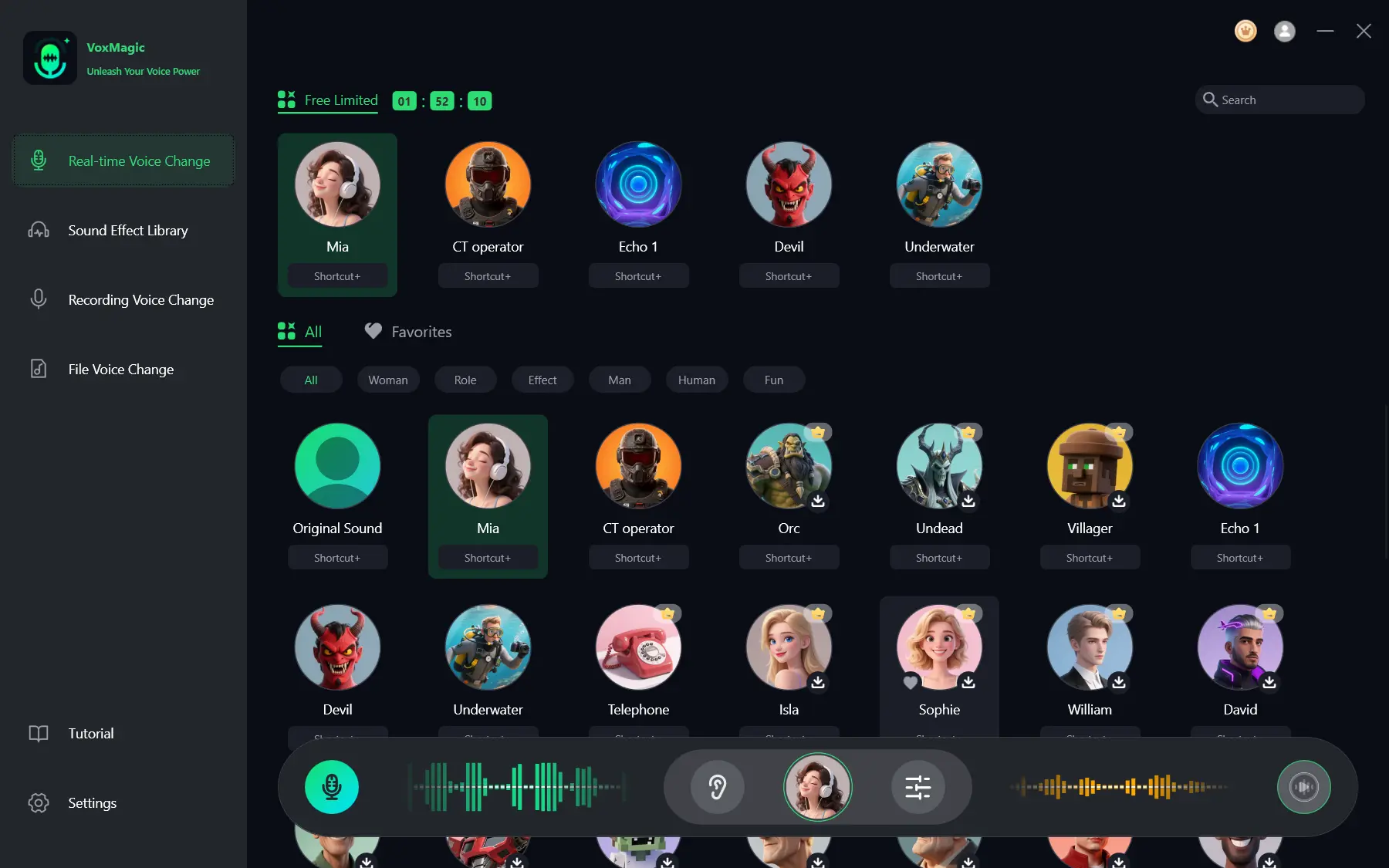
When the meters respond and the preview contains the selected effect, VoxMagic has a usable local signal. Continue to Discord routing; local preview alone does not confirm that Discord is receiving the input.
Route the virtual microphone in Discord
Use these steps when the local preview works but Discord does not use the virtual microphone.
- Open Discord User Settings from the lower-left cogwheel, then select
Voice & Video
.
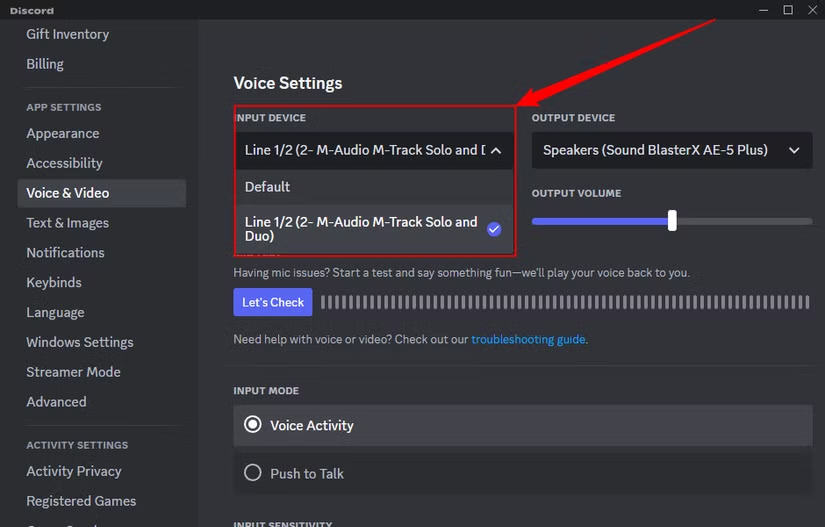
- Under the Voice settings, choose Fionnshare Virtual Audio from the Input Device list.
- Check Input Mode and make sure it is not accidentally set to Push to Talk.
- If the virtual input was installed or became available after Discord opened, press Ctrl + R to refresh Discord, or fully quit and reopen the app.
- Run Discord’s Mic Test by selecting Let’s Check and speak into the physical microphone configured in VoxMagic.
Discord documents its Voice & Video device controls and Mic Test in its Voice, Video, and Streaming guide . A responding test confirms Discord is receiving the selected input.
Check Windows microphone access
Use this check when Fionnshare Virtual Audio is visible in Discord but Mic Test remains silent, or when Discord cannot access microphone audio at all.
- Open Windows Settings and go to the Microphone privacy controls.
- On Windows 11, turn on Microphone access, Let apps access your microphone, and Let desktop apps access your microphone.
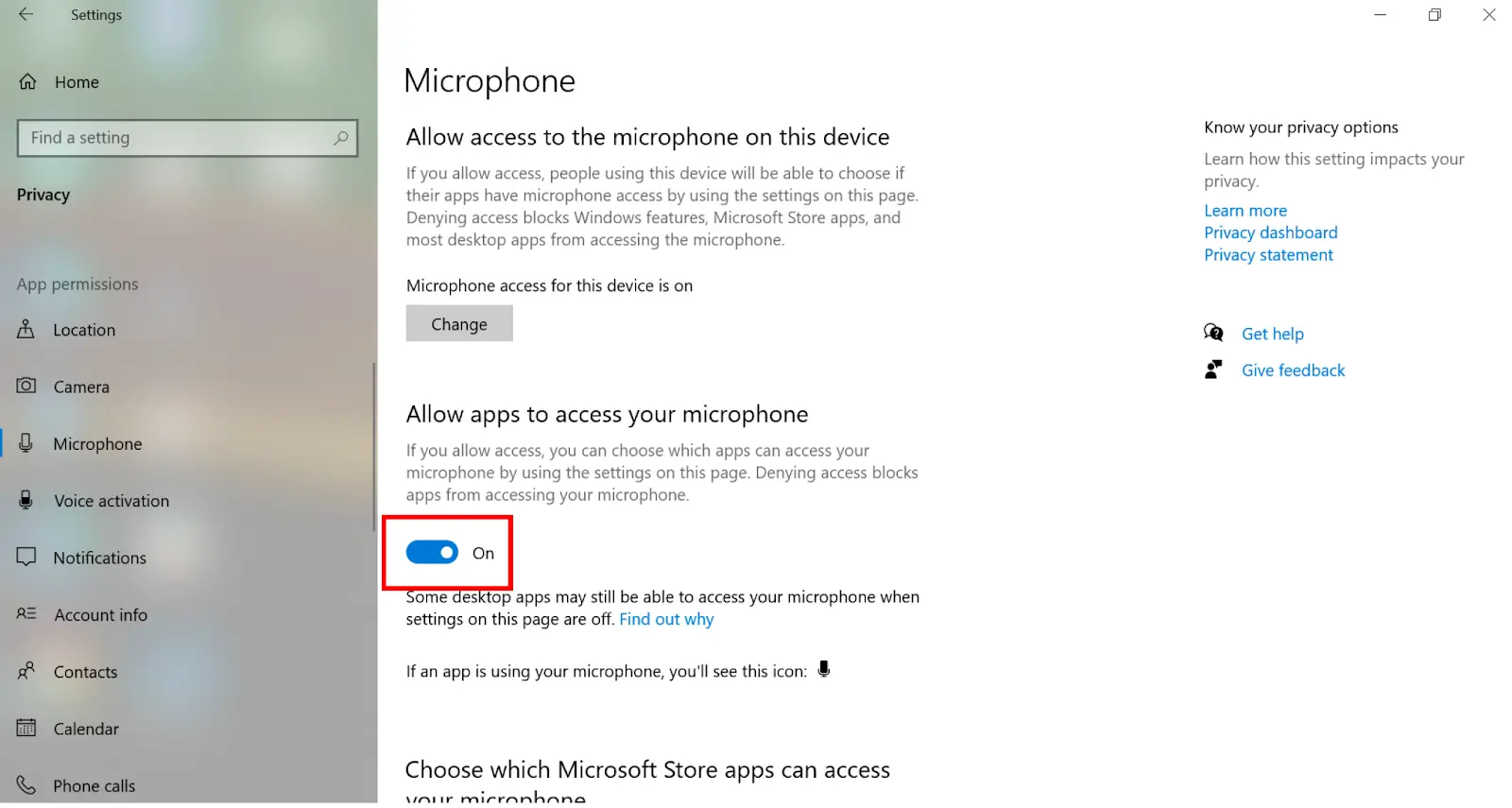
- On Windows 10, turn on Microphone access for this device, Allow apps to access your microphone, and Allow desktop apps to access your microphone.
- Open Sound settings and review the devices under Input.
- Select the relevant microphone’s Input Properties, run Start test, speak normally, then stop the test and play the sample.
Microsoft explains these privacy controls in its microphone permissions guidance and provides the Input test in its microphone setup and test instructions . If the Windows sample does not play, resolve that device-level signal issue before returning to Discord.
Verification Checklist
- VoxMagic audio meters move while you speak into the selected physical microphone.
- You can hear the selected effect through headphones during VoxMagic preview.
- Fionnshare Virtual Audio appears as Discord’s Input Device.
- Discord Mic Test responds after you select the virtual input.
- Your Discord input mode allows voice transmission, and you are not muted or blocked by channel permissions.
Conclusion
Start by confirming the local voice route in VoxMagic, then explicitly select Fionnshare Virtual Audio in Discord and use Mic Test. If Discord sees the device but remains silent, check Windows microphone privacy and test the underlying input in Windows. Fionn VoxMagic is useful when you need a Windows virtual microphone plus a live preview to distinguish a local setup problem from a Discord routing problem. If the device still cannot be selected after these checks, contact the relevant app’s official support with the results of the Windows and Discord tests.
FAQ
Why is Fionnshare Virtual Audio missing from Discord?
First complete the VoxMagic setup and wait for any core-component installation to finish. Then refresh Discord with Ctrl + R or fully restart it and check Voice & Video again. Also inspect Windows Sound settings to see whether the relevant input is available there.
Why does Discord show the virtual microphone but receive no sound?
Check that VoxMagic meters respond, the Voice Changer is enabled, and Discord is using Fionnshare Virtual Audio as its Input Device. Then enable the applicable Windows microphone and desktop-app permissions and run Discord Mic Test.
Should I choose my physical microphone or the virtual microphone in Discord?
Choose Fionnshare Virtual Audio in Discord when you want Discord to receive the processed live voice. Choose the actual physical microphone inside VoxMagic as the source device.
Can Push to Talk make a working microphone appear broken?
Yes. Discord identifies an accidental Push to Talk input mode as a troubleshooting point. Check the Input Mode setting before assuming the virtual microphone has failed.
How do I know the issue is in Windows rather than Discord?
Run the Windows Input test. If the recorded sample cannot be played back, the input signal is not working at the Windows level. If it works in Windows but Discord Mic Test is silent, focus on Discord’s selected input, permissions, and input mode.


