 Emily CarterVoice Changer
To change your voice in Discord, first prepare an effect in voice-changing software, then select its virtual microphone as the input device in Discord and test it. On Windows, this usually involves four steps: set up the effect, assign the virtual input, check the microphone test, and make sure the system allows microphone access. Start with Fionn VoxMagic if you want to choose an effect and hear it before joining a conversation, then move on to Discord settings.
What to Prepare Before Setup
- A Windows computer and a connected, working microphone.
- Headphones to test the effect without echo.
- Discord open with access to its voice settings.
- Software that creates a virtual microphone if you need a real-time voice effect.
Method Comparison
| Method | Best for | Effectiveness | User effort |
|---|---|---|---|
| Setting up Fionn VoxMagic | Choosing and previewing a voice effect | High | Medium |
| Selecting a virtual microphone in Discord | Sending an already processed voice to a channel | High | Low |
| Checking input in Discord | When the effect is enabled but other people cannot hear it | Medium | Low |
| Allowing microphone access in Windows | When Discord receives no sound at all | Medium | Low |
Method 1: Set Up Your Voice in Fionn VoxMagic
When to use it: when you need a real-time voice effect and want to hear the result through headphones first. This is the recommended option for setting up the effect before joining a conversation.
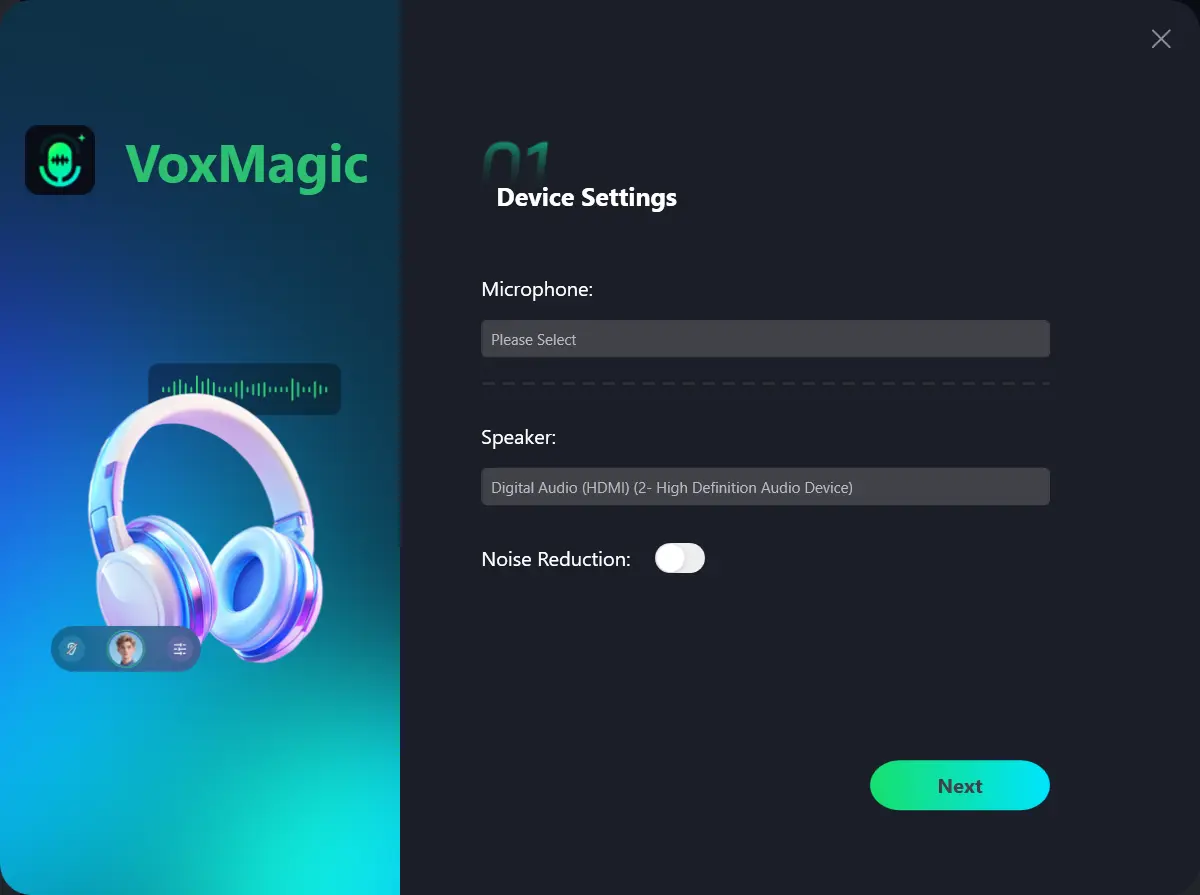
- Open Fionn VoxMagic. In the device settings section, select your microphone and playback device. Enable noise reduction if needed, then click Next.
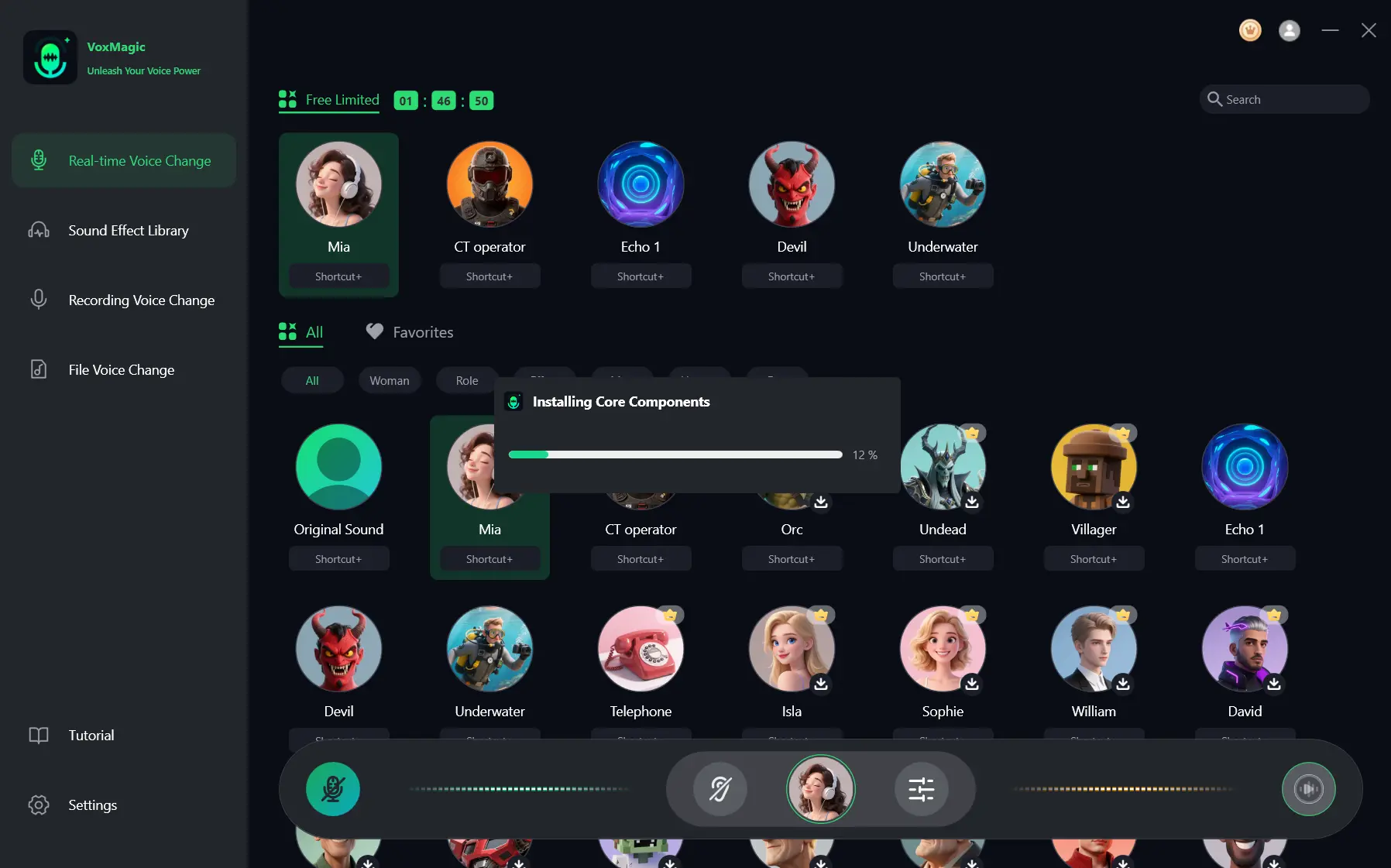
- If the core components installation window appears, wait for installation to finish before continuing.
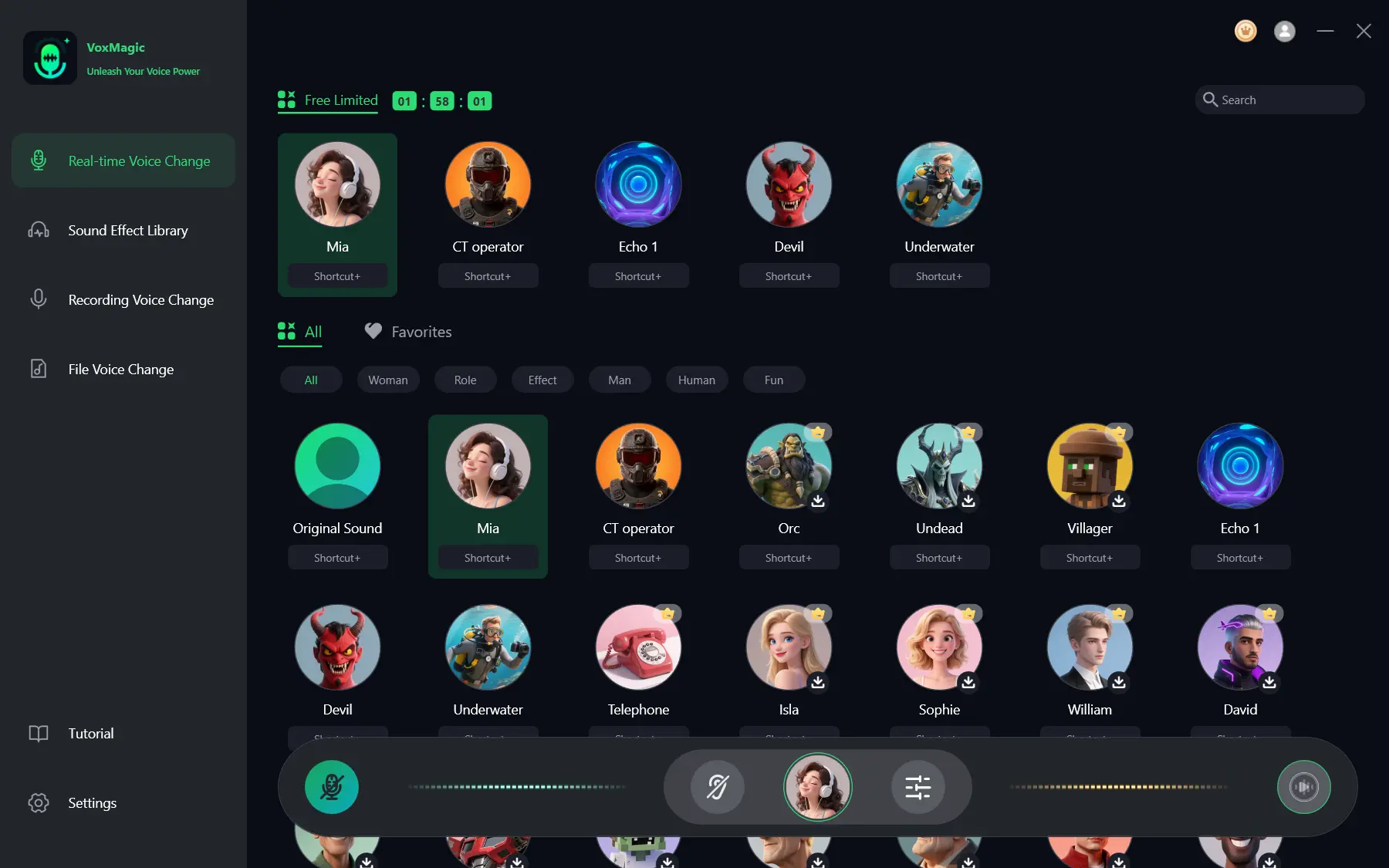
- Open the real-time voice changing section and select a voice effect, such as Mia. The selected effect will be highlighted and appear in the bottom control bar.
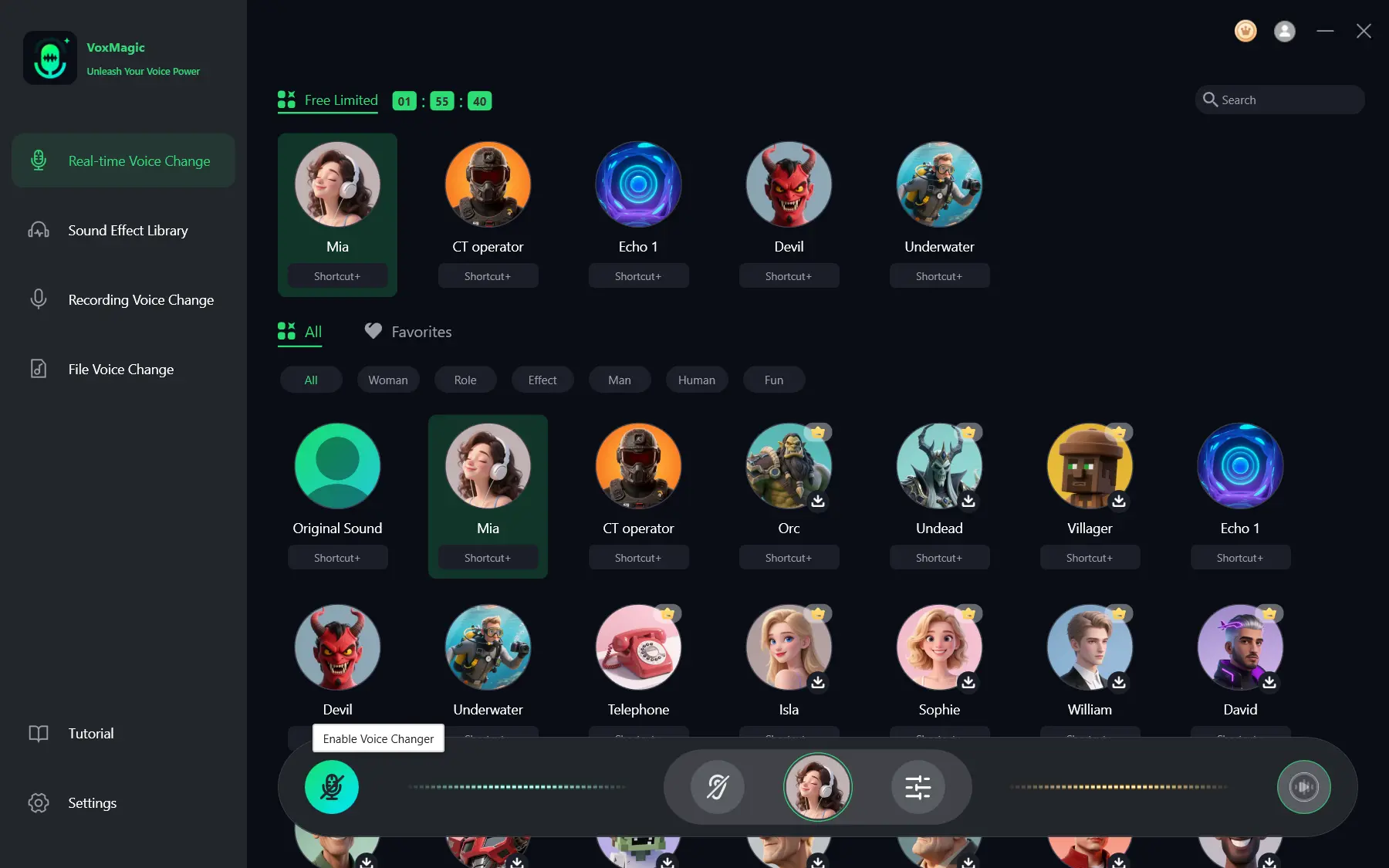
- Click the microphone button labeled Enable Voice Changer in the bottom-left corner of the control bar.
- Click the ear icon in the bottom control bar to enable voice preview. Use headphones while testing to hear your voice with the selected effect.
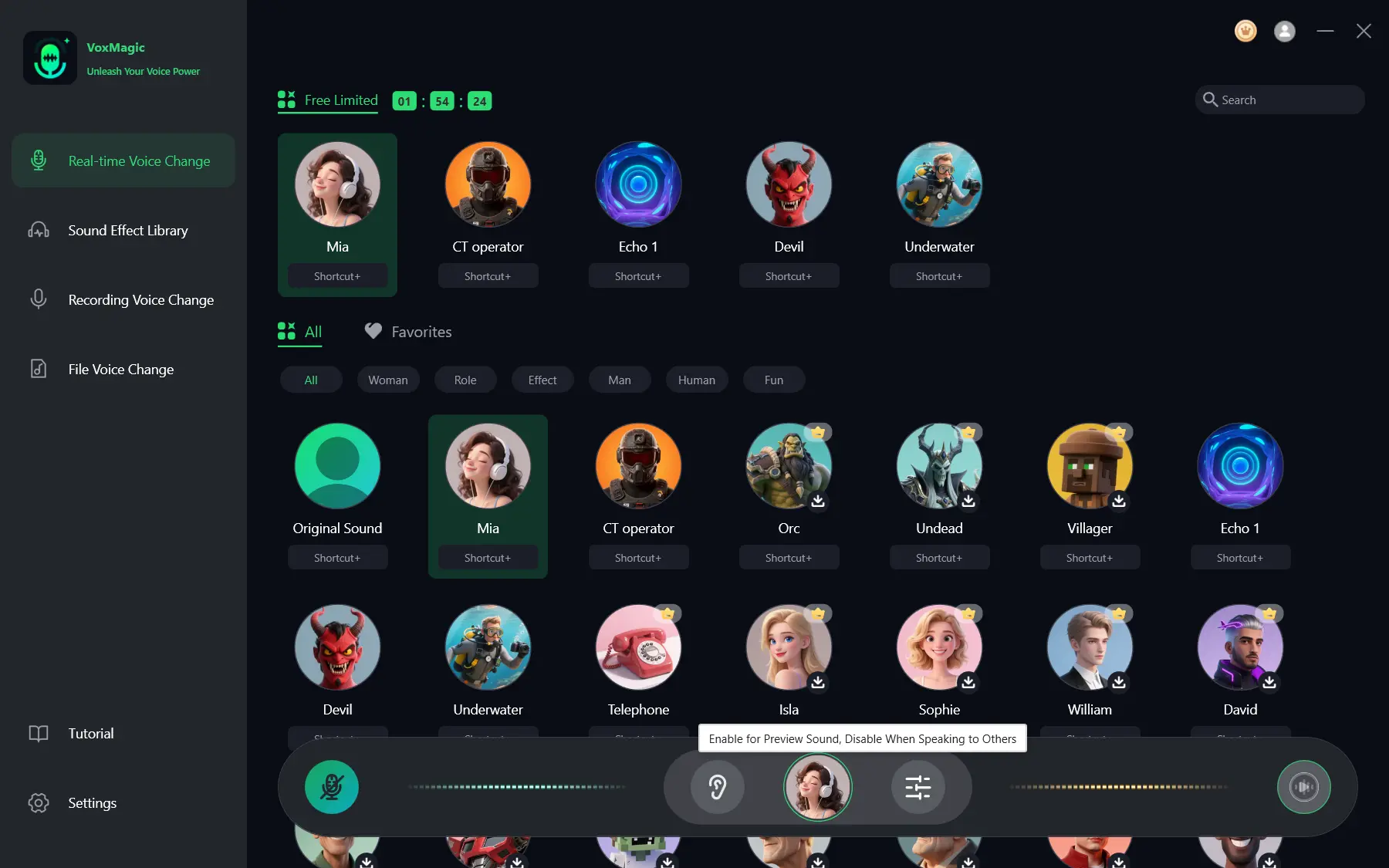
- Say something into the microphone and listen to the result to check the selected effect. Make sure the audio level indicators respond to your speech. Turn off voice preview before talking with other people.
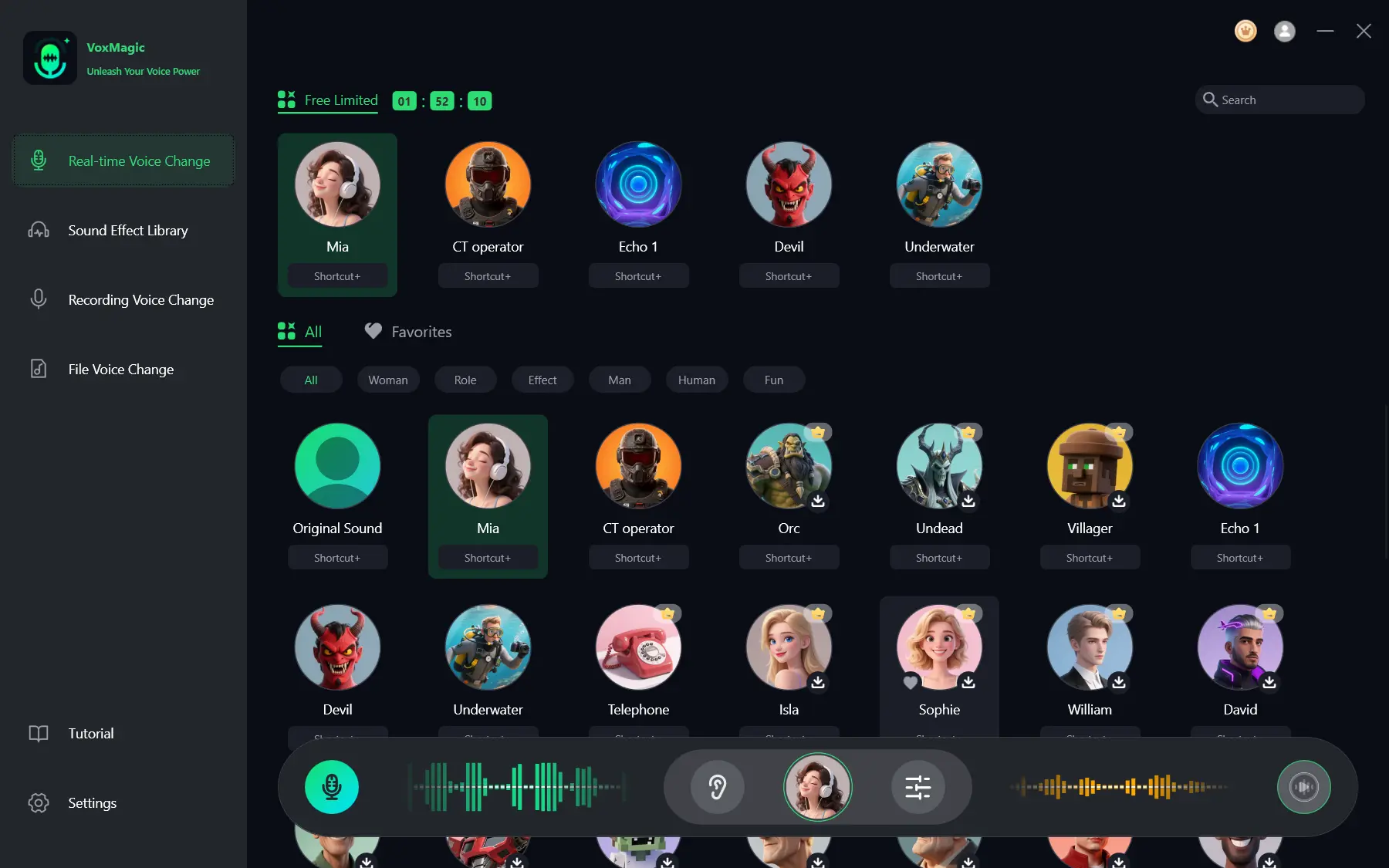
Expected result: you can hear the selected effect in the preview, and the level indicators respond to your voice.
Method 2: Select a Virtual Microphone in Discord
When to use it: when the effect is ready but the voice channel still plays your original voice or another microphone.
- In Discord, click the gear icon next to your name to open User Settings.
- Open the voice settings section.
- Under Input Device, select
Fionnshare Virtual Audioif this virtual microphone has been created and is available in the list. - Save the change if Discord requests separate confirmation, then return to the voice channel.
Expected result: Discord uses the virtual input instead of the physical microphone.
Method 3: Check Input and Sensitivity in Discord
When to use it: when the correct input is selected but audio cuts out, is too quiet, or does not reach the channel.
- Open Discord voice settings.
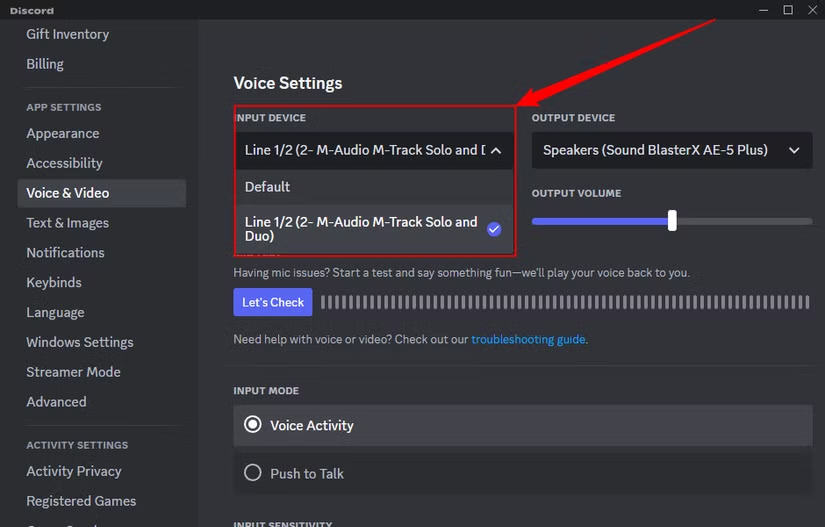
- Say a short phrase and check the input level indicator.
- If Discord responds to the wrong source, select the correct input device again.
- Adjust input sensitivity so normal speech is detected without constant triggering from background noise.
Expected result: the Discord indicator responds consistently to speech, and channel participants hear the processed voice.
Method 4: Allow Microphone Access in Windows
When to use it: when the Discord indicator does not respond to either the physical or virtual input.
- Open the microphone privacy settings in Windows.
- Turn on microphone access for apps if it is disabled.
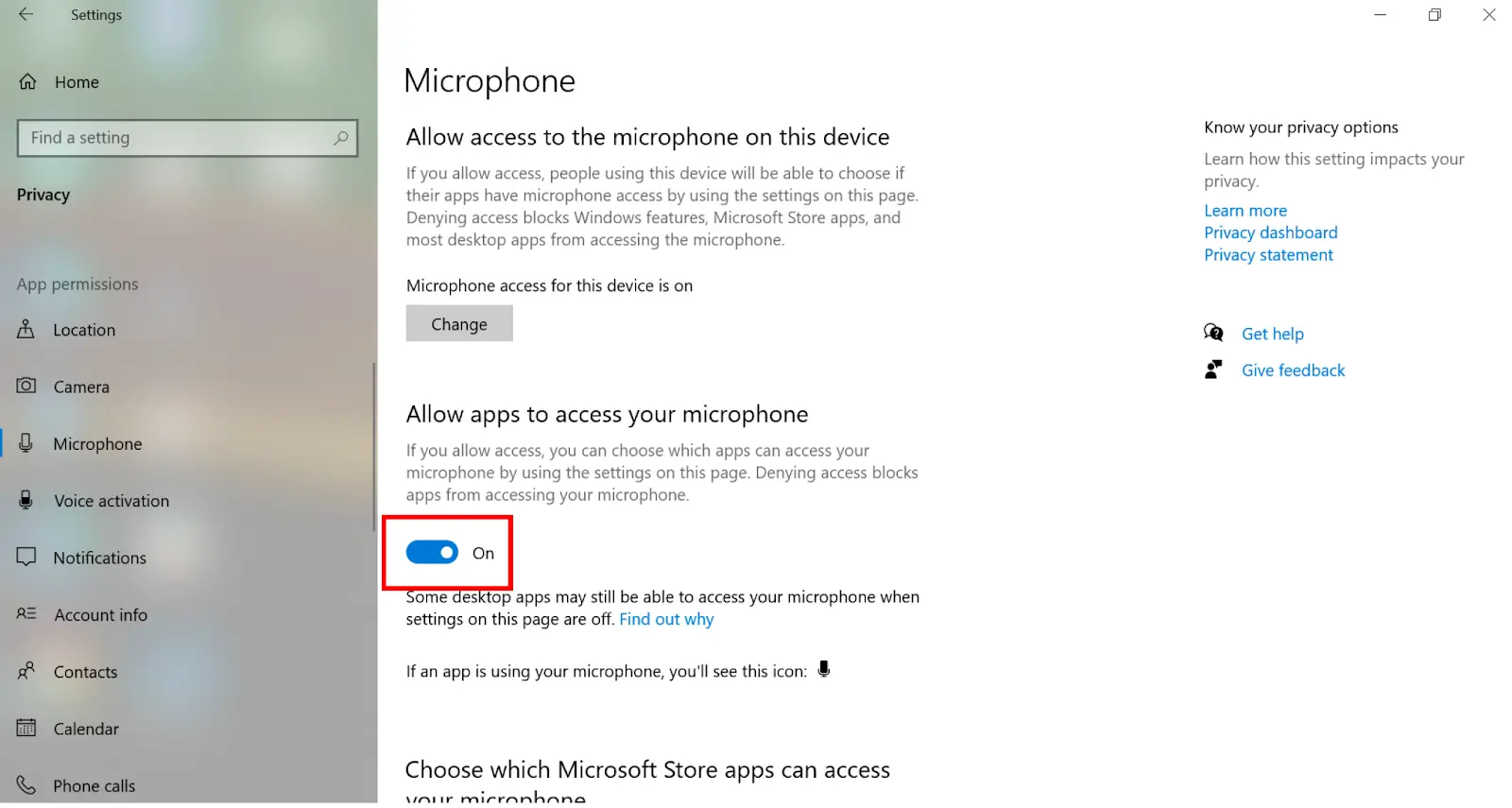
- Make sure Discord is allowed to use the microphone.
- Fully close Discord and open it again.
Expected result: Discord can access the input devices available in the system.
Tips for Clear Sound
- Use headphones during voice preview so the microphone does not pick up speaker sound.
- Select one input in Discord and do not change devices while testing.
- If the effect noticeably distorts speech, reduce noise reduction or select another effect first instead of increasing input volume.
- After changing devices, run another quick test in Discord: the input list and app access are two independent settings.
Conclusion
The best order is to first prepare and preview the effect in Fionn VoxMagic, then select the virtual microphone in Discord and check the input level. If Discord cannot see or hear the input, check microphone permission in Windows and restart the app. A successful setup has two signs: the indicators respond to speech, and voice-channel participants hear the intended effect. Learn more about Fionn VoxMagic on the product page.
Frequently Asked Questions
Do I need to select the virtual microphone in Discord?
Yes. For Discord to receive the processed signal, select the available virtual microphone in the input device settings instead of the physical microphone.
Why can I hear the effect but other people cannot?
Voice preview tests audio locally. Check that the virtual input is selected in Discord and look at the level indicator in voice settings.
Why did my voice sound less natural after enabling noise reduction?
In Fionn VoxMagic, a higher noise reduction level can affect audio quality. Try a lower level and repeat the headphone test.
Can I use the effect without headphones?
Yes, but headphones help prevent echo during testing and make it easier to assess the result.
What should I do if Discord receives no sound at all?
Check Discord's permission to use the microphone in Windows, then restart Discord and select the correct input device again.


