 Emily CarterScreen Recording
To record computer audio, choose a tool based on your task: Xbox Game Bar is suitable for quickly capturing audio from a single app together with its window, Fionn Screen Recorder is for recording your screen with audio and working with the video afterward, and OBS Studio is best when you need flexible source control. Below are three standalone methods for Windows 10/11. First, make sure the required app is playing audio and that the correct output device is selected.
Quick Comparison of Computer Audio Recording Methods
| Method | Best for | Effectiveness | User effort |
|---|---|---|---|
| Xbox Game Bar | Short recordings of an app window | High for a quick start | Low |
| Fionn Screen Recorder | Recording the screen, system audio, and a microphone if needed | High | Low |
| OBS Studio | Multiple audio sources and manual configuration | High after setup | Medium |
Method 1: Record App Audio with Xbox Game Bar
When to use it: you want to quickly record audio from a supported app along with video of its window. Game Bar is not designed to record the desktop or File Explorer.
- Open the app whose audio you want to capture.
- Press
Win + Gto open Xbox Game Bar.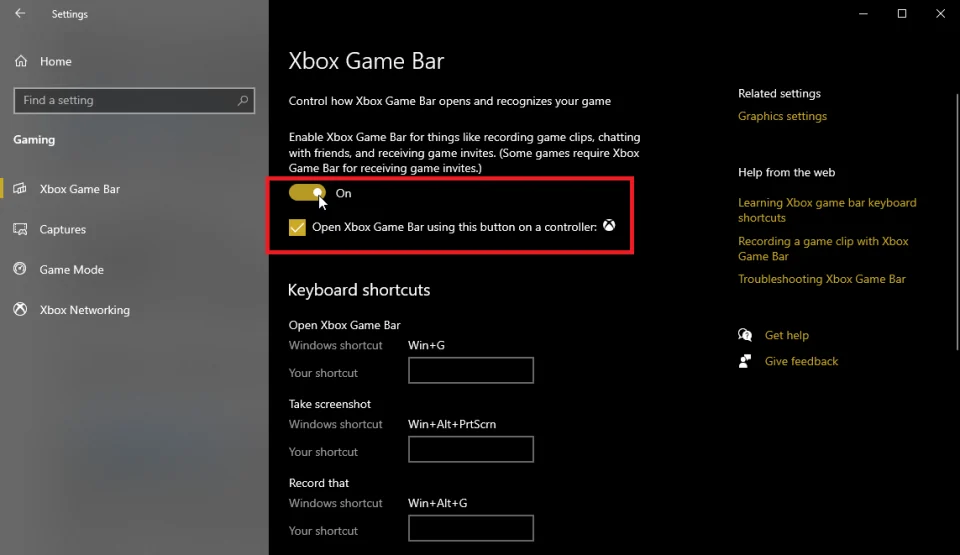
- In the Capture widget, click the Record button or use
Win + Alt + R. - Play the required section, then stop the recording with the same keyboard shortcut.
- Open the save notification to play the finished file and check the audio.
Method 2: Record Screen and Audio with Fionn Screen Recorder — Recommended Option
When to use it: you need to record your screen with computer audio and want a convenient way to choose an area, window, or the full screen. This option is particularly useful for tutorials, demonstrations, and meeting recordings. Fionn Screen Recorder supports system audio, microphone audio, or both sources.
- Open Fionn Screen Recorder and choose the capture area: full screen, window, or region.

- Choose to record system audio, microphone audio, both sources, or no audio.

- Before recording, select MP4 or another video format.

- Click Start to begin recording; when finished, use Pause or Stop.

- Open the media library to play, edit, locate, or delete recorded videos.

Check: in the media library, open the created video, listen to a section with system audio, and make sure microphone audio is present only when the recording mode for both sources is selected.
Method 3: Record System Audio with OBS Studio
When to use it: you need to manually view the levels of several sources, such as computer audio and a microphone, before recording starts. To download the software, use the official OBS Studio website .
- Open OBS Studio and create or select a scene.
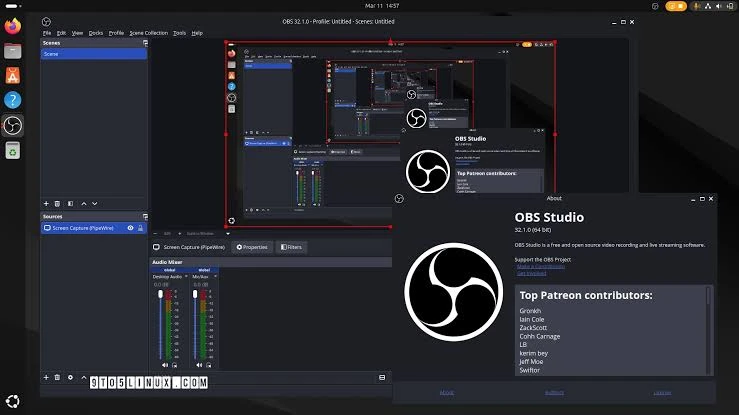
- In Sources, add a screen or window capture source if you need video along with the audio.
- In the Audio Mixer, make sure the Desktop Audio meter moves while audio is playing.
- If necessary, add a microphone as a separate input and check that it is not muted.
- Click Start Recording, play the required section, and then click Stop Recording.
- Open the saved file and listen to it through headphones or speakers.
What to Check Before You Start
- Play a short test sound in the required app: this separates a source issue from a recording issue.
- If you only need to record audio without video, remember that the methods described are designed for a video file with an audio track.
- Use headphones when recording microphone audio to reduce the chance of recapturing sound from speakers.
- Before publishing, make sure you have the right to record and distribute audio from a meeting, stream, or other content.
Conclusion
For quickly recording audio from one app, start with Xbox Game Bar. If you need a clear choice of recording area and system audio at the same time, use Fionn Screen Recorder . Choose OBS Studio when control over levels and multiple sources matters. After each method, listen to a short finished file: a moving meter during recording does not replace checking the exported file. If there is no audio, first check the Windows output device and the selected program's settings, then repeat a test that is a few seconds long.
Frequently Asked Questions
Can I record system audio without a microphone?
Yes. In Fionn Screen Recorder, select system audio; in OBS, check the Desktop Audio source and do not add a microphone. In Game Bar, recording depends on the audio capture settings.
Why is there no audio in my recording even though I can hear it on my computer?
Most often, the recording program is using the wrong output device or audio source. Play a test section and check whether the selected source meter responds before starting the main recording.
Is Xbox Game Bar suitable for recording the entire desktop?
No. It is designed to capture games and apps, not the desktop or File Explorer. Use another method in this guide for the full screen or a selected area.
Can I record system audio and microphone audio at the same time?
Yes. Fionn Screen Recorder includes a system audio and microphone mode; in OBS, you can control these sources separately in the mixer.
How can I check that the file was actually recorded with audio?
Open the finished file, go to a section with a clearly audible signal, and listen to it. This is more reliable than relying only on visual meters during recording.


