 Emily CarterPrinter Drivers
To set up an Epson L3250 on Windows 11, first connect and power on the printer, then add it in Windows or use Epson’s L3250 download area for a manufacturer-provided option. The final check is a Windows test page: completing a download, installation, or diagnostic scan alone does not show that the printer can print.
Before You Start
Confirm the model name on the printer and choose the connection you are actually using. For USB, connect the printer to the PC and turn it on. For Wi-Fi, the printer and PC must use the same wireless network.
Get the Driver From Epson Support
Use this route when you want to review Epson’s model-specific download area before installing anything.
- Open the Epson L3250 Series Windows 11 Download Center .
- Confirm the operating-system selection shown on the page.
- Choose a download only if Epson explicitly lists it for your confirmed printer model and operating system.
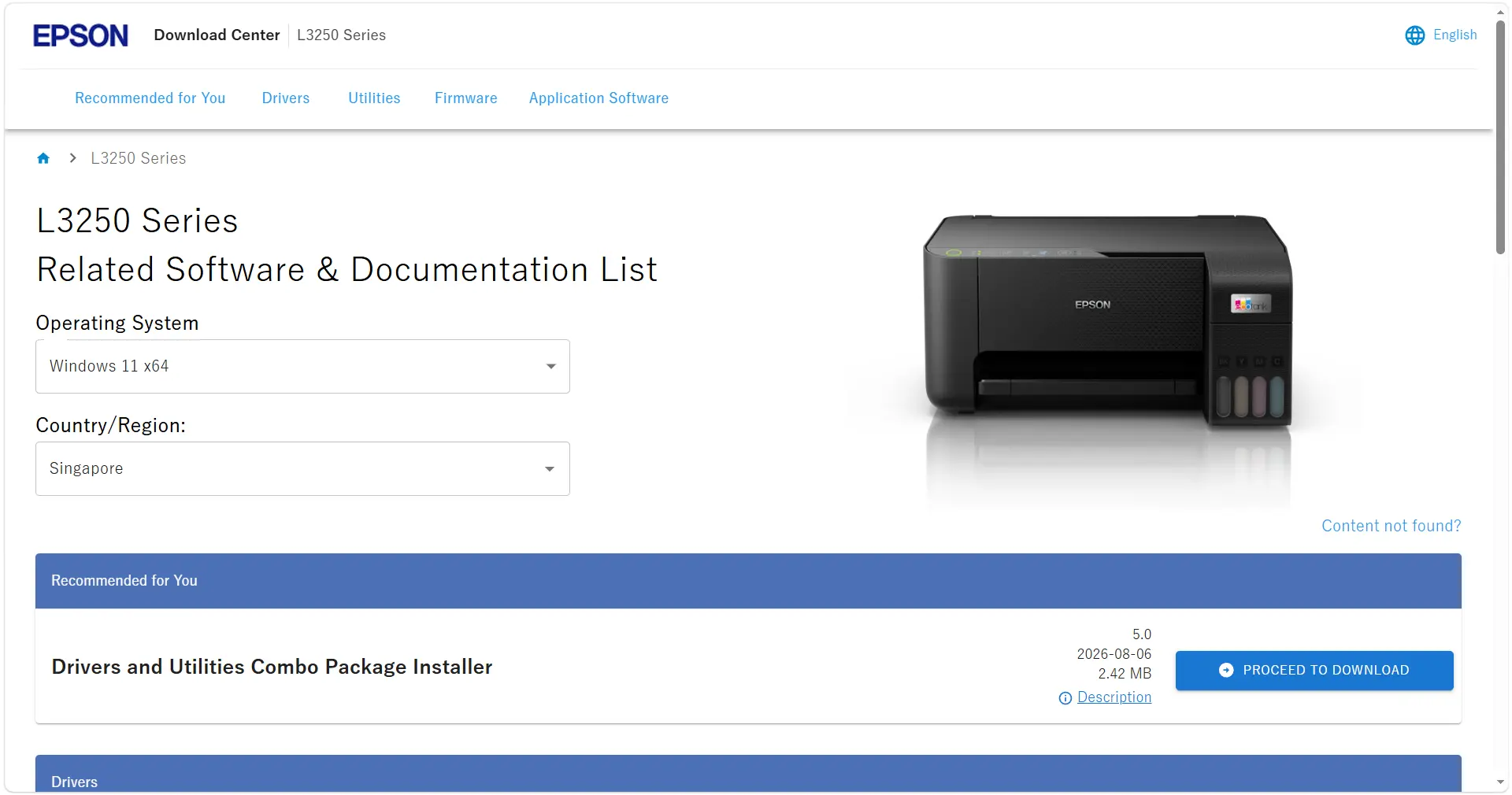
- Follow the instructions supplied with that Epson option, then continue to the Windows test-page check below.
If installation reports an error, make sure the printer is powered on and required cables are secure. On a managed PC, you may need software-installation permission.
Add the Epson L3250 in Windows 11
Use Windows when the printer is already connected. Windows can install many directly connected printers automatically.
- For USB, connect the printer to the PC and turn it on. For Wi-Fi, confirm that the printer and PC are on the same wireless network.
- Open
Settings > Bluetooth & devices > Printers & scanners.
- If the printer is not installed, select Add a printer & scanner , then select Add device beside the desired printer.
- If Windows does not find it, choose the manual-add option beside The printer that I want isn’t listed and follow the Add Printer window.
If automatic installation still fails for a USB-connected printer, select Add a local printer or network printer with manual settings . Choose an existing port and the connected USB port. At the driver choice, use Have Disk only for a supplied driver disc; otherwise choose Windows Update . Print a test page before selecting Finish.
After installation, check Windows Update for updated printer drivers.
Source: Microsoft—add or install a printer · Source: Microsoft—manual installation and recovery
Optional Driver Installation With Fionn Printer Driver
If Windows detects your Epson L3250 but the driver is missing, Fionn Printer Driver can help you look for a matching driver. Check the full model before installing and use Epson Support if you cannot confirm a match.
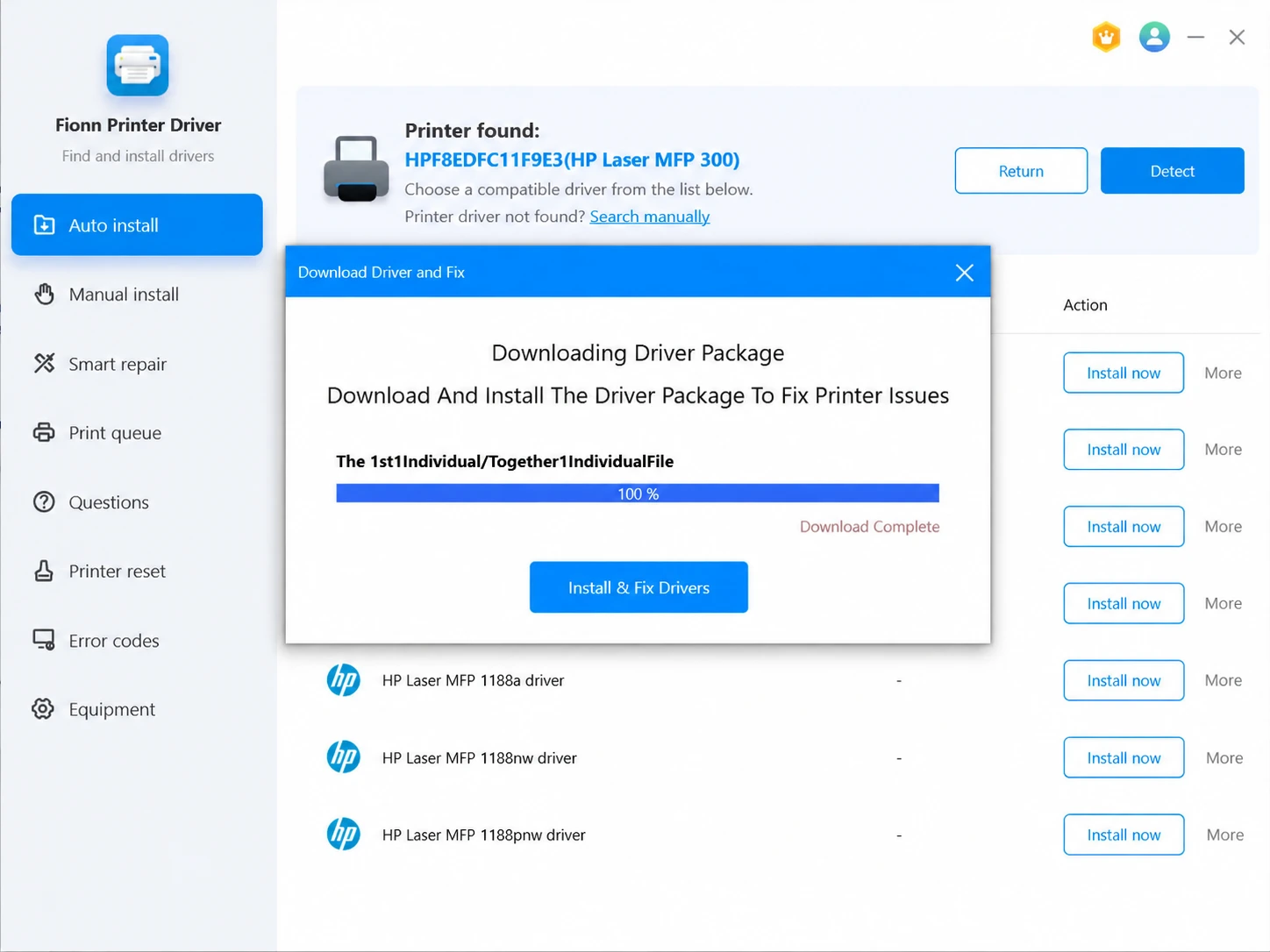
- Turn on your printer and connect it to your computer. Open Fionn Printer Driver, select Auto install in the sidebar, and click Scan Now.
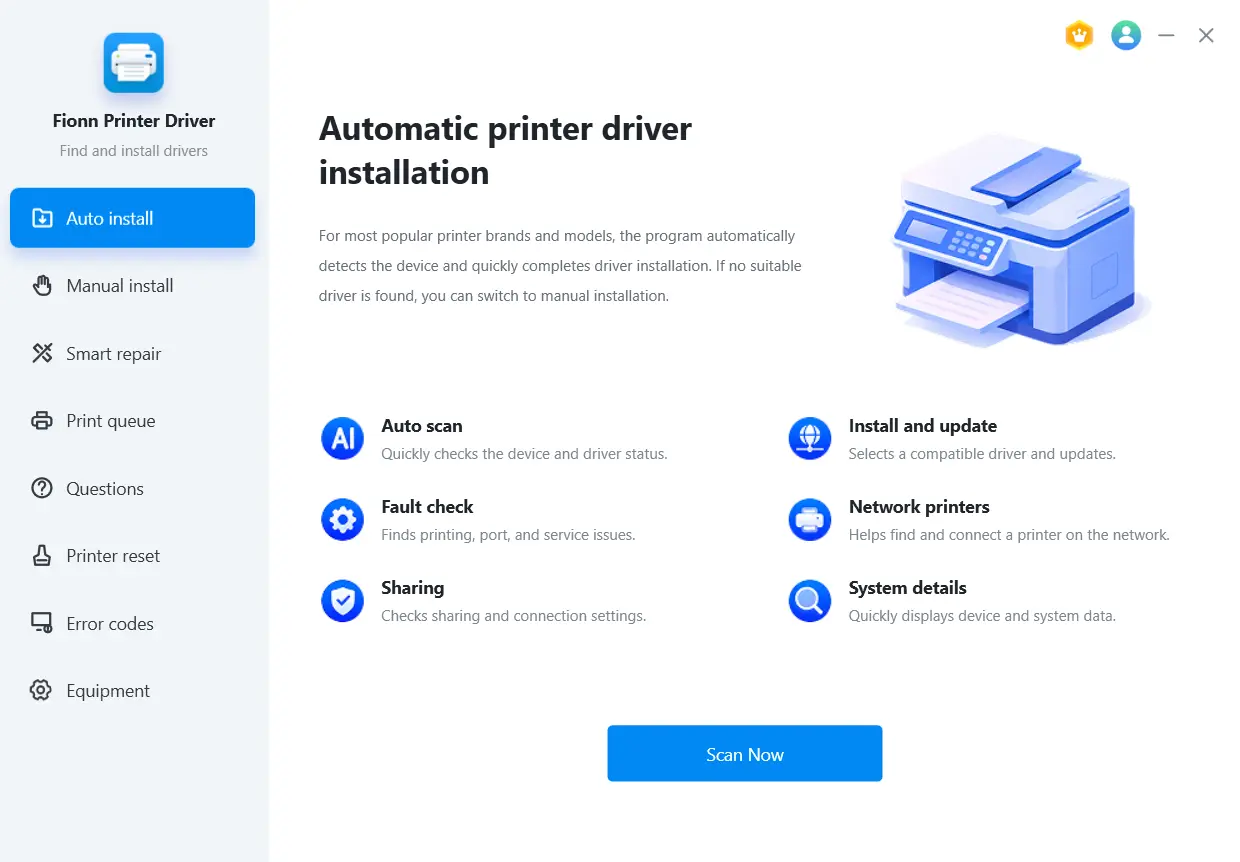
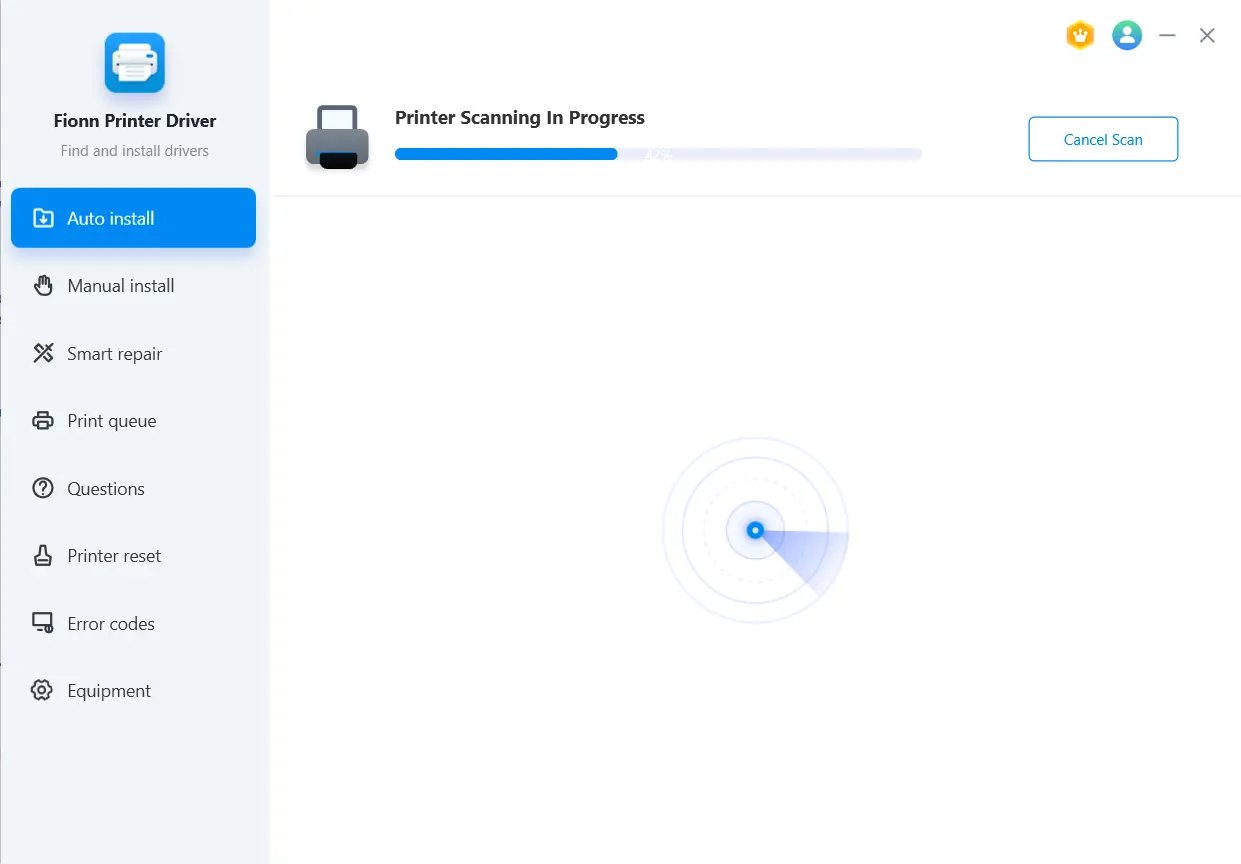
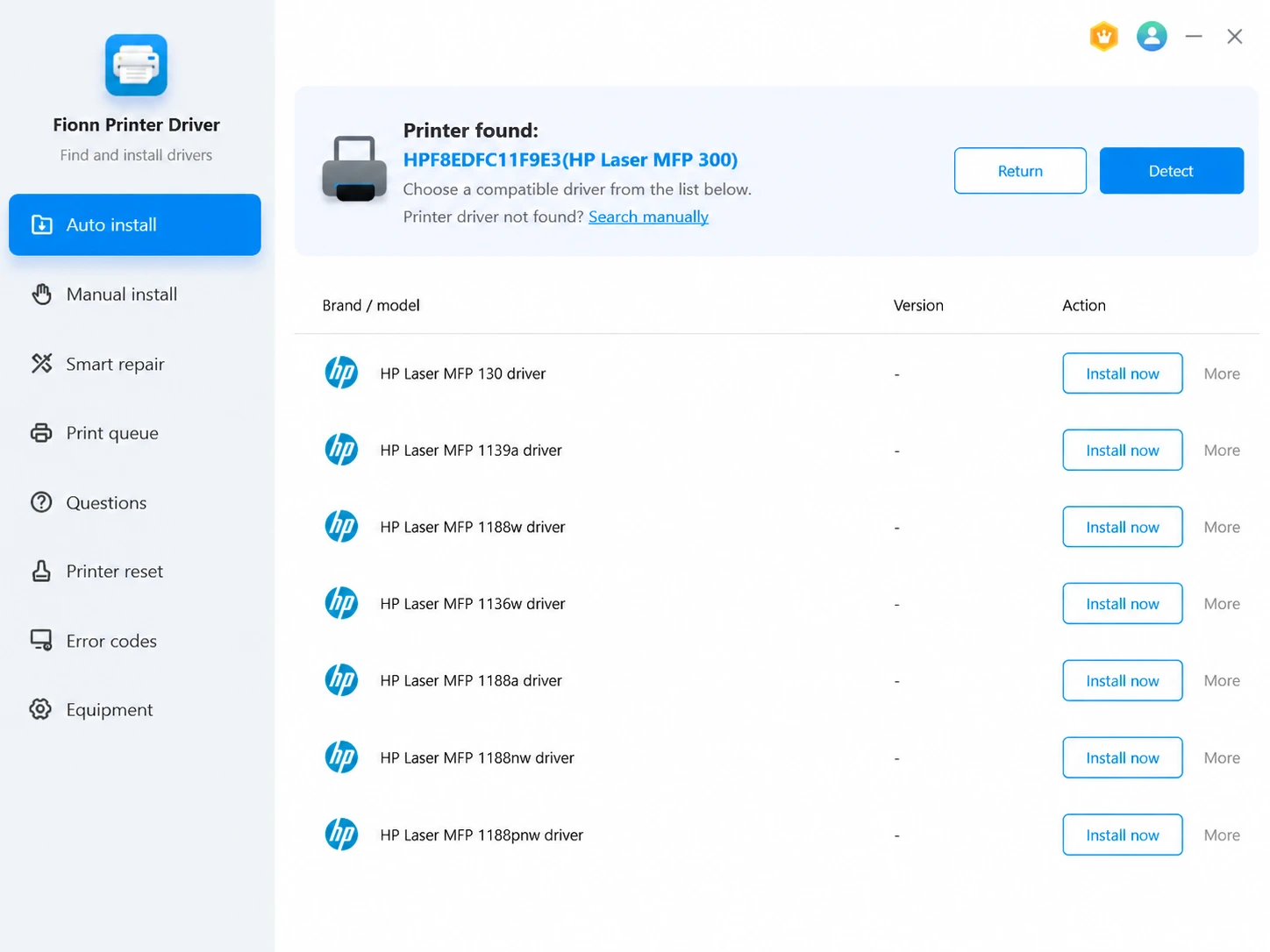
- Keep the printer connected while the scan runs. Wait for the detected printer and the driver list to appear.
- Confirm the printer’s exact model, then click Install now next to the matching driver. If you don’t see a match, click Search manually and look up the full model name.
- When the dialog shows Download Complete, click Install & Fix Drivers and follow the prompts. After installation, print a test page from Windows to confirm the printer works.
Verify Printing and Fix Common Problems
After the printer appears in Windows, select it, choose Printer properties , open the General tab, and select Print Test Page . A printed page confirms that Windows can communicate with the printer.
- Printer not found: Check power and the USB connection, or confirm that the printer and PC use the same Wi-Fi network. Then try adding the printer again.
- Installed but not printing: In Windows 11, run the automated printer troubleshooter in the Get Help app. You can also power-cycle the printer: turn it off, unplug it for 30 seconds, reconnect it, and turn it on.
- Jobs remain queued or the printer is unavailable:
Remove and reinstall the printer from
Settings > Bluetooth & devices > Printers & scanners. If earlier recovery does not work, Microsoft also documents clearing spooler files and restarting the Print Spooler service.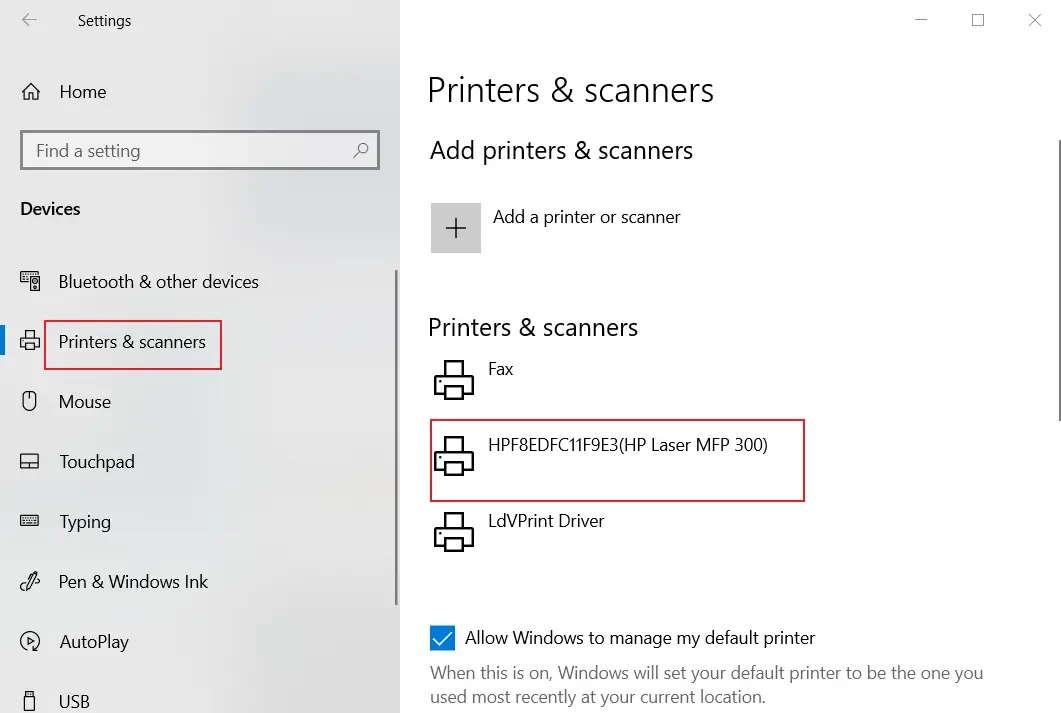
- A different printer receives documents: Under Printer preferences, turn off Let Windows manage my default printer , select the installed printer, and choose Set as default . Its status should change to Default.
Source: Microsoft—print a test page · Source: Microsoft—set a default printer · Source: Microsoft—fix printer connection and printing problems
Conclusion
Start with Epson’s L3250 download area if it presents a package for your confirmed model and Windows version. Otherwise, add the connected printer through Windows 11 and print a test page. If the test page fails, use the Windows Get Help troubleshooter, check the connection, and reinstall the printer if necessary. Fionn Printer Driver can be useful for diagnosing common driver, queue, port, and service issues, but the printed test page remains the outcome check.
FAQ
Does Windows 11 support adding an Epson L3250?
Microsoft’s printer-installation guidance applies to Windows 11. Connect and power on a USB printer, or place the Wi-Fi printer and PC on the same wireless network before adding it.
Where can I get the Epson L3250 driver for Windows 11?
Use Epson’s L3250 Series Download Center and confirm the operating-system selection. The supplied page does not expose a package listing in its retrieved content, so choose only an option Epson actually displays for your confirmed model and operating system.
Why is the printer missing from Printers & scanners?
Check power and the USB cable for a wired connection. For Wi-Fi, confirm that the printer and PC are on the same network. Use Add device, then use Windows’ manual-add option if it is still not discovered.
How do I know installation worked?
Open the installed printer’s Printer properties, select the General tab, and choose Print Test Page. A printed page confirms that Windows can communicate with the printer.
What should I do when the test page fails?
Run the Windows 11 printer troubleshooter in Get Help, check the connection, and remove and reinstall the printer if needed. If jobs remain stuck after earlier recovery, Microsoft also documents clearing spooler files and restarting the Print Spooler service.


